> For the complete documentation index, see [llms.txt](https://help.littledata.io/llms.txt). Markdown versions of documentation pages are available by appending `.md` to page URLs; this page is available as [Markdown](https://help.littledata.io/integrations/facebook-capi/meta-ads-custom-events-verifying-new-and-returning-customer-purchase.md).
# New and Returning Customer Purchase in Meta Ads
In this post, we'll cover how to use Littledata's [New vs Returning customer purchases](/integrations/facebook-capi/how-it-works-shopify-to-meta-conversions-api.md#new-customer-vs-returning-customer-conversions) and use it to boost Meta campaigns.
As marketers, we know that New Customer purchases and Returning Customer purchases are different in nature and shouldn't be treated equally. It's one thing to try to acquire new customers, while it's completely another to optimize ads around returning buyers.
## Adding the purchase events from Littledata
**New customer purchase** and **Returning customer purchase** events can be created from [recipes](/event-editor/recipes.md) in the Event Editor. A recipe is a ready-made event built by Littledata. You add it to your Meta connection in one click.
{% hint style="info" %}
If your store already sends these events, you do not need to do anything. The events keep firing and now show in the Event Editor events list with the **Built by Littledata** label.
{% endhint %}
To add the events:
1. In Littledata, open your Meta connection and go to the **Event Editor** tab.
2. In the **Recommended for your store** section, find **New customer purchase**.
3. Click **Preview** to see what the recipe does, then click **Add event**. Littledata enables the event immediately, so it starts sending on the next first-time order.
4. Do steps 2 and 3 again for **Returning customer purchase**.
The events show in your events list with these names. These are the names Meta receives:
| Event name | What it sends to Meta |
| ------------------------------------------ | ---------------------------------------------------------------------- |
| `New Customer Purchase - Littledata` | A customer's first order only. Subscription renewals are not included. |
| `Returning Customer Purchase - Littledata` | Every order after a customer's first order. |
The recipe card only shows in **Recommended for your store** until you add it. After that, find the event in the events list.
### Customizing the events
A recipe is a starting point. Click **Customize** in the preview to change the recipe before you add it, or [edit the event](/event-editor/edit-an-event.md) at any time after. For example, you can:
* **Exclude wholesale orders.** If you tag B2B orders in Shopify, add a condition to filter out orders tagged `wholesale`. The event then counts DTC buyers only.
* **Exclude a market.** Add a condition on your market handle so orders from that market are not sent. See [Exclude purchases from a specific market](/event-editor/common-setups/exclude-purchases-from-a-specific-market.md).
* **Add data from metafields.** Attach custom data from Shopify metafields, for example a quiz answer, and use it to build more specific audiences in Meta.
{% hint style="warning" %}
If you rename the event, Meta receives it as a different event. Keep the recipe name if you already use the event as a conversion or in audiences.
{% endhint %}
## Verifying the new purchase events
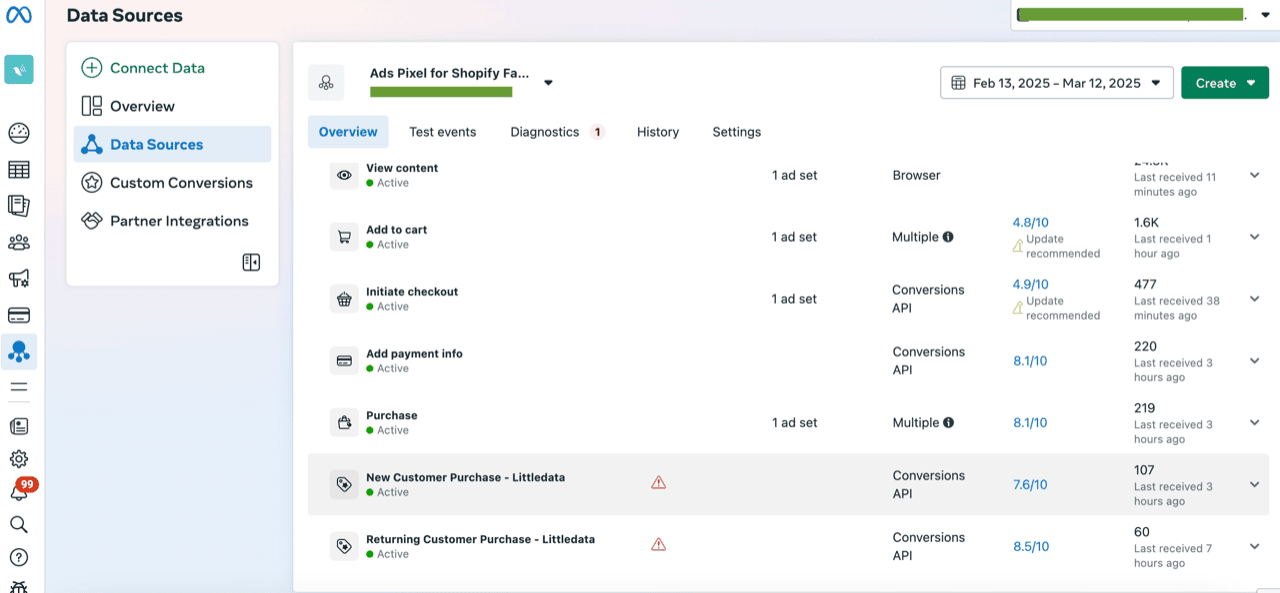
After you add the recipes, the New and Returning Customer Purchase events start to flow into your Meta Events Manager with the next matching orders. At first, Meta marks them as unverified:
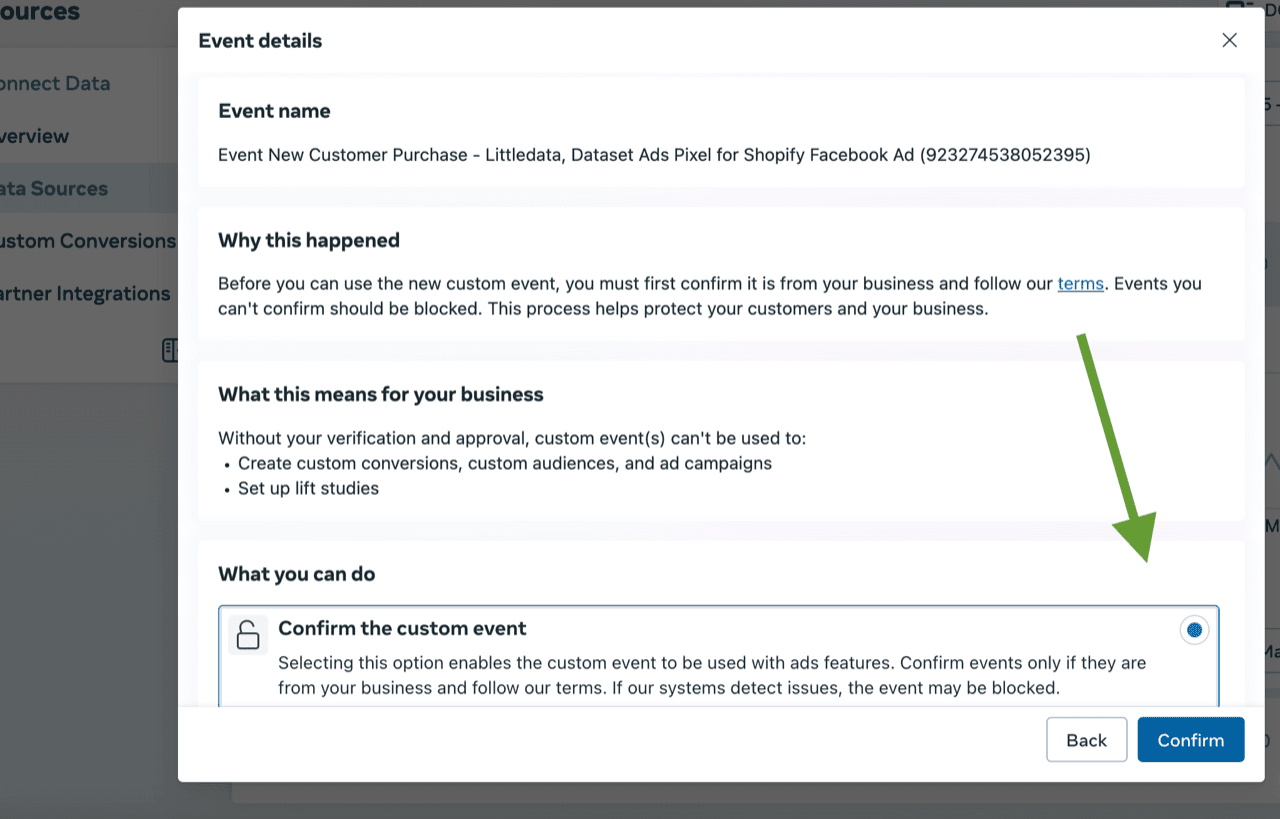
You have to manually confirm each one of them:
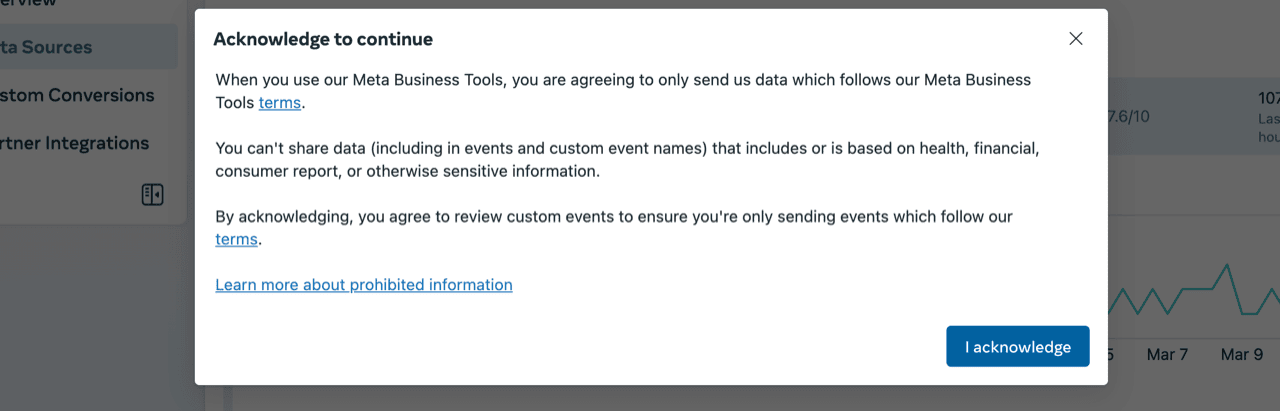
And don't forget to click on the additional acknowledgement popup - sometimes it is NOT appearing right after confirmation, so make sure to refresh the events manager page:
## Using purchase events in audiences
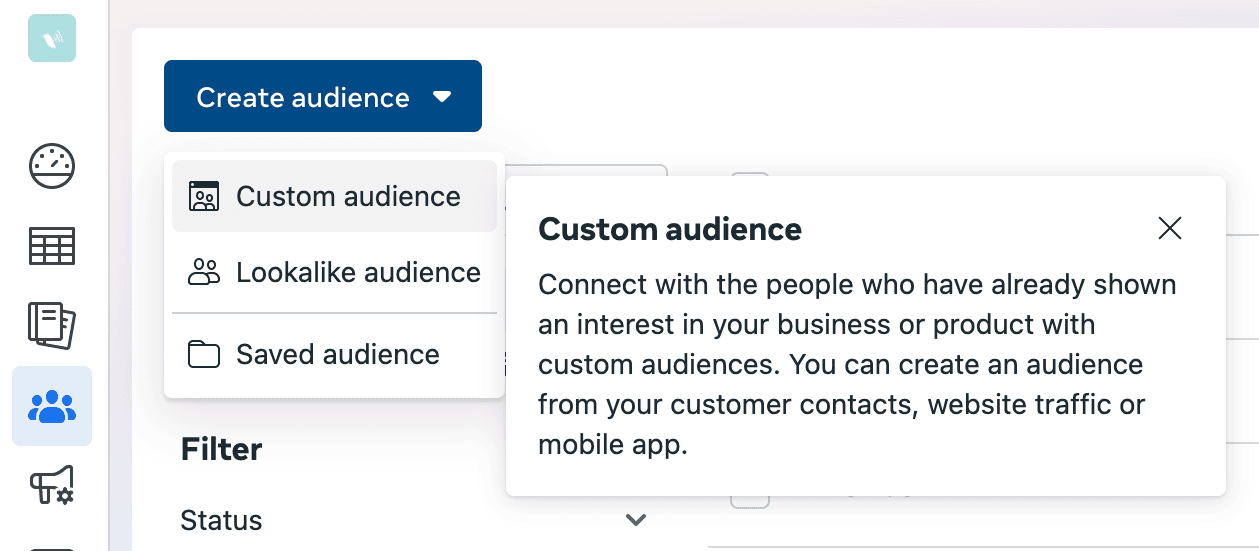
Once all these steps are completed - give your account some time to collect a few verified New and Returning Customer purchase events before going into audiences manager:
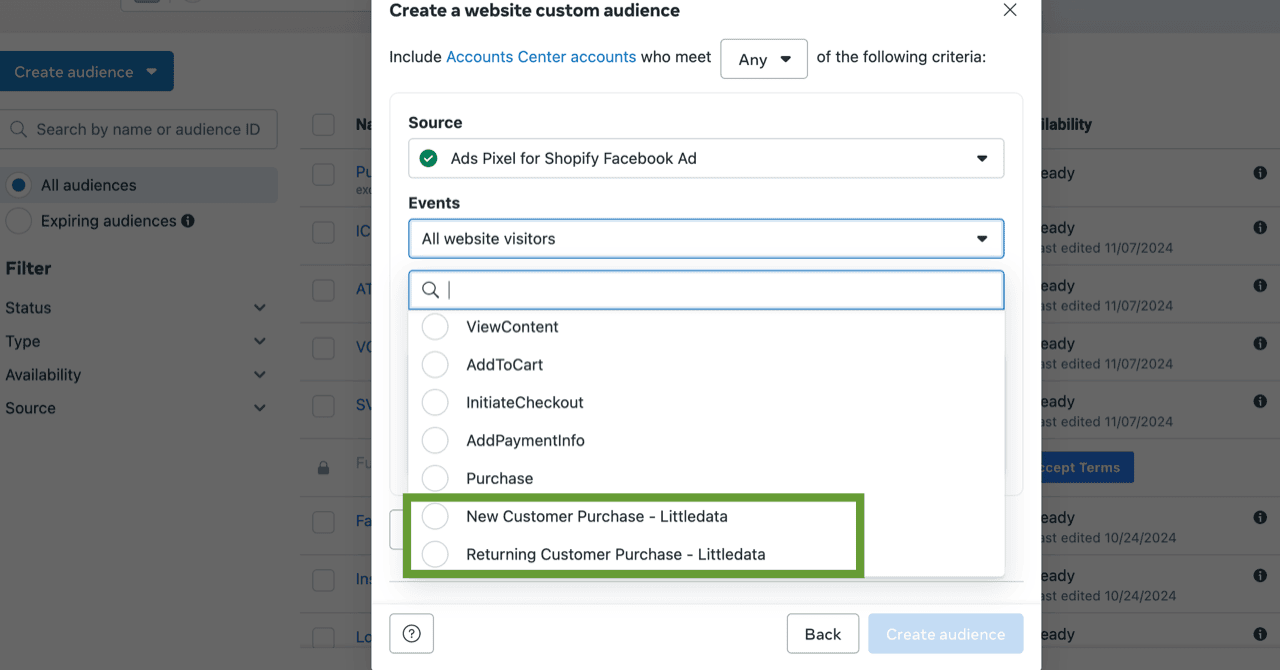
After clicking on Custom audience and choosing your website as source of data, you'll see both New Customer Purchase and Returning Customer Purchase events, ready for you to build audiences around them!
## Using New or Returning Customer Purchase events as conversions
{% hint style="info" %}
You should expect cost per acquisition (CPA) using this New Customer Purchase to go up, since returning customers are inherently easier to convert. As such you should be willing to bid more for new customers.
{% endhint %}
In order to optimize campaigns around these events you need to simply choose the proper one from the Conversion dropdown when setting up the ad set:

A campaign setup like this will try to "find" new customers, proactively targeting more likely to buy for the first time.
## Measuring new and/or returning customer purchases in Meta ads reports
If you setup one of these events as the optimization signal, like in the screenshot above, the Results column would show you how many optimization events were attributed to matching campaign (or ad set or ad, depending on the report you're looking at).
But if you want to surface how many new or returning customer purchases happened for any campaign (even for the ones that are NOT optimized around this specific conversions i.e you want to see how many return customers purchased for a campaign aimed at ANY purchase) like this:

\
..you need to create a custom conversion based off of our proprietary custom events. You simply name it accordingly and choose our custom event from the Event dropdown list:

This way you can know if any active campaign is bringing in new customers or sell to the ones that already bought from you in the past.