> For the complete documentation index, see [llms.txt](https://help.littledata.io/llms.txt). Markdown versions of documentation pages are available by appending `.md` to page URLs; this page is available as [Markdown](https://help.littledata.io/integrations/google-ads/google-ads-conversions-id.md).
# Your Google Ads conversion ID
You don't need to copy your Google Ads conversion ID into Littledata. Here's how Littledata gets it, and where to find it in Google Ads if you want to check it.
You don't need to copy a conversion ID or conversion label into Littledata. When you connect your Google Ads account in the Littledata app, Littledata reads the account's conversion tracking ID and creates its own conversion actions for you.
This page explains what that means and how to find the conversion ID in Google Ads if you want to check it.
#### How Littledata gets your conversion ID
During setup you sign in with Google and choose your Google Ads account. Littledata then:
* reads the conversion tracking ID of that account (the `AW-` number), and
* creates conversion actions in that account, such as **Purchase - Littledata**.
If you choose **Customize your tracking** during setup, you can pick which conversion actions are created. See the [Shopify to Google Ads installation guide](https://help.littledata.io/integrations/google-ads/google-ads-install-guide).
{% hint style="warning" %}
If your Google Ads account doesn't have conversion tracking set up, Littledata can't find a conversion tracking ID and the connection fails. Set up conversion tracking in Google Ads first, or choose a different account.
{% endhint %}
#### Find your conversion ID in Google Ads
Use these steps if you want to see the conversion ID and label of a conversion action, for example to check that you're looking at the right account.
{% stepper %}
{% step %}
**Open the conversions summary**
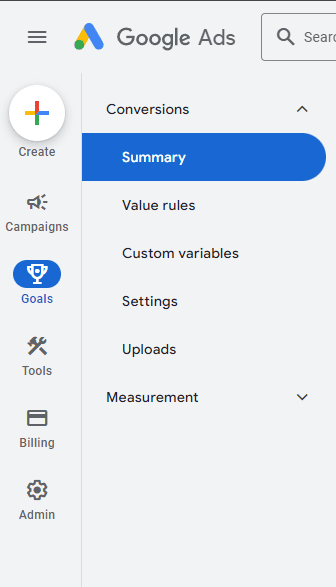
Sign in to Google Ads. In the left sidebar, click **Goals**, open the **Conversions** dropdown and click **Summary**.
{% endstep %}
{% step %}
**Open a conversion action**
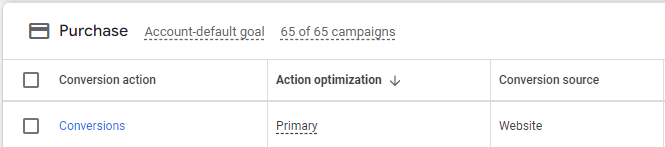
Click the name of the conversion action you want to check. Conversion actions created by Littledata end in "Littledata", for example **Purchase - Littledata**.
{% endstep %}
{% step %}
**View the conversion ID and label**
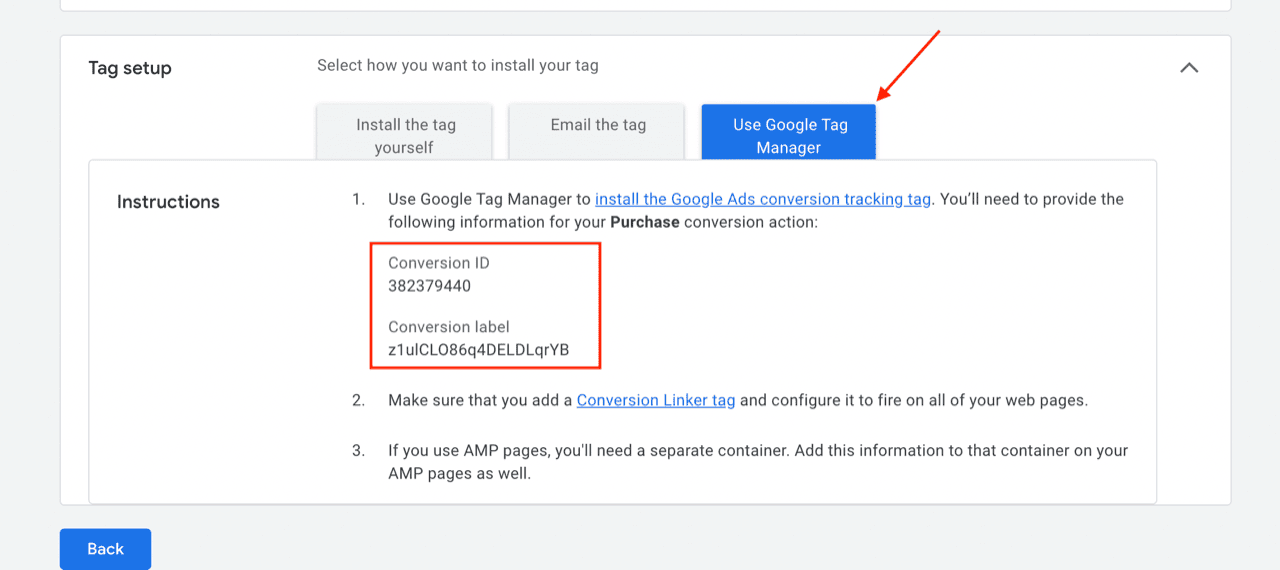
Scroll down to **Tag setup** and open it. Click **Use Google Tag Manager**. Google Ads shows the **Conversion ID** and **Conversion label** for this conversion action.
The full tag ID is the conversion ID with `AW-` in front of it, for example `AW-123456789`.
{% endstep %}
{% endstepper %}
{% hint style="info" %}
You don't need to add a Google Ads tag yourself, in Google Tag Manager or anywhere else. Littledata adds its own tracking to your store when you connect Google Ads.
{% endhint %}
#### Related articles
* [Shopify to Google Ads installation guide](https://help.littledata.io/integrations/google-ads/google-ads-install-guide)
* [How it works: Shopify to Google Ads](https://help.littledata.io/integrations/google-ads/google-ads-how-it-works)
* [Google Ads troubleshooting guide](https://help.littledata.io/integrations/google-ads/google-ads-troubleshooting-guide)
* [Google Ads FAQ](https://help.littledata.io/integrations/google-ads/frequently-asked-questions)