> For the complete documentation index, see [llms.txt](https://help.littledata.io/llms.txt). Markdown versions of documentation pages are available by appending `.md` to page URLs; this page is available as [Markdown](https://help.littledata.io/integrations/shopify-klaviyo/klaviyo-click-tracking.md).
# Tracking Klaviyo email and SMS clicks
Tag your Klaviyo SMS links with UTM parameters so GA4 shows SMS traffic, and the orders Littledata tracks, in the SMS channel.
Tag the links in your [Klaviyo SMS campaigns and flows](https://www.klaviyo.com/sms-marketing) with UTM parameters. GA4 then shows these visits in the SMS channel, and the orders Littledata tracks are credited to your SMS messages.
{% hint style="warning" %}
**Check this first if you have been using Klaviyo for a while.** Klaviyo changed the default `utm_medium` on 2 June 2025, from `campaign` and `flow` to **Message type**. Accounts that had saved custom UTM settings before that date kept their old values — often a static `email`.
If that is your account, every SMS link you send is tagged `utm_medium=email`, and GA4 files those visits under **Email** rather than SMS. Step 1 below fixes it.
{% endhint %}
### Set up UTM tracking for SMS in Klaviyo
Set this once at account level and it covers both campaigns and flows. You only need the per-message steps if you want different values for one message.
{% stepper %}
{% step %}
**Set Medium to Message type**
In Klaviyo, click your account name in the bottom left, select **Settings**, then go to **Other** > **UTM tracking**.
Set **Medium (utm\_medium)** to **Message type** for both the Campaign value and the Flow value, then click **Save**.
Message type resolves to the channel that sent the link: `sms` for text messages and `email` for emails. GA4 puts visits with medium `sms` in its **SMS** channel group, so one setting keeps every channel in the right place. A static `sms` works too, but only if you never send email from the same account.
| UTM parameter | Campaign value | Flow value |
| ------------- | -------------- | ----------------- |
| Source | Klaviyo | Klaviyo |
| Medium | Message type | Message type |
| Campaign | Campaign name | Flow message name |
| Id | Campaign id | Flow id |
| {% endstep %} | | |
{% step %}
**Turn tracking on by default**
On the same page, toggle **Automatically add UTM parameters to links** on and click **Save**.
This turns UTM tracking on for new campaigns and flow messages. It does not switch it on for existing messages that have it turned off — those you need to enable individually, as in the next step.
{% endstep %}
{% step %}
**Check your existing SMS messages use the account defaults**
For an **SMS campaign**: open the campaign, find the **Tracking** section, turn **Include tracking parameters** on and leave **Customize tracking parameters** off.
For an **SMS flow message**: go to **Flows**, open the flow, and select the message in the flow builder — not in the content editor. Under **Settings**, tick **Enable UTM tracking** and leave **Use custom tracking parameters** unticked.
With the custom option off, Klaviyo shows the parameters as a read-only summary. That is what you want: the message is inheriting your account defaults.
{% endstep %}
{% step %}
**Keep link shortening on**
In SMS messages, Klaviyo's **Automatically shorten links** setting must stay enabled, or the UTM parameters are not added at all. Klaviyo shortens the links to its `klv1.io` domain, which then redirects to your store with the parameters attached.
{% endstep %}
{% step %}
**Check the links**
Send yourself a test SMS. Tap a link: it should land on your store with the UTM parameters in the URL, and `utm_medium=sms` among them.
{% endstep %}
{% endstepper %}
### Use different values for a single message
Only do this when one message needs to differ from the rest. A message with custom parameters stops following your account defaults, so later changes to those defaults will not reach it.
On a campaign, turn on **Customize tracking parameters**. On a flow message, tick **Use custom tracking parameters**. Then set the values you need — for SMS, set Medium to `sms`.
### Check SMS clicks in GA4
{% stepper %}
{% step %}
**Check real-time traffic**
Tap a link in your test SMS. In GA4, go to **Reports** > **Realtime overview** and check that your visit shows up.
{% endstep %}
{% step %}
**Check the Traffic acquisition report**
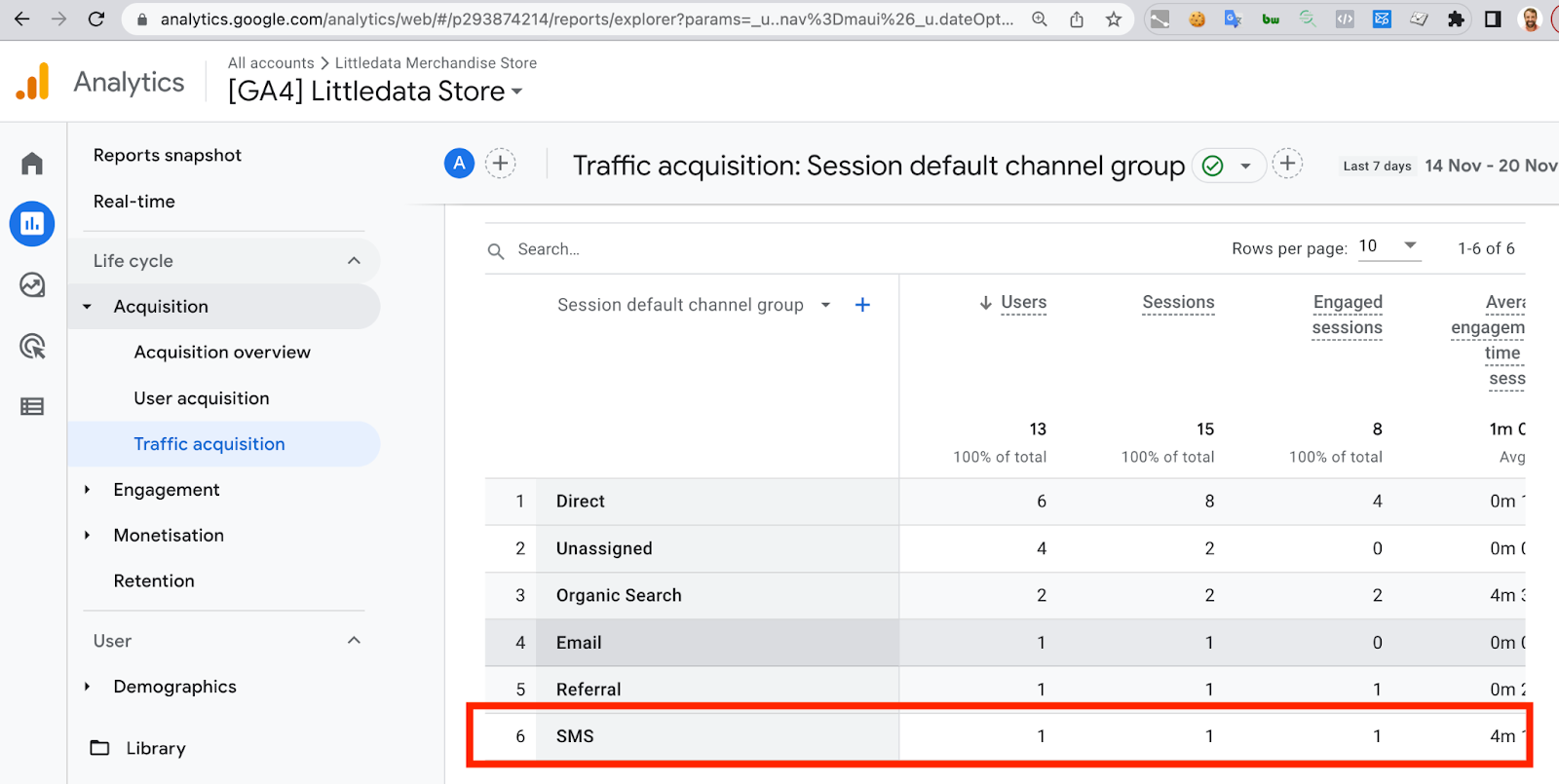
Wait a few hours, then go to **Reports** > **Acquisition** > **Traffic acquisition**. With **Session default channel group** selected, you should see a row for **SMS**.
{% endstep %}
{% step %}
**Compare buyers who came from SMS**
To see how users who first came from an SMS link buy, add a comparison to an ecommerce report. Click **Add comparison**, choose the dimension **First user default channel group** and select **SMS**.
{% endstep %}
{% endstepper %}
### Related articles
* [How to track Klaviyo flows and email campaigns in Google Analytics](https://www.littledata.io/blog/2020/11/25/how-to-track-klaviyo-flows-and-email-campaigns-in-google-analytics) — the same setup for email, and how to report on it in GA4
* [Klaviyo](https://help.littledata.io/integrations/shopify-klaviyo)
* [Google Analytics](https://help.littledata.io/integrations/shopify-to-google-analytics)
* [Using Shopify with Segment and Klaviyo](https://help.littledata.io/integrations/shopify-to-segment/shopify-segment-klaviyo)
* [Use standard UTM tags (in How to fix Unassigned traffic in GA4)](https://help.littledata.io/advanced/troubleshooting/fix-unassigned-traffic-ga4#standard-utm-tagging)