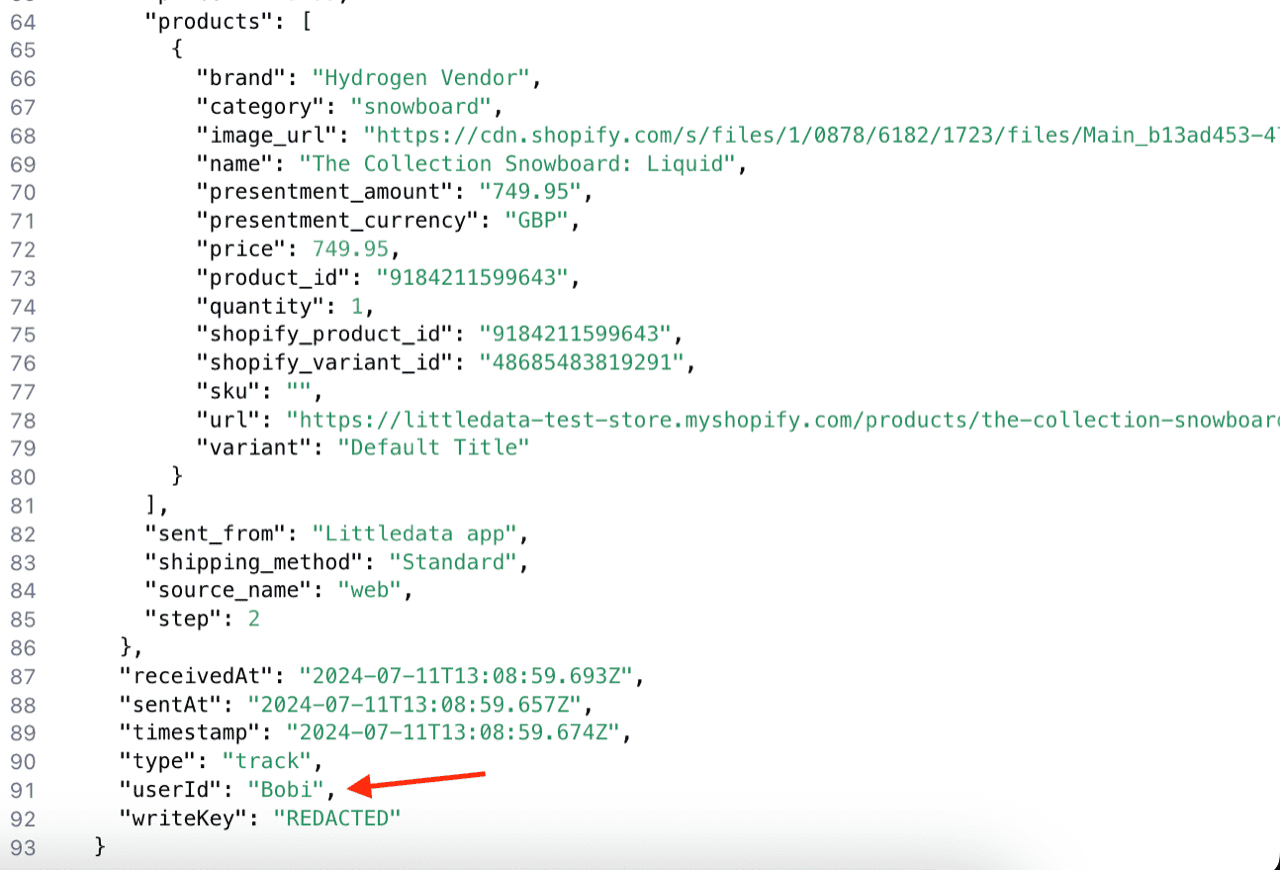
> This is part 1 of 3 of the full documentation (pages 1–100 of 232).
> The content is paginated: fetch every part to see all of it.
> Next part: https://help.littledata.io/llms-full.txt/1
> Page index: https://help.littledata.io/llms.txt

# Welcome to Littledata

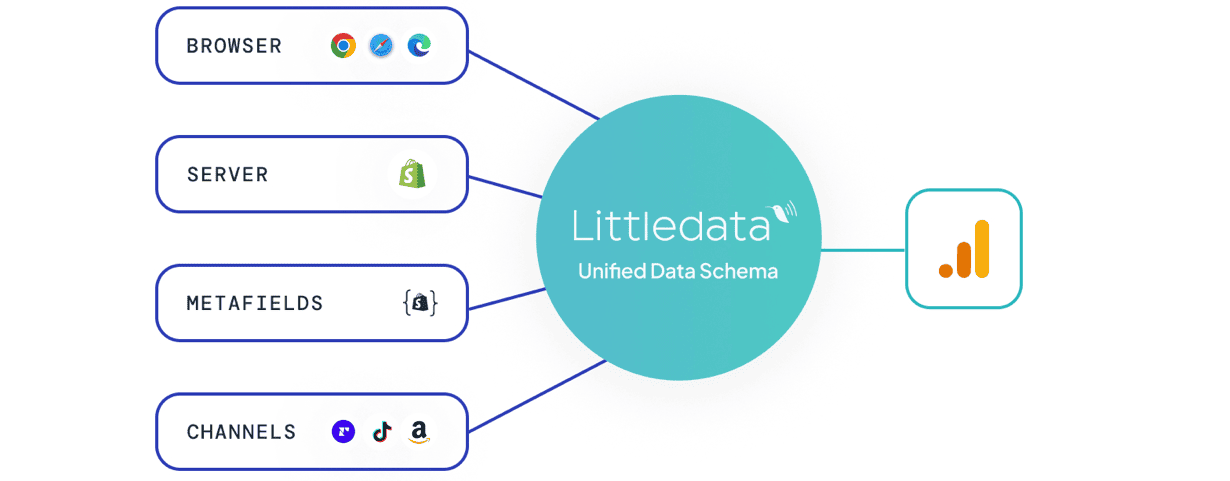
Littledata is the data layer for Shopify. It connects first-party customer and revenue data to your marketing and analytics destinations so you can reliably attribute revenue to the channels driving it. Setup takes minutes, with no custom code or Google Tag Manager required.

<h2 align="center">How can we help?</h2>

<p align="center">Guides, tutorials, and troubleshooting for Littledata's server-side tracking platform on Shopify. Learn how to connect your store, set up destinations, and get the most out of your data.</p>

<button type="button" class="button primary" data-action="search" data-icon="magnifying-glass">Search…</button>

<table data-view="cards"><thead><tr><th></th><th></th><th data-hidden data-card-target data-type="content-ref"></th><th data-hidden data-card-cover data-type="image">Cover image</th></tr></thead><tbody><tr><td><strong>Getting started</strong></td><td>Connect your Shopify store and start sending data to your marketing destinations in minutes.</td><td><a href="https://help.littledata.io/get-started">https://help.littledata.io/get-started</a></td><td><a href="https://3956158252-files.gitbook.io/~/files/v0/b/gitbook-x-prod.appspot.com/o/spaces%2F1QhTbrMraNWciQeDvu1b%2Fuploads%2Fgit-blob-a4d22a5e8772408ec7d119e8d2ca2a5a8c874379%2Fgetting-started.png?alt=media">getting-started.png</a></td></tr><tr><td><strong>Destinations</strong></td><td>Set up and manage data destinations between your Shopify store and marketing platforms.</td><td><a href="https://help.littledata.io/integrations">https://help.littledata.io/integrations</a></td><td><a href="https://3956158252-files.gitbook.io/~/files/v0/b/gitbook-x-prod.appspot.com/o/spaces%2F1QhTbrMraNWciQeDvu1b%2Fuploads%2Fgit-blob-c484a7b36b9c23e2f96970a017261b12d9379655%2Fintegrationss.png?alt=media">integrationss.png</a></td></tr><tr><td><strong>Event Editor</strong></td><td>Control what each destination receives: enable or disable events, edit mappings, add trigger conditions, and create custom events.</td><td><a href="https://help.littledata.io/event-editor/overview">https://help.littledata.io/event-editor/overview</a></td><td><a href="https://3956158252-files.gitbook.io/~/files/v0/b/gitbook-x-prod.appspot.com/o/spaces%2F1QhTbrMraNWciQeDvu1b%2Fuploads%2Fgit-blob-f00a6baa5a5bb927da3cff1258c7ff8e4d265180%2Fevent-editor-cover.svg?alt=media">event-editor-cover.svg</a></td></tr><tr><td><strong>Sources</strong></td><td>Connect Shopify, subscription platforms, and the other sources that feed your tracking data.</td><td><a href="https://help.littledata.io/sources">https://help.littledata.io/sources</a></td><td><a href="https://3956158252-files.gitbook.io/~/files/v0/b/gitbook-x-prod.appspot.com/o/spaces%2F1QhTbrMraNWciQeDvu1b%2Fuploads%2Fgit-blob-36e712d5981f27c1f79cc8cce4ab4a2b8bba46fb%2Fsources-cover.svg?alt=media">sources-cover.svg</a></td></tr><tr><td><strong>Using Google Analytics</strong></td><td>Set up GA4, build reports, explorations, and fix attribution models.</td><td><a href="https://help.littledata.io/google-analytics">https://help.littledata.io/google-analytics</a></td><td><a href="https://3956158252-files.gitbook.io/~/files/v0/b/gitbook-x-prod.appspot.com/o/spaces%2F1QhTbrMraNWciQeDvu1b%2Fuploads%2Fgit-blob-60716084aafe5bfb85b00f7d2feae3d957b2c4b3%2Fgoogle-analytics.png?alt=media">google-analytics.png</a></td></tr><tr><td><strong>Partner recipes</strong></td><td>Using Littledata with Recharge, Klaviyo, and other popular Shopify apps.</td><td><a href="https://help.littledata.io/partner-recipes">https://help.littledata.io/partner-recipes</a></td><td><a href="https://3956158252-files.gitbook.io/~/files/v0/b/gitbook-x-prod.appspot.com/o/spaces%2F1QhTbrMraNWciQeDvu1b%2Fuploads%2Fgit-blob-fad93a8b8a305871e01738144e5848a2c44585ff%2Fpartner-recipes.png?alt=media">partner-recipes.png</a></td></tr><tr><td><strong>Accounts and billing</strong></td><td>Plans, usage limits, billing cycles, and account permissions.</td><td><a href="https://help.littledata.io/accounts-and-billing">https://help.littledata.io/accounts-and-billing</a></td><td><a href="https://3956158252-files.gitbook.io/~/files/v0/b/gitbook-x-prod.appspot.com/o/spaces%2F1QhTbrMraNWciQeDvu1b%2Fuploads%2Fgit-blob-9d84e9159cdbbac96d03b67796ff8a48e717e45a%2Faccounts-and-billing.png?alt=media">accounts-and-billing.png</a></td></tr><tr><td><strong>Advanced use</strong></td><td>API references, ecommerce schemas, data layer, and pipeline settings.</td><td><a href="https://help.littledata.io/advanced">https://help.littledata.io/advanced</a></td><td><a href="https://3956158252-files.gitbook.io/~/files/v0/b/gitbook-x-prod.appspot.com/o/spaces%2F1QhTbrMraNWciQeDvu1b%2Fuploads%2Fgit-blob-bba8b0d1ceb38a3802b247cdb95befe2cb4b41db%2Fadvanced-use.png?alt=media">advanced-use.png</a></td></tr></tbody></table>

***

Can't find what you're looking for? Reach out at <help@littledata.io> or chat with us inside the app.


# Install Littledata on your Shopify store

This guide covers how to install Littledata on your Shopify store and enable the tracking script. Once set up, Littledata automatically captures storefront activity and sends it to your connected destinations.

{% stepper %}
{% step %}
**Install from the Shopify App Store**

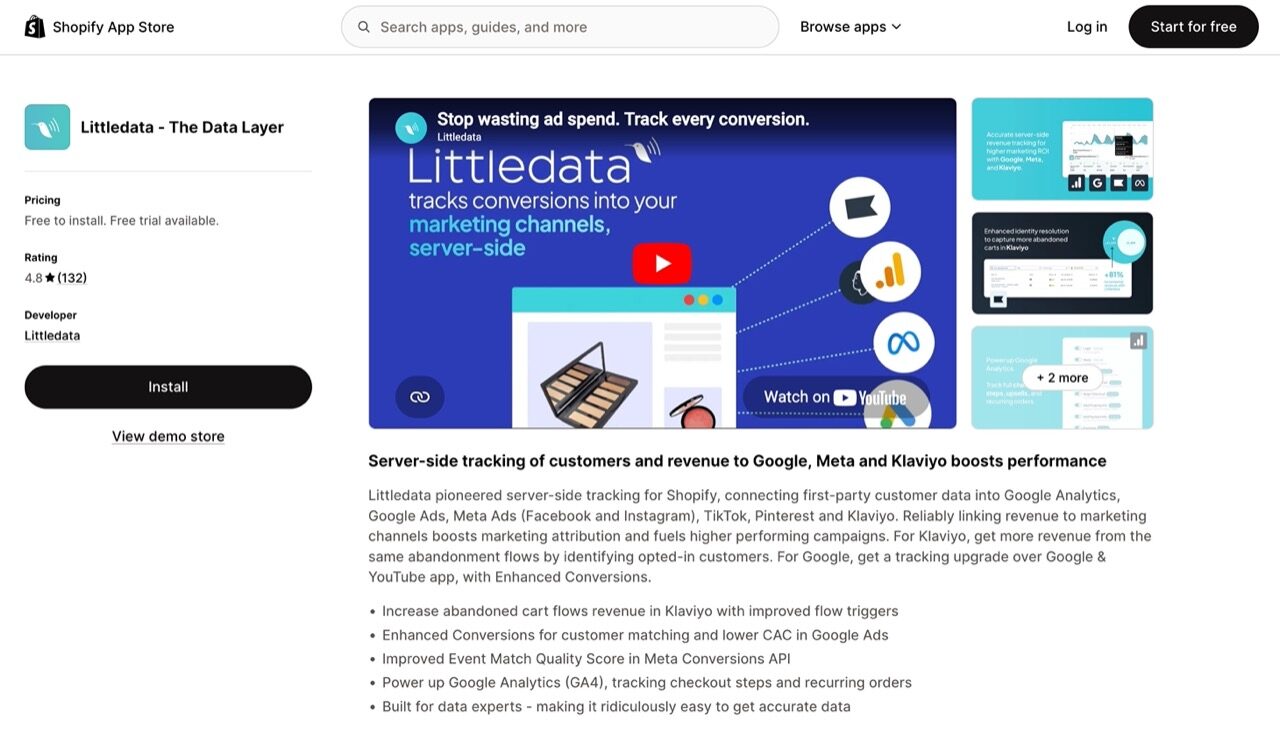
Visit the [Littledata listing on the Shopify App Store](https://apps.shopify.com/littledata) and click **Install**.

<div data-with-frame="true"><figure><img src="https://3956158252-files.gitbook.io/~/files/v0/b/gitbook-x-prod.appspot.com/o/spaces%2F1QhTbrMraNWciQeDvu1b%2Fuploads%2Fgit-blob-0085b1be3cf791bfa4fcba2146820612d0f5becb%2Fappstore-screen.jpg?alt=media" alt=""><figcaption></figcaption></figure></div>

You will be redirected to the app install page in your Shopify admin. Review the permissions and click **Install**.
{% endstep %}

{% step %}
**Choose a pricing plan**

After installing, you'll be prompted to select a pricing plan. Pick the plan that best fits your store's needs.

{% hint style="info" %}
Need help deciding? See our guide on [choosing a plan](/accounts-and-billing/choosing-a-plan) for a detailed comparison of available plans.
{% endhint %}
{% endstep %}

{% step %}
**Connect your store**

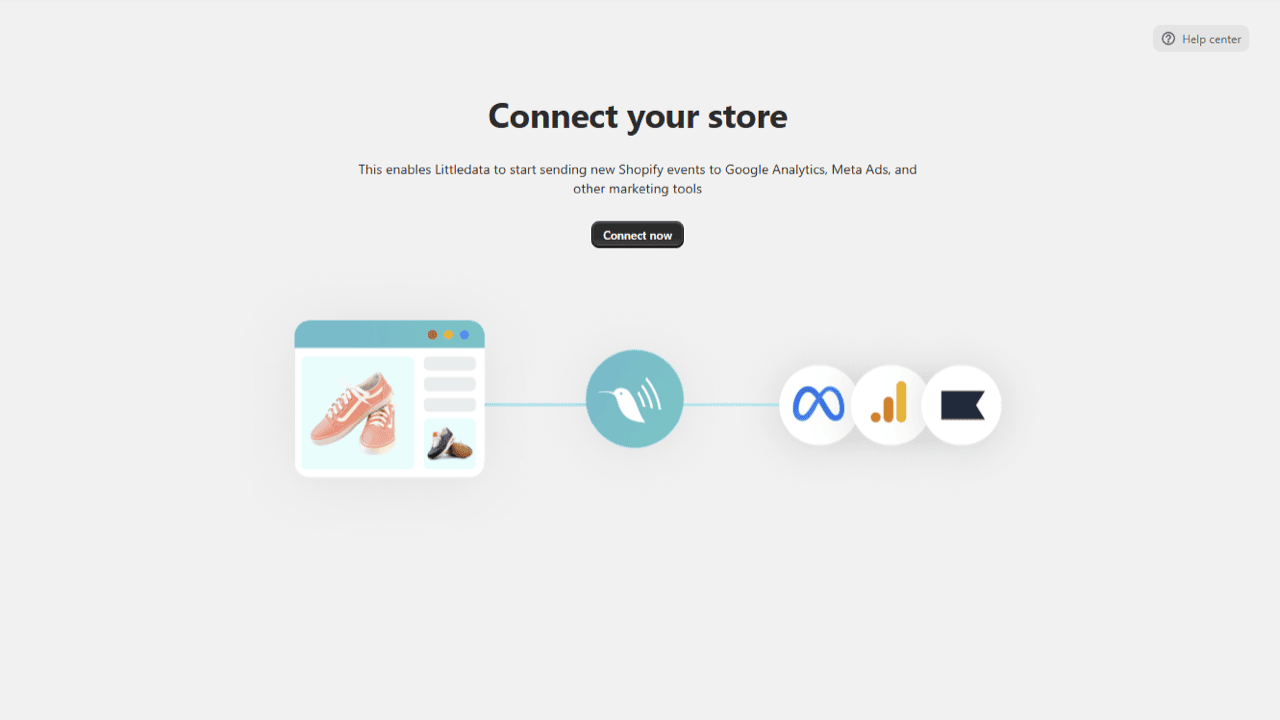
After selecting your plan, you will be prompted to connect your Shopify store. Click **Connect now** to get started.

<div data-with-frame="true"><figure><img src="https://3956158252-files.gitbook.io/~/files/v0/b/gitbook-x-prod.appspot.com/o/spaces%2F1QhTbrMraNWciQeDvu1b%2Fuploads%2Fgit-blob-8744d14be178dbc5eb6b1468ac511d94ee2478a6%2F1.png?alt=media" alt=""><figcaption></figcaption></figure></div>
{% endstep %}

{% step %}
**Enable the Littledata tracking script**

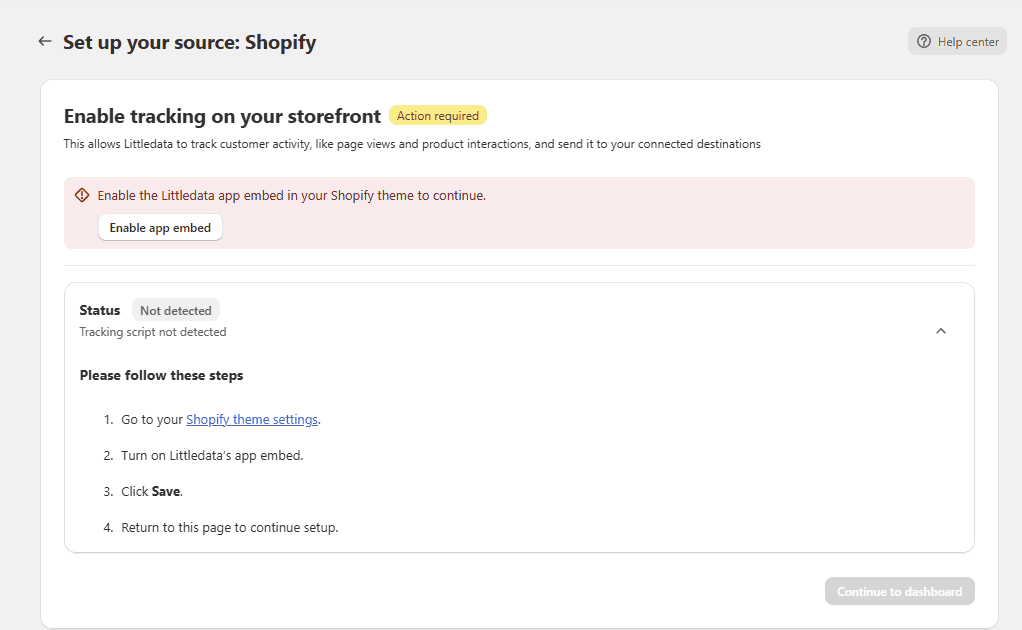
This is a critical step. On the **Set up your source: Shopify** screen, you will see that the tracking script status is **Not detected**. Click **Enable app embed** to proceed.

<div data-with-frame="true"><figure><img src="https://3956158252-files.gitbook.io/~/files/v0/b/gitbook-x-prod.appspot.com/o/spaces%2F1QhTbrMraNWciQeDvu1b%2Fuploads%2Fgit-blob-a9a638a553bac47f3e26527617ff313a4d624dbc%2F2.png?alt=media" alt=""><figcaption></figcaption></figure></div>
{% endstep %}

{% step %}
**Save the app embed in Shopify**

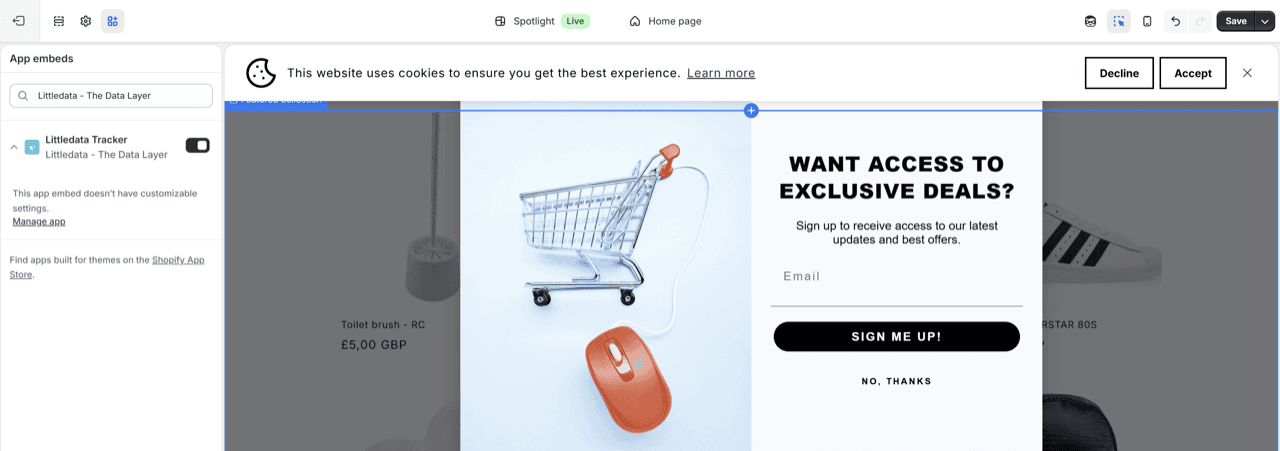
You will be redirected to the Shopify Theme editor. The **Littledata Tracker** app embed will already be enabled in the left sidebar. All you need to do is click **Save** in the upper right corner of your screen.

<div data-with-frame="true"><figure><img src="https://3956158252-files.gitbook.io/~/files/v0/b/gitbook-x-prod.appspot.com/o/spaces%2F1QhTbrMraNWciQeDvu1b%2Fuploads%2Fgit-blob-9badbdecacb99681e55af7e63e24e397db16615e%2F3.png?alt=media" alt=""><figcaption></figcaption></figure></div>
{% endstep %}

{% step %}
**Go back to Littledata**

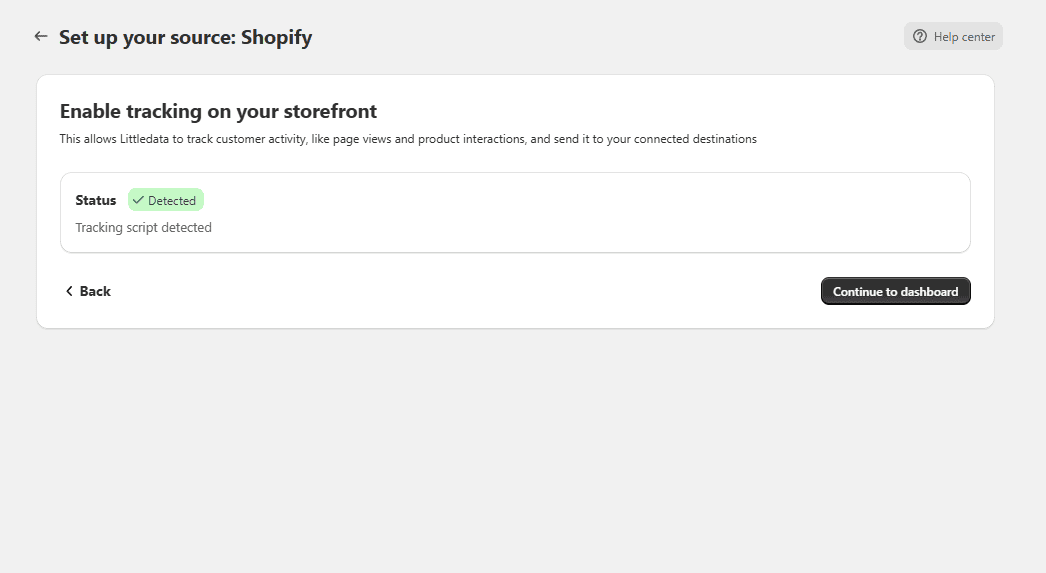
Head back to the Littledata app. The tracking script will now show a **Detected** status. Click **Continue to dashboard** to move on.

<div data-with-frame="true"><figure><img src="https://3956158252-files.gitbook.io/~/files/v0/b/gitbook-x-prod.appspot.com/o/spaces%2F1QhTbrMraNWciQeDvu1b%2Fuploads%2Fgit-blob-2e7301236cb744686a3d6de43d93db1ee685e286%2F4.png?alt=media" alt=""><figcaption></figcaption></figure></div>
{% endstep %}

{% step %}
**You're all set!**

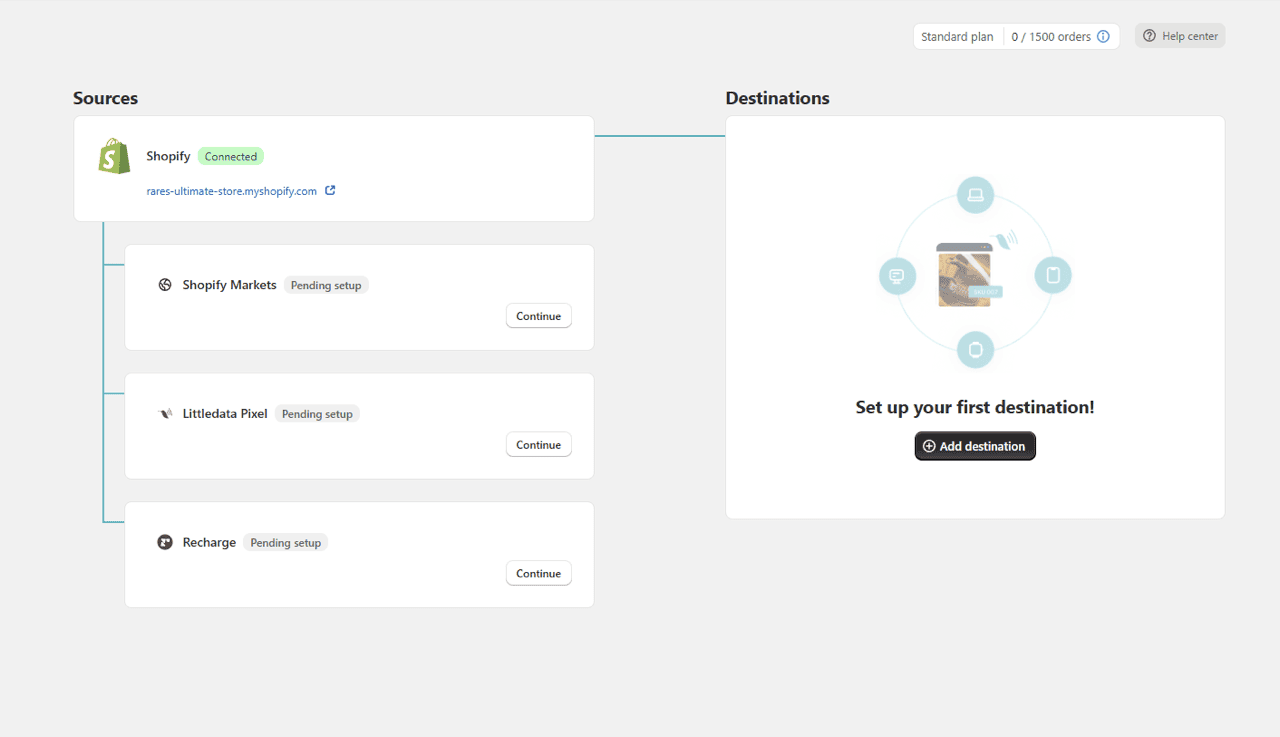
You will land on the Littledata dashboard where your Shopify store is connected and ready to go. From here you can set up your desired data destinations (Google Analytics, Meta Ads, Klaviyo, and more) by clicking **Add destination**.

<div data-with-frame="true"><figure><img src="https://3956158252-files.gitbook.io/~/files/v0/b/gitbook-x-prod.appspot.com/o/spaces%2F1QhTbrMraNWciQeDvu1b%2Fuploads%2Fgit-blob-3fa0b4944f1a6b81588ff82044048e384c06fd97%2F5.png?alt=media" alt=""><figcaption></figcaption></figure></div>
{% endstep %}
{% endstepper %}

{% columns %}
{% column %}
**Next steps**

Now that your Shopify store is connected, set up your first data destination.

Connect your store to Google Analytics, Meta Ads, Klaviyo, and more. Most destinations take under 10 minutes to set up.
{% endcolumn %}

{% column %}

<table data-view="cards"><thead><tr><th></th><th></th><th data-hidden data-card-target data-type="content-ref"></th><th data-hidden data-card-cover data-type="image">Cover image</th></tr></thead><tbody><tr><td><strong>Explore destinations</strong></td><td></td><td><a href="/integrations/overview">Overview</a></td><td><a href="https://3956158252-files.gitbook.io/~/files/v0/b/gitbook-x-prod.appspot.com/o/spaces%2F1QhTbrMraNWciQeDvu1b%2Fuploads%2Fgit-blob-c484a7b36b9c23e2f96970a017261b12d9379655%2Fintegrationss.png?alt=media">integrationss.png</a></td></tr></tbody></table>
{% endcolumn %}
{% endcolumns %}


# How server-side tracking works

### Browser (client-side) tracking

During the automatic [installation process](https://help.littledata.io/integrations/shopify-to-google-analytics/littledata-shopify-install-guide), Littledata adds a data layer and a tracking script to every page of your store.

* A `LittledataLayer` JavaScript object is added to every page. You can also use it with [Google Tag Manager (GTM)](https://help.littledata.io/integrations/shopify-to-google-analytics/google-tag-manager-faq).
* A small tracking script loads through Littledata's [app embed](https://help.littledata.io/advanced/developer/littledata-app-embed-how-it-works) in your Shopify theme.
* Each marketing platform's own tracking library then loads on the page.
* The script sends cookie identifiers to Littledata's servers, so the shopper's journey stays connected.

### Server-side tracking

During setup, Littledata also adds a set of webhooks to your Shopify store. Each time a shopper takes an action, like updating a cart or placing an order, Shopify notifies Littledata. Littledata's servers then send that event to your marketing platforms.

This approach has several benefits:

* A smaller script in the browser, so pages load faster.
* Complete tracking of the checkout, including orders, post-purchase upsells, refunds and returns.
* No missed or double-counted orders from the order status page.
* More accurate marketing attribution, because sessions are stitched together across checkout types.
* A consistent identity for each shopper over time.
* Less spam, because only Littledata's servers send these events to your destinations.

## Why use server-side tracking

* **Ad blockers and browser limits:** when ad blockers or iOS and Safari restrictions block a platform's own script, Littledata can still send events to that platform's servers.
* **Richer data:** Littledata adds extra product and customer data from Shopify to each event.
* **Custom events:** you can customize events before Littledata sends them.

## Destinations that support server-side tracking

All our major destinations support server-side tracking, including:

* [Google Analytics](/integrations/shopify-to-google-analytics/how-it-works-shopify-to-ga4)
* [Google Ads](/integrations/google-ads/google-ads-how-it-works)
* [Meta Ads](/integrations/facebook-capi/how-it-works-shopify-to-meta-conversions-api)
* [TikTok Ads](/integrations/tiktok/how-it-works)
* [Pinterest](/integrations/shopify-to-pinterest/how-it-works)
* [Microsoft Ads](https://help.littledata.io/integrations/microsoft-ads)
* [Klaviyo](/integrations/shopify-klaviyo/how-it-works-shopify-to-klaviyo)
* [Attentive](/integrations/attentive/how-it-works-shopify-to-attentive)
* [Segment](https://help.littledata.io/integrations/shopify-to-segment/how-it-works)

## Supported identifiers

Our advanced tracking script automatically fetches and passes to Littledata servers the following identifiers:

| Identifier              | Description                 |
| ----------------------- | --------------------------- |
| \_ga                    | Google Analytics client ID  |
| \_ga\_\<Measurement ID> | Google Analytics session ID |
| \_gcl\_aw               | Google Ads click identifier |
| \_gcl\_ag               | Google Ads gbraid           |
| \_gcl\_gb               | Google Ads wbraid           |
| \_epik                  | Pinterest click ID          |
| \_ttp                   | Tiktok client ID            |
| ttclid                  | TikTok click ID             |
| fbp                     | Meta client ID              |
| fbc                     | Meta click ID               |
| ajs\_anonymous\_id      | Segment anonymous ID        |

To see which customer details Littledata sends to each destination, see [Shopify data security](https://help.littledata.io/advanced/developer/shopify-data-security).

Need help? Email <help@littledata.io>.

### Related articles

* [Littledata's app embed](https://help.littledata.io/advanced/developer/littledata-app-embed-how-it-works)
* [Known limitations of Littledata's Shopify tracking](https://help.littledata.io/advanced/developer/known-limitations-of-littledatas-shopify-tracking)
* [Shopify data security](https://help.littledata.io/advanced/developer/shopify-data-security)


# Shopify


# Littledata Pixel

Add the Littledata Pixel as a Shopify custom pixel to improve tracking on headless storefronts and send redundant events to Meta, TikTok and Pinterest.

The Littledata Pixel is a custom web pixel you add from your Shopify admin. It works alongside Littledata's server-side tracking to fill gaps and make tracking more reliable, on your Shopify store and on headless storefronts. This page shows you how to add it, which events it sends, and how to check it's working.

{% hint style="info" %}
The Littledata Pixel is not your Meta pixel. You only need one per store, whichever Meta pixels or ad accounts you use. To send data to a different Meta pixel, [change the Pixel ID in your Meta destination](https://help.littledata.io/integrations/facebook-capi/meta-capi-faq#how-do-i-switch-littledata-to-a-new-meta-pixel-or-ad-account).
{% endhint %}

### Key benefits

* **Shopify Hydrogen and headless support:** consistent tracking across a headless storefront.
* **Redundant tracking:** both client-side and server-side events for key destinations.
* **Custom landing page support:** track customers across non-Shopify pages.
* **Accelerated checkout support:** track conversions across Shop Pay and other accelerated checkouts.

### How to add the Littledata Pixel

{% stepper %}
{% step %}
**Start the setup in the Littledata app**

In the Littledata app, find the **Littledata Pixel** under **Sources**. Click **Continue** to start the setup.

<div data-with-frame="true"><figure><img src="https://3956158252-files.gitbook.io/~/files/v0/b/gitbook-x-prod.appspot.com/o/spaces%2F1QhTbrMraNWciQeDvu1b%2Fuploads%2Fgit-blob-c1ad339f0a6b39c832c87be2564dc2d231f7b698%2Flittledata_pixel_pending_setup.png?alt=media" alt="Littledata Pixel with Pending setup status and a Continue button in the Littledata app"><figcaption></figcaption></figure></div>
{% endstep %}

{% step %}
**Open Customer events in Shopify**

In your Shopify admin, go to **Settings** > **Customer events**.
{% endstep %}

{% step %}
**Add a custom pixel**

Click **Add custom pixel**. Name it exactly `Littledata - Advanced Tracking`, then click **Add pixel**.

The name must match so Littledata can detect the pixel on your store.

<div data-with-frame="true"><figure><img src="https://3956158252-files.gitbook.io/~/files/v0/b/gitbook-x-prod.appspot.com/o/spaces%2F1QhTbrMraNWciQeDvu1b%2Fuploads%2Fgit-blob-c8386bdeee25bf38490301c8e559261cc5ea9741%2Fname.png?alt=media" alt="Add custom pixel dialog in Shopify with the pixel name Littledata - Advanced Tracking"><figcaption></figcaption></figure></div>
{% endstep %}

{% step %}
**Set the customer privacy settings**

Under **Permission**, select **Not required**. Under **Data sale**, select **Data collected does not qualify as sale**. This lets the Littledata Pixel load. Littledata handles consent through Shopify's Customer Privacy API.

<div data-with-frame="true"><figure><img src="https://3956158252-files.gitbook.io/~/files/v0/b/gitbook-x-prod.appspot.com/o/spaces%2F1QhTbrMraNWciQeDvu1b%2Fuploads%2Fgit-blob-e9d5d092ee417371b77b33b357c78b17e9352c30%2Fprivacy_settings.png?alt=media" alt="Customer privacy settings with Not required and Data collected does not qualify as sale selected"><figcaption></figcaption></figure></div>

{% hint style="info" %}
On a headless setup, if your cookie banner isn't automatically connected to the Customer Privacy API, check your cookie banner's documentation to connect it manually. If you use a custom storefront instead of Hydrogen, you also need to [include the Customer Privacy API asset](https://shopify.dev/docs/api/customer-privacy#installation-on-a-custom-storefront).
{% endhint %}
{% endstep %}

{% step %}
**Paste the pixel code**

Go back to the Littledata app and copy the custom pixel code. Paste it into the **Code** box of your new pixel in Shopify.
{% endstep %}

{% step %}
**Save and connect**

Click **Save**, then click **Connect**.

<div data-with-frame="true"><figure><img src="https://3956158252-files.gitbook.io/~/files/v0/b/gitbook-x-prod.appspot.com/o/spaces%2F1QhTbrMraNWciQeDvu1b%2Fuploads%2Fgit-blob-91964e09f85db9a59953f3be8fc94ba4c630ab8c%2Fscreenshot-2025-04-02-162249.png?alt=media" alt="Shopify custom pixel page with Save and Connect buttons"><figcaption></figcaption></figure></div>
{% endstep %}
{% endstepper %}

When setup is complete, you go back to the Littledata app. The **Littledata Pixel** shows **Connected** once the pixel is detected on your store.

### Redundant tracking

Added on top of Littledata's server-side tracking, the Littledata Pixel gives you fully redundant tracking in destinations that accept both client-side and server-side events:

* [Meta](https://help.littledata.io/integrations/facebook-capi/how-it-works-shopify-to-meta-conversions-api)
* [TikTok](https://help.littledata.io/integrations/tiktok/how-it-works)
* [Pinterest](https://help.littledata.io/integrations/shopify-to-pinterest/how-it-works)

This follows Meta's best practice for a [redundant setup](https://developers.facebook.com/docs/marketing-api/conversions-api/guides/end-to-end-implementation/).

{% hint style="info" %}
The Littledata Pixel does not send events to Google Analytics 4 or Google Ads. Those destinations get browsing events from Littledata's [app embed](https://help.littledata.io/advanced/developer/littledata-app-embed-how-it-works) and purchases from Littledata's servers.
{% endhint %}

#### Events the pixel collects

The pixel improves tracking of cart, checkout and purchase events for Meta Conversions API, TikTok and Pinterest.

| Destinations            | Web pixel event          | Meta event           | Description                                |
| ----------------------- | ------------------------ | -------------------- | ------------------------------------------ |
| Meta, TikTok, Pinterest | `product_added_to_cart`  | `AddToCart`          | An item is added to the cart               |
| Meta, TikTok            | `checkout_started`       | `InitiateCheckout`\* | A checkout starts                          |
| Meta, TikTok            | `payment_info_submitted` | `AddPaymentInfo`\*   | The customer submits payment info          |
| Meta, TikTok, Pinterest | `checkout_completed`     | `Purchase`\*         | The checkout is completed (thank you page) |

\*An extra `PageView` is sent with this event.

### Troubleshooting

#### Littledata Pixel status

Littledata checks regularly that both the tracking script (through the app embed) and the custom pixel are detected on your store. In the Littledata app, the **Littledata Pixel** shows one of these statuses:

| Status           | What it means                                | What to do                                    |
| ---------------- | -------------------------------------------- | --------------------------------------------- |
| **Connected**    | The pixel is detected on your store.         | Nothing.                                      |
| **Not detected** | Littledata's check could not find the pixel. | Click **Fix now** and follow the setup again. |

{% hint style="warning" %}
Make sure the pixel is named exactly `Littledata - Advanced Tracking`.
{% endhint %}

#### Check that the pixel loads

{% stepper %}
{% step %}
**Open the pixel test**

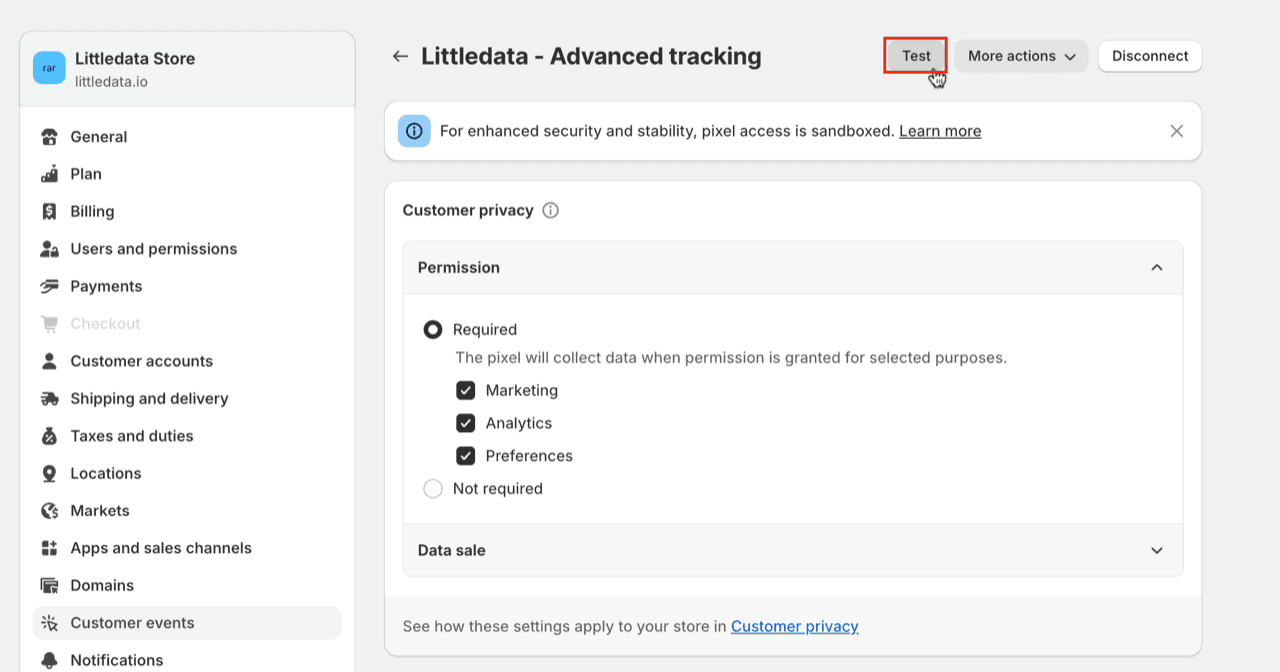
In your Shopify admin, go to **Settings** > **Customer events** and open the **Littledata - Advanced Tracking** pixel. Click **Test** to open your store with the pixel helper.

<div data-with-frame="true"><figure><img src="https://3956158252-files.gitbook.io/~/files/v0/b/gitbook-x-prod.appspot.com/o/spaces%2F1QhTbrMraNWciQeDvu1b%2Fuploads%2Fgit-blob-690ac6abbfcee9945c22c7442d9f5941875ee5bb%2Fweb-pixel-test.png?alt=media" alt="Littledata - Advanced tracking pixel page in Shopify with the Test button highlighted"><figcaption></figcaption></figure></div>
{% endstep %}

{% step %}
**Check the events**

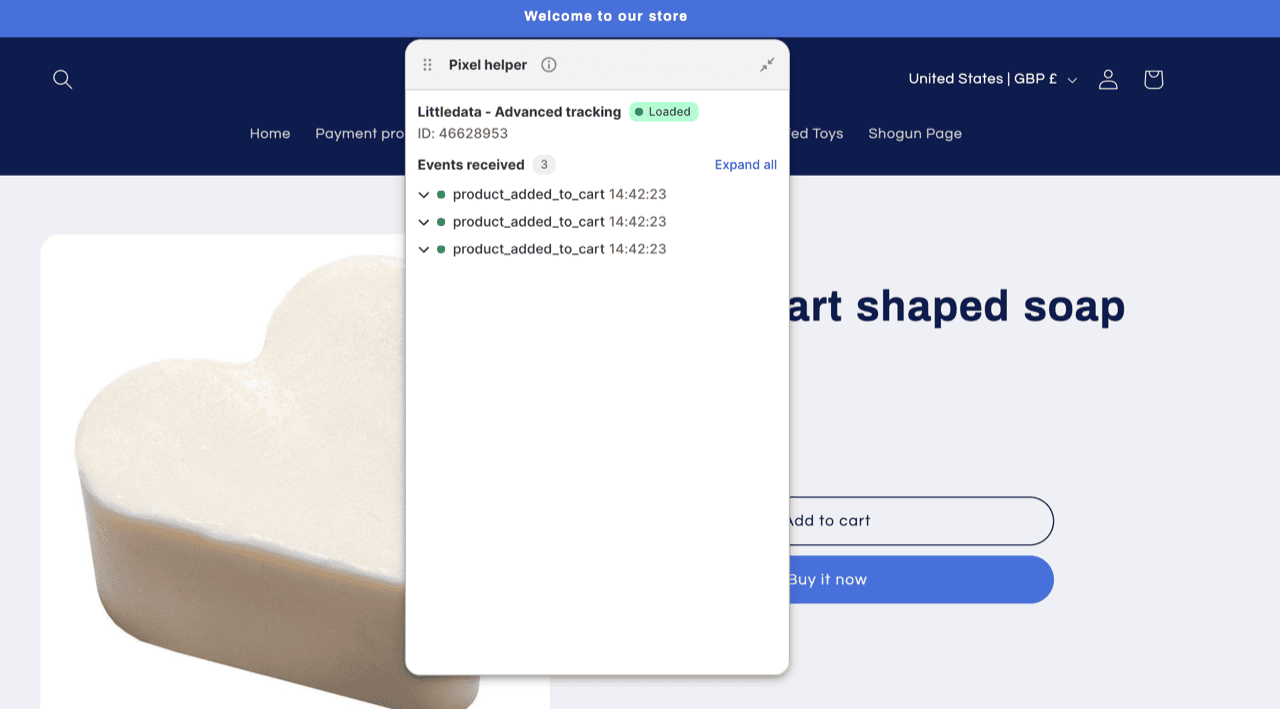
Visit each page you want to test. In the **Pixel helper** dialog, check that the pixel shows as loaded and that the events you expect appear under **Events received**.

<div data-with-frame="true"><figure><img src="https://3956158252-files.gitbook.io/~/files/v0/b/gitbook-x-prod.appspot.com/o/spaces%2F1QhTbrMraNWciQeDvu1b%2Fuploads%2Fgit-blob-10cedc611491d8b7a16899e7fa0745c26350a64a%2Fpixel-helper-events.png?alt=media" alt="Shopify Pixel helper showing Littledata - Advanced tracking loaded with product_added_to_cart events"><figcaption></figcaption></figure></div>
{% endstep %}
{% endstepper %}

#### Reconnect the pixel

If the pixel isn't firing, someone on your team may have disconnected it.

{% stepper %}
{% step %}
**Find the pixel**

In your Shopify admin, go to **Settings** > **Customer events** and find **Littledata - Advanced Tracking**.
{% endstep %}

{% step %}
**Connect it**

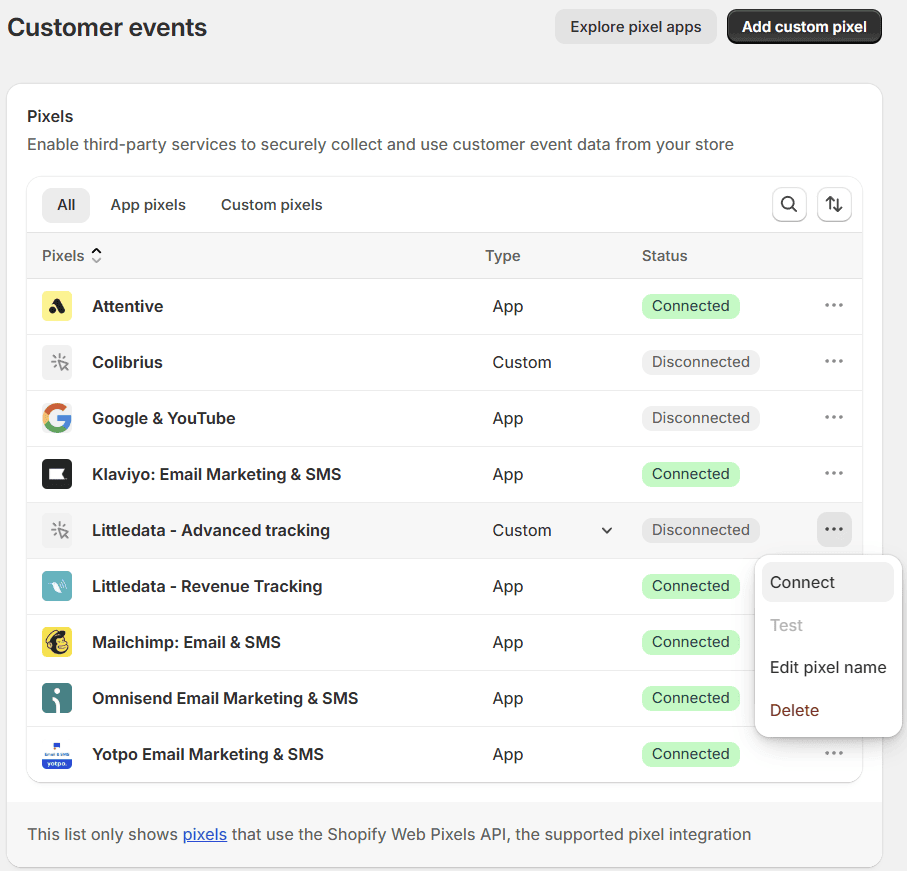
Click the three dots (**...**) on the right, then click **Connect**.

<div data-with-frame="true"><figure><img src="https://3956158252-files.gitbook.io/~/files/v0/b/gitbook-x-prod.appspot.com/o/spaces%2F1QhTbrMraNWciQeDvu1b%2Fuploads%2Fgit-blob-63b5091fd38a14b655aadc008a47d1c987bf53c7%2Fscreenshot-2025-04-02-162821.png?alt=media" alt="Shopify Customer events list with the Connect option for a disconnected Littledata - Advanced tracking pixel"><figcaption></figcaption></figure></div>
{% endstep %}
{% endstepper %}

### Related articles

* [Headless or Shopify Hydrogen store installation](https://help.littledata.io/sources/shopify/headless-shopify/working-with-a-headless-shopify-setup)
* [Upgrading to the Littledata Pixel](https://help.littledata.io/sources/shopify/headless-shopify/upgrading-to-the-advanced-tracking-script)
* [How the Littledata app embed works](https://help.littledata.io/advanced/developer/littledata-app-embed-how-it-works)
* [How it works: Shopify to Meta Conversions API](https://help.littledata.io/integrations/facebook-capi/how-it-works-shopify-to-meta-conversions-api)


# Headless Shopify


# Headless or Shopify Hydrogen store installation

How Littledata tracks checkout and purchase events for headless and Shopify Hydrogen stores, and what you need to set up.

If you run a headless Shopify storefront, getting accurate data can be hard. This page explains how Littledata tracks your checkout and orders server-side on a headless store, what it supports, and how to set it up.

### How it works

The Littledata Pixel captures key marketing and analytics identifiers on your storefront. It passes them to Littledata's server-side data pipeline. This lets Littledata link checkout and purchase events back to the right session and marketing source.

### Compatibility

This works with any [headless Shopify setup](https://shopify.dev/docs/storefronts/headless/getting-started/build-options), including:

* Shopify Hydrogen
* A headless channel using the Storefront API with Next.js, Remix, Gatsby or similar
* Landing pages with a Buy now button
* A native mobile app using the Shopify checkout
* Shopify Buy SDK

Littledata also tracks the Shopify-hosted parts of your store, so you can follow the full customer journey across your whole online store.

There is one requirement: for cookies to pass to the checkout, the **checkout must be on the same root domain** as your storefront. For example, `store.domain.com` and `checkout.domain.com`.

{% hint style="warning" %}
If your checkout stays on the myshopify.com domain, the tracking script will not work.
{% endhint %}

### Supported data destinations

Littledata has a no-code, server-side integration for:

* [Google Analytics (GA4)](https://help.littledata.io/integrations/shopify-to-google-analytics/littledata-shopify-install-guide)
* [Segment](https://help.littledata.io/integrations/shopify-to-segment/installation)
* [Google Ads](https://help.littledata.io/integrations/google-ads/google-ads-install-guide)
* [Meta Conversions API](https://help.littledata.io/integrations/facebook-capi/how-to-install-shopify-to-conversions-api)
* [TikTok Events API](https://help.littledata.io/integrations/tiktok/installation)
* [Pinterest Conversions API](https://help.littledata.io/integrations/shopify-to-pinterest/installation)
* [Microsoft Ads](https://help.littledata.io/integrations/microsoft-ads/installation)

{% hint style="info" %}
Littledata adds to your storefront tracking. It assumes you already have your marketing pixels or tags set up on the parts of your store that don't use a Shopify theme. Littledata captures the marketing identifiers so your data stays complete and consistent across the storefront and the Shopify checkout.
{% endhint %}

#### Automatically tracked events

All the events below are tracked automatically server-side, so your funnel is complete and more accurate.

| Destination               | Event names                                                                                                        |
| ------------------------- | ------------------------------------------------------------------------------------------------------------------ |
| Google Analytics 4        | `begin_checkout`, `add_shipping_info`, `add_payment_info`, `purchase`\*, `refund`, `upsell`                        |
| Google Ads                | `Conversion`                                                                                                       |
| Segment                   | `Checkout Started`, `Checkout Step Viewed`, `Checkout Step Completed`, `Payment Info Entered`, `Order Completed`\* |
| Meta Conversions API      | `InitiateCheckout`, `AddPaymentInfo`, `Purchase`\*                                                                 |
| TikTok Events API         | `Initiate Checkout`, `Add Payment Info`, `Complete Payment`                                                        |
| Pinterest Conversions API | `Checkout`                                                                                                         |
| Microsoft Ads             | `Purchase - Littledata`\*                                                                                          |

\*Includes subscriptions, upsells, draft orders and orders from other sales channels.

You can track more events on the storefront with Google Tag Manager or a similar tool.

### Get started

{% stepper %}
{% step %}
**Add your marketing tags**

Add your marketing tags to the pre-checkout pages in your usual way, for example with Google Tag Manager.
{% endstep %}

{% step %}
**Install the Littledata app**

Install the [Littledata Shopify app](https://help.littledata.io/integrations/shopify-to-google-analytics/littledata-shopify-install-guide).
{% endstep %}

{% step %}
**Add the Littledata Pixel**

Add the [Littledata Pixel](https://help.littledata.io/sources/shopify/littledata-pixel) as part of the app setup.
{% endstep %}

{% step %}
**Connect your destinations**

Add the data destinations you want in the Littledata app.
{% endstep %}
{% endstepper %}

### Limitations

On a headless storefront, Littledata does not track these events. You need to set them up yourself:

* Page views
* Product detail views
* Add to cart
* Remove from cart

Because of this, these Littledata integrations don't work for a headless store:

* Klaviyo
* Attentive

### Related articles

* [Upgrading to the Littledata Pixel](https://help.littledata.io/sources/shopify/headless-shopify/upgrading-to-the-advanced-tracking-script)
* [Littledata Pixel](https://help.littledata.io/sources/shopify/littledata-pixel)
* [Microsoft Ads](https://help.littledata.io/integrations/microsoft-ads)


# Upgrading to the Littledata Pixel

The **Littledata Pixel** is our recommended approach for headless Shopify setups and replaces our [previous headless SDK](https://www.npmjs.com/package/@littledata/headless-shopify-sdk), bringing you several new benefits:

* Robust event tracking for headless stores to Google Analytics, Google Ads, Meta Conversions API, TikTok Events API, and Pinterest Conversions API
* [Tracking redundancy](/sources/shopify/littledata-pixel#redundant-tracking) for Meta, TikTok, and Pinterest, offering better event reliability
* Supports the latest Shopify features, such as accelerated checkouts

{% hint style="warning" %}
**Deprecation notice**

Support for the previous headless SDK is being phased out. Starting **January 2026**, Littledata will no longer process tracking calls via the headless SDK.
{% endhint %}

## **Upgrading to the Littledata Pixel**

Upgrading is made easily via the instructions in our in-app dashboard.\
For a complete installation guide and information about the Littledata Pixel, please refer to our [documentation](/sources/shopify/littledata-pixel).

{% hint style="info" %}
The checkout must be on the same root domain — e.g. [store.domain.com](https://store.domain.com) and [checkout.domain.com](https://checkout.domain.com)
{% endhint %}

## Compatibility with the previous headless SDK

### Can both solutions run at the same time?

Yes. The Littledata Pixel and the headless SDK can coexist on your store without causing any conflicts; however, we recommend the pixel as the single headless solution.

### Will this result in duplicate event tracking?

No, duplicate event tracking will not occur. The Littledata Pixel loads only on Shopify checkout and thank you pages, while the headless SDK is not loaded on the Shopify checkout.

### Related articles

* [Littledata Pixel](https://help.littledata.io/sources/shopify/littledata-pixel)
* [Headless or Shopify Hydrogen store installation](https://help.littledata.io/sources/shopify/headless-shopify/working-with-a-headless-shopify-setup)


# Multi-currency support

How to automatically track payments in multiple currencies via Shopify Payments

Littledata is designed to work with any multi-currency ecommerce setup. For Shopify merchants (including headless setups), we support tracking for multiple country stores as well as stores that use Shopify Markets.

Littledata's connections automatically track multi-currency Shopify setups, and send the correct product and order currencies through from [Shopify to Segment](/integrations/shopify-to-segment/how-it-works) or from [Shopify to Google Analytics](/integrations/shopify-to-google-analytics/how-it-works-shopify-to-ga4).

Many Shopify Plus merchants rely on Shopify Payments to [manage multi-currency sales](https://help.shopify.com/en/manual/payments/shopify-payments/multi-currency). If your Shopify store uses Shopify Payments to present prices in multiple currencies, our multi-currency tracking is an out-of-the-box solution to get accurate sales and marketing data.

Here's how Littledata's multi-currency tracking works for Shopify and Shopify Plus stores using storefront pricing (display currencies) and for multi-currency sales from different 'country stores'.

### Storefront pricing

If your storefront allows users to select a display currency, all the products in events will be priced in the **user's** currency. If this is different from the store currency, Google Analytics will convert this local currency to the GA view's currency at the [previous day's exchange rate](https://support.google.com/analytics/answer/9796179?hl=en\&sjid=9440565049142162940-EU#zippy=%2Cin-this-article).

e.g. If your store currency is in USD, but the user opts to display prices in AUD then the Product Detail / Product Viewed event will include the `price` in AUD and Google Analytics will convert this to USD.

In other Segment destinations you will see a `currency` field which specifies one of Shopify's [supported currencies](https://help.shopify.com/en/manual/payments/shopify-payments/selling-and-getting-paid-in-different-currencies).

### Server-side events (carts, checkouts and orders)

All server-side events have products and orders priced in the **store** currency. This removes any risk of exchange rate fluctuations from affecting revenue reporting.

In Segment events you will see additional `presentment_currency` and `presentment_amount` fields from Shopify's [checkout or order objects](https://shopify.dev/api/admin-rest/2021-10/resources/order#resource_object), which can be used if you want to display values to the customer in the same way as they are displayed in Shopify's checkout.

e.g. If your store currency is in USD, but the user opts to pay in AUD then the Checkout Step event will include the `price` in USD, and additionally `presentment_amount` in AUD.

### Multiple country stores sending to one web property

If you have multiple country stores with different store currencies, all sending data to a single web property in Google Analytics, then all the events will be converted to the Google Analytics view currency at the currency exchange rate.

Littledata Plus plans include a number of 'country stores' (Shopify stores localized in a particular currency). See our [pricing plans](https://www.littledata.io/pricing) for more information.


# Tracking the Shopify checkout

How Littledata tracks Shopify checkout steps server-side, which events it sends, and when each one is triggered.

This guide explains Littledata's Shopify checkout funnel events: what they are called, when they are triggered and how they work. It covers GA4 and Segment.

### Server-side checkout tracking

Since Shopify moved stores to Checkout Extensibility, it has become harder to track checkout steps and purchases.

One option is to use Customer Events (Web Pixels) to add tracking code to the checkout pages. This is hard to maintain and has [technical limitations](https://blog.littledata.io/2023/06/05/shopify-web-pixel-why-how-tracking/).

Littledata instead tracks checkout updates from Shopify's servers and works out how the customer moved through the checkout. This works for:

* The Shopify checkout, including checkout extensions. The events are the same for the [one-page checkout](https://help.shopify.com/en/manual/checkout-settings/customize-checkout-configurations/one-page-checkout) and the three-step checkout.
* Accelerated checkouts, such as Shop Pay and Amazon.

If your checkout uses apps for subscriptions or upsells, the checkout steps are the same. Only the [resulting order is labeled differently](https://help.littledata.io/sources/shopify/tracking-subscription-orders-in-the-shopify-checkout).

### Why track the checkout with Littledata

* No code to add. Tracking is set up automatically.
* No tracking code for you to update when Shopify, Google or Meta change their APIs.
* Tracks customers who use ad blockers or have network limits.
* Works for headless sites that use a Shopify checkout. Follow the [headless setup guide](https://help.littledata.io/sources/shopify/headless-shopify/working-with-a-headless-shopify-setup) first.

### Checkout step triggers (GA4)

Littledata sends a GA4 event each time the checkout reaches a new step:

| Step     | GA4 event name      | Triggered when                                              |
| -------- | ------------------- | ----------------------------------------------------------- |
| 1        | `begin_checkout`    | A checkout is created in Shopify for the cart               |
| 2        | `add_shipping_info` | A shipping method (shipping lines) is added to the checkout |
| 3        | `add_payment_info`  | A payment method (gateway) is added to the checkout         |
| Purchase | `purchase`          | The order is created in Shopify                             |

See how this looks in the [GA4 checkout funnel](https://help.littledata.io/integrations/shopify-to-google-analytics/checkout-funnel-steps).

### Accelerated checkouts

Littledata tracks purchases from one-click checkouts like Shop Pay, sends them to your destinations and attributes them to the original source.

These checkouts may not have all checkout steps, because a one-click checkout skips most of the standard Shopify checkout.

### Order status page domain

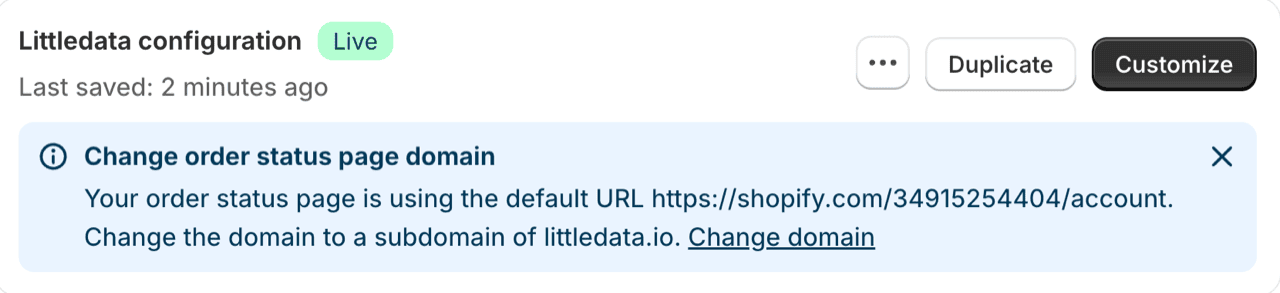
By default, the order status page is hosted on shopify.com. This causes a cross-domain tracking issue, so we recommend using a subdomain of your store (for example, myaccount.mydomain.com) for the order status page.

<div data-with-frame="true"><figure><img src="https://files.gitbook.com/v0/b/gitbook-x-prod.appspot.com/o/spaces%2F1QhTbrMraNWciQeDvu1b%2Fuploads%2Fgit-blob-6fee1590c26e41b6740bcabbd1a2f8e4d11256c5%2Forder_status_page_domain.png?alt=media" alt="Shopify banner suggesting a change to the order status page domain"><figcaption></figcaption></figure></div>

{% stepper %}
{% step %}
**Add a CNAME record**

Ask whoever manages your DNS records to add a CNAME record for the subdomain, pointing to `shops.myshopify.com`.
{% endstep %}

{% step %}
**Register the subdomain in Shopify**

In your Shopify admin, go to **Settings** > **Domains** and add the subdomain.
{% endstep %}
{% endstepper %}

### How server-side checkout tracking works

For security reasons, apps like Littledata can't load third-party JavaScript (such as gtag or the Meta Pixel) on Shopify's checkout. Instead, Littledata uses Shopify's checkout update webhooks to work out which steps a customer reached.

When a customer moves through the checkout quickly, Shopify may only send the latest state of the checkout. Passing these raw updates on would give a checkout funnel that doesn't make sense, with more people at later steps than earlier ones. For example:

| Funnel step                | Sessions |
| -------------------------- | -------- |
| Contact information        | 2,091    |
| Shipping information       | 613      |
| Payment method             | 920      |
| Sessions with transactions | 1,245    |

To avoid this, Littledata remembers the last step it sent for each checkout in your store for 3 days. When a new checkout update arrives, Littledata sends every step between the last one sent and the current one.

For example, a logged-in customer gets to the payment step very quickly, and Shopify only reports that a payment method was added. Littledata sends three events:

1. `begin_checkout` (added by Littledata)
2. `add_shipping_info` (added by Littledata)
3. `add_payment_info` (from the Shopify update)

#### Trade-offs

Filling in missing steps makes the funnel much more useful, but keep these points in mind when you analyze the data:

* If a customer really did skip a step, Littledata still sends it, so the funnel can show steps that didn't happen.
* If a checkout is updated more than 3 days after the last step was sent, Littledata no longer remembers it and sends the steps again. This can create duplicate events. A 3-day window covers most checkouts for most stores.

### Segment destination

Littledata sends these Segment events as the checkout moves forward:

| Triggered when                              | Segment events                                                                                 |
| ------------------------------------------- | ---------------------------------------------------------------------------------------------- |
| A checkout is created                       | Checkout Started, Checkout Step Viewed (step 1)                                                |
| A shipping method (shipping lines) is added | Checkout Step Completed (step 1), Checkout Step Viewed (step 2)                                |
| A payment method (gateway) is added         | Checkout Step Completed (step 2), Checkout Step Viewed (step 3), Payment Info Entered (step 3) |
| The checkout is completed                   | Checkout Step Completed (step 3)                                                               |
| The order is created                        | Order Completed                                                                                |

Missing steps are filled in the same way as for GA4.

{% hint style="info" %}
The Thank you Page Viewed event is no longer sent. Shopify's new checkout doesn't allow script tags to load on the checkout.
{% endhint %}

### Related articles

* [Tracking Shopify checkout steps in Google Analytics](https://help.littledata.io/integrations/shopify-to-google-analytics/checkout-funnel-steps)
* [Tracking subscription orders in the Shopify checkout](https://help.littledata.io/sources/shopify/tracking-subscription-orders-in-the-shopify-checkout)
* [Tracking post-purchase upsells on Shopify](https://help.littledata.io/sources/shopify/tracking-post-purchase-upsells-in-the-shopify-checkout)
* [How it works: Shopify source for Segment](https://help.littledata.io/integrations/shopify-to-segment/how-it-works)


# Tracking post-purchase upsells on Shopify

How Littledata tracks post-purchase upsells on Shopify and sends them to GA4, Segment and the Meta Conversions API.

Littledata tracks post-purchase upsells for Shopify stores and sends them to destinations such as [GA4](https://help.littledata.io/integrations/shopify-to-google-analytics/how-it-works-shopify-to-ga4), Segment and the Meta Conversions API (CAPI). This extends Littledata's [Shopify checkout tracking](https://help.littledata.io/sources/shopify/shopify-checkout-extensibility), so you can report on upsells and use them for retargeting.

### How upsell tracking works

#### What is a post-purchase upsell?

A post-purchase upsell happens when a customer accepts an extra product right after completing the checkout, usually on an upsell page. When the customer accepts the offer, Shopify updates the original order to include the extra product.

Upsells can raise your average order value (AOV), but they can also make your data harder to read. Littledata sends upsells as their own events, so they don't get mixed up with the original purchase.

#### Which upsell apps does Littledata track?

Littledata tracks post-purchase upsells from any Shopify app. We have tested upsell tracking with these apps:

* [Rebuy](https://www.littledata.io/shopify/rebuy)
* Zipify
* CartHook
* ReConvert
* Bold
* Honeycomb
* [Nosto](https://help.nosto.com/en/articles/11530626-what-is-post-purchase-upsell-and-how-does-it-work#h_a632f42b38)

#### A typical upsell journey

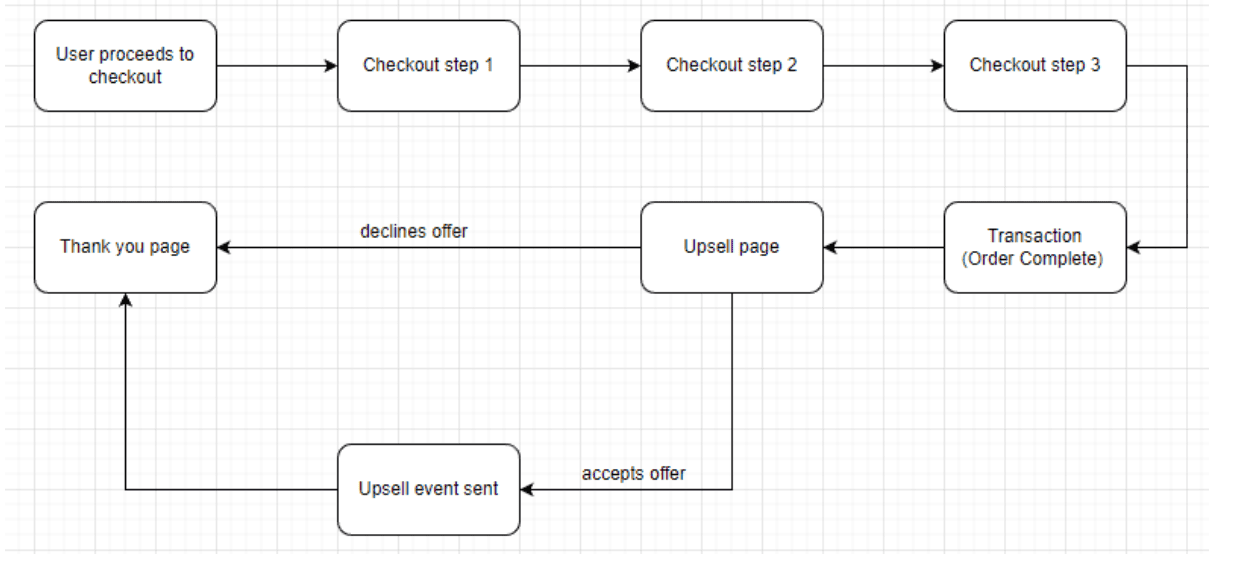
<figure><img src="https://files.gitbook.com/v0/b/gitbook-x-prod.appspot.com/o/spaces%2F1QhTbrMraNWciQeDvu1b%2Fuploads%2Fgit-blob-9c113ddd9be48b955861e6a446b313a6d236f4ca%2Fscreenshot-2022-12-01-at-9.58.02-am.png?alt=media" alt="Flow from checkout steps to the order, upsell page, upsell event and thank you page"><figcaption></figcaption></figure>

Right after the customer pays, they see the upsell page. If they accept the upsell, Shopify sends Littledata an order update. Littledata then sends an upsell event to your connected destinations.

#### What triggers an upsell event?

Littledata listens for Shopify's order update webhook. It tracks an upsell when the updated order has new products, or a higher quantity of a product, compared to the previous version of the order.

{% hint style="warning" %}
Upsells are tracked when the order is updated within 24 hours of the order being placed (or of the last tracked upsell on that order). Order updates after that are not tracked as upsells.
{% endhint %}

#### How are upsell values calculated?

Only the added products and quantities are included in the upsell event. Ecommerce values such as revenue, tax and shipping are calculated as:

```
updated order value - previous order value
```

This way, the upsell event only includes the extra amount, such as any extra shipping cost.

### Viewing upsell events

#### GA4

When the order is first placed, Littledata sends a `purchase` event to GA4. When the customer accepts an upsell, Littledata sends a separate `upsell` event with the same transaction ID. The `upsell` event only includes the added products.

Because the upsell is a separate event, it doesn't create a second purchase in GA4.

| GA4 event name     | Trigger                                   | Transaction ID |
| ------------------ | ----------------------------------------- | -------------- |
| `add_payment_info` | A payment method is added in the checkout | -              |
| `purchase`         | The order is created in Shopify           | #1234          |
| `upsell`           | The customer accepts the upsell           | #1234          |

{% hint style="info" %}
Read more about [how the Shopify to GA4 connection works](https://help.littledata.io/integrations/shopify-to-google-analytics/how-it-works-shopify-to-ga4).
{% endhint %}

#### Segment

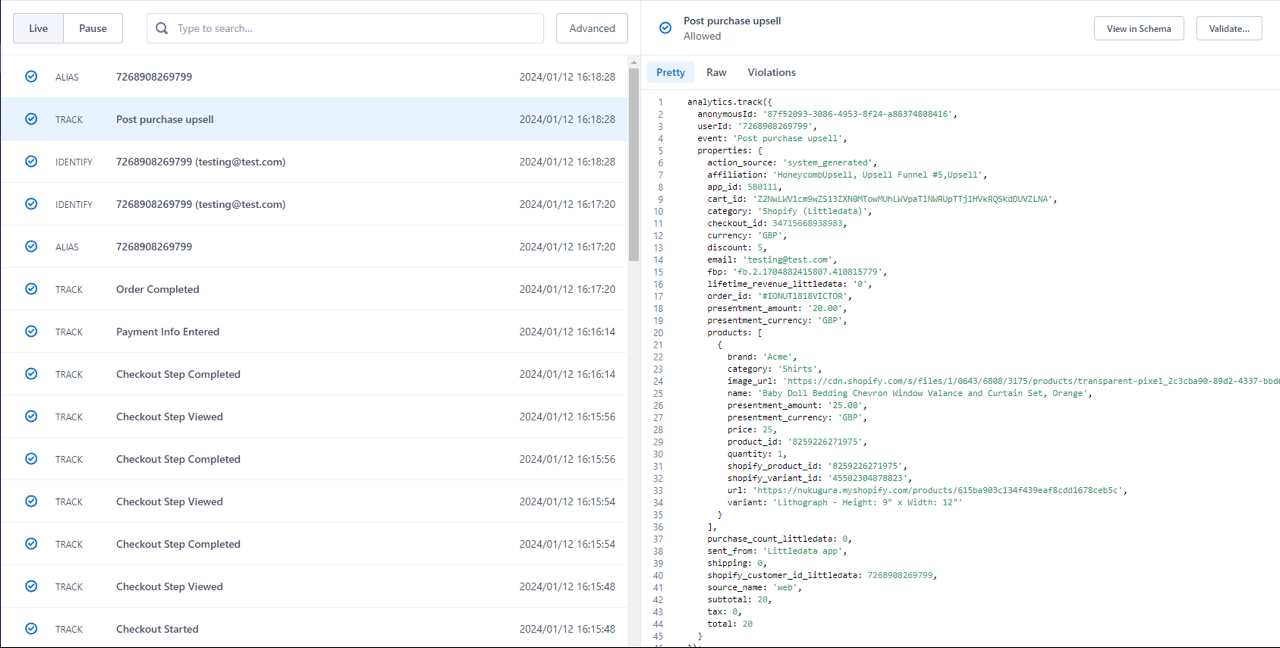
When the order is first placed, Littledata sends an **Order Completed** event to Segment. When the customer accepts an upsell, Littledata sends a separate server-side event called **Post purchase upsell**, with only the added products.

| Segment event name       | Trigger                                   | `order_id` |
| ------------------------ | ----------------------------------------- | ---------- |
| **Payment Info Entered** | A payment method is added in the checkout | -          |
| **Order Completed**      | The order is created in Shopify           | #1234      |
| **Post purchase upsell** | The customer accepts the upsell           | #1234      |

{% hint style="info" %}
See the full [Segment tracking plan and event schema](https://docs.google.com/spreadsheets/d/1aljowRhMU9_7uGXmcipbP1Y14S4cOSdXGQA2Vx7BHko/edit#gid=737675841).
{% endhint %}

Here is how the checkout and upsell events look in the Segment debugger:

<div data-with-frame="true"><figure><img src="https://files.gitbook.com/v0/b/gitbook-x-prod.appspot.com/o/spaces%2F1QhTbrMraNWciQeDvu1b%2Fuploads%2Fgit-blob-fae73cbb1ae6839f103ef56f103d7edd17a32282%2Fscreenshot-2024-01-12-161843.png?alt=media" alt="Segment debugger showing checkout events, Order Completed and Post purchase upsell"><figcaption></figcaption></figure></div>

#### Meta Ads

With Littledata's [Shopify to Meta Conversions API connection](https://help.littledata.io/integrations/facebook-capi/how-it-works-shopify-to-meta-conversions-api#server-side-events), you can use upsell data in Meta Ads. This helps with conversion reporting and with building audiences.

When the order is first placed, Littledata sends a **Purchase** event to Meta. When the customer accepts an upsell, Littledata sends a separate server-side event called **Post purchase upsell**, with only the added products.

| Meta event name          | Trigger                                   |
| ------------------------ | ----------------------------------------- |
| **AddPaymentInfo**       | A payment method is added in the checkout |
| **Purchase**             | The order is created in Shopify           |
| **Post purchase upsell** | The customer accepts the upsell           |

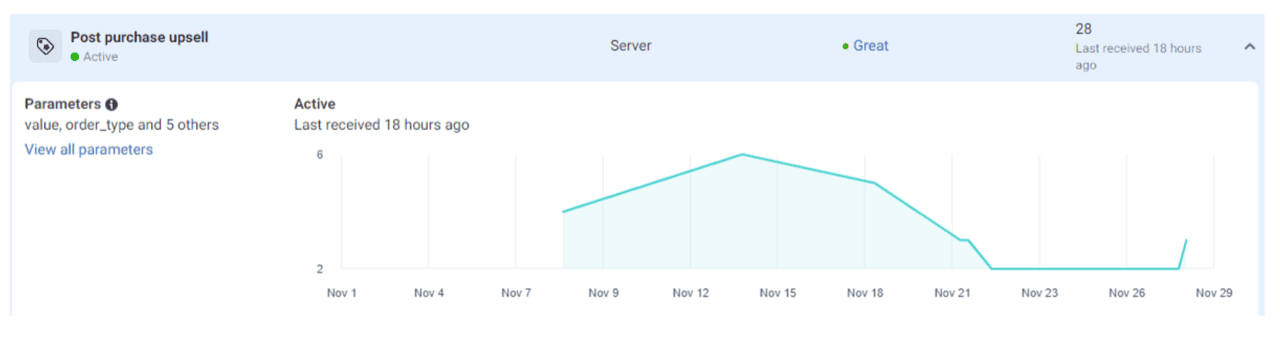
Here is how it looks in Meta Events Manager:

<div data-with-frame="true"><figure><img src="https://files.gitbook.com/v0/b/gitbook-x-prod.appspot.com/o/spaces%2F1QhTbrMraNWciQeDvu1b%2Fuploads%2Fgit-blob-bf0ef76e1a4c703be841c1074b2b374133fd7fbc%2Fscreenshot-2022-12-01-at-10.42.04-am.png?alt=media" alt="Post purchase upsell server event in Meta Events Manager"><figcaption></figcaption></figure></div>

For example, you could build a lookalike audience from customers who accepted an upsell, or see which campaigns led to more upsells.

{% hint style="info" %}
See Littledata's [Meta CAPI tracking schema](https://docs.google.com/spreadsheets/d/1jHJo6hcAYSdYpL0SLRXqtbyDtOmApoF2vn8AQyQ9rgU/edit#gid=1443141432).
{% endhint %}

### Edge cases

* If an order is edited by hand in the Shopify admin, or by an order editing app, Littledata handles it as an upsell.
* If a product is added to the order, an upsell event is sent. If a product is removed, no upsell event is sent.

### Related articles

* [Tracking the Shopify checkout](https://help.littledata.io/sources/shopify/shopify-checkout-extensibility)
* [Tracking Shopify checkout steps in Google Analytics](https://help.littledata.io/integrations/shopify-to-google-analytics/checkout-funnel-steps)
* [Tracking subscription orders in the Shopify checkout](https://help.littledata.io/sources/shopify/tracking-subscription-orders-in-the-shopify-checkout)
* [How it works: Shopify to Meta Conversions API (CAPI)](https://help.littledata.io/integrations/facebook-capi/how-it-works-shopify-to-meta-conversions-api)


# Tracking subscription orders in the Shopify checkout

How to track subscriptions in the Shopify checkout in GA4 (Google Analytics), Meta Ads, Google Ads, Segment, TikTok and Pinterest.

*Last reviewed: 27 August 2026*

Littledata automatically tracks all major subscription apps on Shopify, making it easy to differentiate one-off purchases from recurring orders and first-time subscription purchases in destinations such as Google Analytics, Google Ads and Meta Ads. Benefits include:

* Marketing attribution for recurring orders
* Enable reporting on [subscriber lifetime value (LTV) by channel](/google-analytics/subscriptions/subscription-revenue-by-channel-in-google-analytics-4)
* Build lookalike audiences for high LTV subscribers
* Block or target current subscribers from marketing campaigns
* Optimize Meta Ads campaigns for new subscription customers by triggering a [Subscribe](/integrations/facebook-capi/how-it-works-shopify-to-meta-conversions-api#new-customer-vs-returning-customer-conversions) conversion
* Checkout funnel tracking, including [checkout extensibility](/sources/shopify/shopify-checkout-extensibility)
* Send the data back to [Google Analytics (GA4)](/integrations/shopify-to-google-analytics/how-it-works-shopify-to-ga4), [Google Ads](/integrations/google-ads/shopify-to-google-ads), [Meta Ads,](/integrations/facebook-capi/how-it-works-shopify-to-meta-conversions-api) [Segment](/integrations/shopify-to-segment/how-it-works) and more

## Supported Shopify subscription apps

Littledata's automated server-side tracking works with all subscription apps in the Shopify checkout. We can support stores using the following apps to power subscriptions:

* [Recharge](/sources/recharge/how-it-works-recharge-to-google-analytics-connection)
* Appstle Subscriptions
* Awtomic
* Bold Subscriptions
* Casa Subscriptions
* Loop Subscriptions
* Ordergroove
* PayWhirl
* Recurpay
* Skio (a Recharge company)
* Smartrr
* Stay AI

{% hint style="info" %}
If your subscription app isn't listed, [contact Littledata support](mailto:help@littledata.io) — our tracking works with any app that uses the Shopify checkout, and we can confirm compatibility or add support for your app.
{% endhint %}

## Which subscription events do you track?

For subscriptions in the Shopify checkout, Littledata tracks:

* **The checkout funnel**: how users and products progress through the [Shopify checkout steps](/sources/shopify/shopify-checkout-extensibility)
* **First-time subscription orders** which are tagged by the checkout app \*
* **Recurring orders** generated by the terms of the subscription contract

Our app stitches sessions together for unbiased marketing attribution, user path analysis, LTV analysis, CRO and conversion tracking in Google Analytics and other tools. Learn more about how [Littledata works behind the scenes](/integrations/shopify-to-google-analytics/how-it-works-shopify-to-ga4) to ensure 100% accurate conversion tracking and robust marketing attribution without the need for Google Tag Manager (GTM).

For Recharge, we also track [subscription lifecycle events](/sources/recharge/how-it-works-recharge-to-google-analytics-connection) including subscription skipped, charge failed and subscription updated.

\* Littledata picks up these order tags added up to 20 seconds after the order is created

## Where can I send the data?

### Google Analytics

Littledata's [GA4 connection](/integrations/shopify-to-google-analytics/how-it-works-shopify-to-ga4) sends browsing behavior, marketing, order, payment, refund and subscription data directly to Google Analytics. You can see complete subscription data directly in GA4 or Google BigQuery.

To send subscription orders to GA4 as their own events, add the **First recurring purchase** (`first_recurring_purchase`) and **Recurring purchase** (`recurring_purchase`) [recipes](/event-editor/recipes#available-recipes) in the GA4 Event Editor.

### Google Ads

Littledata's robust [Google Ads](https://www.littledata.io/shopify/google-ads) integration enables subscription audience building and retargeting across Google Ads networks, including with [enhanced conversions](/integrations/google-ads/google-ads-how-it-works).

You can also use the [Event Editor](/event-editor/overview) to configure custom conversion actions by subscription type or value — for example, [excluding subscription renewals from ad conversions](/event-editor/common-setups/exclude-subscription-renewals-from-ad-conversions) so Google Ads optimizes only for new customers.

### Meta Ads (Facebook and Instagram)

Littledata's [Meta Conversions API connection](/integrations/facebook-capi/how-it-works-shopify-to-meta-conversions-api) (Meta API) sends checkout steps, LTV, order and subscription data back to Meta for audience building and remarketing in Facebook Ads and Instagram Ads.

We [send the recurring orders](/integrations/facebook-capi/how-it-works-shopify-to-meta-conversions-api#server-side-events) as a separate `Recurring Purchase` event, which can be used to retarget only subscription customers - or build lookalike audiences from them.

* **One-time purchases** will register as a `Purchase`
* **Subscription First Orders** will register as a `Purchase`. If you add the **First recurring purchase** recipe, they also register as a `Subscribe` event (stores that already send `First Recurring Purchase - Littledata` keep that event)
* **Subscription Recurring Orders** will register as a `Recurring Purchase`

You can also use the [Event Editor](/event-editor/overview) to configure custom conversion events by subscription type or value — for example, [sending a new subscriber conversion event to Meta Ads](/event-editor/common-setups/new-subscriber-conversion-event-meta-ads).

### Twilio Segment

Littledata's [Segment connection](/integrations/shopify-to-segment/how-it-works) sends complete subscription data back to your Segment workspace. From there you can connect to data destinations like Mixpanel and Amplitude, engagement platforms like Klaviyo and Braze, and data warehouses like Snowflake.

To send subscription orders to Segment as their own events, add the **First recurring purchase** (`First Recurring Order - Littledata`) and **Recurring purchase** (`Recurring Order - Littledata`) [recipes](/event-editor/recipes#available-recipes) in the Segment Event Editor.

### TikTok

To send subscription orders to TikTok as their own events, add the **First recurring purchase** (`FirstRecurringPurchaseLittledata`) and **Recurring purchase** (`RecurringPurchaseLittledata`) [recipes](/event-editor/recipes#available-recipes) in the TikTok Event Editor.

### Pinterest

To send subscription orders to [Pinterest](/integrations/shopify-to-pinterest/how-it-works) as their own events, add the **First recurring purchase** (`FirstRecurringPurchaseLittledata`) and **Recurring purchase** (`RecurringPurchaseLittledata`) [recipes](/event-editor/recipes#available-recipes) in the Pinterest Event Editor.

## How can I see the orders in Google Analytics?

You can see the different order types in Google Analytics 4 by first [creating the Affiliation custom dimension](/integrations/shopify-to-google-analytics/create-affiliation-custom-dimension-ga4) and then using it to create an Exploration report with Affiliation as the main dimension and any combination of metrics (Purchase revenue, Conversions or Sessions).

{% hint style="success" %}
You can use this Affiliation dimension to create a segment of subscription customers. [See our video guide](https://blog.littledata.io/2023/03/15/how-to-create-segments-for-subscription-orders-in-google-analytics-4)
{% endhint %}

The main order types that are included in the Affiliation dimension are:

* **Shopify** - one time purchases
* **Subscription First Order** - the first order that starts a subscription
* **Subscription Recurring Order** - recurring orders

![](https://3956158252-files.gitbook.io/~/files/v0/b/gitbook-x-prod.appspot.com/o/spaces%2F1QhTbrMraNWciQeDvu1b%2Fuploads%2Fgit-blob-8183f66727559cd65f34bb1bbee05c6081111977%2Fscreenshot-2023-06-15-at-12.19.48.png?alt=media\&token=c3794ac1-4a67-4efb-80b5-d16a6db2ac8f)

The affiliation dimension is a comma-seperated list of order tags passed from the Shopify order. For example, to create a filter for only first orders you would filter by Affiliation **includes** `Subscription First Order`.

## Compatibility with subscription apps

We've tested with all of the apps above, and the tracking of recurring orders works for all apps using the Shopify checkout.

The affiliation dimension depends on order tags set by the checkout app:

* **Subscription First Order** - if an order tag contains the word `First Order`
* **Subscription Recurring Order** - if an order tag contains the word `Recurring Order`

We additionally pass through further tags set by the subscription app - see these app support docs for more order tags:

* [Recharge order tags](https://support.rechargepayments.com/hc/en-us/articles/360008829873-Using-Shopify-order-and-customer-tags#h_bfcabe5d-db08-4f97-bd59-097281451216)
* [Skio order tags](https://integrate.skio.com/skio/extras/subscription-tags)
* [Loop subscription tags](https://help.loopwork.co/article/150-subscription-tags) (you need to opt in to the tags)

### Related articles

* [How to track subscription purchases in Meta Ads](https://help.littledata.io/integrations/facebook-capi/how-to-track-subscription-purchases-in-meta-ads)
* [Exclude subscription renewals from conversions](https://help.littledata.io/event-editor/common-setups/exclude-subscription-renewals-from-ad-conversions)
* [Subscription revenue by channel in GA4](https://help.littledata.io/google-analytics/subscriptions/subscription-revenue-by-channel-in-google-analytics-4)
* [Track Postscript SMS campaigns in GA4](https://help.littledata.io/partner-recipes/postscript/track-postscript-sms-clicks-ga)
* [Recipes](https://help.littledata.io/event-editor/recipes)


# Tracking Shopify POS orders

How Littledata tracks and attributes Shopify POS orders, which destinations receive them, and why they count towards your plan.

[Shopify POS](https://www.shopify.com/pos) lets you sell in person, in a store, at a market or at a pop-up. Littledata tracks these point of sale (POS) orders from Shopify's servers, the same way it tracks online orders.

### Can POS orders be attributed to marketing?

Yes, when the customer gives their email address at checkout.

Littledata matches that email to the customer's earlier visits to your online store, which we recognise from our cookie or the [Littledata Pixel](https://help.littledata.io/sources/shopify/littledata-pixel). The POS order is then linked to the campaign that first brought them to your website.

For example, a shopper clicks one of your Meta ads and browses your store, then buys in your shop a week later. If they give the same email address at the till, the purchase reaches Meta and GA4 credited to that ad.

A POS order with no email address, or from someone who has never visited your website, can't be linked to a visit. It is still tracked, but with no marketing attribution.

### Which destinations receive POS orders?

POS orders are sent as normal purchases to GA4, Google Ads, Microsoft Ads, Meta, Pinterest, TikTok and Segment.

When you add one of these connections, **Shopify POS** starts on its **Order channels exclusion list**, so POS orders are not sent until you choose to send them. Each destination has its own list.

To send POS orders to a destination:

{% stepper %}
{% step %}
**Open the destination settings**

In the Littledata app, find the destination card, click the **⋯** menu on its card and choose **Settings**.
{% endstep %}

{% step %}
**Open Data customization**

Open the **Data customization** tab.
{% endstep %}

{% step %}
**Remove Shopify POS**

In **Order channels exclusion list**, remove **Shopify POS**.
{% endstep %}
{% endstepper %}

See [how to exclude orders by order channel](https://help.littledata.io/advanced/troubleshooting/how-to-exclude-orders-by-source) for more on this list.

Segment connections set up before this default may already be sending POS orders. In Segment, a POS order comes through as a **POS Order Placed** event.

#### Klaviyo and Attentive

Klaviyo receives POS orders. Littledata sends a **Placed Order - Littledata** event to Klaviyo for every order, including POS orders. Klaviyo has no order channels exclusion list. To tell POS orders apart in Klaviyo, use the event's **Source Name** property, which is `pos` for POS orders.

Littledata doesn't send order events to Attentive, so POS orders don't reach Attentive through Littledata.

### Why do POS orders count towards my plan?

Your plan is priced on all your Shopify orders, including POS orders. POS orders are tracked like any other order, and when the customer gives an email address they can be attributed to the marketing that brought them in.

Your order count is the same whether or not you send POS orders to a destination. Excluding them changes where the data goes, not what you pay. See [choosing the right plan for your store](https://help.littledata.io/accounts-and-billing/choosing-a-plan) for how orders are priced.


# How we track refunds in Segment and Google Analytics

Littledata tracks refunds from your Shopify store and sends them to GA4 and Segment. This page explains what we track (and don't track) for refunds and returns, and where to find refund data.

Refunds are one of several post-purchase events Littledata tracks, along with [post-purchase upsells](https://help.littledata.io/sources/shopify/tracking-post-purchase-upsells-in-the-shopify-checkout), [recurring orders (subscriptions)](https://help.littledata.io/sources/shopify/tracking-subscription-orders-in-the-shopify-checkout) and cancellations.

### What is a refund event?

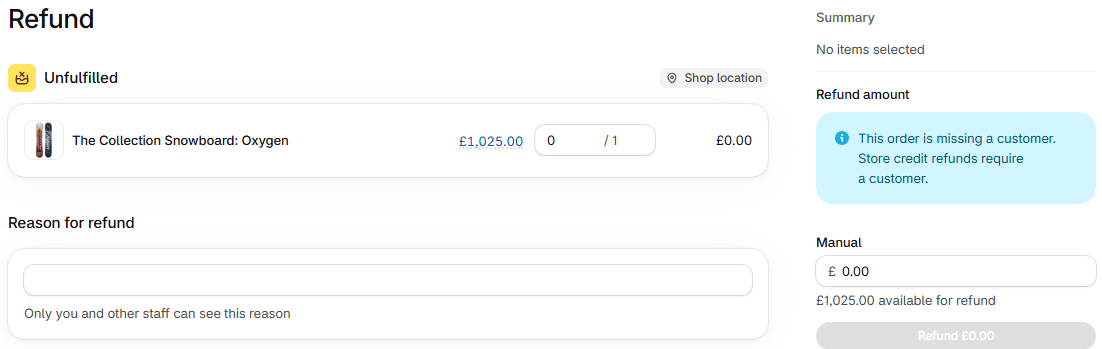
When you refund an order in Shopify admin, Littledata sends a refund event to your connected destinations. The event includes the details of the original order, so you can match the refund to the purchase.

<figure><img src="https://3956158252-files.gitbook.io/~/files/v0/b/gitbook-x-prod.appspot.com/o/spaces%2F1QhTbrMraNWciQeDvu1b%2Fuploads%2Fgit-blob-6088df5a491e9cefe220baa8d28b3fa410396be5%2Fhc-shopify-order-refund-screen.png?alt=media" alt=""><figcaption></figcaption></figure>

Littledata finds the original order's tracking IDs (such as the GA4 client ID) from the data it saved when the order was placed. If it can't find them, the refund is still sent, just without those IDs.

{% hint style="info" %}
Littledata only sends a refund when money is returned to the customer. If a refund in Shopify has no payment transaction (for example, you only restock items), no refund event is sent.
{% endhint %}

### Returns vs refunds

Some return apps let customers swap products or get store credit instead of money back. Examples include:

* Returnly
* AfterShip
* Refund Logic

Shopify treats an exchange as an order edit (product A is swapped for product B), not a refund. So no refund event is sent to any destination. A return only creates a refund event when all or part of the order value is refunded to the customer.

### Supported refund types

Littledata supports all refund types in Shopify:

* **Full refund:** you refund the whole order. The refund event includes every product in the order, plus details such as shipping.
* **Partial refund:** you refund some items from the order (for example, 3 out of 5). The refund event includes only the refunded products.
* **Custom refund:** you refund a specific amount. The refund event includes no products, only the amount refunded.

| Destination          | Full refund | Partial refund | Custom refund |
| -------------------- | ----------- | -------------- | ------------- |
| Google Analytics 4   | ✔           | ✔              | ✔             |
| Segment              | ✔           | ✔              | ✔             |
| Meta Conversions API | ❌           | ❌              | ❌             |

Meta does not have a standard event for refunds, so Littledata does not send refunds to Meta.

### Refunds in GA4

Littledata sends a `refund` event to GA4. To see your refunds, create an exploration in GA4 with the **Transaction ID** dimension and the **Refund amount** metric.

{% hint style="info" %}
[See how to build a sales performance report in GA4.](https://help.littledata.io/google-analytics/conversions/how-to-build-a-sales-performance-report-in-ga4)
{% endhint %}

### Refunds in Segment

Littledata sends an `Order Refunded` event to Segment. To see it, open the debugger for your Littledata source in Segment and click an **Order Refunded** event.

<figure><img src="https://3956158252-files.gitbook.io/~/files/v0/b/gitbook-x-prod.appspot.com/o/spaces%2F1QhTbrMraNWciQeDvu1b%2Fuploads%2Fgit-blob-35635e9317dda0c7c623fccda441fae244e501e3%2F5.avif?alt=media" alt=""><figcaption></figcaption></figure>

### Attribution for refunds

In GA4, the source and medium of a refund can be different from the original purchase. The refund uses the customer's most recent session, and it is dated on the day the refund is sent.

For example, customer A buys on day 1 from `google / cpc`. On day 2, they come back from `google / organic`. If you then refund the first order, GA4 attributes the refund to `google / organic`, on the day of the refund.

### Why net revenue can differ between GA4 and Shopify

Littledata sends the refund when it happens, so GA4 records it on the refund date, not the original order date. When you compare net revenue for a date range, a refund may land in a different period than its order. This can cause expected differences between GA4 and Shopify reports.

### Refunds with multi-currency

If your store sells in more than one currency, the GA4 refund event uses the currency the customer paid in (the presentment currency). The Segment event includes both the store currency amount and the presentment amount and currency.

<figure><img src="https://3956158252-files.gitbook.io/~/files/v0/b/gitbook-x-prod.appspot.com/o/spaces%2F1QhTbrMraNWciQeDvu1b%2Fuploads%2Fgit-blob-a9b3132988b19ac0f18b67f7a7611a6c7766a4be%2Fimage.png?alt=media" alt=""><figcaption></figcaption></figure>

### Turn off refund events

You can stop sending refunds to a destination in the Littledata app.

{% stepper %}
{% step %}

### Open the destination settings

In the Littledata app, find the GA4 or Segment destination and click **Settings**.
{% endstep %}

{% step %}

### Open the Event Editor

Open the **Event Editor** tab and find the refund event.
{% endstep %}

{% step %}

### Disable the event

Click the three-dot menu on the event row, select **Disable**, then click **Save**.

For more detail, see [Enable or disable events](https://help.littledata.io/event-editor/enable-disable-events).
{% endstep %}
{% endstepper %}

### Related articles

* [How the Shopify to GA4 connection works](https://help.littledata.io/integrations/shopify-to-google-analytics/how-it-works-shopify-to-ga4)
* [How the Shopify to Segment connection works](https://help.littledata.io/integrations/shopify-to-segment/how-it-works)
* [Refunds tracking in Shopify: turn ecommerce loss into your secret weapon](https://help.littledata.io/google-analytics/conversions/track-refunds-shopify-ga4)
* [GA4 tracking plan](https://docs.google.com/spreadsheets/d/1Qt9P8RQqfcu8SR07sZByViQrBg8808DGDIXpIjR9Wxo/edit#gid=277331750)
* [Segment tracking plan and event schema](https://docs.google.com/spreadsheets/d/1aljowRhMU9_7uGXmcipbP1Y14S4cOSdXGQA2Vx7BHko)


# Bot filtering

Filter fake cart and checkout events from bots before they reach GA4, Meta CAPI, Google Ads, and Klaviyo.

Bot protection automatically filters out fake cart and checkout events generated by bots before they reach destinations like GA4 or Meta. The result: cleaner funnel data, more reliable attribution, and ad platforms that optimize on real users instead of headless traffic.

{% hint style="info" %}
Bot protection is event-level data quality filtering. It doesn't block bots from reaching your store, and it doesn't replace Shopify's storefront-level bot mitigation. The two complement each other.
{% endhint %}

## When to enable it

Turn this on if you're seeing:

* Sudden or unexplained spikes in Add to Cart or Checkout events
* GA4 metrics that look noisy or don't match what your store is actually doing
* Conversion patterns that don't line up with campaigns, merchandising, or site changes
* Evidence of headless or scripted traffic in your destination reports

If your reporting feels untrustworthy and the noise can't be explained by traffic sources, product launches, or paid spend, bots are a likely culprit.

## How to enable bot protection

{% stepper %}
{% step %}

#### Open Littledata

Open the Littledata dashboard from your Shopify admin.
{% endstep %}

{% step %}

#### Open a destination

Go to **Settings** for a connected integration, such as GA4 or Klaviyo.

<div align="left" data-with-frame="true"><figure><img src="https://3956158252-files.gitbook.io/~/files/v0/b/gitbook-x-prod.appspot.com/o/spaces%2F1QhTbrMraNWciQeDvu1b%2Fuploads%2Fgit-blob-4a5431588dd99bd69fec683b7a3522e454433f2a%2Fimage.png?alt=media" alt=""><figcaption></figcaption></figure></div>
{% endstep %}

{% step %}

#### Open General

Open the **General** tab.
{% endstep %}

{% step %}

#### Turn Bot filtering on

Set **Bot filtering** to **ON**.

<div data-with-frame="true"><figure><img src="https://3956158252-files.gitbook.io/~/files/v0/b/gitbook-x-prod.appspot.com/o/spaces%2F1QhTbrMraNWciQeDvu1b%2Fuploads%2Fgit-blob-acb23fa4d0be6992b22fe77b588d5567ae4a63a3%2Fimage.png?alt=media" alt=""><figcaption></figcaption></figure></div>
{% endstep %}

{% step %}

#### Save

Click **Save** to apply the change.
{% endstep %}
{% endstepper %}

## How it works

### Event-level filtering

Detection happens at the individual event level rather than at the page or session level. This means it also catches direct spam calls to data destinations: bots that bypass your store entirely and fire events straight at a public GA4 measurement ID, Meta pixel, or similar endpoint are filtered just like bots that hit your storefront.

### Deterministic signals, minimal false positives

Classification is based on deterministic checks rather than probabilistic scoring or thresholds. An event is only flagged when a clear, reproducible set of conditions is met. This keeps false positives close to zero and avoids the unpredictability of rate-based or score-based bot detection.

### Flagged events are dropped, not forwarded

When an event is classified as bot traffic, Littledata drops it before forwarding. It does not reach GA4, Meta, Klaviyo, Google Ads, or any other connected destination, keeping your reporting and ad optimization signals clean. For Klaviyo this also means no profile is created for a bot-filled checkout, which removes one source of first-send bounces. See [Reducing the bounce rate from Littledata flows](/integrations/shopify-klaviyo/reducing-bounce-rate-littledata-flows).

## What gets caught

* Headless bots that hit your store and fire fake Cart or Checkout activity
* Direct attacks against your destination endpoints, for example bots posting events straight to a public GA4 measurement ID without ever visiting the store
* Consistent volume attacks with a steady cadence
* Randomized or low-frequency, high-quantity attacks where timing alone wouldn't flag them

## What's out of scope

* Bots that fully simulate a real browser session
* Auto-checkout bots that complete real purchases (this is what Shopify's built-in bot protection covers)
* Event types other than Cart and Checkout

## FAQ

* **Will this drop events from real customers?**\
  The classification logic is deterministic and built around signals that real browser sessions almost always produce. Real shoppers, even those on strict privacy settings or with ad blockers, will not be filtered.
* **Does this affect events other than Cart and Checkout?**\
  No. Other events flow through unchanged.
* **Where can I see which events were filtered?**\
  Dropped bot events are not forwarded to destinations and won't appear in your GA4, Meta, or other reports. During the beta we monitor aggregate filter activity internally to validate accuracy.
* **Does this replace Shopify's bot protection?**\
  No. Shopify's bot protection prevents auto-checkout bots from completing purchases at the storefront. Littledata's bot protection prevents bot-generated events from contaminating your analytics and ad platform data. Most stores benefit from running both.
* **Can I disable it later?**\
  Yes. Turn **Bot filtering** off in that destination's **General** tab and save. Events then resume forwarding to that destination as normal.


# Shopify Markets


# Setup & sync flow for Shopify Markets

Littledata integrates with **Shopify Markets** so you can configure tracking and integrations **per market** across supported destinations like **GA4, Klaviyo** and **Meta**.

{% embed url="<https://www.youtube.com/watch?v=ADEZROCd0ec>" %}

Once enabled, Littledata automatically stays in sync with your Shopify Markets setup — so when markets change in Shopify, your Littledata configuration updates automatically.

## How Shopify Markets syncing works

Littledata continuously syncs your Shopify Markets using:

1. **Shopify Admin API** – to fetch the current list of markets
2. **Shopify webhooks** – to detect changes as they happen

This allows Littledata to track when markets are active, draft or deleted. The list of active markets in your Shopify Admin will always match what you see in Littledata.

## Enabling Shopify Markets in Littledata

When you enable the **Markets module** during setup:

1. Littledata fetches and displays all currently active Shopify Markets
2. Enabling the module Makes all supported destinations market-aware and allows you to configure events and integrations **per market**, rather than globally:

![](https://3956158252-files.gitbook.io/~/files/v0/b/gitbook-x-prod.appspot.com/o/spaces%2F1QhTbrMraNWciQeDvu1b%2Fuploads%2Fgit-blob-04c303d201ab7d42012bb8fc8477a713ef6694d9%2Fimage-111.png?alt=media\&token=4a18060f-6463-4aec-8f51-81568f361b19)

At this stage, each market is initialized using **default (factory) settings**, which you can customize later.

## Managing markets after setup

Once the Markets module is enabled:

* Any activated destination will show a **Markets table**
* Each row represents **one active Shopify market**
* From this table, you can view all active markets and adjust tracking or integration settings **per market**:

![](https://3956158252-files.gitbook.io/~/files/v0/b/gitbook-x-prod.appspot.com/o/spaces%2F1QhTbrMraNWciQeDvu1b%2Fuploads%2Fgit-blob-fff79178929876ecb863d56e7f81cb333bec6d34%2Fimage-112.png?alt=media\&token=a3b3d4a7-8d99-461a-9622-970e82fd83b5)

This makes it easy to tailor your setup for different regions, currencies, or storefront strategies without duplicating connections.

## What happens when markets change in Shopify?

Shopify remains the **source of truth** for market state. Littledata does not create or manage markets directly.

Here’s how changes are handled:

1. **Market added in Shopify**→ Automatically appears in Littledata
2. **Market disabled in Shopify**→ Removed from active configuration
3. **Market deleted in Shopify**→ Removed from active configuration

All updates are propagated automatically via **webhooks and API syncing**, usually in near-real time.

## Market parameters in Littledata events

All Littledata events are market-aware by default, regardless of whether the markets module is enabled. This means **every event includes market identification parameters**, allowing downstream tools (such as GA4 and ad platforms) to segment, filter, and report based on market context. This behavior is always on and does **not** depend on per-market configuration.

Each event includes the following parameters. Both are always sent together. For events attributed to [**Unassigned markets**](/sources/shopify-markets/unnasigned-markets), Littledata uses fixed system values (market\_id = 0, market\_handle = unassigned\_market) that do not correspond to any Shopify market.

| Parameter      | Description                                                                                                           |
| -------------- | --------------------------------------------------------------------------------------------------------------------- |
| market\_handle | The handle of the Shopify Market for this event. Fixed as `unassigned\_market` for orders not attributed to a market. |
| market\_id     | The internal Shopify Market ID for this event. Fixed as `0` for orders not attributed to a market.                    |

### When to use market\_handle vs market\_id

Use **market\_handle** when building reports or audiences that need to be human-readable — for example, filtering a GA4 report by "eu-french-speaking" or creating a Klaviyo segment labeled by region. The handle makes it easy to understand at a glance which market data belongs to, and it matches the name you've set in Shopify.

Use **market\_id** when joining market data across systems or building automated logic that needs a stable, unchanging reference. Unlike the handle, the market ID is assigned by Shopify and never changes — even if you rename the market. This makes it the safer choice for data warehouse joins, API integrations, or any workflow where a renamed market would otherwise break your logic.

## How destinations handle market parameters

1. **Analytics and ad platforms** (GA4, Meta, TikTok, Pinterest) and **Segment**:\ Supported events include market\_handle and market\_id as event parameters.
2. **Klaviyo**:\ Klaviyo uses its own property names. Events include `MarketID` and `MarketHandle`, along with `Customer Locale`. The market is also saved on the customer profile as `littledata_market_id` and `littledata_market_handle`.
3. **Google Ads** and **Microsoft Ads**:\ Conversions are not sent with market parameters.

Exact parameter naming and placement can vary by destination, so destination-specific schemas should be used as the source of truth.


# How markets are detected

How markets are detected in Shopify

## How Shopify determines a visitor’s market

Shopify assigns each visitor to a market experience using signals like IP address (approximate location), browser and device information, and the merchant’s Shopify Markets configuration and rules.

Based on these signals, Shopify selects the most relevant market (for example US, UK, EU) and serves the matching storefront experience such as currency, language, pricing, and domain.

## Why we don’t rely on Shopify webhooks for market detection

Shopify webhooks are not market-aware. For example, the order webhook doesn’t include which market the order belongs to. The same limitation applies to other webhook events (checkout, customer, etc.).

Because webhooks don’t tell us the market, we determine market context from the storefront session, where Shopify has already selected the market for the visitor. This is why market detection depends on our **tracking script**, not backend events.

## How Littledata detects the market

{% stepper %}
{% step %}

### Read the selected market

On the storefront, Shopify exposes the **currently selected market** in its storefront context.
{% endstep %}

{% step %}

### Detect the market

Littledata tracker reads that value directly from the storefront.
{% endstep %}

{% step %}

### Set the data-layer value

Littledata tracker sets the market in the Littledata data layer:

`LittledataLayer.market = { id: 886112389, handle: "us" }`
{% endstep %}
{% endstepper %}

This represents the market Shopify has assigned to the visitor’s current session.

If no market is found, Littledata uses the unassigned market instead (ID `0`, handle `unassigned_market`). See [Unassigned markets](https://01610c8e-157a-4142-b5a0-2fa4de9ecff4.frame.claudeusercontent.com/_f/1791977826-6401/unnasigned-markets.md).

## How market data flows through our system

After we detect the market, we add it to the visitor’s journey together with key identifiers (such as the cart token) and standard attribution data. We then include the market in the event payload that gets sent to our servers. In addition, we persist the market on the Shopify order as a `note_attribute` under `ld_attr`.

This setup allows us to connect the full customer journey to a specific market and to attribute downstream events (such as checkout and purchase) to the correct market.

## How we use market data internally

When we process events, we first determine which Shopify Markets are currently active, in draft, or disabled based on our Shopify sync. We then apply the customer’s Littledata configuration, including any per-market settings and destination-specific rules for tools like GA4 and Meta. Using those rules, we decide whether the event should be sent at all and, if it is sent, which destinations should receive it.

This allows customers to run different tracking behavior per market while keeping a single Shopify store.

### Related articles

* [Setup and sync flow for Shopify Markets](https://01610c8e-157a-4142-b5a0-2fa4de9ecff4.frame.claudeusercontent.com/_f/1791977826-6401/setup-and-sync.md)
* [How destination settings behave with Shopify Markets](https://01610c8e-157a-4142-b5a0-2fa4de9ecff4.frame.claudeusercontent.com/_f/1791977826-6401/markets-settings.md)
* [Unassigned markets](https://01610c8e-157a-4142-b5a0-2fa4de9ecff4.frame.claudeusercontent.com/_f/1791977826-6401/unnasigned-markets.md)
* [Shopify Markets FAQ](https://01610c8e-157a-4142-b5a0-2fa4de9ecff4.frame.claudeusercontent.com/_f/1791977826-6401/markets-faq.md)


# How destination settings behave with Shopify Markets

How Littledata destination settings behave before and after you enable the Shopify Markets module.

This article explains how Littledata destination settings behave before you enable the Shopify Markets module, while it's on, and after you turn it off.

| Markets module | Settings applied         | Destination ID                | Per-market settings |
| -------------- | ------------------------ | ----------------------------- | ------------------- |
| Disabled       | One global configuration | One destination ID            | Not used            |
| Enabled        | Per-market configuration | Destination ID set per market | Active              |

### Before enabling Markets

Before you enable Shopify Markets, each destination has one global configuration. It includes things like the destination ID, which events you send and any filters you've set up. You can think of this as one default market. Whatever you set for the destination applies everywhere your store sells.

### After enabling Markets

Once you enable Markets, Littledata treats each market as its own configuration. Destination settings become per-market, so you can choose different destination IDs, events or filters for different markets.

Here is what happens to your settings when Markets is enabled:

* Only market-aware destinations are affected.
* Each active market gets its own configuration for each destination.
* Each market starts from the destination's current settings, including its destination ID.
* Some options are reset to defaults for each new market. For example, all events are turned on, and order and product identifiers go back to their defaults. Some filters are also reset.

### Market lifecycle

* **New market in Shopify:** Littledata sets it up automatically, starting from the destination's current settings with the defaults above applied.
* **Market moved to draft in Shopify:** Littledata hides it, but keeps its settings stored.
* **Market deleted in Shopify:** Littledata removes it.
* **Draft market made active again:** Littledata shows it again. Any per-market settings you had customized for it are kept.

{% hint style="info" %}
**Example**

If you move the UK market to draft in Shopify, it disappears from Littledata. If you make it active again, it comes back with the settings you had customized for it.
{% endhint %}

### Disabling Markets

When you disable Markets, destinations stop being market-aware. Each destination goes back to its global configuration, with the event toggles and filters it had before. Your per-market settings stay stored, but aren't used.

{% hint style="info" %}
**Example**

Before Markets was enabled, the **page\_view** event was disabled in the GA4 settings. Once Markets was enabled, **page\_view** was turned on for each market.

When Markets was disabled again, **page\_view** went back to being disabled.
{% endhint %}

### Re-enabling Markets

When you re-enable Markets, destinations become market-aware again. Markets you had customized before get their stored per-market settings back. Markets that are new since you last used the module start from the destination's current settings with the defaults applied.

{% hint style="success" %}
Turning Markets off and on again doesn't lose your settings. Disabling Markets brings back your global setup, and re-enabling it brings back your per-market settings.
{% endhint %}

### Related articles

* [Setup and sync flow for Shopify Markets](https://help.littledata.io/sources/shopify-markets/setup-and-sync)
* [Shopify Markets FAQ](https://help.littledata.io/sources/shopify-markets/markets-faq)
* [Unassigned markets](https://help.littledata.io/sources/shopify-markets/unnasigned-markets)


# Shopify Markets FAQ

Answers to common questions about how Littledata works with Shopify Markets.

Answers to common questions about Littledata's Markets module, how markets are synced from Shopify, and the special Unassigned markets market.

### Settings

<details>

<summary>What happens when the Markets module is enabled?</summary>

Littledata fetches all active Shopify markets and turns on per-market configuration for market-aware destinations (such as GA4 and Meta). Each active market gets its own settings for each destination. At the same time, Littledata creates a special internal market called **Unassigned markets**.

</details>

<details>

<summary>What happens when the Markets module is disabled?</summary>

Per-market settings stop being used. Each destination goes back to using its own destination-level settings. Littledata keeps your per-market settings stored, but doesn't apply them while Markets is off. This includes the settings for **Unassigned markets**.

</details>

<details>

<summary>What happens when Markets is re-enabled?</summary>

Destinations switch back to per-market configuration. Markets you had customized before get their previous per-market settings back. Markets that are new since you last used the module start with default settings.

</details>

<details>

<summary>Are per-market settings copied from my destination's settings?</summary>

Partly. A new market starts from the destination's current settings, but some options are reset to defaults. For example, all events are turned on, and order and product identifiers go back to their defaults. You can then change the settings for each market.

</details>

<details>

<summary>Can I change the market_handle?</summary>

Not in Littledata. Littledata always takes `market_handle` from Shopify. To change it, edit the market's handle in Shopify.

</details>

### How Markets work

<details>

<summary>Where does Littledata get market information from?</summary>

Littledata reads market data directly from Shopify using the Shopify Admin API and Shopify webhooks. Shopify remains the source of truth for which markets exist and whether each market is active, draft or deleted.

</details>

<details>

<summary>Does Littledata create or manage Shopify markets?</summary>

No. Littledata only reads market data from Shopify. It never creates, edits or deletes Shopify markets.

The one exception is **Unassigned markets**, a special market that exists only in Littledata. It doesn't appear in your Shopify markets list.

</details>

<details>

<summary>How are new markets handled?</summary>

When a new active market appears in Shopify, Littledata detects it automatically and sets it up with default settings for each destination. Draft markets are stored but not shown, because only active markets appear in Littledata.

</details>

<details>

<summary>What if the tracking script can't work out the market?</summary>

Events are sent with the **Unassigned markets** values instead. This prevents event loss during temporary failures. This is unlikely to happen.

</details>

<details>

<summary>Why does Littledata send both market_handle and market_id?</summary>

`market_handle` is human-readable and useful for reporting and filtering. `market_id` is the Shopify identifier and stays the same over time. They do different jobs, so Littledata sends them together.

</details>

### Unassigned markets

<details>

<summary>What is Unassigned markets?</summary>

**Unassigned markets** is an internal, Littledata-only market. It is used when a Shopify market can't be found for an event. It doesn't exist in Shopify. It appears under every market-aware destination and has its own settings, like any other market.

</details>

<details>

<summary>Why does Unassigned markets exist?</summary>

It prevents data loss when an event can't be linked to a market. It also gives you clear settings for events where the market is unknown.

</details>

<details>

<summary>When do events become unassigned?</summary>

Events become unassigned whenever Littledata can't find a Shopify market for them. Common examples are draft orders, POS orders, orders created in the Shopify admin, third-party channel orders (such as Amazon), imported data, tracking script failures, or cases where Shopify context is missing.

</details>

<details>

<summary>What happens to unassigned events?</summary>

They are sent to destinations using the **Unassigned markets** settings. They are not dropped, and they are not quietly given another market.

</details>

<details>

<summary>Does Unassigned markets follow the same lifecycle as other markets?</summary>

Yes. It is created when Markets is enabled and used again when Markets is re-enabled.

</details>

<details>

<summary>What values are used for Unassigned markets?</summary>

Littledata uses fixed values: `market_id = 0` and `market_handle = unassigned_market`.

</details>

<details>

<summary>Can unassigned events be turned off separately?</summary>

Yes. **Unassigned markets** has its own settings for each destination, so you can turn its events off for one destination without affecting other markets.

</details>

<details>

<summary>Can Unassigned markets be removed?</summary>

No. It is set by the system and is always there when Markets is enabled.
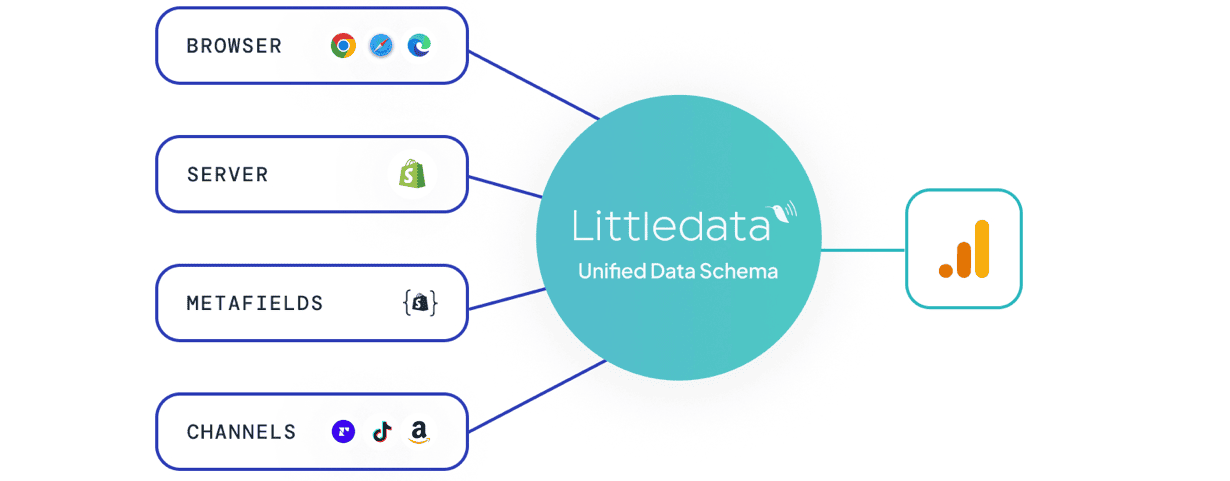
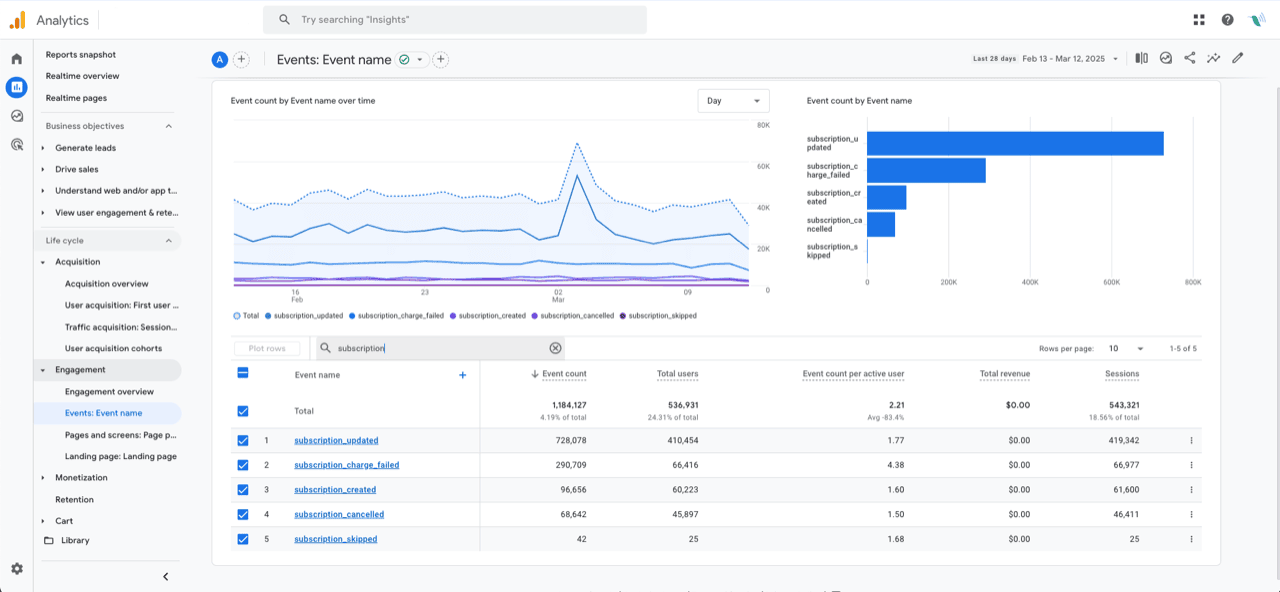
</details>

### Related articles

* [Setup and sync flow for Shopify Markets](https://help.littledata.io/sources/shopify-markets/setup-and-sync)
* [Markets settings](https://help.littledata.io/sources/shopify-markets/markets-settings)
* [How markets are detected](https://help.littledata.io/sources/shopify-markets/how-markets-are-detected)
* [Unassigned markets](https://help.littledata.io/sources/shopify-markets/unnasigned-markets)


# Unassigned markets

Learn what the Unassigned market is, when Littledata sends events to it, and how to configure it per destination.

Littledata adds a special market called **Unassigned Market** next to your Shopify markets. It catches events that can't be matched to a Shopify market, so they still reach your destinations. This page explains when that happens and how to manage it.

### What the unassigned market is

When you turn on the Markets module, Littledata fetches your active Shopify markets so you can configure each destination per market. Alongside them, Littledata creates one internal fallback market. It:

* Exists only in Littledata. It is not created in Shopify.
* Appears in the markets table of every market-aware destination, always as the last row.
* Is used when Littledata can't work out a Shopify market for an event.

Events in the unassigned market are still sent to your destinations. They aren't dropped or assigned to the wrong market.

### Why it exists

Shopify doesn't always give enough context to identify the market for every event. Without a fallback, events could be dropped or credited to the wrong market, and your reporting would be less reliable. A fallback market keeps these events visible and lets you decide how to handle them.

### When events go to the unassigned market

An event goes to the unassigned market when Littledata can't find a Shopify market for it. This usually happens with orders created outside the online store, where there is no storefront session:

* Draft orders
* POS orders
* Orders created directly in the Shopify admin
* Orders from other sales channels, such as Amazon or marketplace apps

It can also happen when the tracking script can't read the market on the page, for example when Shopify's market data is missing when the event fires.

### Market parameters for unassigned events

Littledata events include `market_id` and `market_handle` (see [Setup & sync flow for Shopify Markets](https://help.littledata.io/sources/shopify-markets/setup-and-sync) for which destinations support them). For events in the unassigned market, these are fixed values that don't match any Shopify market:

| Parameter       | Value               |
| --------------- | ------------------- |
| `market_id`     | `0`                 |
| `market_handle` | `unassigned_market` |

You can use these values to filter or segment unassigned events in GA4 and other destinations.

### Configuring the unassigned market

The unassigned market works like your other markets:

* It appears automatically on every market-aware destination when the Markets module is on.
* You can change its settings per destination, just like any Shopify market.
* It stays available as a fallback whenever an event can't be matched to a market.

### Related articles

* [Setup & sync flow for Shopify Markets](https://help.littledata.io/sources/shopify-markets/setup-and-sync)
* [How markets are detected](https://help.littledata.io/sources/shopify-markets/how-markets-are-detected)
* [How destination settings behave with Shopify Markets](https://help.littledata.io/sources/shopify-markets/markets-settings)
* [Shopify Markets FAQ](https://help.littledata.io/sources/shopify-markets/markets-faq)


# Recharge


# Overview

Littledata’s [Recharge connection](https://www.littledata.io/shopify/recharge) is an advanced tracking solution for Shopify stores using Recharge to power their subscription ecommerce. Once activated, it unifies events from Shopify and Recharge into one customer journey in your marketing channels.

## Connection benefits

* Accurate sales data, including first-time orders, recurring payments and subscription lifecycle events
* Accurate marketing attribution for first-time orders, recurring payments and subscription lifecycle events
* Custom dimensions for calculating LTV and more
* Optimize Meta Ads campaigns for new subscription customers by triggering a [Subscribe](/integrations/facebook-capi/how-it-works-shopify-to-meta-conversions-api#new-customer-vs-returning-customer-conversions) conversion
* Fully compatible with Online Store 2.0 and one-page checkout
* Works with [headless Shopify](/sources/shopify/headless-shopify/working-with-a-headless-shopify-setup) setups

{% hint style="success" %}
The Recharge connection works with the Littledata destinations you already have, so connect those first (e.g. Google Analytics, Segment, Meta Ads). Subscription lifecycle events, such as cancellations and failed charges, are sent to Google Analytics 4 and Segment only.
{% endhint %}

## Connection details

1. **Attribute recurring orders and LTV back to campaigns** The Recharge connection works in tandem with Littledata's connections for [Shopify to Google Analytics](/integrations/shopify-to-google-analytics) and [Shopify to Segment](/integrations/shopify-to-segment/how-it-works). We use a combination of server-side and client-side tracking for complete data, and ensure recurring orders and customer lifetime value (LTV) can be attributed to marketing campaigns.
2. **Track subscriptions in Meta Ads** Littledata can push recurring orders and subscription events into Meta Conversions API, allowing you to build audiences from your highest value customers.
3. **Custom dimensions** Littledata adds [custom dimensions](/google-analytics/conversions/customer-lifetime-value-google-analytics) (also called user properties in GA4) for building cohorts and reporting in Google Analytics and connected data tools. These include:
   * Shopify Customer ID
   * Last Transaction Date
   * Purchase Count
   * Lifetime Revenue
   * App Name

## Learn more

You can install the Recharge connection directly in the Littledata app, or from your Recharge admin.

* See [how the Recharge connection works](/sources/recharge/how-it-works-recharge-to-google-analytics-connection)
* Read the Recharge connection [install guide](/sources/recharge/recharge-integration-setup-guide)
* Learn about [using custom dimensions in Google Analytics](https://blog.littledata.io/2019/09/19/quick-tips-for-subscription-stores-using-custom-dimensions-in-google-analytics) (blog post)


# How it works: Recharge to GA4

How Littledata's Recharge connection labels subscription orders and sends subscription lifecycle events to GA4.

This page explains how Littledata's Recharge connection works with GA4. It covers how subscription orders are labeled, which subscription events are sent, and where to find them in GA4.

<figure><img src="https://files.gitbook.com/v0/b/gitbook-x-prod.appspot.com/o/spaces%2F1QhTbrMraNWciQeDvu1b%2Fuploads%2Fgit-blob-ab4ead720decff02f47aef7185ab6fe6d0aeece8%2Fconnection-google-analytics.png?alt=media" alt="Littledata combines browser, server, metafield and channel data and sends it to GA4"><figcaption></figcaption></figure>

{% hint style="info" %}
To send Recharge data to Segment instead, see [How it works: Shopify source for Segment](https://help.littledata.io/integrations/shopify-to-segment/how-it-works) (under "Subscription events").
{% endhint %}

### Tracking subscription orders

Littledata's [Shopify connection](https://help.littledata.io/integrations/shopify-to-google-analytics) tracks all orders. With the [Recharge connection](https://help.littledata.io/sources/recharge), Littledata can also tell recurring subscription orders apart from other orders. This helps you see where subscribers come from, and which channels bring your most valuable subscribers.

Littledata sets the `affiliation` parameter on each GA4 order event:

| Order type      | Affiliation in GA4                                              |
| --------------- | --------------------------------------------------------------- |
| Recurring order | `Subscription Recurring Order`                                  |
| Any other order | The order's Shopify tags, or `Shopify` if the order has no tags |

First subscription orders are not given a special affiliation. They use the order's tags, like any other order. If Recharge adds tags to your subscription orders, those tags show up in the affiliation.

#### How Littledata spots a recurring order

Littledata treats an order as recurring when, for example:

* Littledata's app is authorized to access Recharge, and Recharge reports the order as a recurring order.
* The order's tags contain the word "recurring".

Some other orders get extra labels added to their tags, for example draft orders and Shop app orders.

{% hint style="info" %}
To get the most accurate labels, authorize Littledata's app to access Recharge. Without it, Littledata relies on order tags only.
{% endhint %}

#### Add affiliation as a custom dimension in GA4

To use `affiliation` in GA4 reports and segments, create an event-scoped custom dimension for it.

{% stepper %}
{% step %}
**Open custom definitions**

In GA4, go to **Admin**, then under **Data display** click **Custom definitions**.
{% endstep %}

{% step %}
**Create the dimension**

Click **Create custom dimension**. Set **Dimension name** to `Affiliation`, **Scope** to **Event**, and **Event parameter** to `affiliation`.
{% endstep %}

{% step %}
**Save**

Click **Save**. New data shows up in reports within about 24 to 48 hours.
{% endstep %}
{% endstepper %}

### Subscription lifecycle events

Littledata sends subscription lifecycle events to GA4 and to the [Segment destination](https://help.littledata.io/integrations/shopify-to-segment/how-it-works). Littledata links these events back to the customer's original web session, so you can see which marketing channels lead to cancellations, skips or failed charges.

<div data-with-frame="true"><figure><img src="https://files.gitbook.com/v0/b/gitbook-x-prod.appspot.com/o/spaces%2F1QhTbrMraNWciQeDvu1b%2Fuploads%2Fgit-blob-40597f1faff359db0bdbc6536526f1644e3f142e%2Fscreenshot-2025-03-13-at-12.56.09.png?alt=media" alt="Recharge subscription events in the GA4 Events report"><figcaption></figcaption></figure></div>

These events are tracked by default:

| Event                      | GA4 event name               |
| -------------------------- | ---------------------------- |
| Subscription created       | `subscription_created`       |
| Subscription cancelled     | `subscription_cancelled`     |
| Subscription updated       | `subscription_updated`       |
| Subscription skipped       | `subscription_skipped`       |
| Subscription charge failed | `subscription_charge_failed` |

### Related articles

* [Getting started: Recharge connection](https://help.littledata.io/sources/recharge/recharge-integration-setup-guide)
* [How to check if the Recharge connection is working](https://help.littledata.io/sources/recharge/how-to-check-if-the-littledata-recharge-integration-is-working)
* [FAQ: Recharge connection](https://help.littledata.io/sources/recharge/recharge-faqs)
* [Tracking subscription orders in the Shopify checkout](https://help.littledata.io/sources/shopify/tracking-subscription-orders-in-the-shopify-checkout)


# Getting started: Recharge connection

Littledata's Recharge connection tracks first-time payments, recurring orders and subscription lifecycle events from Recharge. It sends this data to the destinations you have connected in Littledata.

### Set up the Recharge connection

{% stepper %}
{% step %}

### Find the Recharge connection

Open the Littledata app from your Shopify admin. Find the **Recharge** connection and click **Enable**.

<figure><img src="https://3956158252-files.gitbook.io/~/files/v0/b/gitbook-x-prod.appspot.com/o/spaces%2F1QhTbrMraNWciQeDvu1b%2Fuploads%2Fgit-blob-d98e641845d06bdfe8a42e8fe95d05dfed4457a9%2Fimage.png?alt=media" alt=""><figcaption></figcaption></figure>
{% endstep %}

{% step %}

### Review the overview

The first screen explains what the Recharge connection tracks. Continue to the account setup.
{% endstep %}

{% step %}

### Connect your Recharge account

Click **Connect** and log in to Recharge to authorize Littledata. When you return, you'll see **Recharge account connected**. Click **Continue**.
{% endstep %}

{% step %}

### Let Littledata add tracking

Littledata adds its tracking and webhooks to your store. This happens automatically and only takes a moment.
{% endstep %}

{% step %}

### Finish

When you see the success screen, your Recharge connection is live.
{% endstep %}
{% endstepper %}

{% hint style="info" %}
You can also start the setup from Recharge. In the Recharge admin, search the app marketplace for **Littledata**.
{% endhint %}

### Related articles

* [How it works: Recharge to Google Analytics connection](https://help.littledata.io/sources/recharge/how-it-works-recharge-to-google-analytics-connection)
* [How to check if the Recharge connection is working](https://help.littledata.io/sources/recharge/how-to-check-if-the-littledata-recharge-integration-is-working)
* [How to disable the Recharge connection](https://help.littledata.io/sources/recharge/how-to-disable-the-recharge-connection)
* [FAQ: Recharge connection](https://help.littledata.io/sources/recharge/recharge-faqs)


# How to check if the Recharge connection is working

Littledata's Recharge connection tracks Recharge orders and sends subscription data to your connected destinations. Use this guide to check it's working in Google Analytics 4.

{% hint style="info" %}
Before you start, make sure your store has had some orders since you connected Recharge, and that some of them are recurring orders. Otherwise, there's nothing to check yet.
{% endhint %}

### First-time vs recurring payments

A recurring payment happens without the customer visiting your website again. That's why Littledata splits subscription orders into first-time and recurring orders. It keeps your conversion rate accurate for your marketing.

You can tell them apart in GA4 with the order **affiliation**:

* Recurring orders have the affiliation `Subscription Recurring Order`.
* First-time subscription orders use the order tags Recharge adds, such as `Subscription First Order`.

To use affiliation in GA4 reports, [create the Affiliation custom dimension](https://help.littledata.io/integrations/shopify-to-google-analytics/create-affiliation-custom-dimension-ga4).

### Check subscription events in GA4

{% stepper %}
{% step %}

### Open Realtime

In GA4, go to **Reports** > **Realtime overview**.
{% endstep %}

{% step %}

### Find the event cards

Scroll down to the **Event count by Event name** card. It shows all events from the last 30 minutes.
{% endstep %}

{% step %}

### Look for subscription events

Page through the list. Look for `purchase` and subscription events such as `subscription_created`. If you marked any of them as key events, they also show in the **Key events by Event name** card.
{% endstep %}
{% endstepper %}

You can also build an exploration that filters only subscription events, or splits purchases by affiliation.

For subscriptions that started after you installed Littledata, you can see which marketing channel or campaign brought in each subscriber.

### Marketing attribution problems

If orders show up but the source or channel looks wrong, see [Troubleshooting marketing attribution for Shopify](https://help.littledata.io/advanced/troubleshooting/troubleshooting-marketing-attribution-for-shopify).

If you still have issues, [contact our support team](https://www.littledata.io/contact-us).

### Related articles

* [How it works: Recharge to Google Analytics connection](https://help.littledata.io/sources/recharge/how-it-works-recharge-to-google-analytics-connection)
* [FAQ: Recharge connection](https://help.littledata.io/sources/recharge/recharge-faqs)
* [Subscription lifetime revenue by channel in Google Analytics 4](https://help.littledata.io/google-analytics/subscriptions/subscription-revenue-by-channel-in-google-analytics-4)


# How to disable the Recharge connection

Learn how to disable the Recharge connection and make sure that the original settings are put back into place.

This page shows you how to turn off Littledata's Recharge connection. When you disable it, Littledata stops sending Recharge data and removes the webhooks it added to your Recharge account.

{% stepper %}
{% step %}

### Find the Recharge connection

Open the Littledata app from your Shopify admin. Find the **Recharge** connection.
{% endstep %}

{% step %}

### Disable the connection

On the Recharge connection, click **Disable**.
{% endstep %}

{% step %}

### Confirm

In the confirmation window, click **Reset setup**.
{% endstep %}
{% endstepper %}

The Recharge connection is now disabled. You can turn it on again at any time by following the [Recharge setup guide](https://help.littledata.io/sources/recharge/recharge-integration-setup-guide).

### Related articles

* [Getting started: Recharge connection](https://help.littledata.io/sources/recharge/recharge-integration-setup-guide)
* [How to check if the Recharge connection is working](https://help.littledata.io/sources/recharge/how-to-check-if-the-littledata-recharge-integration-is-working)
* [FAQ: Recharge connection](https://help.littledata.io/sources/recharge/recharge-faqs)


# FAQ: Recharge connection

Get answers to frequently asked questions regarding our Recharge integration for Shopify merchants.

Littledata's Recharge connection is an advanced Google Analytics integration for tracking subscription ecommerce behavior. Here are Frequently Asked Questions to help you understand and get started using the integration.

<details>

<summary>What do I get with the Recharge integration?</summary>

* End-to-end [Google Analytics](/integrations/shopify-to-google-analytics/how-it-works-shopify-to-ga4)) tracking for the subscriber journey
* Marketing attribution for subscription revenue
* [Custom dimensions](/google-analytics/conversions/customer-lifetime-value-google-analytics) to calculate lifetime value and create custom audiences for retargeting
* Ability to segment performance in Google Analytics by payment source, subscription plan type, and product category
* Recharge susbcription [lifecycle events](/sources/recharge/how-it-works-recharge-to-google-analytics-connection)

</details>

<details>

<summary>How does this improve on Shopify’s native reporting?</summary>

* Fix your ecommerce tracking in Google Analytics
* Send data to Google Analytics 4 (GA4) and Meta Conversions API
* Attribute recurring payments to marketing campaigns

Check out the [complete list of what you can track](https://help.littledata.io/integrations/shopify-to-google-analytics) to see the full scope of reporting.

</details>

<details>

<summary>Can’t I just use Recharge’s basic Google Analytics integration?</summary>

As the name states, that's just a basic [integration](https://support.getrecharge.com/hc/en-us/articles/360008683194-Google-Analytics). That means your data collection will be limited and have incomplete marketing attribution for subscription sales, plus there is no tracking for GA4 or Facebook CAPI.

Littledata's Recharge connection is an advanced Google Analytics integration for Recharge stores. We've worked closely with the Recharge team to make Littledata the most powerful and flexible analytics integration for Recharge — and we continue to update the connection based on the latest product updates from both Shopify and Recharge.

</details>

<details>

<summary>I get UTM parameters from the Recharge Subscription API. Do I still need Littledata?</summary>

Since the release of Recharge v3.2, the UTM parameters as captured by Shopify on the store landing page are passed to the checkout then [stored on the subscription or customer record](https://support.rechargepayments.com/hc/en-us/articles/360041127093-Using-cart-attributes-and-UTM-parameters-in-URLs). They are available in the `analytics_data.utm_params` field.

This is helpful, but it misses a few key parts of what Littledata does:

1. Shopify's own UTM tracking is [far from perfect on most stores](https://blog.littledata.io/2019/02/04/shopifys-sales-by-traffic-source-report-is-broken), and the same mistakes get copied into Recharge's UTM params.
2. The UTM parameters only capture the 'last click' attribution of the subscription; with Littledata + Google Analytics you can look at the contribution from all marketing channels.
3. If you also have one-time orders processed through Shopify's checkout, you need Littledata's [Shopify tracking](https://help.littledata.io/integrations/shopify-to-google-analytics) to compare like-for-like attribution across the two checkouts.
4. In Google Analytics you can look at the interaction between the campaign and other user attributes. For example, you can ask "Do Meta ads perform especially well in the US, or globally?" Or "are affiliates driving more subscriptions on mobile only?"
5. Tracking Recharge customer [lifecycle events](https://help.littledata.io/sources/recharge/how-it-works-recharge-to-google-analytics-connection) allows you to split post-purchase behavior like cancellations, skipped orders and payment failures by the marketing channel that brought them to subscribe.

</details>

<details>

<summary>What's the difference between Recharge Analytics and Littledata's integration?</summary>

Recharge's [Analytics](https://support.getrecharge.com/hc/en-us/articles/360044363954-Recharge-Analytics) offers easy ways to visualize your Recharge data in the app, while Littledata fixes sales and marketing tracking and sends that data to Segment or Google Analytics.

The chart below breaks down the differences between what Recharge Enhanced Analytics offers and what Littledata offers for Google Analytics and Segment.

| **What you can do**                                                                   | **Recharge Enhanced Analytics** | **Littledata + Google Analytics** | **Littledata + Segment** |
| ------------------------------------------------------------------------------------- | ------------------------------- | --------------------------------- | ------------------------ |
| Look at trends in subscription signups and cancellations                              | ✔                               | ✔                                 | ✔                        |
| Analyze churn rate by cohort or product                                               | ✔                               | ✔ \*                              | ✔ \*                     |
| Visualize cohort retention                                                            | ✔                               |                                   |                          |
| Analyze multichannel marketing contributions to subscription sales                    | ✔                               | ✔                                 | ✔                        |
| Attribute recurring orders back to marketing campaigns                                | ✔                               | ✔                                 | ✔                        |
| Analyze Customer Lifetime Value including non-Recharge spend                          |                                 | ✔                                 | ✔                        |
| Track charge failures by any customer attribute                                       |                                 | ✔                                 | ✔                        |
| Track subscription cancellations or upgrades by any customer attribute                |                                 | ✔                                 | ✔                        |
| Track customer updates by any customer attribute                                      |                                 | ✔                                 | ✔                        |
| Track usage of the customer portal on your site by any customer attribute             |                                 | ✔                                 | ✔                        |
| See how any Recharge customer event connects to the pre-checkout behavior of the user |                                 | ✔                                 | ✔                        |
| Look at cancellation rate by marketing channel                                        | ✔                               | ✔                                 | ✔                        |
| Trigger transactional emails based on changes to subscriptions \*\*                   |                                 |                                   | ✔                        |
| Retarget segments of your Recharge audience in common marketing destinations          |                                 |                                   | ✔                        |

\* Requires additional analysis in a spreadsheet\
\*\* In Segment destinations such as [Iterable](https://segment.com/docs/connections/destinations/catalog/iterable)

</details>

<details>

<summary>How do I know if the integration is working?</summary>

* Check out [this guide](/sources/recharge/how-to-check-if-the-littledata-recharge-integration-is-working) to see if the Recharge connection is functioning properly.
* [Contact](https://www.littledata.io/contact-us) our team if you have additional questions.

</details>

<details>

<summary>Do you alter my historic data?</summary>

* No, it's not possible for our app to mess with your historic data (nor would we want it to).
* Littledata's improved tracking script only helps with data from the time you install it going forward.

</details>

<details>

<summary>How do I uninstall the Recharge connection?</summary>

If you need to uninstall the Recharge connection, follow the steps in the Recharge [uninstall guide](https://help.littledata.io/sources/recharge/how-to-disable-the-recharge-connection). But don't forget that you can always [contact support](https://www.littledata.io/contact-us) if you have any questions!

</details>


# Profit Signal


# How to use Profit Signal

Profit Signal sends the contribution margin of each order to your marketing destinations, so your ad platforms can optimize toward profit instead of revenue.

* For **Google Ads**, it changes the conversion value from revenue to profit.
* For **Meta Conversions API**, it adds the profit to each purchase event as `net_revenue` and leaves the order value as revenue.
* For **Google Analytics 4** and **Segment**, it adds a `profit` parameter without changing the reported revenue value.

This guide explains how to enable Profit Signal, how profit values are calculated, and how to use those values to optimize your ads.

## How to enable Profit Signal

{% stepper %}
{% step %}

### Select Profit Signal source

Within the Littledata app, find the Profit Signal source and click **Enable**.

<figure><img src="https://3956158252-files.gitbook.io/~/files/v0/b/gitbook-x-prod.appspot.com/o/spaces%2F1QhTbrMraNWciQeDvu1b%2Fuploads%2Fgit-blob-852935c2b44875384c44dba3298d33089cda84e9%2Fimage%20(8).png?alt=media" alt=""><figcaption></figcaption></figure>
{% endstep %}

{% step %}

### Configure global margin

After the basic setup, you will be prompted to set your global margin. This is applied to every product on your store and is used to calculate the profit.

<figure><img src="https://3956158252-files.gitbook.io/~/files/v0/b/gitbook-x-prod.appspot.com/o/spaces%2F1QhTbrMraNWciQeDvu1b%2Fuploads%2Fgit-blob-753b514e978ad8fe8c98b06487dfcdf0168f3560%2Fimage%20(140).png?alt=media" alt=""><figcaption></figcaption></figure>
{% endstep %}

{% step %}

### Product specific margin

Configure margin based on **Product Type**, **Vendor**, or product **Tag**. A product specific margin overwrites the global margin and only the **first match** found on the product is applied.

<figure><img src="https://3956158252-files.gitbook.io/~/files/v0/b/gitbook-x-prod.appspot.com/o/spaces%2F1QhTbrMraNWciQeDvu1b%2Fuploads%2Fgit-blob-d61e3fb5286f1cba36d1cef8583a2b992033c84f%2Fimage%20(141).png?alt=media" alt=""><figcaption></figcaption></figure>
{% endstep %}

{% step %}

### Turn on for destinations

Pick the connections you want Profit Signal to apply to, then enable it. Only the destinations you select here receive profit values, so you can start with one platform and leave the rest reporting on revenue.

The destination has to be connected first. For Meta, that means an active Meta Conversions API connection.

{% hint style="info" %}
Google Analytics 4, Segment and Klaviyo don't have a toggle. Once your margins are set, they get `profit_value` automatically, next to the normal revenue value.
{% endhint %}

<figure><img src="https://3956158252-files.gitbook.io/~/files/v0/b/gitbook-x-prod.appspot.com/o/spaces%2F1QhTbrMraNWciQeDvu1b%2Fuploads%2Fgit-blob-97dfd87ddff36dcde7b6957315a060930c08f301%2Fimage%20(142).png?alt=media" alt=""><figcaption></figcaption></figure>
{% endstep %}
{% endstepper %}

## How profit values are calculated

Littledata uses the gross margin you set to calculate the value sent with each order.

The calculation is product-based: Littledata starts from the order's gross revenue, removes shipping, tax, and discounts, and then applies your product margin to what remains to arrive at the profit value.

Where that profit ends up depends on the destination. For Google Ads it replaces the conversion value. For Meta, Google Analytics, Segment and Klaviyo it is sent alongside the untouched revenue value, as `net_revenue` for Meta and as a `profit_value` parameter for the others. To see `profit_value` in Google Analytics reports, register it as a custom metric.

You can change your margin settings at any time. Any orders processed after the change will use the updated configuration for profit-based values.

### Global margin vs per-product margin

You can set a global margin that applies across your catalog, and add category margins for more precise control. Per-product margins override the global margin: if more than one per-product margin could apply, Littledata uses the first matching rule it finds.

## Optimizing ads using gross profit

Once Profit Signal is feeding profit values to your ad platforms, you can let their bidding algorithms optimize toward gross profit rather than top-line revenue. This shifts spend toward orders that are genuinely profitable, instead of high-revenue orders that may carry thin margins.

### Destination comparison

| Destination name   | How profit is sent                           | Revenue still reported |
| ------------------ | -------------------------------------------- | ---------------------- |
| Google Ads         | Replaces the conversion value                | ❌                      |
| Meta Ads           | Added as `net_revenue` on the purchase event | ✅                      |
| Google Analytics 4 | Added as a `profit` parameter                | ✅                      |
| Segment            | Added as a `profit` parameter                | ✅                      |

### Meta Ads

For Meta Conversions API, Profit Signal adds the calculated profit to each purchase event as `net_revenue`. The `value` parameter is left alone and still carries the order revenue, so Meta receives both numbers and you decide which one to bid on.

In Ads Manager, pick **Profit** as your value optimization option and Meta bids on the `net_revenue` we send instead of order revenue. Budget then moves toward the orders that leave the most margin rather than the biggest baskets.

Because revenue keeps flowing in the `value` parameter, turning Profit Signal on does not disturb your existing reporting or your value-based campaigns. You can leave campaigns on standard value optimization, compare the two over a few weeks, and switch when the numbers make the case.

For more on how Littledata sends data to Meta, see [How it works: Shopify to Meta Conversions API](https://help.littledata.io/integrations/facebook-capi/how-it-works-shopify-to-meta-conversions-api).

### Google Ads

For Google Ads, Profit Signal switches the reported conversion value from revenue to profit. Pair this with a value-based Smart Bidding strategy such as **Maximize conversion value** or **Target ROAS** so the algorithm optimizes against profit.

With profit as the conversion value, your reported ROAS becomes a return on profit. Campaigns that drive high revenue but low margin will look less attractive, and budget naturally moves toward the products and audiences that generate the most profit.

For more on how Littledata sends data to Google Ads, see [How it works: Shopify to Google Ads](https://help.littledata.io/integrations/google-ads/google-ads-how-it-works).


# How to check Profit Signal in Meta

Once Profit Signal is enabled on your Meta connection, Littledata adds the profit of each order to the purchase event as `net_revenue`. This guide shows you how to confirm Meta is receiving it, and what else Meta needs before you can optimize on profit.

## Confirm Meta is receiving profit

{% stepper %}
{% step %}

### Open your dataset

In Meta Events Manager, open the dataset connected to Littledata.
{% endstep %}

{% step %}

### Switch the columns view

From the dropdown, select **Columns: Value and currency metrics**.

<figure><img src="https://3956158252-files.gitbook.io/~/files/v0/b/gitbook-x-prod.appspot.com/o/spaces%2F1QhTbrMraNWciQeDvu1b%2Fuploads%2FCaF5lE5By8SzjYdg2ZkO%2FScreenshot%202026-08-11%20144523.png?alt=media&#x26;token=4a615aca-7f73-4dc5-a71a-1664b3d410ae" alt=""><figcaption></figcaption></figure>
{% endstep %}

{% step %}

### Open the Purchase event

Click into the **Purchase** event.
{% endstep %}

{% step %}

### Check the Profit card

If the Profit card says **Available**, Meta is receiving the profit values Littledata sends as `net_revenue`. You can now base your campaigns on profit.

<figure><img src="https://3956158252-files.gitbook.io/~/files/v0/b/gitbook-x-prod.appspot.com/o/spaces%2F1QhTbrMraNWciQeDvu1b%2Fuploads%2Fxb9nzLrLrE7gav3XqGYo%2FScreenshot%202026-08-11%20144700.png?alt=media&#x26;token=4e254be8-c6f9-495f-bc5a-551b91bc3701" alt=""><figcaption></figcaption></figure>
{% endstep %}
{% endstepper %}

{% hint style="info" %}
Only orders processed after you enabled Profit Signal carry `net_revenue`. If you have just turned it on, you will need to wait up to 7 days before checking
{% endhint %}

## Why Profit can still be greyed out in Ads Manager

Receiving `net_revenue` is the first requirement, not the only one. Before the Profit option becomes selectable, Meta's [value optimization for profit](https://developers.facebook.com/documentation/ads-commerce/conversions-api/guides/value-optimization-for-profit/overview) documentation also requires:

* At least 3 distinct positive profit values across your purchase events
* At least 100 conversions over a one-week period

Meta also recommends at least 30 daily conversions per campaign.

Until both requirements are met, Profit stays greyed out in Ads Manager with a warning icon.

{% hint style="info" %}
Meta also says profit values should not be a fixed percentage of the purchase value. If they are, optimizing for profit gives the same results as optimizing for purchase value. If you only set a global margin, add product-specific margins in Profit Signal so profit varies across your products.
{% endhint %}

## If the Profit card is not showing as available

Work through these in order:

1. **Check the connection.** Profit Signal is enabled per destination. Confirm Meta is one of the destinations you selected in the Littledata app.
2. **Check for new orders.** Historical orders are not backfilled. You need purchases that happened after Profit Signal was switched on.
3. **Check your margins.** If no margin is configured, there is no profit to send.
4. **Give it time.** Meta can take up to 7 days to light the option up after the data starts arriving.

Still stuck? Reach out to <help@littledata.io> and we can check what we are sending on your purchase events.

## Related

* [How to use Profit Signal](/sources/profit-signal/how-to-use-profit-signal) for how profit is calculated and how to enable it
* [How it works: Shopify to Meta Conversions API](/integrations/facebook-capi/how-it-works-shopify-to-meta-conversions-api) for everything else we send to Meta


# Overview

Littledata connects your Shopify store to analytics, advertising, and email/SMS platforms using server-side tracking. Select a destination below to find setup guides, how-it-works docs, and FAQs.

<table data-view="cards"><thead><tr><th></th><th></th><th data-hidden data-card-target data-type="content-ref"></th><th data-hidden data-card-cover data-type="image">Cover image</th></tr></thead><tbody><tr><td><strong>Google Analytics 4</strong></td><td>Server-side event tracking, checkout steps, and marketing attribution in GA4.</td><td><a href="/integrations/shopify-to-google-analytics">Google Analytics</a></td><td><a href="https://3956158252-files.gitbook.io/~/files/v0/b/gitbook-x-prod.appspot.com/o/spaces%2F1QhTbrMraNWciQeDvu1b%2Fuploads%2Fgit-blob-60716084aafe5bfb85b00f7d2feae3d957b2c4b3%2Fgoogle-analytics.png?alt=media">google-analytics.png</a></td></tr><tr><td><strong>Google Ads</strong></td><td>Server-side conversions with Enhanced Conversions for better ROAS.</td><td><a href="/integrations/google-ads">Google Ads</a></td><td><a href="https://3956158252-files.gitbook.io/~/files/v0/b/gitbook-x-prod.appspot.com/o/spaces%2F1QhTbrMraNWciQeDvu1b%2Fuploads%2Fgit-blob-b36d276c25fe395015cc6a205175d5b83e1392e1%2Fgoogle-ads.png?alt=media">google-ads.png</a></td></tr><tr><td><strong>Meta Conversions API</strong></td><td>Improve match quality and attribution in Meta Ads via CAPI.</td><td><a href="/integrations/facebook-capi">Meta Conversions API</a></td><td><a href="https://3956158252-files.gitbook.io/~/files/v0/b/gitbook-x-prod.appspot.com/o/spaces%2F1QhTbrMraNWciQeDvu1b%2Fuploads%2Fgit-blob-af451e661d018d22378e250cb4f34a74d9890e8c%2Fmeta-capi.png?alt=media">meta-capi.png</a></td></tr><tr><td><strong>Klaviyo</strong></td><td>Enhanced identity resolution for abandoned cart and browse flows.</td><td><a href="/integrations/shopify-klaviyo">Klaviyo</a></td><td><a href="https://3956158252-files.gitbook.io/~/files/v0/b/gitbook-x-prod.appspot.com/o/spaces%2F1QhTbrMraNWciQeDvu1b%2Fuploads%2Fgit-blob-f8c3b31332970a4d18882b800eac1277863898e0%2Fklaviyo.png?alt=media">klaviyo.png</a></td></tr><tr><td><strong>Attentive</strong></td><td>Expand SMS audiences with cross-channel data stitching.</td><td><a href="/integrations/attentive">Attentive</a></td><td><a href="https://3956158252-files.gitbook.io/~/files/v0/b/gitbook-x-prod.appspot.com/o/spaces%2F1QhTbrMraNWciQeDvu1b%2Fuploads%2Fgit-blob-2642502d4b861ac7f7164950ad38da8a76b5a0ff%2Fattentive.png?alt=media">attentive.png</a></td></tr><tr><td><strong>Microsoft Ads</strong></td><td>Server-side Shopify conversion tracking in Microsoft Ads.</td><td><a href="/integrations/microsoft-ads">Microsoft Ads</a></td><td><a href="https://3956158252-files.gitbook.io/~/files/v0/b/gitbook-x-prod.appspot.com/o/spaces%2F1QhTbrMraNWciQeDvu1b%2Fuploads%2Fgit-blob-4de01ef8f2eb875f6820411f5596eaf47625bb67%2Fmicrosoft-ads.png?alt=media">microsoft-ads.png</a></td></tr><tr><td><strong>OpenAI Ads</strong></td><td>Server-side purchases plus page and product views for OpenAI Ads (beta).</td><td><a href="/integrations/chatgpt-ads">OpenAI Ads</a></td><td><a href="https://3956158252-files.gitbook.io/~/files/v0/b/gitbook-x-prod.appspot.com/o/spaces%2F1QhTbrMraNWciQeDvu1b%2Fuploads%2Fgit-blob-505d989649b62d73202be72286a72c9174caeee5%2Fchatgpt-ads.png?alt=media">chatgpt-ads.png</a></td></tr><tr><td><strong>TikTok</strong></td><td>Improve match rates and ROAS via the TikTok Events API.</td><td><a href="/integrations/tiktok">Tiktok</a></td><td><a href="https://3956158252-files.gitbook.io/~/files/v0/b/gitbook-x-prod.appspot.com/o/spaces%2F1QhTbrMraNWciQeDvu1b%2Fuploads%2Fgit-blob-80d255e30d166bbd302e897496a7237a3df021b4%2Ftiktok.png?alt=media">tiktok.png</a></td></tr><tr><td><strong>Pinterest</strong></td><td>Better retargeting and audiences via the Pinterest API for Conversions.</td><td><a href="/integrations/shopify-to-pinterest">Pinterest</a></td><td><a href="https://3956158252-files.gitbook.io/~/files/v0/b/gitbook-x-prod.appspot.com/o/spaces%2F1QhTbrMraNWciQeDvu1b%2Fuploads%2Fgit-blob-cb9170030964288912b6de96a9362517334c3ba6%2Fpinterest.png?alt=media">pinterest.png</a></td></tr><tr><td><strong>Segment</strong></td><td>Use Shopify as a Segment source for warehouses, Mixpanel, Braze, and more.</td><td><a href="/integrations/shopify-to-segment">Segment</a></td><td><a href="https://3956158252-files.gitbook.io/~/files/v0/b/gitbook-x-prod.appspot.com/o/spaces%2F1QhTbrMraNWciQeDvu1b%2Fuploads%2Fgit-blob-a71d3a94ce43f73b0418ff3fdb667dfc60cc98de%2Fsegment.png?alt=media">segment.png</a></td></tr></tbody></table>

## More destinations

* [Shopify](/sources/shopify) -- Server-side tracking architecture, the Littledata Pixel, multi-currency, checkout tracking, and refunds.
* [Headless Shopify](/sources/shopify/headless-shopify) -- Installation and setup for headless or Shopify Hydrogen storefronts.
* [Recharge](/sources/recharge) -- Subscription lifecycle events, recurring payments, and first-time orders across all destinations.
* [Dotdigital](/integrations/dotdigital) -- Abandonment program audiences with server-side browse and cart tracking.
* [Shopify Markets](/sources/shopify-markets) -- Multi-market and multi-currency tracking for Shopify Markets expansion stores.

{% hint style="info" %}
All destinations require the Littledata app installed on your Shopify store. Most can be activated in under 10 minutes with no code changes. See [How server-side tracking works](/get-started/how-server-side-tracking-works) for details on our tracking architecture.
{% endhint %}


# Attentive

Littledata's Shopify to Attentive connection tracks more of what shoppers do before they buy. It sends product view and add to cart events to Attentive with better accuracy, so you can reach more shoppers with your email and SMS journeys.

![Shopify to Attentive connection](https://3956158252-files.gitbook.io/~/files/v0/b/gitbook-x-prod.appspot.com/o/spaces%2F1QhTbrMraNWciQeDvu1b%2Fuploads%2Fgit-blob-c0582d82f446b10f0f81e2eb0d8927252b38e47f%2FShopify-to-Attentive.png?alt=media\&token=86bb7d46-d64f-4867-b587-9cea02d03b5b)

The connection improves:

* Browse abandonment: re-engage shoppers who viewed products but left without adding anything to their cart.
* Cart abandonment: remind shoppers about items in their cart, with incentives like discounts or urgency cues.

### Better identity resolution

Here's a common scenario before checkout:

1. A shopper arrives on your site from a paid Meta or Google ad.
2. They sign up for a discount code but leave without buying.
3. A day later, they come back, add items to their cart and leave again.

If the shopper uses an ad blocker or Safari, or has opted out of tracking, Attentive can lose track of who they are after the first visit. Then it can't send a cart abandonment message.

Littledata fills this gap by linking what it knows about the shopper across visits. It uses identifiers such as:

* Email or phone number from Attentive sign-up forms, like a discount code pop-up
* Shopify customer account logins
* Anonymous IDs, like the Littledata ID and the Shopify cookie ID

This lets you recognize more returning shoppers, even before checkout or without a new email submission. Your cart recovery messages keep working, and your audiences for personalized marketing get bigger.

### Working with Attentive email and SMS

Littledata works with Attentive's email and SMS products, or both. Littledata identifies more of the shoppers who visit your site, so more anonymous visits can be linked to profiles in Shopify and Attentive.

### Working with Klaviyo

Many brands use Littledata's [Klaviyo connection](https://help.littledata.io/integrations/shopify-klaviyo) for email alongside Attentive for SMS. You can run both connections on the same store.

### Get started

* [Shopify to Attentive installation guide](https://help.littledata.io/integrations/attentive/shopify-to-attentive-installation-guide)
* [How it works: Shopify to Attentive](https://help.littledata.io/integrations/attentive/how-it-works-shopify-to-attentive)
* [Track Attentive SMS campaigns in Google Analytics](https://help.littledata.io/integrations/attentive/attribution-report-ga4-attentive)


# Shopify to Attentive installation guide

This guide shows you how to connect your Shopify store to the Attentive destination in the Littledata app. It takes a few minutes, and you sign in to Attentive once to approve the connection.

### Before you start

* The Littledata app is installed on your Shopify store.
* You can sign in to the Attentive account for this store, with permission to approve apps and integrations.
* Attentive is available on your Littledata plan. If it's under **Available with an upgrade**, you need to change your plan first.

### Connect Attentive

{% stepper %}
{% step %}

#### Open the Littledata app

In your Shopify admin, go to **Apps** and open **Littledata**.
{% endstep %}

{% step %}

#### Add the destination

In the **Destinations** section, click **Add destination**. A list of destinations opens, grouped under **Available in your plan**.
{% endstep %}

{% step %}

#### Choose Attentive

Find **Attentive** in the list and click **Connect** next to it. The setup opens on the **Connect your store to Attentive** screen.
{% endstep %}

{% step %}

#### Read the overview

Read the short overview, then click **Continue**. You'll see **No account connected** with a **Connect** button.
{% endstep %}

{% step %}

#### Sign in to Attentive

Click **Connect**. Attentive opens in a new tab. If you're not signed in, sign in to your Attentive account. If you manage more than one Attentive company, make sure you're signed in to the one for this store.
{% endstep %}

{% step %}

#### Approve the Littledata app

Attentive shows the permissions Littledata asks for: sending events, ecommerce activity, subscriptions, subscriber attributes and privacy requests. Click **Authorize**. Then go back to the Littledata app tab (close the Attentive tab if it stays open).

If you cancel instead, no account is connected. Go back to the Littledata app and click **Connect** again.
{% endstep %}

{% step %}

#### Continue after sign-in

Back in the Littledata app, the screen title changes to **Attentive account connected**. Click **Continue**.

If you connected the wrong Attentive account, click **Change account** and sign in again.
{% endstep %}

{% step %}

#### Wait while tracking is added

You'll see **Adding tracking** while Littledata sets up tracking on your Shopify store. This takes a few seconds and moves on by itself.
{% endstep %}

{% step %}

#### Verify the connection

On the **Verify your connection** screen, click **Verify**. Littledata sends one test event to your Attentive account to check that the connection works.

{% hint style="info" %}
The test event won't affect your existing campaigns.
{% endhint %}
{% endstep %}

{% step %}

#### Finish

You'll see **You're connected! Here's where to go next.** The Attentive connection is now live. Click **Skip to dashboard** to go back to the Littledata app, or **Explore the event editor** to see the events Littledata sends.
{% endstep %}
{% endstepper %}

## Check your connection

{% stepper %}
{% step %}
**Check the destination card**

In the Littledata app, find the Attentive card in **Destinations**.

It shows a green **Connected** badge.
{% endstep %}

{% step %}
**Check events in Attentive**

Littledata sends **Product Viewed** and **Add to Cart** events as shoppers browse your store.

To test, visit your store as a known Attentive subscriber. View a product, then add it to your cart.

Open that subscriber's profile in Attentive and confirm the activity appears.
{% endstep %}
{% endstepper %}

{% hint style="info" %}
If you verified the connection but don't see events after a few hours, contact Littledata support.
{% endhint %}

### Related articles

* [Attentive](https://help.littledata.io/integrations/attentive)
* [How it works: Shopify to Attentive](https://help.littledata.io/integrations/attentive/how-it-works-shopify-to-attentive)
* [Track Attentive SMS campaigns in GA4](https://help.littledata.io/integrations/attentive/attribution-report-ga4-attentive)


# How it works: Shopify to Attentive

This page lists the events Littledata sends from your Shopify store to Attentive, and the properties included with each event.

### What you can track

All events below are sent [server-side](https://help.littledata.io/get-started/how-server-side-tracking-works) and are tracked by default. You can choose to disable tracking for one or more events in the app settings.

| **Event name** | **Description**                        |
| -------------- | -------------------------------------- |
| Add to Cart    | When a user adds a product to the cart |
| Product Viewed | When a user views a product            |

### Event properties

Our schema is designed to be backwards compatible with the standard Add to Cart and Product Viewed events from Shopify.

In addition to this, Littledata adds `externalIdentifiers` to improve the linking of on-site behavior to an Attentive profile.

| **Parameter name**                               | **Description**                              | **Type** |
| ------------------------------------------------ | -------------------------------------------- | -------- |
| items                                            | Array of items in the event                  | array    |
| items.productId                                  | ID of the product                            | string   |
| items.productVariantId                           | ID of the product variant                    | string   |
| items.productImage                               | Link to the image of the product             | string   |
| items.productUrl                                 | URL of the product                           | string   |
| items.name                                       | Name of the product                          | string   |
| items.price                                      | Array that contains details about price      | array    |
| items.price.value                                | Price of the product (can include decimals)  | number   |
| items.price.currency                             | Currency of the product                      | string   |
| items.quantity                                   | Quantity of items in the event               | int      |
| occurredAt                                       | Time when the event was triggered (ISO 8601) | string   |
| user                                             | User details                                 | object   |
| user.email                                       | Email of the user                            | string   |
| user.phone                                       | Phone number of the user                     | string   |
| user.externalIdentifiers                         | Additional identifiers for the user          | object   |
| user.externalIdentifiers.customIdentifiers       | Array of custom identifiers for the user     | array    |
| user.externalIdentifiers.customIdentifiers.name  | Name of the custom identifier                | string   |
| user.externalIdentifiers.customIdentifiers.value | Value of the custom identifier               | string   |

Littledata sends up to two custom identifiers: `ldID` (the Littledata ID) and `shopifyY` (the ID from Shopify's `_shopify_y` browser cookie).

### Related articles

* [Shopify to Attentive installation guide](https://help.littledata.io/integrations/attentive/shopify-to-attentive-installation-guide)
* [How server-side tracking works](https://help.littledata.io/get-started/how-server-side-tracking-works)


# Track Attentive SMS campaigns in Google Analytics

## Track Attentive SMS campaigns in GA4

This page shows you how to tag Attentive SMS links with UTM parameters and where to find Attentive campaigns in GA4. It also explains why GA4 and Attentive report different numbers.

{% hint style="info" %}
This article is about tracking Attentive campaigns in Google Analytics 4 (GA4). For sending Shopify data to Attentive, see [How it works: Shopify to Attentive](https://help.littledata.io/integrations/attentive/how-it-works-shopify-to-attentive).
{% endhint %}

With Littledata's GA4 destination, you can:

* **See which SMS campaigns drive sales.** Compare Attentive with your other channels in one place.
* **Build better audiences.** Littledata sends browsing, checkout and purchase events (including refunds and repeat purchases) to GA4, so you can build audiences for Google Ads and other platforms.
* **Track subscription orders.** Littledata works with many [subscription apps](https://help.littledata.io/sources/shopify/tracking-subscription-orders-in-the-shopify-checkout), so recurring orders show up in GA4 too.

### How campaign tracking works

Attentive campaigns are tracked through Littledata's [Shopify to GA4](https://help.littledata.io/integrations/shopify-to-google-analytics/how-it-works-shopify-to-ga4) connection. You don't need Google Tag Manager.

GA4 reads the source of each session from the UTM parameters on the link the customer clicked. If your Attentive links don't have UTMs, GA4 can't tell those visits came from Attentive. That's why it's important to set them up correctly.

### Set up UTMs for Attentive SMS campaigns

Add UTMs to every link in your Attentive messages. When you create a message, Attentive's link shortener adds a default `utm_source` and `utm_medium`. You can change these defaults in Attentive under **Settings** > **Google Analytics**.

Whatever naming you choose, keep it consistent. Many merchants keep a shared spreadsheet of UTM names and check it regularly.

Attentive recommends this naming schema:

| UTM variable       | UTM value                                                |
| ------------------ | -------------------------------------------------------- |
| Source             | The name of the software platform sending SMS            |
| Medium             | sms                                                      |
| Campaign           | The name of the campaign or flow within the SMS platform |
| Content (optional) | The hook or offer of the SMS sent                        |
| Term (optional)    | The segment of your audience                             |

To add a tagged link to a campaign:

{% stepper %}
{% step %}

### Open the campaign design

In Attentive, create a campaign and go to the **Design your campaign** screen.
{% endstep %}

{% step %}

### Add a link

When you're ready to insert your link, click **+** (**Add link/media**)

<figure><img src="https://3956158252-files.gitbook.io/~/files/v0/b/gitbook-x-prod.appspot.com/o/spaces%2F1QhTbrMraNWciQeDvu1b%2Fuploads%2Fgit-blob-46a6c3eea635be3653325f2f1df0fc3904609720%2F41451.avif?alt=media" alt=""><figcaption></figcaption></figure>
{% endstep %}

{% step %}

### Choose a short link

In the popup, click **Select** next to **Short link**.

<figure><img src="https://3956158252-files.gitbook.io/~/files/v0/b/gitbook-x-prod.appspot.com/o/spaces%2F1QhTbrMraNWciQeDvu1b%2Fuploads%2Fgit-blob-0ec79424426ff65c6f7c69e29f97e7d2d6ae0caa%2F22222.avif?alt=media" alt=""><figcaption></figcaption></figure>
{% endstep %}

{% step %}

### Enter the URL with UTMs

Add the URL with your UTMs. You can type it in or use [Google's Campaign URL Builder](https://ga-dev-tools.web.app/campaign-url-builder). For example:

| Parameter   | Value     |
| ----------- | --------- |
| utm\_source | attentive |
| utm\_medium | sms       |

{% hint style="info" %}
You can set campaign defaults in Attentive's settings under **GA Link Tracking**. Attentive then fills in the URL parameters for you.
{% endhint %}
{% endstep %}

{% step %}

### Insert and send

Click **Shorten & insert URL**, review your campaign and send it.
{% endstep %}
{% endstepper %}

### Report on Attentive campaigns in GA4

Once your links have UTMs, Attentive flows and campaigns show up in GA4. You can look at Attentive on its own or compare it with your other channels.

Here's a real example where Attentive ranks first for revenue per session and session conversion rate:

![](https://3956158252-files.gitbook.io/~/files/v0/b/gitbook-x-prod.appspot.com/o/spaces%2F1QhTbrMraNWciQeDvu1b%2Fuploads%2Fgit-blob-865d2cf08742703f590cca566165192d398e3993%2Fattentive-cvr-and-rps.png?alt=media\&token=e7460875-9f06-4a8d-93cf-fef79d5f8ca8)

{% hint style="success" %}
To build metrics like these, see [GA4 calculated metrics for ecommerce](https://help.littledata.io/google-analytics/behavior/ga4-calculated-metrics-that-improve-understanding-of-ecommerce-performance).
{% endhint %}

To see revenue and orders by Attentive campaign:

{% stepper %}
{% step %}

### Open the traffic acquisition report

In GA4, go to **Reports** > **Acquisition** > **Traffic acquisition**.
{% endstep %}

{% step %}

### Filter to Attentive

Change the primary dimension to **Session source** and search for `attentive` (or the source name you use).
{% endstep %}

{% step %}

### Add the campaign

Click **+** next to the dimension column and add **Session campaign** as a secondary dimension.
{% endstep %}
{% endstepper %}

### Will GA4 match Attentive?

No. GA4 tracks sessions and attributes sales differently from Attentive. The main differences are:

* **Quick visits may not count in GA4.** If Attentive logs a visit and GA4 doesn't, the browser probably didn't stay on the page long enough for GA4 to record a session.
* **Cross-device journeys.** GA4 only links visits on different devices when it can identify the same user, for example a logged-in customer. If someone clicks an SMS on their phone and buys later on their laptop, GA4 may credit a different source.
* **Different attribution rules.** GA4's traffic acquisition report credits each session to its own source. Attentive uses its own attribution window, which can credit a purchase to an SMS click (or view) from days earlier.

If you want Attentive's attributed revenue to match GA4 more closely, ask Attentive to change your attribution window to a zero-day click window and to exclude view-through purchases.

### Related articles

* [How it works: Shopify to Attentive](https://help.littledata.io/integrations/attentive/how-it-works-shopify-to-attentive)
* [How it works: Shopify to GA4](https://help.littledata.io/integrations/shopify-to-google-analytics/how-it-works-shopify-to-ga4)
* [Troubleshooting marketing attribution for Shopify](https://help.littledata.io/advanced/troubleshooting/troubleshooting-marketing-attribution-for-shopify)


# Dotdigital

![Shopify to Dotdigital connection](https://3956158252-files.gitbook.io/~/files/v0/b/gitbook-x-prod.appspot.com/o/spaces%2F1QhTbrMraNWciQeDvu1b%2Fuploads%2Fgit-blob-9e3c3a5f3ad8add1aafec88502f629ad2bfd72a8%2FShopify-to-Dotdigital.png?alt=media\&token=bef16ce8-ef4e-4751-b8e3-8e4cb342d6bb)

{% hint style="info" %}
Note: This integration is in private beta. Please reach out if you'd like to be a beta tester
{% endhint %}

Littledata provides an improved data connection for Shopify stores using Dotdigital, building on our other Shopify data connectors to enhance the audience for abandonment programs:

* **Browse Abandonment**: Re-engage users who explored products but left without adding items to their cart.
* **Cart Abandonment**: Remind users of saved items with incentives like discounts or urgency cues.

A similar integration for Klaviyo has seen stores [increase revenue from abandoned carts attributed to email by up to 600%](https://www.littledata.io/case-studies/wildgrain).

Littledata's integration is plug-and-play, requiring no code or implementation costs. It is included as part of Littledata's [email & SMS marketing plans](https://littledata.io/plans).

## Improved identity resolution

Let's take a common pre-checkout user scenario:

1. The user arrives on the website via a paid Facebook / Google ad.
2. The user signs up for a discount coupon but leaves without purchasing.
3. 24 hours later, the user returns, adds items to their cart, but exits again without completing the purchase.

If the user employs an ad blocker, uses Safari, or has opted out of being tracked, then Dotdigital cannot send cart abandonment emails. Dotdigital has lost visibility into the user's identity after their initial session, and cannot trigger targeted follow-ups as part of an abandonment program.

Littledata fills this gap by building a unified user profile through cross-channel data stitching. Our servers aggregate identifiers such as:

* Interactions with pop-up modals or forms (e.g. coupon sign-ups)
* Newsletter subscriptions or Shopify account logins
* Anonymous identifiers like the Shopify or Google cookies
* Device/browser fingerprints (e.g. user agent, IP address)

By aggregating these signals, Littledata enables brands to recognize returning users - even before the checkout or without an explicit email submission. This ensures continuity in engagement strategies (e.g. cart recovery emails) and higher audiences for personalized marketing.

## Connection benefits

* Larger audiences for Viewed Product and Added to Cart events
* Increases revenue from abandonment programs
* Reuse the same programs: backwards-compatible with Dotdigital abandoned cart program
* Reduce unsubscribe rate by increasing email personalization and relevance
* Enhanced customer identification, especially on iOS / Safari
* GDPR / CCPA compliant


# How it works: Shopify to Dotdigital

## What you can track

| Event name                  | Description                      |
| --------------------------- | -------------------------------- |
| Product Viewed (WebInsight) | When a user views a product page |
| Added to Cart (CartInsight) | When a user adds an item to cart |

## Extended data schema

On the roadmap we are planning to support an extended data schema to power additional programs than those included in Dotdigital's standard Shopify app.

This would also support Shopify stores that can't use Dotdigital's Shopify app, such as headless stores.

### Setup process

During setup, Littledata automatically deploys the necessary scripts to power Dotdigital's core features, including:

* Site and ROI Tracking
* Chat Widgets
* User Identification

### Use cases for extended schema

By utilizing Dotdigital's Insight API, Littledata can send enriched events back to Dotdigital to power abandonment programs not able to use the schemas currently available.

Some common use cases include:

* Email content including the whole cart contents rather than just the last item added to cart
* Split the flows based on product category, cart value (above or below free shipping threshold) or browsing behavior
* Pass custom product properties or product metafields to email content
* Link emails directly to the checkout URL rather than cart for higher conversion

### Supported events via CartInsight Custom API

| Event name       | Description                      |
| ---------------- | -------------------------------- |
| Product Viewed   | When a user views a product page |
| Added to Cart    | When a user adds an item to cart |
| Checkout Started | When a user starts the checkout  |

Littledata's proprietary technology enables brands to activate multi-stage abandonment campaigns across the entire customer journey - from initial browse abandonment, to cart abandonment, and finally checkout exit.


# Meta Conversions API

![Shopify to Meta Conversions API](https://3956158252-files.gitbook.io/~/files/v0/b/gitbook-x-prod.appspot.com/o/spaces%2F1QhTbrMraNWciQeDvu1b%2Fuploads%2Fgit-blob-43e86bb17228482452c18c11ceb8baf2c9223ccf%2Fconnection-meta.png?alt=media\&token=092f9393-f43f-41af-912b-997c3cf87bc3)

Littledata's [Shopify to Meta Conversions API](https://www.littledata.io/shopify/meta-conversions-api) connection uses a combination of client-side and server-side tracking to increase Event Match Quality Score and improve attribution of sales to Meta Ads.

{% embed url="<https://www.youtube.com/watch?v=mOKQF3LnN00>" %}

The Conversions API (CAPI) lets Littledata share customer actions from Shopify's servers directly to Meta. CAPI works alongside the Meta Pixel to help you improve the performance, measurement and data collection of your Meta campaigns, including Facebook Ads and Instagram Ads.

Meta CAPI is [not a replacement for Meta Pixel](/integrations/facebook-capi/meta-ads-tracking-guide#meta-pixel-vs-conversions-api) -- instead, it is an *enhancement* that enables deeper, first-party data to help you understand performance in more detail and run more effective ads.

{% hint style="info" %}
New to Meta tracking? Start with the [complete guide to Meta Ads tracking for Shopify](/integrations/facebook-capi/meta-ads-tracking-guide), which covers the Pixel, Conversions API, CAPI Gateway, the fbclid click ID, Event Match Quality, deduplication and how to test your setup.
{% endhint %}

## Benefits

Littledata makes this data more accurate and reliable, so that your campaigns reach the right shoppers at the right time. Benefits include:

* Make revenue data in Shopify match revenue data in Meta
* [Target New Customers](/integrations/facebook-capi/meta-ads-custom-events-verifying-new-and-returning-customer-purchase) or New Subscription Customers
* Automatically improve Event Match Quality Score
* Run dynamic product ads based on accurate shopping data
* Fully redundant client and server-side tracking using [web pixels](/sources/shopify/littledata-pixel)

## Improved event match quality

Event Match Quality (EMQ) scores how effectively Meta matches your server events to Facebook user accounts, on a scale of 0–10. A high score means better ad targeting and lower cost per acquisition. See our [full guide on EMQ scores](/integrations/facebook-capi/meta-event-match-quality) to understand what drives it and how Littledata's Meta CAPI destination helps to improve your scores.

### Related articles

* [How to install the Shopify to Meta Conversions API connection](https://help.littledata.io/integrations/facebook-capi/how-to-install-shopify-to-conversions-api)
* [How it works: Shopify to Meta Conversions API](https://help.littledata.io/integrations/facebook-capi/how-it-works-shopify-to-meta-conversions-api)
* [FAQ: Meta Conversions API](https://help.littledata.io/integrations/facebook-capi/meta-capi-faq)


# Shopify to Meta Conversions API installation guide

This guide shows you how to connect your Shopify store to Meta in the Littledata app. You copy two values from Meta Events Manager (your Pixel ID and a Conversions API access token) and paste them into the Littledata app.

### Before you start

* The Littledata app is installed on your Shopify store.
* You have full control of the Meta pixel (also called a dataset) in your Meta business portfolio, or developer access to the business. Without it, Meta hides the **Generate access token** link you need below.
* You can open the Littledata app and Meta Events Manager in two browser tabs, so you can copy values between them.

### Start the setup in the Littledata app

{% stepper %}
{% step %}

#### Open the Littledata app

In your Shopify admin, go to **Apps** and open **Littledata**.
{% endstep %}

{% step %}

#### Add the destination

In the **Destinations** section, click **Add destination**. A list of destinations opens.
{% endstep %}

{% step %}

#### Choose Meta

Find **Meta** in the list and click **Connect** next to it. The setup opens on the **Connect your store to Meta Ads** screen. Click **Continue**.
{% endstep %}

{% step %}

#### Choose your tracking preferences

On the **Set up your tracking** screen, pick one option and click **Continue**:

* **Use best practices** (recommended): tracks all supported events and uses the **Shopify Product ID** as the product identifier. You can change this later.
* **Customize your tracking**: on the next two screens, choose your product identifier, then choose which events to send to Meta. Click **Continue** on each screen.

You'll then see **Connect your Meta pixel**, with empty **Pixel ID** and **Access token** fields. Leave this tab open.
{% endstep %}
{% endstepper %}

### Get your Pixel ID and access token from Meta

{% stepper %}
{% step %}

#### Open Meta Events Manager

In a new browser tab, open Meta Business Suite. Click **All tools**, then **Events Manager**. If you have more than one business portfolio, choose the one that owns your pixel.
{% endstep %}

{% step %}

#### Open Datasets and find your pixel

In the Events Manager left menu (**Connect data**, **Overview**, **Datasets**, **Custom conversions**, **Integrations**), click **Datasets**. Your pixels are listed in the middle column. Under each pixel name you'll see **ID** followed by a long number.

If you have more than one pixel, pick the one you use for this Shopify store.

<figure><img src="https://3956158252-files.gitbook.io/~/files/v0/b/gitbook-x-prod.appspot.com/o/spaces%2F1QhTbrMraNWciQeDvu1b%2Fuploads%2Fgit-blob-ede74c84088041827e047b64bcca429505924995%2Fhc-meta-datasets-pixel-id.png?alt=media" alt=""><figcaption></figcaption></figure>
{% endstep %}

{% step %}

#### Copy your Pixel ID

Copy the number after **ID** under your pixel's name. Copy the digits only, not the word "ID". It's usually 15 or 16 digits, like `556318326161417`.

You can also click the pixel, open its **Settings** tab and copy the **Pixel ID** under **Details**. It's the same number.
{% endstep %}

{% step %}

#### Paste the Pixel ID into the Littledata app

Go back to the Littledata app tab and paste the number into the **Pixel ID** field.
{% endstep %}

{% step %}

#### Open the pixel's Settings tab

Back in Meta Events Manager, click your pixel. At the top you'll see the tabs **Overview**, **Test events**, **Diagnostics**, **History** and **Settings**. Click **Settings**, then scroll down to the **Conversions API** section.
{% endstep %}

{% step %}

#### Click Generate access token

The **Conversions API** section has three ways to set up, one under the other. You only need the small grey **Generate access token** link in the middle one:

1. **Set up manually**, with a **Get started** button. Don't click **Get started**. It starts Meta's step-by-step guide and doesn't show you a token.
2. **Set up direct integration**, with two options: **Set up with Dataset Quality API** (marked **Recommended**, selected by default) and **Set up without Dataset Quality API**. Leave **Set up with Dataset Quality API** selected. These are options, not buttons. Just below them is the small grey text link **Generate access token**. Click this link.
3. **Set up through a partner integration**, with a **Choose a partner** button. Don't click this.

Meta shows a long token made of letters and numbers. It usually starts with `EAA`.

If generating the token fails, select **Set up without Dataset Quality API** and click **Generate access token** again.

<figure><img src="https://3956158252-files.gitbook.io/~/files/v0/b/gitbook-x-prod.appspot.com/o/spaces%2F1QhTbrMraNWciQeDvu1b%2Fuploads%2Fgit-blob-3d2f608fbd6bb1075e9d26797f0daa3433a29c11%2Fhc-meta-capi-generate-token.png?alt=media" alt=""><figcaption></figcaption></figure>
{% endstep %}

{% step %}

#### Copy the token

Copy the whole token right away. Meta doesn't store it, so you can't view it again after you close the window. If you lose it, generate a new one.
{% endstep %}

{% step %}

#### Paste the token into the Littledata app

Go back to the Littledata app tab and paste the token into the **Access token** field. Make sure there are no spaces before or after it. Click **Continue**.

If you see **Please enter a valid pixel ID** or **Please enter a valid access token**, check that you copied the full value with no extra characters.
{% endstep %}
{% endstepper %}

### Turn off other Meta tracking and connect

Turn off any other app that sends events to the same Meta pixel. This includes Shopify's Facebook & Instagram sales channel, other tracking apps, and Meta tags in server-side Google Tag Manager (sGTM).

Meta can't deduplicate their events against Littledata's, because each tool uses its own event IDs. A purchase tracked by both would be counted twice. See [Does Meta deduplicate Littledata's events against other apps?](https://help.littledata.io/integrations/facebook-capi/meta-capi-faq#does-meta-deduplicate-littledatas-events-against-other-apps)

{% stepper %}
{% step %}

#### Open the Facebook & Instagram sales channel settings

Skip to the next part if you don't use this sales channel. In your Shopify admin, under **Sales channels**, click **Facebook & Instagram**. Then click **Settings** in the channel's menu.
{% endstep %}

{% step %}

#### Open the data sharing settings

On the Settings page, click **Data sharing settings**.

On older layouts, the page shows a **Share data** card with your current level (for example **Maximum**). Click the **Change** link at the top right of that **Share data** card. Don't click any other **Change** link further down the page. Those belong to other settings, not data sharing.
{% endstep %}

{% step %}

#### Turn off customer data sharing

On the data sharing page, find the **Customer data sharing** section. Switch customer data sharing off, then click **Save**.

Do this whatever level is shown (**Standard**, **Enhanced** or **Maximum**). Lowering the level isn't enough: every level still sends events to your Meta pixel, and Littledata sends both browser and server events, so they would be counted twice.
{% endstep %}

{% step %}

#### Turn off other tracking apps

For any other app that sends events to this Meta pixel, uninstall the app or turn off its Meta tracking. Check that app's documentation for how. If you use sGTM, remove or pause its Meta tags for this pixel.

Also check **Settings** > **Customer events** in your Shopify admin for any custom pixel that sends Meta events, and remove any Meta pixel code pasted into your theme.
{% endstep %}

{% step %}

#### Confirm and connect

Back in the Littledata app, you're on the **Disable other tracking apps** screen. Tick **I've disabled other tracking apps** and click **Connect**.
{% endstep %}

{% step %}

#### Wait while tracking is added

You'll see **Adding tracking** while Littledata applies its tracking to your Meta pixel. When it's done, you'll see **You're connected! Here's where to go next.** The Meta connection is now live.
{% endstep %}
{% endstepper %}

{% hint style="info" %}
New and Returning Customer Purchase events are not added automatically. You can add them from the **Event editor**. See [New and Returning Customer Purchase in Meta Ads](https://help.littledata.io/integrations/facebook-capi/meta-ads-custom-events-verifying-new-and-returning-customer-purchase).
{% endhint %}

### Check that it works

{% stepper %}
{% step %}

#### Check the destination card

In the Littledata app, find the Meta card in **Destinations**. It shows a green **Connected** badge.
{% endstep %}

{% step %}

#### Check events in Meta

In Meta Events Manager, click **Datasets**, select your pixel and open the **Overview** tab. As shoppers browse and buy, Littledata's events (for example **Purchase**) start to show in the events list. Look at the **Integration** column: events Littledata sends from both the browser and the server show **Multiple**, and server-only events show **Conversions API**. New events can take a little while to appear.

If you still see events coming from Shopify's Facebook & Instagram channel, its data sharing is still on.
{% endstep %}
{% endstepper %}

### Related articles

* [How it works: Shopify to Meta Conversions API](https://help.littledata.io/integrations/facebook-capi/how-it-works-shopify-to-meta-conversions-api)
* [FAQ: Meta Conversions API](https://help.littledata.io/integrations/facebook-capi/meta-capi-faq)
* [Troubleshooting common Meta errors](https://help.littledata.io/integrations/facebook-capi/common-meta-errors)
* [Turning off Shopify's CAPI integration](https://help.littledata.io/integrations/facebook-capi/disable-capi-shopify)


# How it works: Shopify to Meta Conversions API (CAPI)

Which Shopify events and parameters Littledata sends to Meta through the browser and the Conversions API, and how they help event match quality.

This page explains which events Littledata sends from your Shopify store to Meta, and which parameters come with them. Use it to check what to expect in Meta Events Manager.

### What you can track

Here's what you can track with Littledata's Meta connection for Shopify.

All the events below are tracked by default. You can turn events off in the [Event Editor](https://help.littledata.io/event-editor/enable-disable-events). More purchase events are available as recipes. See New customer vs returning customer conversions.

#### Client-side events

| **Event name**      | **Description**                                                            |
| ------------------- | -------------------------------------------------------------------------- |
| PageView            | A visit to any page of your store                                          |
| ViewContent         | A visit to a web page such as a product page or landing page               |
| AddToCart \*        | The addition of an item to the cart                                        |
| InitiateCheckout \* | The start of a checkout process. For example, clicking the Checkout button |
| AddPaymentInfo \*   | The addition of customer payment information during a checkout process     |
| Purchase \*         | Completing the checkout and viewing thank you page                         |

\* Only for stores with the Littledata Pixel connected

#### Server-side events

| **Event name**       | **Description**                                                                                                                           |
| -------------------- | ----------------------------------------------------------------------------------------------------------------------------------------- |
| AddToCart            | The addition of an item to a shopping cart or basket. For example, clicking an Add to Cart button.                                        |
| InitiateCheckout     | The start of a checkout process. For example, clicking the Checkout button.                                                               |
| AddPaymentInfo       | The addition of customer payment information during a checkout process. For example, a customer clicks to save their billing information. |
| Purchase             | Completing the checkout and receiving an order confirmation                                                                               |
| Post Purchase Upsell | The completion of an upsell purchase, that will contain only the newly added products.                                                    |

{% hint style="info" %}
**Remove from cart**, **view item list** and **refund** events are not officially supported by Meta Conversions API. This is a limitation on Meta's side, not Littledata's.
{% endhint %}

{% embed url="<https://www.youtube.com/watch?v=mOKQF3LnN00>" %}

### Profit Signal

If you enable Profit Signal, Littledata adds the estimated profit of each order to the purchase event as `net_revenue`. The `value` parameter is not changed and still carries the order revenue, so Meta receives both numbers and you choose which one to optimize for in Ads Manager.

See [How to use Profit Signal](https://help.littledata.io/sources/profit-signal/how-to-use-profit-signal) for how profit is calculated and how to enable it.

### New customer vs returning customer conversions

Littledata sends the standard **Purchase** event by default. Four more purchase events are available as [recipes](https://help.littledata.io/event-editor/recipes) in the Meta Event Editor. Add them from the **Recommended for your store** section. For the steps, see [New and Returning Customer Purchase in Meta Ads](https://help.littledata.io/integrations/facebook-capi/meta-ads-custom-events-verifying-new-and-returning-customer-purchase).

| **Event name**                           | **How to get it**                       | **What it tracks**                                                                                        |
| ---------------------------------------- | --------------------------------------- | --------------------------------------------------------------------------------------------------------- |
| Purchase                                 | Tracked by default                      | Every order from any customer is counted, **except** **recurring orders**.                                |
| New Customer Purchase - Littledata       | Recipe: **New customer purchase**       | Counts only the first time a customer purchases on Shopify                                                |
| Returning Customer Purchase - Littledata | Recipe: **Returning customer purchase** | Counts every purchase of a customer, except the first one. This event also includes recurring orders.     |
| First Recurring Purchase - Littledata    | Recipe: **First recurring purchase**    | Only the first recurring purchase of a subscription customer                                              |
| Recurring purchase                       | Recipe: **Recurring purchase**          | The completion of an automatic recurring purchase, such as a recurring order from Recharge subscriptions. |

{% hint style="info" %}
Before the Event Editor public beta, Littledata turned these events on by default when a store connected Meta. If your store already sends them, you do not need to do anything. The events keep firing and show in the Event Editor with the **Built by Littledata** label.
{% endhint %}

{% hint style="info" %}
If you add both the **New customer purchase** and **Returning customer purchase** recipes, the default **Purchase** conversion (which counts any purchase event except recurring orders) should be the sum\* of **New Customer Purchase - Littledata** and **Returning Customer Purchase - Littledata** events.

\*Returning Customer Purchase - Littledata will include **recurring orders** as well, so total Purchase numbers might differ if your store runs subscriptions. If you customize a recipe, for example by adding conditions, the totals can also differ.
{% endhint %}

{% hint style="info" %}
The recipe events are custom events in Meta, not standard events. To use one in reports or as an optimization event, create a custom conversion from it in Events Manager.
{% endhint %}

### How Littledata improves the event match quality score

Littledata sends the customer parameters Meta uses to match events to people. Our **Conversions API integration** follows Meta's hashing requirements, ensuring that all parameters are received and processed to increase the event match quality.

The most important parameters are the user parameters. If an event does not have at least one user parameter, Meta will not accept said event.

{% hint style="info" %}
[Here](https://developers.facebook.com/docs/marketing-api/conversions-api/parameters/customer-information-parameters) are all the customer parameters that Meta uses.
{% endhint %}

Littledata sends all the parameters with the exception of:

* `fb_login_id` (the ID issued by Meta when a person first logs into an instance of an app)
* `lead_id` (the ID associated with a lead generated by Meta's Lead Ads)
* `ge` (gender parameter)
* `db` (date of birth)

#### Action\_source parameter

The `action_source` parameter is an indicator of where the conversion was made. Knowing this is a great way to ensure your ads are targeted in the right direction.

Littledata can send this parameter with only 3 values:

| **Value**         | **Source**       |
| ----------------- | ---------------- |
| website           | Online Store     |
| system\_generated | Subscription App |
| physical\_store   | POS Order        |

#### Fbp and fbc parameters

The most important parameters that we send are the **`fbp`** and **`fbc`** cookies, which are the equivalent of the Google client ID. These parameters are vital in the event match quality score. Littledata captures them in the browser and adds them to server-side events whenever they're available.

#### User agent and IP address

User agent and IP address are automatically added to the browser events, but we pass them to the server-side events as well so the event match quality can increase.

Besides `fbp`, `fbc`, user agent and IP address, there are other parameters that we send:

* **`em`**: email of the user (hashed)
* **`ph`**: phone number of the user (hashed)
* **`fn`**: first name (hashed)
* **`ln`**: last name (hashed)
* **`ct`**: city (hashed)
* **`st`**: state (hashed)
* **`zp`**: zip code (hashed)
* **`country`**: country of the user (hashed)
* **`external_id`**: a unique ID for the user (hashed). Server-side events use the Littledata ID. Browser events use the Shopify customer ID when the customer is known.
* **`subscription_id`**: sent with a recurring order

Littledata combines browser data with your Shopify customer data so the right user is attributed to the event.

For a more detailed schema and parameters, reach out to <help@littledata.io>.

### Custom parameters

The following parameters are included with every event sent to Meta.

| Parameter      | Description                                                                                                           |
| -------------- | --------------------------------------------------------------------------------------------------------------------- |
| market\_handle | The handle of the Shopify Market for this event. Fixed as `unassigned\_market` for orders not attributed to a market. |
| market\_id     | The internal Shopify Market ID for this event. Fixed as `0` for orders not attributed to a market.                    |

### Market parameters in Littledata events

All events sent to Meta include the Shopify Market handle by default. This allows you to break down ad performance by Shopify market in Meta's reporting, build market-specific Custom Audiences for retargeting, and allocate budgets more effectively across regions. For example, you can create separate audiences for customers from different markets, or exclude certain markets from campaigns entirely. This requires Shopify Markets to be active on your store, but does not require any per-market destination configuration within Littledata.

### Related articles

* [Shopify to Meta Conversions API installation guide](https://help.littledata.io/integrations/facebook-capi/how-to-install-shopify-to-conversions-api)
* [Meta Event Match Quality (EMQ) scores explained](https://help.littledata.io/integrations/facebook-capi/meta-event-match-quality)
* [New and Returning Customer Purchase in Meta Ads](https://help.littledata.io/integrations/facebook-capi/meta-ads-custom-events-verifying-new-and-returning-customer-purchase)
* [FAQ: Meta Conversions API](https://help.littledata.io/integrations/facebook-capi/meta-capi-faq)


# Meta Event Match Quality (EMQ) scores explained

Understand what Meta EMQ scores are, what drives them, and how Littledata helps Shopify brands reach and sustain high scores.

When you run ads on Meta, the algorithm needs to match events on your store (purchases, add-to-carts, page views) to real people on Facebook and Instagram. The better that match, the more effectively Meta can optimize delivery, build lookalike audiences, and report accurate ROAS.

Meta uses Event Match Quality (EMQ) to score how well your tracking data matches to people on Meta. It runs from 0 to 10. Higher scores mean Meta can identify more of your customers and put your ads in front of the right people.

#### Why EMQ matters

EMQ is one of the most direct signals of CAPI implementation quality. A low score means Meta is working with incomplete data.

The performance difference between a mediocre and a strong score often means:

* Lower cost per acquisition
* Higher customer match rates
* Better ROAS

Scores are calculated in real-time and update based on 24 to 48 hours of Conversions API data.

#### Benchmarks by event type

Not all events are held to the same standard. Purchase events matter most, since they drive the optimization signal for your campaigns.

| Event                            | Target score |
| -------------------------------- | ------------ |
| Purchase                         | 8.5+         |
| Add to Cart / Checkout Initiated | 6.5+         |
| Page View                        | 5.5+         |

{% hint style="warning" %}
A purchase EMQ below 8.0 is a sign that your CAPI implementation is missing key identifiers or relying too heavily on browser-side data.
{% endhint %}

You can check your current scores in Meta Events Manager under **Overview → Event Match Quality**.

#### What drives EMQ scores

Three factors determine your score.

**1. Data completeness**

The more customer identifiers you send with each event, the higher the score. Meta weights these differently:

| Priority | Identifiers                                     |
| -------- | ----------------------------------------------- |
| High     | Email, click ID (`fbc`)                         |
| Medium   | Phone, external ID, browser ID (`fbp`), country |
| Low      | First name, last name, city, postal code        |

Email and click ID (`fbc`) have the most impact. If your setup regularly misses email at purchase events, your score won't reach 8.8+.

**2. Processing speed**

Real-time server-side events score higher than batched data. Meta expects purchase events to arrive shortly after they occur on your store. Delayed or batched submissions reduce match quality.

**3. Event accuracy**

Duplicate events or missing events reduce scores. If Meta receives the same purchase event from both browser pixel and server without proper deduplication, it inflates event counts and penalizes match quality.

#### How Littledata improves EMQ

Browser-only tracking alone is not enough to consistently maintain a high EMQ score:

* Cookies are blocked or expire, losing the `fbp` and `fbc` identifiers
* Express checkout flows (Shop Pay, Apple Pay) don't fire the pixel reliably
* No server-side enrichment means missing device, IP, and location data

Littledata's server-side connection addresses each of these:

**Captures all purchase events**: Littledata tracks orders through Shopify's server-side data, so express checkout and cookie-blocked sessions don't create gaps.

**Enriches events with more identifiers**: Each event is sent with email, phone (where available), IP address, user agent, and location data, covering all of Meta's high and medium priority identifiers.

**Remembers browser IDs**: Littledata stores the `fbp` browser ID on its servers and links it to the customer for up to one year, so it can still be sent if the cookie is lost. The `fbc` click ID is kept for the current session only.

**Deduplicates pixel and CAPI**: Littledata sends a consistent `event_id` with both browser and server events that allows Meta to deduplicate correctly.

**Sends events in real-time**: Events are dispatched as they happen on Shopify.

#### Learn more

* [Meta Ads tracking for Shopify: the complete guide](/integrations/facebook-capi/meta-ads-tracking-guide): how fbclid, `_fbc` and `_fbp` work and how to check your click ID coverage
* [Meta Pixel vs Meta Conversions API](/integrations/facebook-capi/meta-ads-tracking-guide#meta-pixel-vs-conversions-api): how the two tracking methods complement each other
* [Why Meta attribution differs from GA4](https://help.littledata.io/integrations/facebook-capi/why-is-meta-attribution-different-from-ga4): understanding what Meta's numbers actually measure
* [Maximize conversion value based on customer LTV](https://help.littledata.io/integrations/facebook-capi/maximize-conversion-value-based-on-ltv): take attribution further with new vs returning customer signals


# Meta Ads tracking for Shopify: the complete guide

How Meta Ads tracking works on Shopify: the Meta Pixel, the Conversions API, CAPI Gateway, the fbclid click ID and \_fbc cookie, Event Match Quality, deduplication, Pixel Helper checks and health and w

Meta Ads tracking is the set of tools that tell Meta which shoppers saw or clicked a Facebook or Instagram ad and what they did next on your store. Meta uses that data to attribute sales, optimize delivery and build audiences. The better the data, the cheaper your acquisition.

This guide explains each part of the stack and how they fit together on Shopify: the **Meta Pixel** in the browser, the **Conversions API (CAPI)** from the server, the identifiers Meta matches on (**fbclid**, `_fbc`, `_fbp`, hashed email and phone), **Event Match Quality (EMQ)**, deduplication, how to test your setup with **Meta Pixel Helper** and Events Manager, and what changes if Meta puts your store in its **health and wellness** category.

{% hint style="info" %}
Littledata's [Shopify to Meta Conversions API connection](https://www.littledata.io/shopify/meta-conversions-api) sends browser and server events with a shared event ID, captures the click ID and passes it to every server event, and tracks every Shopify order including express checkout and subscription renewals. See the [installation guide](/integrations/facebook-capi/how-to-install-shopify-to-conversions-api) to get started.
{% endhint %}

## How does Meta Ads tracking work?

Meta needs two things to credit a sale to an ad: an **event** (a purchase, an add to cart) and enough **identifiers** on that event to match it to a Facebook or Instagram account that saw or clicked the ad.

| Layer                  | What it does                                                                       | Where it runs                       |
| ---------------------- | ---------------------------------------------------------------------------------- | ----------------------------------- |
| Meta Pixel             | Sends browser events (PageView, ViewContent, AddToCart, Purchase) and sets cookies | Shopper's browser                   |
| Conversions API (CAPI) | Sends the same events, plus data the browser never sees, server to server          | Your server, Shopify, or a vendor   |
| Identifiers            | `fbc` (click ID), `fbp` (browser ID), hashed email, phone, name, IP, user agent    | Carried on every event              |
| Deduplication          | Matches the browser copy and the server copy of one event by `event_id`            | Meta, within 48 hours of first copy |
| Event Match Quality    | Scores how well your identifiers match events to people, 0 to 10                   | Meta Events Manager                 |

Browser tracking alone misses conversions. Ad blockers block the pixel, Safari caps script-set cookies, shoppers move from the Instagram in-app browser to Safari or a laptop, and express checkouts such as Shop Pay don't always fire the pixel. Meta's own answer is a **redundant setup**: send every event from both the browser and the server, and let Meta deduplicate. That's the setup Littledata builds for you, and it's why Meta CAPI is not a replacement for the Pixel but an enhancement of it. See [Meta Pixel vs Conversions API](#meta-pixel-vs-conversions-api) below.

## Meta Pixel vs Conversions API

The **Meta Pixel** is a JavaScript snippet on your store. It tracks views, clicks and conversions in the browser, stores a browser identifier in the `_fbp` cookie, and saves the click ID from an ad in the `_fbc` cookie. It's easy to install, reports in real time and powers retargeting audiences.

Its weaknesses are the browser itself. Cookies get blocked or deleted, ad blockers stop the script loading, Safari limits cookie lifetimes, and the Pixel doesn't always fire on Shopify's thank-you page or in express checkouts. Every one of those is a purchase Meta never sees.

The **Conversions API** sends the same events from a server straight to Meta, bypassing the browser. It survives ad blockers and privacy limits such as iOS 14, carries first-party data the browser never had (hashed email and phone, new vs returning customer, lifetime value, subscription status), and records 100% of Shopify orders. The costs are a slight delay compared with the Pixel and, if you build it yourself, the data engineering and server infrastructure to run it.

| Factor      | Meta Pixel                                         | Conversions API                                            |
| ----------- | -------------------------------------------------- | ---------------------------------------------------------- |
| Data source | Browser                                            | Server (Shopify orders, customer records)                  |
| Blocked by  | Ad blockers, ITP, consent, in-app browsers         | Nothing in the browser                                     |
| Identifiers | `fbp`, `fbc`, advanced matching if set up          | Everything the Pixel has plus hashed email, phone, address |
| Latency     | Real time                                          | Near real time                                             |
| Privacy     | Exposed to cookie and browser restrictions         | More control over what is shared, helps with GDPR and CCPA |
| Setup       | Paste code or install an app                       | Build it, run server-side GTM, or use a managed vendor     |
| Best for    | Browsing behaviour, retargeting, real-time signals | Reliable checkout and purchase events                      |

### Why you need both

Neither replaces the other. The Pixel sets the `_fbp` and `_fbc` cookies and gives Meta a browser-side signal for audiences; the Conversions API fills the gaps and adds the identifiers that lift match quality. Meta's own recommendation is a redundant setup, with each event sent from both and deduplicated on a shared event ID.

If you're happy with a free setup that goes blind from add-to-cart onwards, the Pixel alone may do. For anything where accurate purchase data matters, the Conversions API is the investment that pays back.

{% hint style="success" %}
See how [Jaxxon saw a 75% uplift in revenue](https://www.littledata.io/case-studies/jaxxon) after switching to Littledata's Meta connection.
{% endhint %}

Littledata's [Shopify to Meta Conversions API connection](https://www.littledata.io/shopify/meta-conversions-api) sends both sides for you: the browser copy from the Littledata Pixel and the server copy from Shopify's order data, with one event ID so Meta counts each purchase once. Benefits include higher Event Match Quality scores, dynamic product ads built on accurate product data, and revenue in Meta that matches revenue in Shopify. For the wider story on cookies and attribution, read [the truth about cookies and attribution](https://blog.littledata.io/2023/06/28/the-truth-about-cookies-and-attribution).

## Four ways to send Conversions API events from Shopify

Every CAPI setup posts to the same Meta endpoint. They differ in where the data comes from and who maintains the pipeline.

### 1. Shopify's Facebook & Instagram sales channel

Shopify's own app has three data-sharing levels. **Standard** is pixel only. **Enhanced** and **Maximum** add the Conversions API for the Purchase event. It's free and fine for very small stores, but only Purchase is sent server-side, subscription renewals are missed, customer identifiers are incomplete and there's no lifetime value or new-customer signal. See [how Littledata's connection compares](/integrations/facebook-capi/meta-capi-faq#how-is-littledata-better-than-shopifys-facebook-instagram-channel).

### 2. Meta Conversions API Gateway (CAPIG)

The **Conversions API Gateway** is Meta's no-code server application. You deploy it into your own AWS or Google Cloud account (or a partner hosts it), point a subdomain such as `gateway.yourstore.com` at it, and the Pixel sends each browser event to the Gateway as well as to Meta. The Gateway converts those browser events to CAPI events and forwards them server to server. It generates its own `event_id`, so deduplication works within that Pixel-and-Gateway pair.

Meta charges no fee of its own. You pay the cloud bill (or the partner) and you own the cloud maintenance.

The limitation is in the name: it's a *gateway*, not a new data source. The Gateway can only relay what the Pixel already captured.

* If an ad blocker stops the Pixel, there is nothing to forward.
* It can't add identifiers the browser never saw, or backend data such as new-customer status, margin or subscription state.
* It can't recover purchases the Pixel missed on express checkout.
* It is Meta-only, and Shopify runs checkout pixels in a sandbox, so test Purchase events carefully.

A forgotten Gateway is also a common cause of duplicate events. It keeps relaying until someone disconnects the Pixel in Events Manager and deletes the cloud stack. Run **one server-side sender per pixel**.

### 3. Server-side Google Tag Manager (sGTM)

sGTM gives you a server container on Google Cloud that can forward events to many platforms. You pay hosting (Google estimates roughly $45 a month per server, with at least two recommended), build and maintain the tags, and align event IDs across web and server yourself. It needs GTM and cloud skills.

{% hint style="warning" %}
Littledata's Meta connection is not compatible with server-side GTM sending to the same pixel. Both would send server events with different event IDs. Disable the sGTM Meta tag when you connect Littledata.
{% endhint %}

### 4. Managed server-side tracking (Littledata)

Littledata hosts the pipeline for you. Orders come from Shopify webhooks rather than the browser, so purchases are recorded whether or not the Pixel fired, including Shop Pay, Apple Pay, POS and subscription renewals. The [Littledata Pixel](/sources/shopify/littledata-pixel) (a Shopify custom web pixel) sends the browser copy of each event with the same event ID as the server copy, so Meta deduplicates cleanly. Events carry every customer identifier Meta accepts except external ID, gender, date of birth and Meta's own login and lead IDs. On top of the standard events you get `predicted_ltv`, new vs returning customer purchases, Subscribe and Recurring Purchase events, Shopify Markets parameters and optional profit per order.

| Approach             | Data it can send                       | Purchases the Pixel missed | Who maintains it | Deduplication                             |
| -------------------- | -------------------------------------- | -------------------------- | ---------------- | ----------------------------------------- |
| Shopify F\&I channel | Purchase only, limited identifiers     | Partly                     | Shopify          | Own `sh-` event IDs                       |
| CAPI Gateway         | Whatever the Pixel captured            | No                         | You (cloud)      | Own event IDs, within the Gateway pair    |
| Server-side GTM      | Whatever reaches the container         | Only if fed another way    | You (GTM, cloud) | You align IDs                             |
| Littledata           | Shopify orders, customers, LTV, profit | Yes                        | Littledata       | Shared event ID across browser and server |

Whichever you choose, pick one. See [turning off Shopify's CAPI integration](/integrations/facebook-capi/disable-capi-shopify) and the [installation guide](/integrations/facebook-capi/how-to-install-shopify-to-conversions-api) for how Littledata asks you to disable duplicate senders.

## What are fbclid, \_fbc and \_fbp?

### fbclid: the Facebook click ID

When someone clicks a Facebook or Instagram ad, Meta appends `fbclid` to the landing URL:

```
https://yourstore.com/products/linen-shirt?utm_source=facebook&fbclid=IwAR2F4-dbP0l7Mn1IawQQGCINEz7PYXQvwjNwB_qa2ofrHyiLjcbCRxTDMgk
```

It identifies the **click**, not the campaign, and it's case sensitive, so never modify it. UTMs and `fbclid` arrive together: UTMs tell your analytics which campaign a session came from, while `fbclid` lets Meta tie a later conversion to that exact click. You want both.

### \_fbc: the click ID stored as a cookie

The Pixel saves the click ID in a first-party cookie called `_fbc`, and CAPI sends the same value back to Meta as the `fbc` parameter. The format is:

```
fb.subdomainIndex.creationTime.fbclid
fb.1.1554763741205.IwAR2F4-dbP0l7Mn1IawQQGCINEz7PYXQvwjNwB_qa2ofrHyiLjcbCRxTDMgk
```

| Part           | Meaning                                                                                  |
| -------------- | ---------------------------------------------------------------------------------------- |
| `fb`           | Version prefix, always `fb`                                                              |
| subdomainIndex | Domain level the cookie was set on. `1` for `yourstore.com`, `2` for `www.yourstore.com` |
| creationTime   | Unix time in milliseconds when the cookie was stored                                     |
| fbclid         | The click ID from the landing URL, unchanged                                             |

Send `fbc` **unhashed**, and only for shoppers who actually arrived with an `fbclid`. Never generate a placeholder or copy one shopper's click ID onto another.

### \_fbp: the browser ID

`_fbp` is Meta's browser identifier, set by the Pixel on any visit whether or not an ad was clicked. The format is `fb.subdomainIndex.creationTime.randomNumber`, for example `fb.1.1596403881668.1116446470`. `_fbp` says *which browser*; `_fbc` says *which ad click*. Both are sent unhashed as `fbp` and `fbc`.

### Why the click ID is the most valuable identifier

An email tells Meta *who* bought. The click ID tells Meta who bought, **which ad they clicked and when**. Meta weights `fbc` and email as its highest-priority identifiers for match quality, and events Meta can't match to a person can't be used for attribution or delivery optimization. See the [EMQ guide](/integrations/facebook-capi/meta-event-match-quality#what-drives-emq-scores) for the full priority table.

### What breaks the click ID before the purchase

The click ID is created on the landing page and needed on the purchase event, sometimes days later. Anything that separates the two loses it.

* **In-app browsers.** Tapping an Instagram ad opens your store inside Instagram's browser, which has its own cookie store. When the shopper comes back later in Safari or on a laptop, `_fbc` isn't there.
* **Safari's cookie caps.** Since ITP 2.1, Safari expires script-set cookies after 7 days, and after 1 day on the landing page when the referrer is classified as a tracker and the URL has a query string. The Pixel sets `_fbc` with JavaScript, so a Safari shopper returning after a week arrives without it.
* **Redirects and link shorteners.** Every hop between the ad and the final page has to preserve the query string. Shorteners, geo redirects and old 301s often don't. Test by adding a harmless `?qs_test=1` to an ad URL and checking it survives.
* **Apple's Link Tracking Protection.** From iOS 17, Safari strips some tracking parameters from links in Messages, Mail and Private Browsing. Apple doesn't publish the list, so plan for `fbclid` to be stripped there.
* **Stripping fbclid too early.** Caching, analytics and canonical-URL hygiene are all fair reasons to clean the URL, but only after the Pixel and your own capture have read it.

### How to keep the click ID

Meta's own recommendations are to capture `fbclid` server-side as early as possible, build `fb.1.<first seen in ms>.<fbclid>` once, set `_fbc` from your server as an HTTP cookie with a 90-day expiry, store it against the session and the customer record, and send `fbc` with **every** Conversions API event.

Littledata captures both identifiers in the browser and attaches them to its server-side events, including the Purchase that Shopify's webhooks report, so an order placed through Shop Pay or with the Pixel blocked still carries the click. The `fbp` browser ID is stored against the customer for up to a year, so it can be sent even if the cookie is lost. The `fbc` click ID is kept for the session in which the click happened, so later orders such as subscription renewals don't include it. See [fbp and fbc parameters in how it works](/integrations/facebook-capi/how-it-works-shopify-to-meta-conversions-api#fbp-and-fbc-parameters) and [how Littledata improves EMQ](/integrations/facebook-capi/meta-event-match-quality#how-littledata-improves-emq). Meta treats click IDs older than 90 days as expired, which is why you sometimes see an [expired fbclid warning](/integrations/facebook-capi/common-meta-errors#expired-fbclid-warning-in-the-meta-dashboard) in Events Manager. It's harmless.

### Check your click ID coverage

Click ID coverage is the share of your events that carry `fbc`. As a rule of thumb it should roughly match Meta's share of your traffic. In Events Manager, click into the Purchase event's match quality score to see the share of events with each parameter.

| What you see                                        | What it usually means                                                 |
| --------------------------------------------------- | --------------------------------------------------------------------- |
| Purchase coverage close to Meta's share of traffic  | Click IDs are surviving the journey                                   |
| Meta drives most traffic, few purchases carry `fbc` | Clicks are lost between the ad and the order                          |
| Landing events carry `fbc`, purchases mostly don't  | The ID is captured but not carried into later sessions or devices     |
| Coverage well above Meta's share of traffic         | Check `fbc` isn't attached to visitors who never arrived with a click |
| Low coverage, mostly organic or affiliate traffic   | Expected                                                              |

Missing `fbc` on events from non-ad traffic is normal. See [FBC parameter missing for some events](/integrations/facebook-capi/common-meta-errors#fbc-parameter-missing-for-some-events).

## Event Match Quality (EMQ)

Event Match Quality scores, from 0 to 10, how well the identifiers on your server events let Meta match them to real people. Purchase matters most because it's the optimization signal.

| Event                            | Target score |
| -------------------------------- | ------------ |
| Purchase                         | 8.5+         |
| Add to Cart / Checkout Initiated | 6.5+         |
| Page View                        | 5.5+         |

Three things drive the score: **data completeness** (email and `fbc` weigh most, then phone, external ID, `fbp` and country), **processing speed** (real-time beats batched) and **event accuracy** (duplicates and gaps are penalized). Lower scores on top-of-funnel events are normal because email and address aren't known yet.

Littledata sends hashed email, phone, name, city, state, zip and country, plus `fbp`, `fbc`, IP address and user agent on every server event. Read the full [EMQ guide](/integrations/facebook-capi/meta-event-match-quality) and [low EMQ score troubleshooting](/integrations/facebook-capi/common-meta-errors#low-emq-score).

## Deduplication: why one purchase can count twice

When Meta receives a browser event and a server event with the same `event_name` and the same `event_id` for the same pixel, within 48 hours, it keeps one. That's how a redundant setup avoids double counting.

Deduplication only works when both copies share an ID. **Meta cannot deduplicate across tools.** Shopify's sales channel uses its own IDs (they start with `sh-`), a CAPI Gateway generates its own, sGTM uses whatever you configured, and Littledata uses its own shared ID across the Littledata Pixel and its server events. Two senders on one pixel means inflated purchase counts and a lower EMQ.

Symptoms of a duplicate sender:

* Meta reports **more** purchases than Shopify for the same day. That should never happen.
* In Events Manager Overview, the server line for Purchase is double (or half) the browser line.
* Pixel Helper shows the same event twice for one action with different event IDs.

Fix: inventory everything that can send Meta events (the Facebook & Instagram app's data sharing, Shopify Campaign Autopilot in **Growth → Autopilot** if it's connected to the same Meta dataset, app and custom pixels in **Settings → Customer events**, pixel code in the theme, old GTM containers, a forgotten Gateway) and leave one. See [does Meta deduplicate Littledata's events against other apps?](/integrations/facebook-capi/meta-capi-faq#does-meta-deduplicate-littledatas-events-against-other-apps)

## How to check your Meta tracking with Pixel Helper and Events Manager

### Meta Pixel Helper (now Meta Ads Data Advisor)

Meta Pixel Helper is Meta's free Chrome extension. Meta has renamed it **Meta Ads Data Advisor**; existing installs update automatically and the diagnostics still work.

1. Install it from the Chrome Web Store (search for Meta Ads Data Advisor), pin it, and turn off ad blockers on your own store. A separate Chrome profile for testing is a good idea since the new version asks to read data on all sites.
2. Open your store and click the icon. The panel lists every pixel on the page. Check the ID matches your dataset in Events Manager. **Two of your own pixel IDs on one page means a duplicate install.**
3. Walk the funnel: product page, add to cart, checkout, then a test order. Click each event to see its parameters. Purchase must carry `value` and `currency`; catalog ads need `content_ids` or `contents`.
4. Read the status. A pixel can show **Active** while its events carry warnings, so click into each event. Common culprits are duplicate pixel code, base code outside `<head>`, missing parameters and blocked requests.

On a Littledata store the browser copy of checkout and purchase events comes from the [Littledata Pixel](/sources/shopify/littledata-pixel), which runs inside Shopify's web pixel sandbox. Meta doesn't document how the extension handles sandboxed pixels, so treat its results as possibly incomplete and confirm in Events Manager. Shopify's warning that the [Littledata Pixel is not subscribed to any events](/integrations/facebook-capi/common-meta-errors#littledata-pixel-not-subscribed-to-any-events) is expected.

### What Pixel Helper can't show

The extension only sees what your browser sends. Conversions API events go from a server straight to Meta, so it can't show them individually, nor deduplication, match quality or how your counts compare with Shopify. For those, use Events Manager:

* **Test events.** Events Manager → Data sources → your pixel → **Test events**. Browser events appear as you browse; server events appear when they're sent with the test code. Events usually show within 20 minutes.
* **Overview → Connection method.** Shows each event's volume from browser and from server, before deduplication. For AddToCart and Purchase the two lines should move together. The server line is often a little higher because it catches what the browser misses.
* **Event deduplication tab.** Inside an event's details, shows the share of events deduplicated and how often each key arrived from each source.
* **Event Match Quality.** Overview → click the score for any event to see which parameters it carries.

### Shopify Pixel Helper

Shopify has its own tester. In **Settings → Customer events**, open a pixel's menu and click **Test**. Green means Shopify received the event and the pixel's callback ran; red is an error. Shopify's event names differ from Meta's (`checkout_completed` maps to Purchase). Run it alongside Meta's extension.

### A launch checklist

1. Inventory every possible Meta sender and disable all but one. That includes Shopify Campaign Autopilot (**Growth → Autopilot**) if it's connected to the same Meta dataset.
2. In a clean browser profile, walk the funnel with Pixel Helper and note pixel IDs and event IDs.
3. Place a test order and watch it arrive in Test events.
4. The next day, compare yesterday's Purchase count with Shopify, matching time zone. Meta should never be higher.
5. Check EMQ for Purchase and click ID coverage.
6. After any theme change, check **Online Store → Themes → Customize → App embeds**. A new theme can silently switch tracking off.

### Why is my pixel not tracking purchases?

* No completed checkout yet. Purchase fires on the thank-you page, so place a test order.
* Consent. A third-party cookie banner that doesn't sync with Shopify's Customer Privacy API can stop pixels firing even after acceptance.
* Data sharing or an app embed switched off after an app update or theme change.
* Ad blockers block web pixels. Server events aren't affected, which is the whole point of CAPI.
* Shopify can pause a marketing pixel it judges to be oversharing under its default Optimized setting. Check the pixel's activity log in Customer events.

## Meta's health and wellness restrictions

Meta assigns a category to any website or dataset that sends data through its Business Tools (Pixel, CAPI, SDKs). **Health and wellness** is a category with extra data-sharing restrictions, and Meta's definition reaches further than most brands expect: supplements, skincare with active claims, fitness, sexual wellness and anything implying a condition or an outcome.

### The three tiers

| Restriction                            | What Meta restricts                                        | Effect on a store                                                                               |
| -------------------------------------- | ---------------------------------------------------------- | ----------------------------------------------------------------------------------------------- |
| Core Setup                             | Custom parameters and everything in a URL after the domain | URL-based audiences stop updating, auto advanced matching may be off, custom events need review |
| Restriction on certain standard events | "Specific mid and lower funnel events"                     | AddToCart, InitiateCheckout, Purchase may be unavailable for optimization                       |
| Full restrictions                      | All events, in some or all regions                         | Only Awareness, Engagement or Traffic objectives                                                |

Standard parameters such as `value`, `currency` and `content_ids` are not custom parameters, so Core Setup on its own does not block Purchase.

### How to check if your dataset is restricted

1. Check email and Events Manager notifications.
2. Events Manager → **Datasets** → your dataset → **Settings** → **Dataset categories** / **Manage data source categories**.
3. In the same tab, look for **Core setup** under Data restrictions. If Meta turned it on, you can't turn it off.
4. **Diagnostics** shows an "Event parameters blocked" message with the parameters Meta dropped.
5. If the category is wrong, **View details → Request review**. Appeals rarely succeed, so plan as if the restriction stays.

Ad policies (what your creative can claim, age targeting for weight loss products) are a separate system from data restrictions. An ad can pass review while the dataset sits in Core Setup. Review both.

### Does server-side tracking fix it?

Not by itself. The Conversions API is one of the Business Tools, and the category sits on your dataset and domain, not on the Pixel. Moving an event server-side changes the transport, not the content: a product title with a health keyword is still in the payload. A new pixel on the same domain receiving the same events is usually flagged again within days, and renaming Purchase to a custom event doesn't help because Meta categorizes the data, not the event name.

What server-side tracking through Littledata does do is keep purchases flowing when Meta throttles or blocks browser Pixel events, so your reporting and optimization signal degrade less. See [what the Meta ad policy means for health and wellness stores](/integrations/facebook-capi/common-meta-errors#what-does-the-new-meta-ad-policy-mean-for-health-wellness-stores).

### What a compliant payload looks like

**Stop sending** fields that describe the product or a condition: `content_name` with health keywords or ingredients, `content_category` values such as "Supplements", `content_type` values other than `product` or `product_group`, custom properties naming an outcome, URL paths and UTM campaign names that name a condition, and custom event names referencing a condition. If you send `content_ids`, use opaque IDs rather than SKUs that spell out an ingredient.

**Keep sending** the identifiers Meta matches on and the value: hashed `em` and `ph`, unhashed `fbc`, `fbp`, IP address and user agent, `external_id`, `value` and `currency`. These describe who converted and for how much, not what they bought. Because automatic advanced matching may be unavailable under Core Setup, sending them from the server matters more.

Filter **per destination**, not at the source. Your analytics and warehouse still need product names. With Littledata, the [Event Editor](/event-editor/overview) controls what each destination receives, so you can strip product names from Meta events while GA4 and Klaviyo keep them. The step-by-step setup is in [Redact product details from Meta events](/event-editor/common-setups/redact-product-details-from-meta-events).

This is data minimization, not evasion. It doesn't lift a category Meta has assigned, and it isn't legal advice. Meta tells advertisers to agree a data-sharing compliance plan with their own counsel.

If Meta's dashboard becomes unreliable for your category, [GA4 through Littledata](/integrations/shopify-to-google-analytics) isn't subject to these restrictions and gives you a cross-channel view of the same orders.

## Why Meta's numbers don't match GA4 or Shopify

Even with perfect tracking, Meta's purchase and revenue figures differ from GA4 and Shopify. Meta's attribution is user-based rather than session-based, counts any ad interaction as a click, credits view-through conversions by default, and its attribution setting changes delivery, not just reporting. GA4 is multi-channel and session-based; Shopify records every order with no attribution model at all.

Purchase **event counts** should be close across all three once deduplication is right. **Attributed conversions and revenue** will not match, by design. Read [why Meta attribution differs from GA4](/integrations/facebook-capi/why-is-meta-attribution-different-from-ga4) and the [FAQ on Meta vs Shopify numbers](/integrations/facebook-capi/meta-capi-faq#why-dont-the-numbers-in-shopify-match-meta).

## Going further with Littledata's Meta connection

Once the basics are right, the extra signals Littledata sends let you optimize for customers rather than orders:

* [New and returning customer purchase events](/integrations/facebook-capi/meta-ads-custom-events-verifying-new-and-returning-customer-purchase) to bid separately for acquisition and retention
* [Maximize conversion value based on customer LTV](/integrations/facebook-capi/maximize-conversion-value-based-on-ltv) using the `predicted_ltv` parameter
* [Track subscription purchases in Meta Ads](/integrations/facebook-capi/how-to-track-subscription-purchases-in-meta-ads) with the standard Subscribe and Recurring Purchase events
* [Profit Signal](/sources/profit-signal/how-to-check-profit-signal-in-meta) to send `net_revenue` alongside order value
* [Redact product details from Meta events](/event-editor/common-setups/redact-product-details-from-meta-events) for health and wellness stores
* [Event Editor recipes](/event-editor/recipes) such as [VIP purchases](/event-editor/common-setups/vip-loyalty-purchases-meta-ads), [excluding B2B orders](/event-editor/common-setups/keep-b2b-orders-out-of-ad-conversions) and [quiz-answer lookalikes](/event-editor/common-setups/quiz-answer-lookalikes-meta-ads)
* [Import Meta Ads cost into GA4](/google-analytics/setup/import-meta-ads-cost-ga4) for cross-channel ROAS

## Frequently asked questions

#### Do I still need the Meta Pixel if I have the Conversions API?

Yes. Meta recommends a redundant setup with both, deduplicated on a shared event ID. The Pixel also sets the `_fbp` and `_fbc` cookies that server events rely on. Littledata sends both sides for you.

#### Is the Conversions API Gateway free?

Meta charges no fee for the Gateway. You pay AWS or Google Cloud to run it in your account, or a partner that hosts it, and you own the maintenance. It only relays what the Pixel captured.

#### Should I hash fbc and fbp?

No. Meta marks both as "do not hash". Email, phone, name and address are hashed with SHA-256. Littledata handles the hashing rules for every parameter.

#### How long does the \_fbc cookie last?

Set by the Pixel with JavaScript, Safari caps it at 7 days (1 day in some landing cases). Meta recommends setting it from your server as an HTTP cookie with a 90-day expiry. Click IDs older than 90 days are treated as expired.

#### Why does Pixel Helper show an event twice?

Compare the event IDs. If they differ, two sources are sending the event, often Shopify's Facebook & Instagram app (IDs start with `sh-`) plus another tool. Remove one.

#### Can I use Littledata's Meta connection alongside Shopify's Facebook & Instagram channel?

Keep the app installed for your catalog and Shops, but turn its data sharing off. Meta can't deduplicate its events against Littledata's, so running both double counts purchases. See [turning off Shopify's CAPI integration](/integrations/facebook-capi/disable-capi-shopify).

#### Will a new pixel fix a health and wellness restriction?

Not on its own. Meta categorizes the domain and the data, so a new pixel receiving the same events from the same domain is usually flagged again. What changes the outcome is what the events contain.

## Related articles

* [Shopify to Meta Conversions API installation guide](/integrations/facebook-capi/how-to-install-shopify-to-conversions-api)
* [How it works: Shopify to Meta Conversions API](/integrations/facebook-capi/how-it-works-shopify-to-meta-conversions-api)
* [Meta Event Match Quality (EMQ) scores explained](/integrations/facebook-capi/meta-event-match-quality)
* [Troubleshooting common Meta errors](/integrations/facebook-capi/common-meta-errors)
* [FAQ: Meta Conversions API](/integrations/facebook-capi/meta-capi-faq)


# Turning off Shopify's CAPI integration

Turning off Shopify's Meta Conversions API integration

This page shows you how to turn off Meta data sharing in Shopify's Facebook & Instagram sales channel, so your events aren't tracked twice.

If you use Shopify's Meta Conversions API integration (or any other Meta pixel or Conversions API setup) alongside Littledata's Meta Conversions API connection, Meta receives the same events and purchases twice.

{% hint style="info" %}
When you connect Meta in the Littledata app, the **Disable other tracking apps** step asks you to do this before you continue.
{% endhint %}

### Turn off data sharing in the Facebook & Instagram sales channel

{% stepper %}
{% step %}
**Open the Facebook & Instagram sales channel**

In your Shopify admin, under **Sales channels**, click **Facebook & Instagram**.
{% endstep %}

{% step %}
**Open Settings**

Click **Settings**.
{% endstep %}

{% step %}
**Turn off data sharing**

Go to the data sharing section and disconnect your current Meta pixel, or turn data sharing off.
{% endstep %}
{% endstepper %}

### Turn off other Meta tracking apps

If another app also sends data to Meta, either uninstall it or turn off its Meta tracking feature. Check the app's own documentation for how to do this.

### Check Shopify Campaign Autopilot

[Shopify Campaign Autopilot](https://www.shopify.com/blog/introducing-campaign-autopilot) can run Meta campaigns for you. If you connect Meta Ads and add your Meta dataset, Autopilot sends its own events to that dataset, including Purchase.

In your Shopify admin, go to **Growth → Autopilot**. Check whether Meta Ads is connected, and which dataset it uses. If it's the same dataset Littledata sends to, Autopilot is a second Purchase sender. Meta can't deduplicate its events against Littledata's, so purchases are counted twice.

### Check for duplicate events

{% stepper %}
{% step %}
**Install Meta Pixel Helper**

Add the [Meta Pixel Helper](https://chromewebstore.google.com/detail/meta-pixel-helper/fdgfkebogiimcoedlicjlajpkdmockpc) extension to Chrome.
{% endstep %}

{% step %}
**Visit your store**

Open a product page on your store and click the Meta Pixel Helper icon.
{% endstep %}

{% step %}
**Check each event fires once**

Make sure `PageView` and `ViewContent` are each triggered only once on the page. If you see them twice, another app or theme code is still sending them.
{% endstep %}

{% step %}
**Check Purchase in Events Manager**

Pixel Helper only sees browser events, so it can't find a duplicate Purchase sent from a server. In Meta Events Manager, open **Overview** and check the Purchase event, including its event deduplication details. See [what Pixel Helper can't show](/integrations/facebook-capi/meta-ads-tracking-guide#what-pixel-helper-cant-show).
{% endstep %}
{% endstepper %}

### Related articles

* [How it works: Shopify to Meta Conversions API](https://help.littledata.io/integrations/facebook-capi/how-it-works-shopify-to-meta-conversions-api)
* [How to install the Shopify to Meta Conversions API connection](https://help.littledata.io/integrations/facebook-capi/how-to-install-shopify-to-conversions-api)
* [Meta Pixel vs Conversions API](/integrations/facebook-capi/meta-ads-tracking-guide#meta-pixel-vs-conversions-api)
* [Meta Conversions API FAQ](https://help.littledata.io/integrations/facebook-capi/meta-capi-faq)


# FAQ: Meta Conversions API

Frequently asked questions about Littledata's Meta Conversions API (CAPI) connection for Shopify. Find out what CAPI is and how it works.

### What is Meta CAPI?

The Meta Conversions API (CAPI) is server-side tracking. It works alongside the Meta Pixel to help you improve the performance of your Facebook and Instagram ads. Meta built it because browser tracking alone misses conversions, for example on iOS. See [Meta's announcement](https://www.facebook.com/business/news/navigating-change-and-improving-performance-and-measurement).

### Why do I need Meta CAPI?

Meta's ad algorithms need accurate and complete data about the customer journey to spend your budget well. Better conversion data leads to a higher return on ad spend (ROAS), especially for dynamic product ads.

Littledata connects Shopify to Meta CAPI for you, so you don't need to build it yourself. By default, Littledata sends these events to Meta:

* Page View and View Content
* Add To Cart, Initiate Checkout and Add Payment Info
* Purchase and Post Purchase Upsell

You can also add New Customer Purchase, Returning Customer Purchase, First Recurring Purchase and Recurring Purchase events as recipes in the **Event editor**. See [Recipes](https://help.littledata.io/event-editor/recipes) and [how our Meta connection works](https://help.littledata.io/integrations/facebook-capi/how-it-works-shopify-to-meta-conversions-api).

### How is this better than server-side GTM?

Server-side Google Tag Manager (sGTM) needs your own server on Google Cloud. A developer has to set it up and maintain it.

For a side-by-side of sGTM, Meta's Conversions API Gateway, Shopify's sales channel and Littledata, see [four ways to send Conversions API events from Shopify](/integrations/facebook-capi/meta-ads-tracking-guide#four-ways-to-send-conversions-api-events-from-shopify).

Littledata's server-side tracking works without that. We host it and keep the connection up to date. If you also use Littledata for Google Analytics, GA4 and Meta get data from the same source, with the same schema.

### How is Littledata better than Shopify's Facebook & Instagram channel?

Littledata's Meta connection sends more detail to Meta than a standard setup. That includes checkout funnel events, subscription events you can add as recipes, and lifetime value (LTV). It also sends hashed customer details with each server-side event to help Meta match events to people.

Only run one of them for the same pixel. If both send events, Meta counts purchases twice. See [Does Meta deduplicate Littledata's events against other apps?](#does-meta-deduplicate-littledatas-events-against-other-apps)

### How do I get the Meta CAPI integration?

Install the [Littledata Shopify app](https://apps.shopify.com/littledata) and add Meta as a destination. If you already use Littledata, add Meta from the Littledata app. See the [Meta Conversions API installation guide](https://help.littledata.io/integrations/facebook-capi/how-to-install-shopify-to-conversions-api).

### How do I switch Littledata to a new Meta pixel or ad account?

Open your Meta destination in the Littledata app and replace the **Pixel ID** and **Access token** with the ones for the new pixel. There is one Meta destination per store, so you edit it rather than adding a second one.

You don't need to change anything in Shopify's **Customer events**. The [Littledata Pixel](https://help.littledata.io/sources/shopify/littledata-pixel) there is not your Meta pixel. You only need one per store, whichever Meta pixel you send to.

If you use [Shopify Markets](https://help.littledata.io/sources/shopify-markets) in Littledata, each market keeps its own Pixel ID. Changing the default Pixel ID only applies to markets added later, so update the Pixel ID on every market in the Meta destination's markets table. If you only sell in one market, you can turn off Markets instead. Your current default Pixel ID then applies to the whole store.

Switching pixels resets the learning phase for campaigns optimized on the old pixel. See [what happens when you switch to a new pixel](https://help.littledata.io/integrations/facebook-capi/common-meta-errors#what-happens-when-you-switch-to-a-new-pixel).

### Does Meta deduplicate Littledata's events against other apps?

No. Meta only treats a browser event and a server event as the same event when they share an event ID.

Littledata sends the same event ID with its browser events (from the [Littledata Pixel](https://help.littledata.io/sources/shopify/littledata-pixel)) and its Conversions API events. For purchases, the event ID is based on the order. So Meta counts each purchase once.

Shopify's Facebook & Instagram sales channel, Shopify Campaign Autopilot, or any other tracking app creates its own event IDs. Meta can't match those to ours, so a purchase tracked by both is counted twice. That's why you should [turn off other Meta tracking](https://help.littledata.io/integrations/facebook-capi/how-to-install-shopify-to-conversions-api) when you connect Littledata.

If you use Campaign Autopilot (**Growth → Autopilot** in your Shopify admin), check whether it's connected to the same Meta dataset. It sends its own events to that dataset, including Purchase.

### What exactly can I track? Is there a full schema?

See [how our Meta connection works](https://help.littledata.io/integrations/facebook-capi/how-it-works-shopify-to-meta-conversions-api). For a more detailed schema and parameters, email <help@littledata.io>.

### Can I use Meta CAPI with Segment?

Yes. If you use Littledata's Shopify source for Segment, you have two options:

* Send data from Segment to Meta CAPI with Segment's Meta CAPI destination.
* Send data straight from Shopify to Meta with Littledata's Meta connection, in addition to the data you send from Shopify to Segment.

Read more about [Segment's cloud-mode Meta CAPI destination](https://help.littledata.io/integrations/shopify-to-segment/connect-segment-to-facebook-conversions-api).

### Does Littledata use the fbp or fbc cookie?

Yes, both. Littledata collects the Meta browser ID (fbp) and the Meta click ID (fbc) and sends them with server-side events to improve event match quality.

Not every event will have them:

* **fbp** is only available when the Meta Pixel cookie was set in the browser.
* **fbc** is only set when the shopper clicked a link from a Meta ad. Littledata only keeps fbc for the session where that click happened, so later orders (for example subscription renewals) don't include it.

Read more about [how it works](https://help.littledata.io/integrations/facebook-capi/how-it-works-shopify-to-meta-conversions-api) and [missing fbc parameters](https://help.littledata.io/integrations/facebook-capi/common-meta-errors#fbc-parameter-missing-for-some-events), or see [what fbclid, \_fbc and \_fbp are](/integrations/facebook-capi/meta-ads-tracking-guide#what-are-fbclid-_fbc-and-_fbp) in the tracking guide.

### What does the Meta CAPI connection cost?

Littledata pricing is based on the number of Shopify orders you track, with no setup fees. See [Choosing the right plan](https://help.littledata.io/accounts-and-billing/choosing-a-plan) and our [pricing page](https://www.littledata.io/pricing).

### What's the difference between Meta CAPI and the Meta Pixel?

Both help you measure your Meta ads, but they work in different ways. The Meta Pixel runs in the shopper's browser. CAPI sends events from a server. See [Meta Pixel vs Conversions API](/integrations/facebook-capi/meta-ads-tracking-guide#meta-pixel-vs-conversions-api) in the tracking guide.

### Why don't the numbers in Google Analytics match Meta?

Purchase events may be close between GA4 and Meta. Conversions and revenue will almost always differ, because each tool attributes sales in its own way.

* **Purchase events** are sent to GA4 and Meta in a similar way, so their counts can be close. Small gaps still happen because of timing and data processing.
* **Conversions and revenue** differ because GA4 and Meta use different attribution models and windows. GA4 looks at touchpoints across all channels. Meta credits sales to its own ads, using its attribution window (by default, 7 days after a click or 1 day after a view).

See [Why is Meta attribution different from GA4?](https://help.littledata.io/integrations/facebook-capi/why-is-meta-attribution-different-from-ga4)

### Why don't the numbers in Shopify match Meta?

Like GA4, purchase counts may be close between Shopify and Meta, but conversions and revenue will almost always differ.

* **Purchase events** are sent to Meta for Shopify orders, so the counts can be close. Small gaps still happen because of timing and data processing.
* **Conversions and revenue** differ because Shopify reports the actual orders, with no attribution model. Meta uses its own attribution windows, which can span several days. It can credit a sale to an ad even when the ad was not the last touchpoint.

### Related articles

* [Meta Conversions API installation guide](https://help.littledata.io/integrations/facebook-capi/how-to-install-shopify-to-conversions-api)
* [How it works: Shopify to Meta Conversions API](https://help.littledata.io/integrations/facebook-capi/how-it-works-shopify-to-meta-conversions-api)
* [Troubleshooting common Meta errors](https://help.littledata.io/integrations/facebook-capi/common-meta-errors)
* [Meta event match quality](https://help.littledata.io/integrations/facebook-capi/meta-event-match-quality)


# Troubleshooting Common Meta Errors

Navigating Meta’s dashboard can sometimes surface confusing errors and warnings. This guide breaks down common alerts - from low EMQ scores and expired fbclid parameters to the impact of switching pixels - explaining what they mean and offering guidance about when you should take action. For the background on how the Pixel, Conversions API and click IDs fit together, see the [complete guide to Meta Ads tracking](/integrations/facebook-capi/meta-ads-tracking-guide).

## Low EMQ score

Sometimes, you might see lower EMQ scores for top of the funnel events like View Content, Page Viewed, or even and Add To Cart.

This is common and happens because some parameters - like email, name, address - are not yet collected at that point in the user’s journey if, for example, the user is not logged in.

Top of funnel events like Page Viewed and View Content might be missing an EMQ score altogether, usually because of low traffic or if these events are sent only from the browser (pixel).

## Expired fbclid warning in the Meta dashboard

You may occasionally see errors related to expired fbclid parameters. This is usually caused by click IDs older than 90 days, which are treated as expired.\
​This usually happens when the browser autocompletes a full URL it “remembered” long after the Facebook or Instagram ad click, or if users bookmark links or copy URLs containing expired or broken click IDs.\
​Since Meta doesn’t share exactly how click IDs are encoded, we send over everything that is captured, and expired or broken fbc values should be ignored on Meta’s side.

This will not cause any disruptions in your data and can be safely ignored, as the error usually goes away by itself.

## What does the new Meta ad policy mean for health & wellness stores?

Recently, Meta has been tightening ad policies for health and wellness brands, including supplements, skincare, and fitness products. These restrictions can disrupt event tracking, ad performance, and attribution. If your business is categorized under this sector, you are subject to these changes.

This is part of Meta’s effort to avoid handling sensitive health data. This will affect metrics in your Meta dashboard - but having CAPI (server-side) tracking through Littledata means that the effect of these changes is significantly diminished.

Littledata’s server-side tracking and Meta CAPI integration bypass browser-based restrictions, ensuring accurate purchase tracking. Even if Meta throttles Pixel events, Littledata’s direct server-to-server connection keeps sales data flowing.

The restrictions apply to your dataset rather than to the Pixel alone, so what each event contains still matters. See [Meta's health and wellness restrictions](/integrations/facebook-capi/meta-ads-tracking-guide#metas-health-and-wellness-restrictions) in the tracking guide for the three restriction tiers, how to check your dataset and what a compliant payload looks like. To strip product names from the events Littledata sends to Meta, follow [Redact product details from Meta events](/event-editor/common-setups/redact-product-details-from-meta-events).

### What is the alternative if your Meta dashboard is unreliable because of these changes?

GA4 is a good alternative to understand your marketing performance. Unlike Meta, GA4 isn’t subject to the same restrictions. Here’s how [Littledata’s GA4 connection](/integrations/shopify-to-google-analytics) can help:

We track the entire customer journey - so you can analyze user behavior across all your channels (not just Meta), providing a more holistic view of your data. Using data provided by our GA4 connection you can build custom reports to monitor key metrics like conversion rates and product performance.

Use Littledata’s enriched data to see how your marketing channels are performing, rather than relying on Meta alone.

## FBC parameter missing for some events

This is likely to happen because the user did not click on a Meta Ad. [The fbc parameter](/integrations/facebook-capi/how-it-works-shopify-to-meta-conversions-api) is specifically for sessions where a user clicked on a link from a Meta Ad. If they didn’t, this parameter won’t be set by default - so it’s expected for it to be missing for events that did not result from an ad click.\
You can see a breakdown of an event's parameters if you go to your Meta dashboard and click on the score for any given event.

![](https://3956158252-files.gitbook.io/~/files/v0/b/gitbook-x-prod.appspot.com/o/spaces%2F1QhTbrMraNWciQeDvu1b%2Fuploads%2Fgit-blob-6b6ef55704bf3a073fe80354a8fc75c6d7471e8e%2Fscreenshot-2025-08-22-at-14.54.12.png?alt=media\&token=a4d3d5f5-7839-4869-b555-2578e8c42a54)

## Meta shows more purchases than Shopify

Meta should never report more purchases than Shopify for the same day. If it does, something else is usually sending Purchase events to the same Meta dataset. Meta can't deduplicate those against Littledata's events, because each sender uses its own event IDs.

Check these, in order:

1. **Shopify's Facebook & Instagram sales channel.** Make sure its data sharing is off. See [turning off Shopify's CAPI integration](/integrations/facebook-capi/disable-capi-shopify).
2. **Shopify Campaign Autopilot.** In your Shopify admin, go to **Growth → Autopilot** and check whether Meta Ads is connected to the same dataset.
3. **Other apps.** Look for other Meta tracking apps, and app or custom pixels in **Settings → Customer events**.
4. **Server-side GTM or a Conversions API Gateway** sending to the same pixel.

See [deduplication: why one purchase can count twice](/integrations/facebook-capi/meta-ads-tracking-guide#deduplication-why-one-purchase-can-count-twice) for how to spot a duplicate sender.

## What happens when you switch to a new Pixel

Switching to a new Meta Pixel will most likely affect your ongoing campaigns’ performance. It will reset the learning phase for any campaign that relies on the pixel for optimization, because you are essentially starting from zero with a new data source.\
Any campaign optimized for an event that was previously tracked by the old pixel will be forced back into the learning phase when you switch to a new pixel. During this new learning phase, performance is typically less stable, because the algorithm needs time and sufficient volume to find the right audience again.

If you need to switch to a new pixel, we recommend doing this gradually by running the pixels in parallel for a while, and migrating campaigns one by one.

To point Littledata at the new pixel, see [how to switch Littledata to a new Meta pixel](/integrations/facebook-capi/meta-capi-faq#how-do-i-switch-littledata-to-a-new-meta-pixel-or-ad-account).

## Why is Meta showing an IPv6 warning for some events?

Meta’s CAPI prefers IPv6 because it’s practically unlimited and usually doesn’t change, so it’s a good stable identifier. In reality, not all devices or internet providers support IPv6 yet. Most users are still on classic IPv4, where addresses are limited and often recycled, so their IP can change frequently. We always prioritize IPv6 when sending events to CAPI, but if IPv6 isn’t available, we fall back to IPv4.

When Meta expects IPv6 but only sees IPv4, you may see a warning in Events Manager. This usually just reflects the user’s network setup, not a problem with your integration.

## Littledata Pixel not subscribed to any events

<figure><img src="https://3956158252-files.gitbook.io/~/files/v0/b/gitbook-x-prod.appspot.com/o/spaces%2F1QhTbrMraNWciQeDvu1b%2Fuploads%2Fgit-blob-221d1c5dd5e4a199f8a8821ac7d91e371ef6ea17%2FScreenshot%202026-04-30%20at%2011.15.34.png?alt=media" alt=""><figcaption></figcaption></figure>

This warning appears because Shopify expects event subscriptions to be defined directly in the pixel code, but our advanced tracking pixel loads its events dynamically from an external library. This is expected behavior and can be safely ignored; your pixel is tracking correctly.


# Connect Meta Ads Account With GA4

## Connect your Meta Ads account with GA4

Meta has a native integration with Google Analytics 4 (GA4) that shares GA4 data with Meta Ads Manager. Meta says this gives better attribution and optimization. This page walks you through the setup and the choices to watch out for.

This is Meta's own integration, set up in Meta Events Manager. It is separate from Littledata's [Meta Conversions API](https://help.littledata.io/integrations/facebook-capi/how-it-works-shopify-to-meta-conversions-api) connection.

### Set up the integration

Setup takes about 5 to 10 minutes.

{% stepper %}
{% step %}

### Find Google Analytics in Partner Integrations

Ads Manager may show you a popup that offers the integration. If you don't see it, go to **Events Manager** > **Partner Integrations** and find **Google Analytics** under the **Analytics** category.

![](https://3956158252-files.gitbook.io/~/files/v0/b/gitbook-x-prod.appspot.com/o/spaces%2F1QhTbrMraNWciQeDvu1b%2Fuploads%2Fgit-blob-27948f62f177b9dac9957fd3c7bdab8bc89ad8ce%2F0-where-to-find-it-if-you-havent-been-hit-by-the-popup.png?alt=media\&token=41c31a4c-3ffb-4409-b1c0-c3a9f684ca90)
{% endstep %}

{% step %}

### Start the setup

Select **Google Analytics** and click **Get started**.

![](https://3956158252-files.gitbook.io/~/files/v0/b/gitbook-x-prod.appspot.com/o/spaces%2F1QhTbrMraNWciQeDvu1b%2Fuploads%2Fgit-blob-3ccb8354e49c5876ca5df0f75c7f5b0d96feb4da%2F1-meta-to-ga4.png?alt=media\&token=0a6b3be1-b4dc-4d86-a6aa-1454f91b5cdd)
{% endstep %}

{% step %}

### Choose which ad accounts to connect

Meta checks **Apply connection to all Meta ad accounts within this Business Manager** by default. Not every ad account needs GA4 data, so we recommend you uncheck it. Then check the box to accept Meta's terms.

![](https://3956158252-files.gitbook.io/~/files/v0/b/gitbook-x-prod.appspot.com/o/spaces%2F1QhTbrMraNWciQeDvu1b%2Fuploads%2Fgit-blob-d75cd87ad3830a5b7c7cf861537f535a1e013e3d%2F2-meta2ga4-starting.png?alt=media\&token=bc6bae2d-b551-48b8-a838-9354ab171dbe)
{% endstep %}

{% step %}

### Select your GA4 property

Meta asks for access to Google Analytics. Select the GA4 property for the store that runs your Meta ads.

![](https://3956158252-files.gitbook.io/~/files/v0/b/gitbook-x-prod.appspot.com/o/spaces%2F1QhTbrMraNWciQeDvu1b%2Fuploads%2Fgit-blob-c94e1357273863b61268563ec9b9e64252c8da5c%2F5-m2ga4-select-properties.png?alt=media\&token=0b30eb6d-3cfa-4bae-a322-03af17b29ed3)
{% endstep %}

{% step %}

### Map the property to a dataset

In **Dataset mapping**, use the dropdown on the right to choose the matching Meta dataset (pixel) from your Business Manager.

![](https://3956158252-files.gitbook.io/~/files/v0/b/gitbook-x-prod.appspot.com/o/spaces%2F1QhTbrMraNWciQeDvu1b%2Fuploads%2Fgit-blob-8e33c89aaeb21604fa4a4c554ccbd8fd28c3bb51%2F6-m2ga4-pixel-mapping.png?alt=media\&token=77eb5f63-d25f-4e12-ac76-4f8ed77b46f6)
{% endstep %}

{% step %}

### Choose sharing preferences

In **Sharing preferences**, choose **All traffic sources** or **Only traffic coming from Meta**. We recommend **All traffic sources**.

Browser privacy limits (ad blockers, privacy-focused browsers, Apple's ITP in Safari) mean many key events from Meta campaign visitors aren't credited to Meta in GA4. Sharing all traffic gives Meta more data to work with.

![](https://3956158252-files.gitbook.io/~/files/v0/b/gitbook-x-prod.appspot.com/o/spaces%2F1QhTbrMraNWciQeDvu1b%2Fuploads%2Fgit-blob-3f891cbc6fa8c74e1a413898be0b7d66bee987a2%2F7-m2ga4-share-all-traffic-because-lot-if-is-unassigned.png?alt=media\&token=f7d3f77e-baa9-4ac0-8182-0e0e01e69a12)
{% endstep %}

{% step %}

### Map key events to Meta events

In **Event mapping**, match each GA4 key event to a Meta event type. Meta only lists GA4 events that are marked as key events.

In this example, only `purchase` is a key event in GA4, so it's the only event available. If you've marked events like `add_to_cart` or `add_payment_info` as key events in GA4, you can map them too.

![](https://3956158252-files.gitbook.io/~/files/v0/b/gitbook-x-prod.appspot.com/o/spaces%2F1QhTbrMraNWciQeDvu1b%2Fuploads%2Fgit-blob-1feb53df2435413eae1f19f47b5b236aeea9ed0b%2F8-key-event-mapping---note-its-only-key-events.png?alt=media\&token=f8b0e461-2a08-4b12-a336-d3e20cdcd351)
{% endstep %}

{% step %}

### Finish and wait for validation

Review the summary and finish the setup. Meta then starts receiving event data from GA4. It usually takes two to seven days for Meta to validate the changes.

Meta says events from this integration won't be counted twice alongside your other Meta event sources.
{% endstep %}
{% endstepper %}

### Related articles

* [Why is Meta attribution different from GA4?](https://help.littledata.io/integrations/facebook-capi/why-is-meta-attribution-different-from-ga4)
* [How it works: Shopify to Meta Conversions API](https://help.littledata.io/integrations/facebook-capi/how-it-works-shopify-to-meta-conversions-api)
* [Meta Ads tracking for Shopify: the complete guide](/integrations/facebook-capi/meta-ads-tracking-guide)


# Custom metrics in Meta reporting

Custom metrics in Meta are created right in the reporting table. (In GA4 you set up [calculated metrics](https://help.littledata.io/google-analytics/behavior/ga4-calculated-metrics-that-improve-understanding-of-ecommerce-performance) in Admin instead.)

{% stepper %}
{% step %}

### Open the Custom tab

In Meta Ads Manager, open **Customize columns** and choose the **Custom** tab.

![](https://3956158252-files.gitbook.io/~/files/v0/b/gitbook-x-prod.appspot.com/o/spaces%2F1QhTbrMraNWciQeDvu1b%2Fuploads%2Fgit-blob-bb111c259c10d5ad5ab0076f10d404f3e0b02539%2Fcustom-metric.png?alt=media\&token=7ac51af7-6ab9-4624-a8c7-89aed747828c)
{% endstep %}

{% step %}
Build the formula

Click **Create custom metric**. Use **Select metric** and the math buttons to build your formula.
{% endstep %}

{% step %}

### Choose who can use the metric

Give the metric a **Name** and pick a **Format**, such as Percentage or Currency. Under **Who can access this?**, choose whether the metric is only for you or shared with others in the ad account.

![](https://3956158252-files.gitbook.io/~/files/v0/b/gitbook-x-prod.appspot.com/o/spaces%2F1QhTbrMraNWciQeDvu1b%2Fuploads%2Fgit-blob-f09618ee2510519dc0c5716d0b04257af7262c09%2Foptions-for-custom-meta-metrics.png?alt=media\&token=9cc89075-c8bd-4e84-8cc8-dd9f6da3dafc)
{% endstep %}

{% step %}
**Create the metric**

Click **Create metric**. The new column is now available for your campaigns, ad sets and ads.
{% endstep %}
{% endstepper %}

{% hint style="info" %}
Meta reporting is event-based, not user-based. Use these metrics to compare campaigns, ad sets and ads against each other, not as exact numbers.
{% endhint %}

In this article we'll show you 6 powerful custom metrics for e-commerce Meta reporting that are not available by default, along with their formulas and specific use cases.

## Cart-to-buy ratio

The share of add to cart events that end in a purchase. Meta doesn't offer this metric by default.

Formula: Cart-to-buy ratio = Purchases ÷ Adds to cart (format: Percentage)

![](https://3956158252-files.gitbook.io/~/files/v0/b/gitbook-x-prod.appspot.com/o/spaces%2F1QhTbrMraNWciQeDvu1b%2Fuploads%2Fgit-blob-6481e1deafd85bfcae6e5067a57f710e9604b36e%2Fcart-to-buy-ratio.png?alt=media\&token=bad9a6e4-1881-4090-8128-1633b5d408d5)

This compares all add to carts with all purchases, not shoppers. For example, if someone adds 5 items to the cart and buys all of them in one order, the ratio shows 20%. It works best when you compare ads or campaigns that promote similar products.

{% hint style="success" %}
Keep the **Adds to cart** column next to it. It shows how much volume is behind each row.
{% endhint %}

### Littledata events you can use

The next metrics use Littledata's own purchase events. These are sent to Meta as custom events:

| Event in Meta                              | What it is                               | How you get it                                 |
| ------------------------------------------ | ---------------------------------------- | ---------------------------------------------- |
| `New Customer Purchase - Littledata`       | A customer's first order                 | Add the **New customer purchase** recipe       |
| `Returning Customer Purchase - Littledata` | A repeat order or a subscription renewal | Add the **Returning customer purchase** recipe |
| `First Recurring Purchase - Littledata`    | The first order of a new subscription    | Add the **First recurring purchase** recipe    |
| `Recurring purchase`                       | A subscription renewal                   | Add the **Recurring purchase** recipe          |
| `Post purchase upsell`                     | A post-purchase upsell added to an order | Sent automatically                             |

Except for **Post purchase upsell**, these events are [recipes](https://help.littledata.io/event-editor/recipes) in the Meta destination's Event Editor. If your store already sent these events before they became recipes, they were kept for you and show in your Event Editor events list.

{% stepper %}
{% step %}

#### Open the Event Editor

In the Littledata app, find the Meta card. Click the **⋯** menu and choose **Settings**. Then open the **Event Editor** tab.
{% endstep %}

{% step %}

#### Add the recipes you need

In **Recommended for your store**, click **Preview** on a recipe. Then click **Add event**.
{% endstep %}
{% endstepper %}

## Customer acquisition cost (CAC)

Calculating this metric is simple, right?

CAC = Amount spent / New Customers acquired

Only problem is that New customers is NOT measured in Meta ads.

Unless you use Littledata connector :)

![](https://3956158252-files.gitbook.io/~/files/v0/b/gitbook-x-prod.appspot.com/o/spaces%2F1QhTbrMraNWciQeDvu1b%2Fuploads%2Fgit-blob-498755556ab12d137cd4d36b4b73222447742ab4%2Fmeta-custom-metrics-post---events.png?alt=media\&token=35076819-de67-4779-8a6e-bcac5729b080)

Apart from the standard events we see here - there are 5 more events being sent to your Meta account if you're using Littledata CAPI connector:

* Returning customer purchase
* Recurring purchase
* New customer purchase
* First recurring purchase (sent as the standard Subscribe event on newer connections)
* Post purchase upsell

We ordered them just like in the screenshot above, and we're going to use them for calculating eye-opening metrics that help advertisers understand what REALLY performs (and what doesn't!) in Meta.

In order to use these in calculated metrics, you need to [register these events as custom conversions](/integrations/facebook-capi/meta-ads-custom-events-verifying-new-and-returning-customer-purchase#measuring-new-andor-returning-customer-purchases-in-meta-ads-reports).

![](https://3956158252-files.gitbook.io/~/files/v0/b/gitbook-x-prod.appspot.com/o/spaces%2F1QhTbrMraNWciQeDvu1b%2Fuploads%2Fgit-blob-700754af6ef5f79d67b0ffdf97f382b0f1213666%2Fcustom-conversions-list.png?alt=media\&token=68269b14-4f26-4a0d-8068-6e48b7b5eb22)

That step is necessary because the Littledata custom events are not standard in Meta and there are no accompanying metrics for them (e.g just like we have out-of-the-box metric "Purchases').

After registering them you'll be able to see them as column in ANY campaign, ad set or ad, just like this:

![](https://3956158252-files.gitbook.io/~/files/v0/b/gitbook-x-prod.appspot.com/o/spaces%2F1QhTbrMraNWciQeDvu1b%2Fuploads%2Fgit-blob-2620faa296c9a6933481becb7a41717c4f3a6504%2Fnew-customer-purchases-per-ad-set.png?alt=media\&token=afb858ea-f7c7-4fd1-876b-8e6d5e435d1d)

In the example above we can see how many new customers are coming from each ad set, and you think it looks cool, right?

Wait till we show you the actual calculated metric which everyone understand (C-suite especially!) Customer acquisition cost!

![](https://3956158252-files.gitbook.io/~/files/v0/b/gitbook-x-prod.appspot.com/o/spaces%2F1QhTbrMraNWciQeDvu1b%2Fuploads%2Fgit-blob-d2f05b5562ac7de40c0cb0485971a13f6275ab20%2Fcac-formula.png?alt=media\&token=ae80a8f5-da31-4c28-9e1c-a680680aa572)

Now given that you're a doer and not only a reader you'll go ahead right now and replicate the steps explained, and if you do you'll be able to surface a report like this and finally give your ads a fair comparison:

![](https://3956158252-files.gitbook.io/~/files/v0/b/gitbook-x-prod.appspot.com/o/spaces%2F1QhTbrMraNWciQeDvu1b%2Fuploads%2Fgit-blob-196f351b916440ccb44ac38f578f5d8c0adf13f2%2Fcac-in-reports-and-nc-value.png?alt=media\&token=623344ee-1dc0-4dfc-af02-bd665f47192b)

Kaboom! Now you can see what price do you pay for new customers for each ad set! (Can be applied to campaigns and ads as well)

If you're confused with the front\&center column for new-customer purchases Conversion value - it's available by default based on the real value of the proper purchase events.

## New Customer Index

How many new customer purchases you get for each returning customer purchase.

Formula: New customer index = new customer purchases ÷ returning customer purchases (format: Percentage)

![](https://3956158252-files.gitbook.io/~/files/v0/b/gitbook-x-prod.appspot.com/o/spaces%2F1QhTbrMraNWciQeDvu1b%2Fuploads%2Fgit-blob-2474d8036ec2bb5480f10a98cd9866ea6ff4935d%2Fnew-customer-index.png?alt=media\&token=b16befe3-c741-462b-8ec8-77303ba3cbf0)

A returning customer can buy many times, so this is an index, not an exact new vs returning rate.

![](https://3956158252-files.gitbook.io/~/files/v0/b/gitbook-x-prod.appspot.com/o/spaces%2F1QhTbrMraNWciQeDvu1b%2Fuploads%2Fgit-blob-dc3af58b320a210c0a990dc826056514217db51c%2Fnci-in-action.png?alt=media\&token=d426b4f7-784b-4449-a518-0cfab2e22b47)

Use it to check campaigns meant to grow your brand. A campaign can show a high ROAS, but if most buyers were returning customers, it isn't bringing in many new ones. It also shows whether a creative works with cold audiences or only with people who already know your brand.

## Subscription CVR

How often a click leads to a new subscription. Register `First Recurring Purchase - Littledata` as a custom conversion first.

Formula: Subscription CVR = first recurring purchases ÷ Link clicks (format: Percentage)

You can also try **Landing page views** instead of clicks. The two can differ a lot because of slow page loads or ad blockers.

{% hint style="info" %}
**Geeks-only DIY**

To measure that gap, create a metric that divides **Landing page views** by **Link clicks**. Use link clicks, not all clicks.
{% endhint %}

## Subscription Retention

*This metric is applicable ONLY for long-standing "evergreen" campaigns that promote subscription products.*

The formula is:

SR = recurring-orders / first-subscription-orders

It will help you understand which asset produces long term success and which low value customers.

{% hint style="warning" %}
**Do you understand Meta attribution?**

This metric should be used with caution as [Meta attribution](/integrations/facebook-capi/why-is-meta-attribution-different-from-ga4) i.e the way the platform awards conversion credit can **strongly** affect numbers.
{% endhint %}

## Upsell Rate

Littledata CAPI connector is designed with one thing in mind: to help ecommerce advertisers pull the most out of their dataset.

That's why we made sure to "notify" Meta each time an upsell has happened. Comparing that number against All purchases (or even more specifically new- or returning-customer purchases) can help you better understand how each campaign performs when it comes to upsells!

Uspell rate = upsells-littledata ÷ Total Purchases

## Conclusion

Relying on out-of-the-box reporting often obscures true profitability, masking whether you are fueling actual growth or simply recycling existing customers.

By leveraging Littledata’s granular events to calculate metrics like CAC or Subscription CVR, you help Ads optimize for genuine value instead of vanity metrics (like clicks or impressions).

### Related articles

* [New and returning customer purchases in Meta Ads](https://help.littledata.io/integrations/facebook-capi/meta-ads-custom-events-verifying-new-and-returning-customer-purchase)
* [How to track subscription purchases in Meta Ads](https://help.littledata.io/integrations/facebook-capi/how-to-track-subscription-purchases-in-meta-ads)
* [Recipes](https://help.littledata.io/event-editor/recipes)
* [GA4 calculated metrics](https://help.littledata.io/google-analytics/behavior/ga4-calculated-metrics-that-improve-understanding-of-ecommerce-performance)


# Maximize conversion value based on customer LTV

Stop bidding on orders and start bidding on customers. Use Littledata to sync Shopify LTV to Google and Meta Ads for smarter, value-based optimization.

### Why order value is not enough

Most stores optimize their ad campaigns on the value of each order. Say a new customer spends $5 and a returning customer spends $20. With standard tracking, the ad platform thinks the returning customer's purchase is worth four times more.

Often the opposite is true. A new customer can be worth much more over their lifetime (LTV). When you only bid on order value, the platform undervalues new customers and spends too little to win them.

### New and Returning Customer Purchase events

Littledata can send two extra purchase events, next to the standard purchase:

| Event                                      | When it's sent                                                               |
| ------------------------------------------ | ---------------------------------------------------------------------------- |
| `New Customer Purchase - Littledata`       | The customer's first order. Subscription renewals are not included.          |
| `Returning Customer Purchase - Littledata` | Any order from a customer who has ordered before, and subscription renewals. |

How you get them depends on the platform:

* **Meta Ads:** add them as recipes from the **Event editor**. See [New and Returning Customer Purchase in Meta Ads](https://help.littledata.io/integrations/facebook-capi/meta-ads-custom-events-verifying-new-and-returning-customer-purchase).
* **Google Ads:** they are conversion actions that are on by default when you connect Google Ads. See [New and Returning Customer Purchase in Google Ads](https://help.littledata.io/integrations/google-ads/new-and-returning-customer-purchase-in-google-ads).
* **TikTok and Pinterest:** add them as recipes from the **Event editor**. The event names follow each platform's format. See [Available recipes](/event-editor/recipes#available-recipes).

These events are sent server-side. To match orders to ad clicks, Littledata sends hashed customer data with each event:

* **Meta Conversions API:** hashed customer details such as email, phone number and name, plus the Meta browser and click IDs (fbp and fbc) when they are available.
* **Google Ads enhanced conversions:** the hashed email, or the hashed phone number when the order has no email, plus the Google click ID when there is one.

Here's how the events look in Meta Events Manager:

![](https://3956158252-files.gitbook.io/~/files/v0/b/gitbook-x-prod.appspot.com/o/spaces%2F1QhTbrMraNWciQeDvu1b%2Fuploads%2Fgit-blob-73871e5260f40335c24338ace97253736d98a6ba%2Fevents-manager-03-20-2026_02_42_pm.png?alt=media\&token=c019d832-e334-46fc-89b3-a1dcd8b2ecba)

And here they are as conversion actions in Google Ads (**Goals** > **Conversions**):

![](https://3956158252-files.gitbook.io/~/files/v0/b/gitbook-x-prod.appspot.com/o/spaces%2F1QhTbrMraNWciQeDvu1b%2Fuploads%2Fgit-blob-bc3273ff06573cd8710ca8135fca66e102ffd3aa%2Fscreenshot-2026-03-20-at-14.45.30.png?alt=media\&token=04d5a702-c8aa-4527-867a-95b692c6e459)

### Set values based on LTV

Once the events are flowing, you can give each customer type a value based on your own data, instead of the order value.

For example, you know a new customer is worth $600 over their lifetime. A repeat purchase brings in $100 on average. If you value New Customer Purchase at $600 and Returning Customer Purchase at $100, you tell the platform that one new customer is worth six repeat purchases.

To make the platform bid on these values, use a value-based bid strategy.

Meta Ads

In Meta, this is an ad set setting.

{% stepper %}
{% step %}

#### Open the ad set

In Meta Ads Manager, open your sales campaign and edit the ad set.
{% endstep %}

{% step %}

#### Choose the conversion event

Under **Conversion**, set **Conversion location** to **Website**. Then choose the Littledata purchase event you want to optimize for.
{% endstep %}

{% step %}

#### Choose the performance goal

Set **Performance goal** to **Maximize value of conversions**.

![](https://3956158252-files.gitbook.io/~/files/v0/b/gitbook-x-prod.appspot.com/o/spaces%2F1QhTbrMraNWciQeDvu1b%2Fuploads%2Fgit-blob-c557313c8d2b32aba0be205aaebd4ecded773550%2Fscreenshot-2026-03-20-at-11.57.08.png?alt=media\&token=9e501a50-62f0-480a-828c-76b4691dbe38)
{% endstep %}
{% endstepper %}

Google Ads

In Google Ads, this is a campaign setting.

{% stepper %}
{% step %}

#### Open campaign settings

Open your campaign and go to **Settings**.
{% endstep %}

{% step %}

#### Change the bid strategy

Under **Bidding**, choose **Maximize conversion value**. You can also set a target return on ad spend. Click **Save**.

![](https://3956158252-files.gitbook.io/~/files/v0/b/gitbook-x-prod.appspot.com/o/spaces%2F1QhTbrMraNWciQeDvu1b%2Fuploads%2Fgit-blob-bc78f2268e98ced18015fe170c36ea7531a44574%2Fmax-conve-value.png?alt=media\&token=dff36538-b67d-4c26-a0c0-79ef39c118cd)
{% endstep %}
{% endstepper %}

### What changes in your campaigns

With this setup, the platform stops hunting for the cheapest sale right now. Using the 6:1 ratio from the example, it will:

* Bid more for people who have never bought before, because it sees a $600 opportunity. See [Lifetime value in GA4](https://help.littledata.io/google-analytics/conversions/lifetime-value-in-ga4) to learn more about your customers' LTV.
* Learn which ads and creatives bring in long-term customers, not one-off discount hunters.
* Balance your budget between new customers and repeat sales, based on the values you set.

{% hint style="info" %}
Expect your cost per acquisition to go up when you optimize for new customers. Returning customers are easier to convert, so new customers cost more to win.
{% endhint %}

### Related articles

* [New and Returning Customer Purchase in Meta Ads](https://help.littledata.io/integrations/facebook-capi/meta-ads-custom-events-verifying-new-and-returning-customer-purchase)
* [New and Returning Customer Purchase in Google Ads](https://help.littledata.io/integrations/google-ads/new-and-returning-customer-purchase-in-google-ads)
* [Recipes](https://help.littledata.io/event-editor/recipes)


# How to track subscription purchases in Meta Ads

View subscription purchases side-by-side with standard purchase metrics in Meta Ads Manager!

See how many new subscribers each campaign, ad set or ad brings in, right next to your standard purchase metrics in Meta Ads Manager. This page shows how to send the event from Littledata and set it up as a custom conversion in Meta.

### Why set up a custom conversion?

Meta counts one-time purchases and subscription orders together in the overall Purchase metric. A custom conversion for new subscriptions gives you clearer reporting:

* Direct attribution: see how many new subscribers each campaign, ad set or ad brings in.
* Side-by-side reporting: compare new subscribers with one-time purchases in the same Ads Manager table.
* Goal alignment: focus on new subscriber volume, without relying on Meta for ROAS or LTV calculations.

### Send first recurring purchases to Meta

Littledata sends new subscription orders to Meta as the `First Recurring Purchase - Littledata` custom event. This event comes from the **First recurring purchase** [recipe](https://help.littledata.io/event-editor/recipes), so you need to add it to your Meta connection first.

{% hint style="info" %}
If your store already sent this event before it became a recipe, it was kept for you. Check the Event Editor events list for `First Recurring Purchase - Littledata` and skip to the next section.
{% endhint %}

**Open the Event Editor**

In the Littledata app, find the Meta card, click the **⋯** menu on its card and choose **Settings**. Then open the **Event Editor** tab.

**Add the recipe**

In **Recommended for your store**, find **First recurring purchase**. Click **Preview** to see how it works, then click **Add event**. The event is enabled right away and sends with the next new subscription order.

### Create the custom conversion in Meta

{% stepper %}
{% step %}

### Open Events Manager

Log in to Meta Ads Manager. In the navigation menu, select **Events Manager**.

<img src="https://3956158252-files.gitbook.io/~/files/v0/b/gitbook-x-prod.appspot.com/o/spaces%2F1QhTbrMraNWciQeDvu1b%2Fuploads%2Fgit-blob-ce4263355e295ca1ea1b943e9d5e1ced7f549b20%2Funknown.png?alt=media" alt="" height="509" width="602">
{% endstep %}

{% step %}

### Create a custom conversion

In the left sidebar, go to **Custom conversions** and click **Create custom conversion**.
{% endstep %}

{% step %}

### Pick the event

Under **Data source**, make sure your Meta pixel is selected. In the **Event** dropdown, select `First Recurring Purchase - Littledata`.
{% endstep %}

{% step %}

### Name it and create it

Give the custom conversion a clear **Name**, for example `first_recurring_purchase`. Any name works. Click **Create**.
{% endstep %}
{% endstepper %}

{% hint style="info" %}
You can also enter a conversion value for the estimated worth of a new subscriber. This is optional if you mainly want to track how many subscribers you get.
{% endhint %}

### Show the metric in Ads Manager reports

{% stepper %}
{% step %}

### **Open Customize columns**

In Meta Ads Manager, click the **Columns** dropdown above the performance table and select **Customize columns**.
{% endstep %}

{% step %}

### **Add your custom conversion**

Search for the name of your custom conversion (for example `first_recurring_purchase`) and select it.
{% endstep %}

{% step %}

### **Apply**

Click **Apply**. You can now see new subscribers for each campaign, ad set and ad.
{% endstep %}
{% endstepper %}

### Related articles

* [Custom metrics in Meta reporting](https://help.littledata.io/integrations/facebook-capi/custom-metrics-in-meta-reporting)
* [New and returning customer purchases in Meta Ads](https://help.littledata.io/integrations/facebook-capi/meta-ads-custom-events-verifying-new-and-returning-customer-purchase)
* [Create a new-subscriber conversion event](https://help.littledata.io/event-editor/common-setups/new-subscriber-conversion-event-meta-ads)
* [Recipes](https://help.littledata.io/event-editor/recipes)


# Why is Meta attribution different from GA4

## Why is Meta attribution different from GA4?

If you're used to GA4, attribution in Meta Ads Manager can feel very different. This page explains how Meta attribution works, where it differs from GA4, and why the numbers rarely match.

### What attribution means in Meta

The word "attribution" doesn't mean the same thing in GA4 and Meta.

* **GA4** is a neutral observer of all your traffic sources. By default, it looks at the session: which source brought the visit that led to a key event. It also has first-user dimensions for the very first visit, and attribution reports that [spread credit across the whole journey](https://support.google.com/analytics/answer/11080067).
* **Meta** tracks people, not sessions. It credits sales to actions those people took with Meta ads. Its attribution is built to measure the value of Meta ads and to steer ad delivery.

Littledata sends your Shopify purchases to Meta server-side through the [Meta Conversions API](https://help.littledata.io/integrations/facebook-capi/how-it-works-shopify-to-meta-conversions-api). Knowing how Meta credits those purchases helps you read its reports with the right expectations.

#### Attribution settings for reports

All of Meta's attribution options measure only how Meta ads contribute:

![](https://3956158252-files.gitbook.io/~/files/v0/b/gitbook-x-prod.appspot.com/o/spaces%2F1QhTbrMraNWciQeDvu1b%2Fuploads%2Fgit-blob-f06a3b4aa916034a959c48b89b995359e205bbc9%2F1-types-of-meta-attr-models.png?alt=media\&token=93b4b1e6-22f1-4238-96b8-f66c0a7d2db0)

The 1-day, 7-day and 28-day click options give Meta full credit for a purchase that happens within that time after someone clicked an ad. Meta counts more kinds of clicks than GA4 does (see [Click attribution counts more than site visits](#click-attribution-counts-more-than-site-visits)).

These settings are for looking back at ad results. You can compare several of them side by side in one report:

{% stepper %}
{% step %}

#### Open the Columns menu

In Ads Manager, open the **Columns** dropdown above your report.
{% endstep %}

{% step %}

#### Compare attribution settings

At the bottom of the menu, choose **Compare attribution settings** and pick the settings you want to see as columns.
{% endstep %}
{% endstepper %}

![](https://3956158252-files.gitbook.io/~/files/v0/b/gitbook-x-prod.appspot.com/o/spaces%2F1QhTbrMraNWciQeDvu1b%2Fuploads%2Fgit-blob-3e8e838fe7adf96330d2ca00d70e6073a9e2f0bd%2F2-find-meta-attr-comparison.png?alt=media\&token=a557fc53-6671-488f-866e-9d42678d07bc)

{% hint style="info" %}
In GA4, you can compare attribution models in the **Advertising** section.
{% endhint %}

#### Attribution settings for ads

Meta also uses attribution when you create an ad set. Here you choose which attribution setting the ad set is optimized for.

{% hint style="warning" %}
Meta's attribution setting for an ad set changes who Meta shows your ads to, not just how results are reported.
{% endhint %}

The choices here are more limited:

![](https://3956158252-files.gitbook.io/~/files/v0/b/gitbook-x-prod.appspot.com/o/spaces%2F1QhTbrMraNWciQeDvu1b%2Fuploads%2Fgit-blob-0298710184c02fd1357532dabf9f9e75461427ee%2F3-default-ad-attribution.png?alt=media\&token=8da3637b-0962-4c36-a1f7-6b8cab55c53e)

To find this setting:

{% stepper %}
{% step %}

#### Open the ad set

In Ads Manager, open the ad set and click **Edit**.
{% endstep %}

{% step %}

#### Show more settings

Under **Conversion event**, click **Show more settings**.
{% endstep %}

{% step %} <img src="https://3956158252-files.gitbook.io/~/files/v0/b/gitbook-x-prod.appspot.com/o/spaces%2F1QhTbrMraNWciQeDvu1b%2Fuploads%2Fgit-blob-0298710184c02fd1357532dabf9f9e75461427ee%2F3-default-ad-attribution.png?alt=media&amp;token=8da3637b-0962-4c36-a1f7-6b8cab55c53e" alt="" data-size="original">
{% endstep %}

{% step %}

#### Review the attribution setting

Open **Standard attribution selections** to see the click-through, engaged-view, and view-through windows.

![](https://3956158252-files.gitbook.io/~/files/v0/b/gitbook-x-prod.appspot.com/o/spaces%2F1QhTbrMraNWciQeDvu1b%2Fuploads%2Fgit-blob-a763fb9eece909b7be4b551b55213db407fffc94%2F5-only-meta-attribution-option.png?alt=media\&token=5bf8623b-4710-4f2c-bead-5646708b92aa)
{% endstep %}
{% endstepper %}

The default is 7-day click, 1-day engaged-view (video ads only) and 1-day view. So Meta looks for people who buy within 7 days of clicking an ad, or within 1 day of seeing it. The options are limited: you can mostly turn a window off, or shorten click-through to 1 day.

This matters because Meta optimizes delivery around this rule. For example, if you shorten click-through to 1 day, Meta shows your ads to people likely to buy within a day of clicking. That rarely makes sense unless you're running a short, urgent promotion.

The key difference: in GA4, switching from last click to data-driven attribution doesn't change how your campaigns run. It's just a new view of past data. In Meta, the attribution setting is built into delivery. Set 7-day click and 1-day view, and the algorithm looks for people likely to convert under that rule. Change it to 1-day click only, and you train Meta to ignore people who convert later.

### Click attribution counts more than site visits

GA4 only credits clicks that start a session. For example, a click on a Meta ad that opens your site is credited to that source once the GA4 tag fires.

Meta counts more interactions as clicks, such as liking an ad, expanding its image or watching part of a video. Any of these can start the attribution clock. If the person buys within your window, Meta takes credit, even if they never visited your site from the ad.

That's why Meta often reports purchases that GA4 doesn't credit to Meta. GA4 never saw a visit from the ad, because the click kept the person inside Meta.

### Meta counts view-through conversions, GA4 doesn't

GA4 doesn't give credit to ad impressions by default. Meta does, as long as view-through attribution is on (it is by default). If someone saw your ad and bought within a day, Meta credits the sale to 1-day view.

### Meta has no session context

In GA4, session-scoped attribution means everything in a session shares the same source. Meta ignores sessions. Its attribution is user-based. Once someone clicks or sees an ad, that ad can get credit for any purchase within the window, whatever else happened in between.

{% hint style="info" %}
Meta attribution is user-based, not session-based.
{% endhint %}

### Meta's "first conversion" isn't GA4's first user source

In [GA4 explorations](https://help.littledata.io/google-analytics/behavior/ga4-explorations-complete-guide-for-ecommerce-growth), you can see which first user source or medium first brought a group of users to your site. Meta's **First conversion** count is something else. It removes repeat conversions by the same person within the attribution window.

So Meta's first conversion is about de-duplication, not first-touch attribution. It tells you how many people converted after an ad, a bit like comparing total purchasers with purchases in GA4.

### Incremental attribution

Meta has an **Incremental attribution** setting. It uses Meta's own models to filter out conversions that Meta thinks would have happened without an ad.

Meta doesn't share how this works, and in practice the difference from standard attribution can be small. Here's a real example of website purchases under three settings:

![](https://3956158252-files.gitbook.io/~/files/v0/b/gitbook-x-prod.appspot.com/o/spaces%2F1QhTbrMraNWciQeDvu1b%2Fuploads%2Fgit-blob-0ba534572a03dd639f388b95e893989b82114b5e%2F6meta-attribution-incremental.png?alt=media\&token=fe077c7e-de88-408f-99f3-4aabec360029)

### Meta only measures Meta

GA4 spreads credit across every source it tracks: organic, paid search, email, social, affiliates, referrals, direct and more. Meta only asks one question: did a Meta ad help cause this conversion?

So you can't compare Meta's numbers directly with GA4's full channel mix. GA4 is multi-channel. Meta is single-channel, but multi-touch within its own ads.

### Why the numbers rarely match

| Meta counts                              | GA4 counts                                        |
| ---------------------------------------- | ------------------------------------------------- |
| Clicks that never became site visits     | Only visits tracked as sessions                   |
| Ad views, which GA4 can't track          | Credit across all your channels                   |
| Conversions outside any session          | Key events based on your chosen attribution model |
| Conversions under its own counting rules | Key events under GA4's counting rules             |

Neither is wrong. They answer different questions. GA4 gives you the multi-channel picture. Meta shows how its own ads contributed, by its own rules.

### Related articles

* [Connect your Meta Ads account with GA4](https://help.littledata.io/integrations/facebook-capi/connect-meta-ads-account-with-ga4)
* [How it works: Shopify to Meta Conversions API](https://help.littledata.io/integrations/facebook-capi/how-it-works-shopify-to-meta-conversions-api)
* [Meta Ads tracking for Shopify: the complete guide](/integrations/facebook-capi/meta-ads-tracking-guide)


# New and Returning Customer Purchase in Meta Ads

In this post, we'll cover how to use Littledata's [New vs Returning customer purchases](/integrations/facebook-capi/how-it-works-shopify-to-meta-conversions-api#new-customer-vs-returning-customer-conversions) and use it to boost Meta campaigns.

As marketers, we know that New Customer purchases and Returning Customer purchases are different in nature and shouldn't be treated equally. It's one thing to try to acquire new customers, while it's completely another to optimize ads around returning buyers.

## Adding the purchase events from Littledata

**New customer purchase** and **Returning customer purchase** events can be created from [recipes](/event-editor/recipes) in the Event Editor. A recipe is a ready-made event built by Littledata. You add it to your Meta connection in one click.

{% hint style="info" %}
If your store already sends these events, you do not need to do anything. The events keep firing and now show in the Event Editor events list with the **Built by Littledata** label.
{% endhint %}

To add the events:

1. In Littledata, open your Meta connection and go to the **Event Editor** tab.
2. In the **Recommended for your store** section, find **New customer purchase**.
3. Click **Preview** to see what the recipe does, then click **Add event**. Littledata enables the event immediately, so it starts sending on the next first-time order.
4. Do steps 2 and 3 again for **Returning customer purchase**.

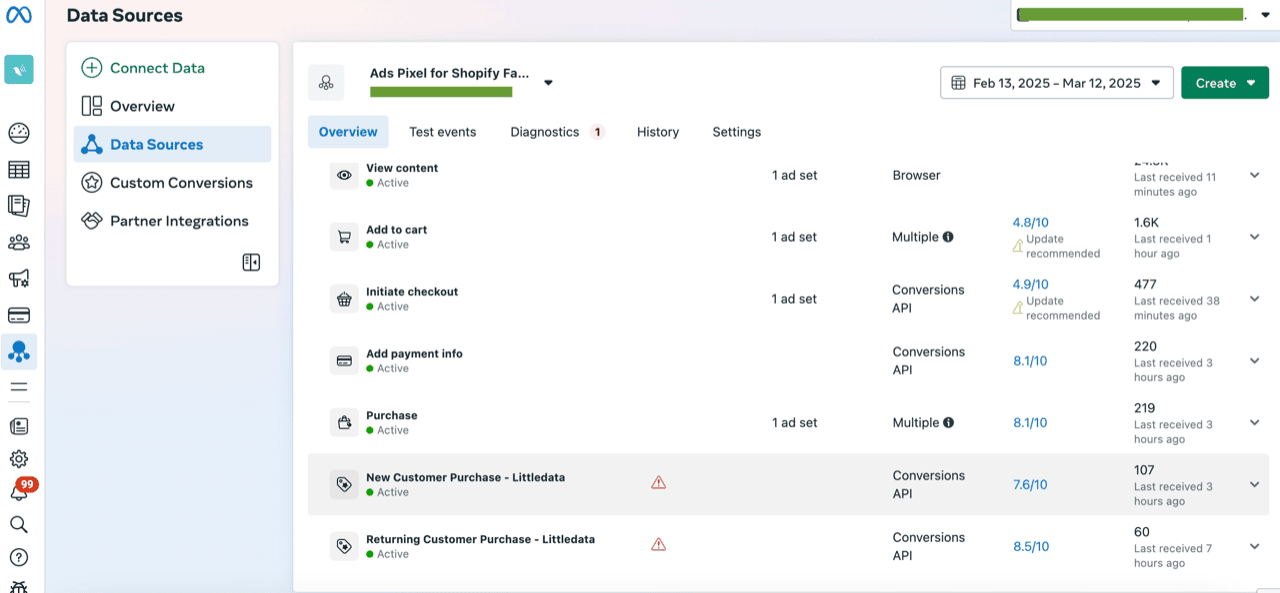
<figure><img src="https://3956158252-files.gitbook.io/~/files/v0/b/gitbook-x-prod.appspot.com/o/spaces%2F1QhTbrMraNWciQeDvu1b%2Fuploads%2FoASXCz7UjD0ypntvKsbs%2FScreenshot%202026-09-17%20151833.png?alt=media&#x26;token=932b170c-643a-4cc1-b2a6-77e81df2a471" alt="Recommended for your store section in the Meta Event Editor"><figcaption></figcaption></figure>

The events show in your events list with these names. These are the names Meta receives:

| Event name                                 | What it sends to Meta                                                  |
| ------------------------------------------ | ---------------------------------------------------------------------- |
| `New Customer Purchase - Littledata`       | A customer's first order only. Subscription renewals are not included. |
| `Returning Customer Purchase - Littledata` | Every order after a customer's first order.                            |

The recipe card only shows in **Recommended for your store** until you add it. After that, find the event in the events list.

### Customizing the events

A recipe is a starting point. Click **Customize** in the preview to change the recipe before you add it, or [edit the event](/event-editor/edit-an-event) at any time after. For example, you can:

* **Exclude wholesale orders.** If you tag B2B orders in Shopify, add a condition to filter out orders tagged `wholesale`. The event then counts DTC buyers only.
* **Exclude a market.** Add a condition on your market handle so orders from that market are not sent. See [Exclude purchases from a specific market](/event-editor/common-setups/exclude-purchases-from-a-specific-market).
* **Add data from metafields.** Attach custom data from Shopify metafields, for example a quiz answer, and use it to build more specific audiences in Meta.

{% hint style="warning" %}
If you rename the event, Meta receives it as a different event. Keep the recipe name if you already use the event as a conversion or in audiences.
{% endhint %}

## Verifying the new purchase events

After you add the recipes, the New and Returning Customer Purchase events start to flow into your Meta Events Manager with the next matching orders. At first, Meta marks them as unverified:

<figure><img src="https://3956158252-files.gitbook.io/~/files/v0/b/gitbook-x-prod.appspot.com/o/spaces%2F1QhTbrMraNWciQeDvu1b%2Fuploads%2Fgit-blob-c66f828eaf5f61b1f87d52e3d947e2061f062132%2Fscreenshot-2025-03-13-at-10.06.44.png?alt=media" alt=""><figcaption></figcaption></figure>

You have to manually confirm each one of them:

<figure><img src="https://3956158252-files.gitbook.io/~/files/v0/b/gitbook-x-prod.appspot.com/o/spaces%2F1QhTbrMraNWciQeDvu1b%2Fuploads%2Fgit-blob-ea813102074e183ee3e0056534b1204bdab2bf1f%2Fscreenshot-2025-03-13-at-10.12.31.png?alt=media" alt=""><figcaption></figcaption></figure>

And don't forget to click on the additional acknowledgement popup - sometimes it is NOT appearing right after confirmation, so make sure to refresh the events manager page:

<figure><img src="https://3956158252-files.gitbook.io/~/files/v0/b/gitbook-x-prod.appspot.com/o/spaces%2F1QhTbrMraNWciQeDvu1b%2Fuploads%2Fgit-blob-20b5f85b8d2359f631def69e2f72d1bfea87b3ae%2Fscreenshot-2025-03-13-at-10.09.20.png?alt=media" alt=""><figcaption></figcaption></figure>

## Using purchase events in audiences

Once all these steps are completed - give your account some time to collect a few verified New and Returning Customer purchase events before going into audiences manager:

<figure><img src="https://3956158252-files.gitbook.io/~/files/v0/b/gitbook-x-prod.appspot.com/o/spaces%2F1QhTbrMraNWciQeDvu1b%2Fuploads%2Fgit-blob-7c386ba7b98711a10eade76219381664f4f2e68a%2Fscreenshot-2025-03-12-at-14.27.33.png?alt=media" alt=""><figcaption></figcaption></figure>

After clicking on Custom audience and choosing your website as source of data, you'll see both New Customer Purchase and Returning Customer Purchase events, ready for you to build audiences around them!

<figure><img src="https://3956158252-files.gitbook.io/~/files/v0/b/gitbook-x-prod.appspot.com/o/spaces%2F1QhTbrMraNWciQeDvu1b%2Fuploads%2Fgit-blob-167b07802f7aa2ed655fa97000abae9b96f902e2%2Fscreenshot-2025-03-17-at-15.15.39.png?alt=media" alt=""><figcaption></figcaption></figure>

## Using New or Returning Customer Purchase events as conversions

{% hint style="info" %}
You should expect cost per acquisition (CPA) using this New Customer Purchase to go up, since returning customers are inherently easier to convert. As such you should be willing to bid more for new customers.
{% endhint %}

In order to optimize campaigns around these events you need to simply choose the proper one from the Conversion dropdown when setting up the ad set:

![](https://3956158252-files.gitbook.io/~/files/v0/b/gitbook-x-prod.appspot.com/o/spaces%2F1QhTbrMraNWciQeDvu1b%2Fuploads%2Fgit-blob-29159e1a5ac027a44d9ad2b02b5dec9d62ba21f5%2Fnew-customer-ld-meta-campaign.png?alt=media)

A campaign setup like this will try to "find" new customers, proactively targeting more likely to buy for the first time.

## Measuring new and/or returning customer purchases in Meta ads reports

If you setup one of these events as the optimization signal, like in the screenshot above, the Results column would show you how many optimization events were attributed to matching campaign (or ad set or ad, depending on the report you're looking at).

But if you want to surface how many new or returning customer purchases happened for any campaign (even for the ones that are NOT optimized around this specific conversions i.e you want to see how many return customers purchased for a campaign aimed at ANY purchase) like this:

![](https://3956158252-files.gitbook.io/~/files/v0/b/gitbook-x-prod.appspot.com/o/spaces%2F1QhTbrMraNWciQeDvu1b%2Fuploads%2Fgit-blob-72dee70bb9fab01ab2a18ad7c87ea40924268cdd%2Fmeta-custom-metric.png?alt=media)

\
..you need to create a custom conversion based off of our proprietary custom events. You simply name it accordingly and choose our custom event from the Event dropdown list:

![](https://3956158252-files.gitbook.io/~/files/v0/b/gitbook-x-prod.appspot.com/o/spaces%2F1QhTbrMraNWciQeDvu1b%2Fuploads%2Fgit-blob-b8aa4040dcac2912565a0fefca9111fc3743ce64%2Fcreate-custom-meta-conversion.png?alt=media)

This way you can know if any active campaign is bringing in new customers or sell to the ones that already bought from you in the past.


# Google Ads

![Shopify to Google Ads](https://3956158252-files.gitbook.io/~/files/v0/b/gitbook-x-prod.appspot.com/o/spaces%2F1QhTbrMraNWciQeDvu1b%2Fuploads%2Fgit-blob-dd5a0a0d5a570bfe1e5002de5656db6607328428%2Fconnection-google-ads.png?alt=media\&token=579a633f-1ff5-4799-a7aa-75372d64653b)

Our **Enhanced Conversions** tracking for Shopify to Google Ads uses [server-side tracking](/get-started/how-server-side-tracking-works) so that each time a user purchases our servers can relay that event to Google Ads, **ensuring 100% conversion accuracy**.

{% embed url="<https://youtube.com/watch?v=uGjAJxYiQkQ>" %}

Using the Enhanced Conversions for Leads API, rather than relying on a script on the thank you page, improves marketing attribution and retargeting for Google Ads.

## What are Enhanced Conversions?

[Enhanced Conversions](https://support.google.com/google-ads/answer/9888656?hl=en-GB) is a feature of Google Ads that allows Littledata to send **first-party customer data**, securely and privately, directly to Google's servers to enable identification and attribution based on:

* email address
* customer name
* shipping address
* phone number

Enhanced Conversions improves the accuracy of your Google Ads measurement by increasing observable data and improving the overall quality of conversion modeling. Your first-party data from Shopify is **matched with signed-in Google accounts that engage with your ads**. When a match happens, a conversion is attributed based on that customer's interactions with Google Ads, rather than based on the Google cookie alone.

{% hint style="success" %}
Advertisers who implement Enhanced Conversions see a conversion uplift of 17% on YouTube
{% endhint %}

Some of the other benefits of Enhanced Conversions are:

* Recover conversions that otherwise wouldn't have been measured
* Better Ad attribution
* Improve bidding optimization through better data
* Privacy safe with hashing of first-party customer data

### Related articles

* [Shopify to Google Ads installation guide](https://help.littledata.io/integrations/google-ads/google-ads-install-guide)
* [How the Google Ads connection works](https://help.littledata.io/integrations/google-ads/google-ads-how-it-works)
* [Google Ads FAQ](https://help.littledata.io/integrations/google-ads/frequently-asked-questions)
* [Google Ads troubleshooting guide](https://help.littledata.io/integrations/google-ads/google-ads-troubleshooting-guide)


# Shopify to Google Ads installation guide

This guide shows you how to connect your Shopify store to the Google Ads destination in the Littledata app. You sign in with Google, choose your Google Ads account and turn on two settings in Google Ads.

### Before you start

* The Littledata app is installed on your Shopify store.
* You can sign in with a Google account that has **Admin** or **Standard** access to the Google Ads account you want to send conversions to. Read-only and Email-only access can't change the settings below.
* You know the customer ID of that Google Ads account (a 10-digit number shown like `123-456-7890` in Google Ads). If you use a manager account (MCC), you need the ID of the individual account, not the manager account.

### Connect Google Ads

{% stepper %}
{% step %}

#### Open the Littledata app

In your Shopify admin, go to **Apps** and open **Littledata**.
{% endstep %}

{% step %}

#### Add the destination

In the **Destinations** section, click **Add destination**. A list of destinations opens.
{% endstep %}

{% step %}

#### Choose Google Ads

Find **Google Ads** in the list and click **Connect** next to it. The setup opens on the **Connect your store to Google Ads** screen. Click **Continue**.
{% endstep %}

{% step %}

#### Choose your tracking preferences

On the **Set up your tracking** screen, pick one option and click **Continue**:

* **Use best practices** (recommended): uses the **Shopify order name** as the order identifier and creates all conversion actions. You can change this later.
* **Customize your tracking**: on the next two screens, choose your order identifier, then choose which conversion actions to create. We recommend keeping all of them selected. Click **Continue** on each screen.
  {% endstep %}

{% step %}

#### Sign in with Google

On **Connect your Google account**, click **Connect**. Google opens in a new tab. Choose the Google account that has access to your Google Ads account.

Google shows the permissions Littledata asks for. If you see checkboxes next to them, tick them all (at least the one to manage your Google Ads campaigns), then continue. If you leave the Google Ads permission unticked, your account list in the Littledata app stays empty. Then go back to the Littledata app tab.
{% endstep %}

{% step %}

#### Choose your Google Ads account

You'll see **Choose your account**. Open the account list and select the Google Ads account you want to send conversions to. If it's missing, click **Refresh accounts**. Then click **Continue**.

{% hint style="warning" %}
**Don't use an MCC ID**

Select the individual Google Ads account ID. Don't select a manager account (MCC) ID, or conversion data will be misrouted.
{% endhint %}
{% endstep %}
{% endstepper %}

### Accept customer data terms and turn on enhanced conversions for leads

Littledata sends hashed customer data with each conversion. So in Google Ads, **Customer data terms** must be accepted and **Enhanced conversions for leads** must be turned on. The Littledata app checks these two settings only. After you choose your account, you'll see the **Enhanced Conversions** screen in the Littledata app.

{% stepper %}
{% step %}

#### Open your Google Ads conversion settings

On the **Enhanced Conversions** screen, click the **Google Ads account** link (or **Enable settings** in the red banner). Your Google Ads conversion settings open in a new tab.

You can also get there in Google Ads: in the left menu, click **Goals**, then **Conversions**, then **Settings**.

The **Settings** page lists these rows, in this order: **Customer data terms**, **Enhanced conversions for leads**, **Enhanced conversions**, **Engaged-view conversions** and **App attribution sharing**. You need the first two. Each row opens with the arrow on its right.

<figure><img src="https://3956158252-files.gitbook.io/~/files/v0/b/gitbook-x-prod.appspot.com/o/spaces%2F1QhTbrMraNWciQeDvu1b%2Fuploads%2Fgit-blob-1639ee0bfd1243f226171f6b90c3a453604473ba%2Fhc-google-ads-conversion-settings.png?alt=media" alt=""><figcaption></figcaption></figure>

{% hint style="warning" %}
Don't use the **Enhanced conversions** row just below **Enhanced conversions for leads**. It's a different setting, and the Littledata app doesn't check it. Turning it on instead of the leads setting leaves the Littledata app showing the red banner.
{% endhint %}
{% endstep %}

{% step %}

#### Accept the customer data terms

Look at the **Customer data terms** row at the top. If it says **Accepted**, go to the next step.

If not, click the row to open it, click **View Terms**, tick **I have read and accept the terms on behalf of my company** and click **Agree**. The row then shows **Accepted**. If you can't see the terms, they must be accepted in the manager account (MCC) that manages this account.
{% endstep %}

{% step %}

#### Turn on enhanced conversions for leads

Click the arrow on the right of the **Enhanced conversions for leads** row to open it. Then:

1. Tick **Turn on enhanced conversions for leads**.
2. Under **Choose a method for setting up and managing user-provided data**, open the dropdown and choose **Google tag**. Either option (**Google tag** or **Google Tag Manager**) works for Littledata. Littledata sends the data from its server, so you don't need to change any tags, and you can ignore the instructions box that appears below the dropdown.
3. Click **Save** at the bottom right of the row (not **Cancel** next to it).

<figure><img src="https://3956158252-files.gitbook.io/~/files/v0/b/gitbook-x-prod.appspot.com/o/spaces%2F1QhTbrMraNWciQeDvu1b%2Fuploads%2Fgit-blob-9ed00af2db2af6a0bd2c4982488f1537863e0613%2Fhc-google-ads-ec-leads.png?alt=media" alt=""><figcaption></figcaption></figure>

{% hint style="info" %}
Google is merging these settings. If your account shows **Customer data use** instead of **Enhanced conversions for leads**, open it, tick **Turn on enhanced conversions** and click **Agree and save**. In some accounts this page is under **Goals** > **Settings**.
{% endhint %}
{% endstep %}

{% step %}

#### Return to the Littledata app

Go back to the Littledata app tab. Littledata checks your settings again when you come back. When it finds them, you'll see that Enhanced Conversions is on. Click **Continue**.

If you still see **We detected that the required settings are not enabled for some accounts**, check that **Customer data terms** shows **Accepted** and that you saved **Enhanced conversions for leads** (not **Enhanced conversions**). Then return to the tab.
{% endstep %}

{% step %}

#### Wait while tracking is added

You'll see **Adding tracking** while Littledata sets up tracking on your store and creates the conversion actions in Google Ads. When it's done, you'll see **You're connected! Here's where to go next.** The Google Ads connection is now live.
{% endstep %}
{% endstepper %}

For more about why these settings are needed, see [how the Google Ads connection works](https://help.littledata.io/integrations/google-ads/google-ads-how-it-works).

### Check your purchase conversions in Google Ads

Littledata creates **Purchase - Littledata** as a primary action, so you don't need to change it. If you kept them selected, **New Customer Purchase - Littledata** and **Returning Customer Purchase - Littledata** are created as secondary actions.

To avoid counting purchases twice, switch your other purchase conversions to secondary.

{% stepper %}
{% step %}

#### Open your conversion goals

In Google Ads, in the left menu, click **Goals**, then **Conversions**, then **Summary**.
{% endstep %}

{% step %}

#### Edit the purchase goal

Find your **Purchase** goal and click **Edit goal**. Make sure **Use as an account goal** is ticked, so your campaigns bid on this goal.
{% endstep %}

{% step %}

#### Check the Littledata action

Check that **Purchase - Littledata** is set to **Primary**.
{% endstep %}

{% step %}

#### Set other purchase actions to secondary

For every other purchase conversion action in the goal, choose **Secondary (observe only)**. This includes actions created by Shopify's Google & YouTube app or by a Google tag you added yourself.
{% endstep %}

{% step %}

#### Save

Click **Save changes**.
{% endstep %}
{% endstepper %}

{% hint style="info" %}
Primary actions are used for bidding and optimization. Secondary actions are tracked for reporting only.
{% endhint %}

### Check that it works

{% stepper %}
{% step %}

#### Check the destination card

In the Littledata app, find the Google Ads card in **Destinations**. It shows a green **Connected** badge.
{% endstep %}

{% step %}

#### Check the conversion actions in Google Ads

In Google Ads, go to **Goals** > **Conversions** > **Summary**. You'll see **Purchase - Littledata** in the list (and the New and Returning Customer actions, if you kept them). Until the first order is sent, the status can show **No recent conversions**. Conversions start to show after your next orders. Google Ads can take a few hours to report them.

{% hint style="info" %}
New conversion actions often show fewer conversions in the first days or weeks. See [Google Ads troubleshooting guide](https://help.littledata.io/integrations/google-ads/google-ads-troubleshooting-guide#fewer-conversions-in-the-first-days-or-weeks).
{% endhint %}
{% endstep %}
{% endstepper %}

### Related articles

* [How the Google Ads connection works](https://help.littledata.io/integrations/google-ads/google-ads-how-it-works)
* [Google Ads FAQ](https://help.littledata.io/integrations/google-ads/frequently-asked-questions)
* [Google Ads troubleshooting guide](https://help.littledata.io/integrations/google-ads/google-ads-troubleshooting-guide)
* [New and Returning Customer Purchase event in Google Ads](https://help.littledata.io/integrations/google-ads/new-and-returning-customer-purchase-in-google-ads)


# How it works: Shopify to Google Ads

Which events and conversion actions Littledata sends to Google Ads, what customer data is included, and how to enable Enhanced Conversions for leads.

This page explains what Littledata sends from your Shopify store to Google Ads. It covers browser events, the conversion actions Littledata creates, and the Google Ads settings you need for Enhanced Conversions.

### Client-side events

| **Event Name**   | **Description**                                 |
| ---------------- | ----------------------------------------------- |
| page\_view       | User has viewed any page                        |
| view\_item       | User has viewed an item on your website         |
| view\_item\_list | User has seen a collection page on your website |

Client-side events are tracked via Littledata's app embed directly to Google Ads.

Client-side events respect [Shopify's consent mode](https://help.littledata.io/partner-recipes/cookie-consent-integrations/shopify-customer-consent-api), so if your store has a cookie banner, users can opt out of the tracking of these events.

Client-side events are sent to your Google Ads conversion tag (*e.g., AW-123*). Purchases are not sent from the browser. They are sent server-side as the conversion actions described below.

#### How to check that client-side events are being sent

Google Ads does not offer a real-time view of events to verify that your entire setup is functioning correctly. However, for client-side events, you can use [Google Tag Assistant](https://tagassistant.google.com/) to check which events are being sent from your store to your Google destinations. By clicking **Add domain**, you can verify how your data is being sent to Google.

<figure><img src="https://files.gitbook.com/v0/b/gitbook-x-prod.appspot.com/o/spaces%2F1QhTbrMraNWciQeDvu1b%2Fuploads%2Fgit-blob-8318a4672b84a32254d5034c4413941ed23fdaa0%2Fgoogle_tag_assistant_add_domain.png?alt=media" alt="Google Tag Assistant with the Add domain button"><figcaption></figcaption></figure>

### Conversion actions

Littledata's Shopify to Google Ads connection automatically creates three conversion actions. They are automatically assigned a role, and their main purpose is to improve your targeting.

| **Conversion name**                        | **Role**                                                    |
| ------------------------------------------ | ----------------------------------------------------------- |
| `Purchase - Littledata`                    | Primary conversion, including all purchases                 |
| `New Customer Purchase - Littledata`       | Secondary conversion, only first-time customer conversions  |
| `Returning Customer Purchase - Littledata` | Secondary conversion, only returning customers' conversions |

Each conversion includes the order value and currency.

#### Using multiple primary conversion actions

If your Google Ads campaign is configured to track multiple primary conversion actions, Google will optimize towards all of them, treating each as a signal for bidding and budget allocation. This may dilute the effectiveness of your bidding strategy.

We recommend keeping our `Purchase - Littledata` conversion action as the only primary conversion action in your campaign. This ensures Google optimizes for the most accurate purchase data captured by our server-side tracking.

If you need to compare or validate Littledata's performance against other sources, you can set our conversion action as secondary temporarily, but keep in mind it won't be used for smart bidding in this case.

### Profit Signal

If you enable [Profit Signal](https://help.littledata.io/sources/profit-signal/how-to-use-profit-signal), Littledata switches the conversion value sent to Google Ads from revenue to the estimated profit of each order. Pair this with a value-based Smart Bidding strategy such as **Maximize conversion value** or **Target ROAS** so the algorithm optimizes against profit. Your reported ROAS then becomes a return on profit, and budget naturally moves toward the products and audiences that generate the most profit rather than the most revenue.

See [How to use Profit Signal](https://help.littledata.io/sources/profit-signal/how-to-use-profit-signal) for how profit is calculated and how to enable it.

### How to enable Enhanced Conversions

You will need to enable **Enhanced conversions for leads** and accept **Customer data terms** in your Google Ads account.

You can do this either in the Littledata installation process (where there is a step that will redirect you to the above-mentioned settings) or beforehand.

{% stepper %}
{% step %}
**Accept Customer data terms**

In your Google Ads account, go to **Goals** > **Conversions** > **Settings**, expand **Customer data terms**, and accept.

After you're done it should look like this:

<figure><img src="https://files.gitbook.com/v0/b/gitbook-x-prod.appspot.com/o/spaces%2F1QhTbrMraNWciQeDvu1b%2Fuploads%2Fgit-blob-f0429c78d8a41308da3b1437e4e08e1a9b12f306%2Fdata_terms_accepted.png?alt=media" alt="Customer data terms accepted in Google Ads conversion settings"><figcaption></figcaption></figure>

The terms may have previously been accepted in Google Ads.

{% hint style="info" %}
If you can't see Customer data terms, it is because the conversions are tracked by a manager account. The customer data terms need to be accepted by the manager's account and any Google Ads manager account that uploads on behalf of the manager account using cross-account tracking.
{% endhint %}
{% endstep %}

{% step %}
**Turn on Enhanced conversions for leads**

In your Google Ads account, go to **Goals** > **Conversions** > **Settings**, expand **Enhanced conversions for leads**, turn it on and save.

For Littledata's implementation, it does not matter which method (Google tag or Google Tag Manager) you select before saving.

After you're done it should look like this:

<figure><img src="https://files.gitbook.com/v0/b/gitbook-x-prod.appspot.com/o/spaces%2F1QhTbrMraNWciQeDvu1b%2Fuploads%2Fgit-blob-d0e4c018b6380691a7d2d01c73780f069dc48f0b%2Fec4l_enabled.png?alt=media" alt="Enhanced conversions for leads turned on in Google Ads"><figcaption></figcaption></figure>
{% endstep %}

{% step %}
**Check the conversion action**

A conversion action is created automatically by Littledata during the setup process.

The name of the conversion action will be **Purchase - Littledata** so you can easily identify and measure the performance of our integration.

You can see your conversion action by going to **Goals** > **Summary**.

<figure><img src="https://files.gitbook.com/v0/b/gitbook-x-prod.appspot.com/o/spaces%2F1QhTbrMraNWciQeDvu1b%2Fuploads%2Fgit-blob-a8bb3f870595efd8a41cd7a01e1bf1e00cda017c%2Faction.png?alt=media" alt="Purchase - Littledata conversion action in the Google Ads goals summary"><figcaption></figcaption></figure>

The **Inactive** status means that the conversion action is not currently being tracked or used for optimization in your campaigns.

After the conversion action starts receiving data, the **Inactive** status should disappear while the conversion value and the number of conversions should increase.
{% endstep %}
{% endstepper %}

#### Why Enhanced Conversions for leads instead of web?

[Google's documentation](https://support.google.com/google-ads/answer/9888656?hl=en) states that:

* **Enhanced Conversions for web** are relevant for advertisers who want to track sales and events that happen on a website.
* **Enhanced Conversions for leads** are relevant for advertisers who want to track sales that happen off a website (for example, phone or email) from website leads.

It may seem counterintuitive that Shopify stores would track leads.

However, where the Google click ID (`gclid`) is missing, **Enhanced Conversions for web** will reject events, so **Enhanced Conversions for leads** is the safer option to ensure even conversions without a known cookie will be processed.

#### Matching first-party user data

Each server-side conversion includes one customer identifier, hashed with SHA256 (the industry standard for one-way hashing):

* the customer's email address, or
* the customer's phone number, only when the order has no email address.

Littledata does not send names or mailing addresses to Google Ads.

Google will try to [match this first-party data with Google accounts](https://support.google.com/google-ads/answer/7474263). Google keeps the hashed versions of the email addresses and phone numbers linked to Google accounts. If the hashed value Littledata sends matches one of them, Google associates the conversion with that account.

### Related articles

* [Shopify to Google Ads installation guide](https://help.littledata.io/integrations/google-ads/google-ads-install-guide)
* [New and returning customer purchases in Google Ads](https://help.littledata.io/integrations/google-ads/new-and-returning-customer-purchase-in-google-ads)
* [Google Ads troubleshooting guide](https://help.littledata.io/integrations/google-ads/google-ads-troubleshooting-guide)
* [How to use Profit Signal](https://help.littledata.io/sources/profit-signal/how-to-use-profit-signal)


# How better attribution increases your Google Ads revenue

Server-side tracking recovers 15–30% of missing conversions, improving Smart Bidding and driving \~10% more revenue. See benchmarks and calculate your ROI.

Littledata's server-side connection sends more complete conversion data to Google Ads than the Google & YouTube app or Google Tag Manager. These additional conversions do two things: it corrects your reported ROAS so you can make better budget decisions, and it gives Google's Smart Bidding algorithms richer signals so they can find more high-value customers. The combined effect is a measurable lift in revenue attributed to Google Ads.

This article explains the mechanism behind that lift and why a 10% revenue improvement is a conservative estimate for most Shopify stores.

## Why conversions go missing

Traditional client-side tracking relies on browser cookies and JavaScript tags to report conversions back to Google Ads. Several factors cause conversions to be lost before they reach Google:

* **Ad blockers** prevent the Google Ads tag from firing
* **iOS Intelligent Tracking Prevention (ITP)** restricts cookie lifetimes to 7 days and strips identifiers from URLs
* **Cross-device journeys** where a customer clicks an ad on mobile but purchases on desktop
* **Consent denied** where users do not consent to send Google events

Google's own research with the Boston Consulting Group found that [roughly 70% of cross-device conversions go untracked](https://yeezypay.io/blog/google-ads-enhanced-conversions-setup-guide) without solutions like Enhanced Conversions. Even on a single device, browser restrictions mean that many stores are only reporting 60% of their actual Google Ads conversions.

Littledata bypasses these issues by sending conversion data directly from Shopify's server to Google Ads via the [Conversions API](https://help.littledata.io/integrations/google-ads/google-ads-how-it-works), enriched with hashed first-party customer data for Enhanced Conversions matching.

## How more conversions improve campaign performance

Recovering missing conversions does not just fix your reports. It directly improves how Google spends your budget, through two mechanisms.

### 1. Smart Bidding gets better training data

Google's Smart Bidding strategies — Target ROAS, Target CPA, Maximize Conversion Value — use machine learning to set bids in every auction. The algorithm uses [Bayesian learning](https://support.google.com/google-ads/answer/10970825?hl=en) to predict conversion probability for each impression, refining its model as more conversion data arrives.

When conversions are missing, the algorithm systematically undervalues the campaigns, keywords, and audiences that drove those conversions. It bids less aggressively on what is actually working and may shift budget toward lower-performing segments that happen to have more complete tracking.

Adding server-side conversion data corrects this. The algorithm receives a more accurate picture of which auctions lead to purchases, and adjusts bids accordingly. Google's internal data shows that [accounts with sufficient conversion data see 20–35% more conversion value](https://leadsuitenow.com/blog/smart-bidding-google-ads-guide) at the same ROAS when using Smart Bidding. The key variable is data quality — which is exactly what server-side tracking improves.

### 2. You stop cutting profitable campaigns

Incomplete tracking makes profitable campaigns look unprofitable. If a campaign is driving a true ROAS of 5x but you are only seeing 70% of conversions, your reported ROAS is 3.5x. At that level, many marketing managers would cut budget or pause the campaign entirely.

This is the hidden cost of bad attribution — not just suboptimal bidding, but human decisions based on inaccurate data. When Littledata recovers those missing conversions, campaigns that appeared marginal reveal their true profitability, and budget flows to where it actually performs.

## Published benchmarks for the revenue lift

Multiple independent sources have measured the impact of improved conversion tracking on Google Ads performance:

| Source                                                                                                                | Finding                                                                            |
| --------------------------------------------------------------------------------------------------------------------- | ---------------------------------------------------------------------------------- |
| [Google Ads documentation](https://support.google.com/google-ads/answer/13262500)                                     | Enhanced Conversions improve measured conversions by 5%+ on Search, 17% on YouTube |
| [Published case study data](https://almcorp.com/blog/attribution-modeling-google-ads/)                                | Enhanced Conversions improve attribution accuracy by 15–30%                        |
| [Google / Practical Ecommerce](https://www.practicalecommerce.com/how-conversion-data-improves-google-ads-automation) | ASOS saw 8.6% sales lift from Search after implementing Enhanced Conversions       |
| [Industry benchmarks](https://webmarketinginternational.com/good-roas-benchmarks-by-industry/)                        | Server-side tracking improves reported ROAS by 15–30% with no campaign changes     |
| [ProfitMetrics](https://profitmetrics.io/blog/conversion-booster-google-ads-serverside-tracking)                      | 12% additional conversions attributed on average via server-side tracking          |

It is important to distinguish between two types of improvement in these benchmarks. The **attribution uplift** (15–30%) represents conversions that were already happening but were not being reported. The **revenue lift** represents the genuinely incremental revenue driven by smarter bidding and better budget allocation once that improved data feeds the algorithm. Since Smart Bidding retrains on a 15–30% larger conversion dataset, the downstream effect on total revenue is typically in the range of 8–15%.

## Why 10% is a conservative default

A 10% revenue lift sits in the middle of the published range for the combined effect of:

* Recovering 15–30% of previously invisible conversions
* Enabling Smart Bidding to optimize with a materially larger conversion dataset
* Preventing incorrect budget cuts on campaigns that appear to underperform

The ASOS case study showed an 8.6% sales lift on Search alone — and ASOS already had a sophisticated tracking setup before Enhanced Conversions. That 8.6% was the improvement for a retailer whose tracking was already well above average. For a typical Shopify store moving from Google & YouTube app to Littledata's full server-side connection with Enhanced Conversions, the gap in data quality is larger, and so the improvement is likely to exceed what ASOS saw.

Stores with higher proportions of mobile traffic, longer purchase cycles, or significant cross-device behavior will typically see a larger lift, because these are the scenarios where client-side tracking loses the most data.

## Calculating your return on investment

The ROI of Littledata's Google Ads connection can be expressed as:

**ROI = Google Ads attributed revenue × revenue lift % ÷ Littledata monthly cost**

For example, a store with $80,000/month in Google Ads attributed revenue, a 10% lift, and a $400/month Littledata plan would see $8,000 in incremental revenue — a **20x return** on the Littledata investment.

You can model this for your own store using the [Littledata ROI calculator](/integrations/google-ads/google-ads-roas).

{% hint style="info" %}
The revenue lift percentage will vary by store. To measure your actual lift, compare Google Ads attributed revenue in the 30 days before and after connecting Littledata, controlling for seasonality and budget changes.
{% endhint %}

## Next steps

* [Install the Google Ads connection](https://github.com/littledata/helpcenter-content/blob/main/integrations/google-ads/google-ads-install-guide/README.md) (takes less than 10 minutes)
* [Understand how the connection works](https://github.com/littledata/helpcenter-content/blob/main/integrations/google-ads/google-ads-how-it-works/README.md)
* [Learn about Enhanced Conversions](https://support.google.com/google-ads/answer/13262500)


# Building winback campaigns in Google Ads

How to build winback campaigns in Google Ads

Most visitors leave your store without buying. This page shows you how to share GA4 audiences with Google Ads so you can win those visitors back, with example audiences and ad ideas.

Littledata collects your store's browsing, checkout and purchase data and sends it to GA4. You then use that data in GA4 to build retargeting audiences for Google Ads.

{% embed url="<https://www.youtube.com/watch?v=eZTke88eMqA>" %}

### Share GA4 audiences with Google Ads

{% stepper %}
{% step %}

### Track your store in GA4 with Littledata

Make sure Littledata sends your store's events to GA4. See [How it works: Shopify to GA4](https://help.littledata.io/integrations/shopify-to-google-analytics/how-it-works-shopify-to-ga4).
{% endstep %}

{% step %}

### Turn on Google signals

In GA4, go to **Admin** → **Data collection and modification** → **Data collection**. Turn on **Google signals data collection**.

<figure><img src="https://3956158252-files.gitbook.io/~/files/v0/b/gitbook-x-prod.appspot.com/o/spaces%2F1QhTbrMraNWciQeDvu1b%2Fuploads%2Fgit-blob-9fd8a0d0632bddb2f646e2fa2c27b30550c32337%2Fga4-signals.png?alt=media&amp;token=65e4ed25-e278-45c7-a8c8-6c0694ab4567" alt=""><figcaption></figcaption></figure>
{% endstep %}

{% step %}

### Link Google Ads to GA4

In GA4, go to **Admin** → **Product links** → **Google Ads links**. Select **Link** and follow the prompts.

![gads-ga4-link](https://3956158252-files.gitbook.io/~/files/v0/b/gitbook-x-prod.appspot.com/o/spaces%2F1QhTbrMraNWciQeDvu1b%2Fuploads%2Fgit-blob-f4337aa21e0040b32451771949bc179b41cf470d%2Fga4-link-g-ads.png?alt=media\&token=819c1da2-9ad9-4bcb-84de-f78216a628dc)
{% endstep %}

{% step %}

### Find your audiences in Google Ads

In Google Ads, go to **Tools** → **Shared library** → **Audience manager**. GA4 audiences appear here after they begin collecting users.
{% endstep %}
{% endstepper %}

### Example audiences

Here are some audiences that match common situations. The letters are used in the creative ideas below.

* **A.** Visitors who keep viewing products but never buy (purchase count = 0)
* **B.** Visitors from a high-traffic, top-of-funnel channel that doesn't convert
* **C.** Visitors who added a product to cart but never started checkout
* **D.** Customers who bought once and didn't come back
* **E.** Customers who spent more than a set amount
* **F.** Visitors who dropped off your own funnel (for example after a quiz or survey)
* **G.** Visitors who first came during a set time range (for example a Black Friday sale)

### Build audiences in GA4

The [video above](https://youtu.be/eZTke88eMqA) shows how to create winback audiences in GA4 for Google Ads remarketing.

### Creative ideas for each audience

| Creative idea              | Best for audiences | What to show                                                                                                                                                                                                   |
| -------------------------- | ------------------ | -------------------------------------------------------------------------------------------------------------------------------------------------------------------------------------------------------------- |
| Highlight product benefits | A, C, E            | How the product solves a problem or meets a need. Use how-to guides, demo videos or detailed specs.                                                                                                            |
| Customer testimonials      | D, E               | Reviews and real customer stories that build trust.                                                                                                                                                            |
| Limited-time offers        | E, F               | Discounts or promotions with a clear end date.                                                                                                                                                                 |
| Address pricing concerns   | A, F               | The features, quality or uniqueness that justify the price.                                                                                                                                                    |
| Free trials or samples     | B, D               | Trials, samples or previews that lower the risk of buying. Trials also help you [acquire new customers](https://help.littledata.io/integrations/google-ads/new-and-returning-customer-purchase-in-google-ads). |
| Highlight return policies  | B, C               | Easy returns and satisfaction guarantees.                                                                                                                                                                      |
| Interactive content        | G                  | Quizzes or interactive product tours.                                                                                                                                                                          |

### General creative ideas

These ad types work well in most retargeting campaigns:

* **Awards or recognition.** Show awards, certifications or industry recognition to build credibility.
* **Compare and contrast.** Compare your product with competitors and show what makes it stand out.
* **FAQs in ads.** Answer common questions right in the ad.

{% hint style="success" %}
Personalize your message for each audience, and test different messages and creatives. Check your campaign results regularly and keep what works.
{% endhint %}

### Related articles

* [How it works: Shopify to Google Ads](https://help.littledata.io/integrations/google-ads/google-ads-how-it-works)
* [New and returning customer purchase event in Google Ads](https://help.littledata.io/integrations/google-ads/new-and-returning-customer-purchase-in-google-ads)
* [How better attribution increases your Google Ads revenue](https://help.littledata.io/integrations/google-ads/google-ads-roas)


# Google Ads FAQ

Littledata's [Google Ads connection](/integrations/google-ads/google-ads-how-it-works) provides accurate, server-side conversion tracking to your Google Ads account. Here are some frequently asked questions about our Google Ads connection.

#### What are Enhanced Conversions and why is it important to use them?

Enhanced Conversions is a feature that allows Littledata to send **first-party customer data**, securely and privately, directly to Google's servers to enable identification and attribution. This improves the accuracy of your Google Ads measurement by increasing observable data and improving the overall quality of conversion modeling.

#### How is this better than classic browser tracking for conversions?

While browser tracking can be blocked by ad blockers and privacy-focused browsers leading to incomplete data, the server-side tracking is sending data from Shopify's server directly to Google Ads and is not susceptible to these issues since it doesn't rely on browser scripts.

Such an approach reduces data loss and more accurate conversion data that helps to reduce wasted spend on underperforming ads.

#### How much time does it take for a new conversion action to populate?

New conversion actions can take up to **24 hours** to populate.

#### Do I need to disable the Google Ads account linked in the Google & YouTube channel in Shopify?

If you've connected your Google Ads account via Littledata, it is recommended to disconnect the Google Ads account from your Google & Youtube channel in Shopify to avoid counting **duplicate** conversions to your Google Ads account.

#### How do I know Littledata's Google Ads connection is working as expected?

When you complete the Google Ads connection, Littledata automatically creates a new conversion action in your Google Ads account called **Purchase - Littledata**. You should see conversions registered under this action moving forward. Our connection tracks **100%** of your purchases with the help of server-to-server technology.

#### How do I check if browser events are being sent?

While Google Ads does not offer a real-time reporting feature, you can always check if our browser events for Google Ads (page\_view, view\_item\_list, view\_item) are being sent using tools such as [Google Tag Assistant](https://tagassistant.google.com/), which will show the events firing in real time on your store.

#### Is your connection GDPR/CCPA compliant?

Yes. Server-side tracking allows for better control over the handling of sensitive information by providing more control over what data is shared and ensuring user consent is properly managed.

#### Google Ads account-default conversions

Each conversion goal in Google Ads has an account-default setting. When a goal is set as account-default, its primary conversion actions count toward your Conversions column and inform Smart Bidding across all campaigns (unless you override this with [campaign-specific goals](https://support.google.com/google-ads/answer/9143218)). See [About account-default conversion goals](https://support.google.com/google-ads/answer/4677036) for background.

Littledata creates the `Purchase - Littledata` conversion action via the Enhanced Conversions for Leads API. Google will **only** mark this goal as account-default automatically if every other goal in the same category is already account-default. If that condition is not met, the goal will not influence Smart Bidding until you enable it manually. This is intentional Google behavior designed to prevent campaigns from inadvertently optimizing toward unintended goals -- see Google's post on [streamlined account-default CustomerConversionGoal behavior](https://ads-developers.googleblog.com/2025/09/streamlined-account-default.html).

To set the goal as account-default:

{% stepper %}
{% step %}
**Open your conversion goals**

In your Google Ads account, go to **Goals** > **Conversions** > **Summary**.
{% endstep %}

{% step %}
**Find the goal**

Find the goal that contains **Purchase - Littledata**.
{% endstep %}

{% step %}
**Make it an account goal**

Click **Edit goal**, choose to use it as an account-default goal, then save.
{% endstep %}
{% endstepper %}

### Related articles

* [Shopify to Google Ads installation guide](https://help.littledata.io/integrations/google-ads/google-ads-install-guide)
* [How the Google Ads connection works](https://help.littledata.io/integrations/google-ads/google-ads-how-it-works)
* [Google Ads troubleshooting guide](https://help.littledata.io/integrations/google-ads/google-ads-troubleshooting-guide)


# Your Google Ads conversion ID

You don't need to copy your Google Ads conversion ID into Littledata. Here's how Littledata gets it, and where to find it in Google Ads if you want to check it.

You don't need to copy a conversion ID or conversion label into Littledata. When you connect your Google Ads account in the Littledata app, Littledata reads the account's conversion tracking ID and creates its own conversion actions for you.

This page explains what that means and how to find the conversion ID in Google Ads if you want to check it.

#### How Littledata gets your conversion ID

During setup you sign in with Google and choose your Google Ads account. Littledata then:

* reads the conversion tracking ID of that account (the `AW-` number), and
* creates conversion actions in that account, such as **Purchase - Littledata**.

If you choose **Customize your tracking** during setup, you can pick which conversion actions are created. See the [Shopify to Google Ads installation guide](https://help.littledata.io/integrations/google-ads/google-ads-install-guide).

{% hint style="warning" %}
If your Google Ads account doesn't have conversion tracking set up, Littledata can't find a conversion tracking ID and the connection fails. Set up conversion tracking in Google Ads first, or choose a different account.
{% endhint %}

#### Find your conversion ID in Google Ads

Use these steps if you want to see the conversion ID and label of a conversion action, for example to check that you're looking at the right account.

{% stepper %}
{% step %}
**Open the conversions summary**

Sign in to Google Ads. In the left sidebar, click **Goals**, open the **Conversions** dropdown and click **Summary**.

<figure><img src="https://files.gitbook.com/v0/b/gitbook-x-prod.appspot.com/o/spaces%2F1QhTbrMraNWciQeDvu1b%2Fuploads%2Fgit-blob-faac954cd4b5d3e1a9972596f8b6212492fb6575%2Fsidebar.png?alt=media" alt="Google Ads sidebar with Goals, Conversions and Summary selected"><figcaption></figcaption></figure>
{% endstep %}

{% step %}
**Open a conversion action**

Click the name of the conversion action you want to check. Conversion actions created by Littledata end in "Littledata", for example **Purchase - Littledata**.

<figure><img src="https://files.gitbook.com/v0/b/gitbook-x-prod.appspot.com/o/spaces%2F1QhTbrMraNWciQeDvu1b%2Fuploads%2Fgit-blob-777fcea6f826d2f7fb7443daa38cb4613e73c18f%2Fggemeam.png?alt=media" alt="Purchase goal in Google Ads with a list of conversion actions"><figcaption></figcaption></figure>
{% endstep %}

{% step %}
**View the conversion ID and label**

Scroll down to **Tag setup** and open it. Click **Use Google Tag Manager**. Google Ads shows the **Conversion ID** and **Conversion label** for this conversion action.

The full tag ID is the conversion ID with `AW-` in front of it, for example `AW-123456789`.

<figure><img src="https://files.gitbook.com/v0/b/gitbook-x-prod.appspot.com/o/spaces%2F1QhTbrMraNWciQeDvu1b%2Fuploads%2Fgit-blob-4a2071cdb3f1fc7ba08d3ce6192b149f89bb16b8%2Fscreenshot-2024-04-12-at-12.25.16.png?alt=media" alt="Google Ads Tag setup section showing the Conversion ID and Conversion label"><figcaption></figcaption></figure>
{% endstep %}
{% endstepper %}

{% hint style="info" %}
You don't need to add a Google Ads tag yourself, in Google Tag Manager or anywhere else. Littledata adds its own tracking to your store when you connect Google Ads.
{% endhint %}

#### Related articles

* [Shopify to Google Ads installation guide](https://help.littledata.io/integrations/google-ads/google-ads-install-guide)
* [How it works: Shopify to Google Ads](https://help.littledata.io/integrations/google-ads/google-ads-how-it-works)
* [Google Ads troubleshooting guide](https://help.littledata.io/integrations/google-ads/google-ads-troubleshooting-guide)
* [Google Ads FAQ](https://help.littledata.io/integrations/google-ads/frequently-asked-questions)


# Google Ads Troubleshooting Guide

Troubleshooting guide for Google Ads issues

### Check if a tag is firing more than once

If a Google Ads tag on your site fires more than once per order, the conversion is counted more than once. The quickest way to check is the **Webpages** table for a conversion action.

{% stepper %}
{% step %}

#### Open your conversion actions

In Google Ads, go to **Goals** > **Conversions** > **Summary**.
{% endstep %}

{% step %}

#### Open the conversion action

Click the conversion action you want to check.
{% endstep %}

{% step %}

#### Check the Webpages table

Open the **Webpages** table. If the same order confirmation (thank you) page shows 2 or more conversions, the tag is firing multiple times.
{% endstep %}
{% endstepper %}

![conversion-duplicate](https://3956158252-files.gitbook.io/~/files/v0/b/gitbook-x-prod.appspot.com/o/spaces%2F1QhTbrMraNWciQeDvu1b%2Fuploads%2Fgit-blob-4e5d660d3ca8fd1ab22906817208178f7a697205%2Fcoceocceo.png?alt=media\&token=bea56cbc-275a-4531-bc08-268d992a249e)

### Identifiers are too old

This warning doesn't mean anything is wrong with your setup. It is a timing issue.

Each conversion action has a click-through window, for example 21 days. If a shopper clicked your ad before that window, or before you created the conversion action, Google can't use that click ID (gclid) for the conversion. This fixes itself over time and doesn't affect your results.

You may also see this warning because of how Littledata recovers conversions. When Google rejects a click ID as too old, Littledata sends the conversion again as an enhanced conversion, using hashed customer data (email, or phone when there is no email). Google still flags the old click ID in diagnostics, which causes the warning. But the retry means more of your conversions can be attributed.

<figure><img src="https://3956158252-files.gitbook.io/~/files/v0/b/gitbook-x-prod.appspot.com/o/spaces%2F1QhTbrMraNWciQeDvu1b%2Fuploads%2Fgit-blob-6cd1b4475a84cda56c9dfb73671c59ac26da2302%2Fimage.png?alt=media" alt=""><figcaption></figcaption></figure>

### Click not found

Littledata sends every order that has a Google click ID or customer details (email or phone), not only orders from ad clicks. Google reports **Click not found** when it can't match an order to a Google Ads click. This is expected and you can ignore it.

Orders with no click ID and no email or phone, such as some in-store POS orders, are not sent to Google Ads.

![](https://3956158252-files.gitbook.io/~/files/v0/b/gitbook-x-prod.appspot.com/o/spaces%2F1QhTbrMraNWciQeDvu1b%2Fuploads%2Fgit-blob-378ee5343fa4930d9e2e34574fa191a9b017e2ec%2Fscreenshot-2024-11-15-at-6.36.39-pm.png?alt=media\&token=6d8e661f-b9db-4a25-b8a0-924b74a585d0)

### Enhanced conversions has no recent data

You can ignore this warning. Google Ads expects a tag on your website to send customer data. Littledata already sends that data server-side with each conversion, so the website tag check doesn't apply.

![](https://3956158252-files.gitbook.io/~/files/v0/b/gitbook-x-prod.appspot.com/o/spaces%2F1QhTbrMraNWciQeDvu1b%2Fuploads%2Fgit-blob-72d6c52243096833a2db10b6497bef51dd54236f%2Fscreenshot-2024-11-15-at-6.31.04-pm.png?alt=media\&token=94da8429-abac-4873-9884-b059a0f638bb)

### Fewer conversions in the first days or weeks

When you install the Google Ads connection, Littledata adds conversion actions (Purchase, New Customer Purchase and Returning Customer Purchase). They record conversions from that point on.

For a while, these may show fewer conversions than your older conversion actions. This is because of the [conversion window](https://support.google.com/google-ads/answer/3123169) and because some shoppers clicked your ads before you installed Littledata. Attribution builds up over time, and the gap closes.

### Related articles

* [Shopify to Google Ads installation guide](https://help.littledata.io/integrations/google-ads/google-ads-install-guide)
* [How it works: Shopify to Google Ads](https://help.littledata.io/integrations/google-ads/google-ads-how-it-works)
* [Google Ads FAQ](https://help.littledata.io/integrations/google-ads/frequently-asked-questions)
* [Why does Google Ads show more conversions than GA4?](https://help.littledata.io/integrations/google-ads/more-google-ads-conversions-vs-ga4)


# How to track conversions from Shopify into Google Ads

Learn how to link your Google Analytics and Google Ads (formerly AdWords) accounts to unlock the full potential of Google Ads on Shopify.

![Link Google Ads with Google Analytics](https://res.cloudinary.com/littledata/w_300,h_169,c_fit/littledata-blog-images/2019/02/google-ads.jpg)

### Two ways to get conversions into Google Ads

Google Ads can get conversions in two ways:

1. Tracking **Google Ads** conversions directly from your store
2. Linking a **Google Analytics** property and importing key events into Google Ads

Littledata recommends using both. Start with [tracking conversions in Google Ads directly](https://help.littledata.io/integrations/google-ads/google-ads-how-it-works), using Littledata's primary conversion actions. Then link GA4 for extra reporting and audiences.

## Why server-side tracking matters

Traditionally, conversion tracking worked directly between a visitor's browser and Google Ads. When someone clicked an ad and made a purchase, the browser quietly passed that purchase information back to Google. This worked well — until browsers started blocking that kind of data sharing to protect user privacy.

Today, ad blockers and privacy-focused browsers routinely prevent those signals from reaching Google, which means Google Ads can end up with an incomplete picture of what's actually driving sales.

Server-side tracking solves this. Instead of relying on the visitor's browser, the purchase data is sent directly from Shopify's servers to Google Ads — completely bypassing browser restrictions.

![How server-side tracking compares to client-side tracking](https://3956158252-files.gitbook.io/~/files/v0/b/gitbook-x-prod.appspot.com/o/spaces%2F1QhTbrMraNWciQeDvu1b%2Fuploads%2Fgit-blob-32cc690c2a0d904030a7c2ee21049efd36e35a05%2Fbefore-after-serverside-google-ads.png?alt=media\&token=ff52f2d6-6934-4a52-8333-bcc3e15cd8bf)

#### More accurate conversion data

Every purchase reaches Google Ads, not just the ones the browser let through. Google Ads then has complete data when it decides which ads work best.

#### Better matching and audiences

Littledata adds hashed customer data to each conversion. Google uses it to match purchases to the people who saw your ads, even when cookies are blocked or the shopper switches devices.

This also helps you build [more accurate audience lists](https://help.littledata.io/integrations/google-ads/build-winback-campaigns-in-googleads) for remarketing, and exclusion lists so you don't target people who already bought.

### What Littledata adds

Connecting Shopify to Google Ads with Littledata lets you:

* Use customer data for [Enhanced Conversions](https://help.littledata.io/integrations/google-ads/google-ads-how-it-works#how-to-enable-enhanced-conversions)
* Attribute recurring subscription orders to your ads
* Optimize campaigns for [new customers](https://help.littledata.io/integrations/google-ads/new-and-returning-customer-purchase-in-google-ads)
* Keep tracking working without maintenance, even when you change your Shopify theme

## What Littledata adds

{% embed url="<https://www.youtube.com/watch?v=uGjAJxYiQkQ>" %}

Using Littledata to connect Shopify with Google Ads will:

* Use customer data to power [**Enhanced Conversions**](/integrations/google-ads/google-ads-how-it-works#how-to-enable-enhanced-conversions)
* Track [view-through conversions](https://support.google.com/authorizedbuyers/answer/166342)
* Include attribution of offline or recurring orders to Ads
* Provide robust and maintenance-free tracking – regardless of any Shopify theme changes

**Note:** the [conversion event count may be different](https://support.google.com/google-ads/answer/2679221?hl=en-GB) between Google Ads and Google Analytics.

{% hint style="success" %}
Installing Littledata for Google Ads takes less than 10 minutes. [Here's the step-by-step guide](/integrations/google-ads/google-ads-install-guide).
{% endhint %}

## Comparison with the Google Sales Channel

Shopify provides free conversion tracking into Google Ads as part of the Google & YouTube sales channel. Here's how this compares with Littledata:

| Feature                                                | Littledata | Google & YouTube |
| ------------------------------------------------------ | ---------- | ---------------- |
| Conversion tracking for Google Ads                     | ✔          | ✔                |
| 100% Shopify Revenue Tracked                           | ✔          | -                |
| Enhanced Conversions using 1st party data              | ✔          | -                |
| Recurring Orders / Subscriptions tracked               | ✔          | -                |
| Match ads to other Sales Channels (Amazon, TikTok etc) | ✔          | -                |
| Target campaigns for New Customers                     | ✔          | -                |

## Benefits of linking Google Analytics

[Linking Google Analytics to Google Ads](#linking-google-analytics-with-google-ads) allows you to import Key Events as [secondary conversions](https://support.google.com/google-ads/answer/11461796?hl=en) and sync audiences from Google Analytics for targeting across the full on-site conversion funnel.

You can then:

* Compare the 'greedier' attribution in Google Ads versus the multi-channel, data-driven attribution in Google Analytics
* Report on more ecommerce key events in Google Ads
* See detailed shopping funnel metrics in Google Ads
* Set up more advanced remarketing audiences for abandoned browse or abandoned cart

## Linking Google Analytics with Google Ads

{% stepper %}
{% step %}
**Check your access**

Before you start, make sure you have [Edit Property permissions](https://support.google.com/analytics/answer/2884495) in **Google Analytics** and [Administrative access](https://support.google.com/google-ads/answer/9978556) in **Google Ads**.
{% endstep %}

{% step %}
**Open Google Ads Links**

Sign in to Google Analytics. Then click the **Admin** cog in the bottom-left corner. In the **Product Links** column, select **"Google Ads Links"**.

![link adwords google analytics](https://3956158252-files.gitbook.io/~/files/v0/b/gitbook-x-prod.appspot.com/o/spaces%2F1QhTbrMraNWciQeDvu1b%2Fuploads%2Fgit-blob-14a3af79664cd6f4656c83ecdb1280315d08bbca%2Fscreenshot-2023-10-12-at-11.16.29.png?alt=media\&token=70800007-092e-4764-9534-5be69c6d6dd3)
{% endstep %}

{% step %}
**Start the link**

Click **"Link"**.

![select adwords account ga](https://3956158252-files.gitbook.io/~/files/v0/b/gitbook-x-prod.appspot.com/o/spaces%2F1QhTbrMraNWciQeDvu1b%2Fuploads%2Fgit-blob-6ec1fff81d6f1082bd6c837026384d383bf658e1%2Fscreenshot-2023-10-12-at-11.20.31.png?alt=media\&token=e7c48ace-1dd6-40d7-bf35-57e6cc7aef85)
{% endstep %}

{% step %}
**Choose your Google Ads account**

In **"Create a link with Google Ads"**, click **"Choose Google Ads accounts"**. Select your Google Ads account, then click **"Confirm"**.

![link website data google analytics](https://3956158252-files.gitbook.io/~/files/v0/b/gitbook-x-prod.appspot.com/o/spaces%2F1QhTbrMraNWciQeDvu1b%2Fuploads%2Fgit-blob-dfebc85df541f19fb48a36b3d563cddf0792dd60%2Fscreenshot-2023-10-12-at-11.23.01.png?alt=media\&token=17f32557-629b-4ed9-a893-9e82a9400dbd)
{% endstep %}

{% step %}
**Finish the setup**

Click **"Next"** twice, then click **"Confirm"**. The link will be created.

![link adwords account to ga account](https://3956158252-files.gitbook.io/~/files/v0/b/gitbook-x-prod.appspot.com/o/spaces%2F1QhTbrMraNWciQeDvu1b%2Fuploads%2Fgit-blob-b448193ce4501ca2dfdf646f63c8ebe0a580aa95%2Fscreenshot-2023-10-12-at-11.29.20.png?alt=media\&token=43bacd8d-91cb-4357-b8aa-38ad4d4cd1ad)
{% endstep %}

{% step %}
**Verify the linked account**

Open **Google Ads Links** again to confirm that your linked account appears there.

![adwords linking](https://3956158252-files.gitbook.io/~/files/v0/b/gitbook-x-prod.appspot.com/o/spaces%2F1QhTbrMraNWciQeDvu1b%2Fuploads%2Fgit-blob-a62644050b72cc038391f457ea9c5f89ba82e1ab%2Fscreenshot-2023-10-12-at-11.32.39.png?alt=media\&token=4915ab2e-96b3-4002-a339-3c4e277122a4)
{% endstep %}
{% endstepper %}

## Adding remarketing audiences

Once your Google Analytics 4 account is linked, you can automatically sync audiences with Google Ads.

{% stepper %}
{% step %}
**Open the audience builder**

In the **Property** column, click **"Audiences"** and then **"New audience"**.

![Adding remarketing audiences from Google Analytics 4](https://3956158252-files.gitbook.io/~/files/v0/b/gitbook-x-prod.appspot.com/o/spaces%2F1QhTbrMraNWciQeDvu1b%2Fuploads%2Fgit-blob-26d5e5de086a6b320725d859ddaa874b9921216d%2Fscreenshot-2023-10-12-at-15.00.44.png?alt=media\&token=2efe0844-658c-4c57-b5c8-a4e2340b0715)
{% endstep %}

{% step %}
**Choose how to create the audience**

You can:

* [Create a new audience](https://support.google.com/analytics/answer/9267572?hl=en#create) and define all the rules yourself
* [Use a template](https://support.google.com/analytics/answer/9267572?hl=en#template) and adjust the existing rules
* [Select a suggested audience](https://support.google.com/analytics/answer/9267572?hl=en#suggested) and use it as is or modify it
  {% endstep %}

{% step %}
**Build the audience rules**

Use any of the [ecommerce events](/integrations/shopify-to-google-analytics/how-it-works-shopify-to-ga4#server-side-events) that Littledata sends, or custom dimensions like Customer Lifetime Value (LTV).

Common audience examples:

* **Only viewed a product** - users who viewed product details but did not add anything to cart in the last 30 days
* **Abandoned cart** - users who added to cart but did not purchase in the last 30 days
* **Purchasers** - users who made one or more orders in the last 30 days
  {% endstep %}
  {% endstepper %}

### Cookie consent and auto-tagging limits

GA4 uses auto-tagging (`gclid`) and cookies to link ad clicks to sessions. When a visitor blocks advertising cookies, or the cookie fails, the `gclid` may not persist. Sometimes it's removed from the URL before GA4 sees it.

A tracking template adds UTM ([ValueTrack](https://support.google.com/google-ads/answer/6273460?hl=en)) parameters to every ad click URL, whatever the cookie status. Set templates at the account or campaign level. This keeps them consistent and avoids conflicts with ad or ad group overrides. Using [URL templates](https://datatovalue.blog/the-smarter-way-to-add-utms-in-google-ads-for-clean-ga4-data-c4b55c4cb443) alongside auto-tagging gives you a reliable fallback.

### Remove the Google Ads link

In GA4, go to **Admin** > **Product links** > **Google Ads links**. Click the linked account, click the three dots in the top-right corner, and select **Delete**.

### Related articles

* [How it works: Shopify to Google Ads](https://help.littledata.io/integrations/google-ads/google-ads-how-it-works)
* [Shopify to Google Ads installation guide](https://help.littledata.io/integrations/google-ads/google-ads-install-guide)
* [Littledata to Google Analytics installation guide](https://help.littledata.io/integrations/shopify-to-google-analytics/littledata-shopify-install-guide)
* [Building winback campaigns in Google Ads](https://help.littledata.io/integrations/google-ads/build-winback-campaigns-in-googleads)


# Why does Google Ads show more conversions than GA4?

## Why does Google Ads show more conversions than GA4?

Many stores see more purchases in Google Ads than in GA4. This page explains why, with a focus on enhanced conversions for Google Ads, which is how Littledata sends purchases to Google Ads. It also lists setup issues to check if the gap looks too big.

### How enhanced conversions work

When someone clicks your Google ad, Google records a click ID. Google also knows the email address the person uses to sign in to Google services (Chrome, Gmail, Android, YouTube and so on).

With enhanced conversions, Littledata sends each purchase to Google Ads with the click ID when there is one, plus hashed customer data such as the email address. Google matches this to the signed-in Google user. If that person clicked your ad and later buys from you, the ad gets credit for the purchase.

Customer data is hashed before it's sent to Google, so Google receives a scrambled version, not the plain email address or phone number.

### Why Google Ads shows more conversions

These are the expected reasons, most important first:

1. **Attribution model.** Google Ads can credit a purchase to an ad even when the sale came through another channel later. For example, someone sees your YouTube ad while signed in to Google, then buys after visiting from email or social. Google Ads gives the ad a share of the credit. GA4 doesn't, because it spreads credit across all channels, including organic search.
2. **Consent.** GA4 relies on cookies, and on [visitor consent](https://help.littledata.io/partner-recipes/cookie-consent-integrations/shopify-customer-consent-api) where consent applies, to link a visit's source to a purchase. Enhanced conversions match hashed customer data to a signed-in Google user, so Google Ads can credit some purchases that GA4 can't link to an ad visit.
3. **Conversion window.** Google Ads keeps crediting clicks for the length of the conversion window, even after a campaign is turned off. The click-through window is 30 days by default and can be set up to 90 days.
4. **Switching devices.** A shopper might click your ad on mobile and buy on desktop, or the other way round. Google Ads can still match the purchase, as long as they're signed in to the same Google account and use that email on the order.

### Why GA4 can show fewer conversions

Some gaps come from setup problems, not attribution. First, check for duplicate Google Ads conversions: two connections can send the same purchases to the same Google Ads account. For example, if you use Littledata, disconnect Google Ads from the Google & YouTube channel in Shopify (see the [Google Ads FAQ](https://help.littledata.io/integrations/google-ads/frequently-asked-questions)).

These issues can make GA4 under-count Google Ads purchases:

1. **GCLID removed from the URL.** Google adds a `gclid` parameter to the link when someone clicks an ad. GA4 uses it to identify Google Ads traffic. Some browsers and privacy tools strip it. As a backup, you can add UTM parameters to all ads with an account-level final URL suffix in Google Ads.
2. **Payment provider showing as a referral.** A shopper may leave your site for PayPal, Stripe or another payment provider, then return to the thank you page. GA4 may credit that visit to the payment provider's domain. Add these domains under **List unwanted referrals** in your GA4 web stream's tag settings.
3. **Multiple domains.** If your store spans several domains (for example `shop.com` and `checkout.shop.com`), GA4 can lose the source when the shopper moves between them. The purchase then shows as Direct instead of `google / cpc`. Add all your domains under **Configure your domains** in your GA4 web stream's tag settings.
4. **Landing pages without GA4.** Landing page apps (such as Shogun or [GemPages](https://help.littledata.io/partner-recipes/landing-page-apps/gempages)) can receive your paid traffic without GA4 tracking on those pages.
5. **Data thresholds.** GA4 can hide rows with small numbers of users to protect privacy, for example when Google signals is on. If a report shows a **Thresholding applied** notice at the top, some `google / cpc` data may be hidden.

### Summary

It's normal for Google Ads to show more purchases than GA4. Enhanced conversions can follow customers across devices and privacy blocks that GA4's cookie-based tracking misses.

Still, check your setup regularly. Make sure the GA4 gap isn't caused by duplicate conversions, payment provider referrals, landing pages or any of the other issues above.

### Related articles

* [How it works: Shopify to Google Ads](https://help.littledata.io/integrations/google-ads/google-ads-how-it-works)
* [Google Ads FAQ](https://help.littledata.io/integrations/google-ads/frequently-asked-questions)
* [Google Ads troubleshooting guide](https://help.littledata.io/integrations/google-ads/google-ads-troubleshooting-guide)


# New and Returning Customer Purchase Event in Google Ads

As marketers, we know that understanding the difference between new and returning customers in your Google Ads campaigns is essential for budget allocation and maximizing ad spend efficiency. Your goal is to maximize new customer influx at projected cost per acquisition (CAC) while maintaining a balanced budget for retention campaigns.

### Why track new and returning customers separately

New customers grow your business, but they usually cost more to win than repeat buyers. Returning customers are often cheaper to reach through owned channels like email and organic social. In some cases, such as winning back lapsed customers, [Google Ads retargeting](https://help.littledata.io/integrations/google-ads/build-winback-campaigns-in-googleads) can still make sense.

When all purchases count as one conversion, Google Ads optimizes for every buyer, new and returning. With separate conversion actions, you can point acquisition campaigns at new customers only and keep a clear view of your cost per acquisition.

### The Littledata conversion actions

When you connect Google Ads, Littledata creates three conversion actions in your Google Ads account:

| Conversion action                        | When it's sent                                               |
| ---------------------------------------- | ------------------------------------------------------------ |
| Purchase - Littledata                    | Every order                                                  |
| New Customer Purchase - Littledata       | A customer with no purchase history places an order          |
| Returning Customer Purchase - Littledata | A customer with an existing purchase history places an order |

Each order is sent as **Purchase - Littledata** plus either the new or the returning customer action. Littledata treats an order as returning when the customer has more than one order in Shopify, or when it's a recurring subscription order.

Littledata sends these conversions from Shopify's servers, so they aren't lost to ad blockers or browser privacy limits. Each conversion includes the Google click ID when there is one, and a hashed email address (or a hashed phone number if there's no email) for enhanced conversions.

### Littledata compared with other methods

|                      | Littledata | Audience list import | Google Analytics audience import | Google Ads "Optimize for new customers" |
| -------------------- | ---------- | -------------------- | -------------------------------- | --------------------------------------- |
| Browser identifiers  | Yes        | No                   | Yes                              | No                                      |
| Hashed customer data | Yes        | Yes                  | No                               | No                                      |
| Scalable audience    | Yes        | No                   | Yes                              | Yes                                     |

### Google's native new customer parameter

Google Ads has its own way to flag new customers. You add a `new_customer` parameter (`true` or `false`) to the purchase event in your Google tag. To do that, your site must look up each buyer's purchase history at checkout, usually with custom code. By default, Google uses a 540-day window to decide whether a customer is returning.

With this set up, Google Ads shows a **New customers** column in your reports. The Littledata **New Customer Purchase - Littledata** count is usually higher, because it's sent server-side and doesn't depend on the browser tag firing.

### Set up a new customer campaign goal

{% stepper %}
{% step %}

### Connect Google Ads in Littledata

Follow the [Shopify to Google Ads installation guide](https://help.littledata.io/integrations/google-ads/google-ads-install-guide). On the **Set up your tracking** step, choose **Use best practices** to create all conversion actions. If you choose **Customize your tracking** instead, keep **New Customer Purchase - Littledata** and **Returning Customer Purchase - Littledata** selected under **Conversion actions**.

Once Google Ads is connected, you can see these conversion actions in the destination's **Event Editor** tab.

<figure><img src="https://3956158252-files.gitbook.io/~/files/v0/b/gitbook-x-prod.appspot.com/o/spaces%2F1QhTbrMraNWciQeDvu1b%2Fuploads%2Fgit-blob-3ac7503592fc2f4c655ac6cd7c89f70687c9becb%2Fimage.png?alt=media" alt=""><figcaption></figcaption></figure>
{% endstep %}

{% step %}

### Wait for conversions

Give Littledata time to send some orders. The new conversion actions need data before you use them in campaigns.
{% endstep %}

{% step %}

### Add a custom goal

In Google Ads, go to **Goals** > **Conversions** > **Summary**. Scroll to the bottom of the page and click **Add custom goal** in the **Custom goals** section.
{% endstep %}

{% step %}

### Select the new customer action

Name the goal (for example, "New purchaser"). Under **Select conversion actions**, tick **New Customer Purchase - Littledata**, then click **Save**.

<figure><img src="https://3956158252-files.gitbook.io/~/files/v0/b/gitbook-x-prod.appspot.com/o/spaces%2F1QhTbrMraNWciQeDvu1b%2Fuploads%2Fgit-blob-e9bf98666b6a0c229422308f8564eb202a8d1804%2F2.png?alt=media" alt=""><figcaption></figcaption></figure>

You can create a second custom goal for **Returning Customer Purchase - Littledata** the same way.
{% endstep %}

{% step %}

### Assign the goal to a campaign

Open the campaign's settings. Under **Conversion goals**, choose **Campaign-specific**, select your new customer goal, and click **Save**.

<figure><img src="https://3956158252-files.gitbook.io/~/files/v0/b/gitbook-x-prod.appspot.com/o/spaces%2F1QhTbrMraNWciQeDvu1b%2Fuploads%2Fgit-blob-a26afb3196c8d9b71d521dc8cbc6b1e453adabf1%2F1.png?alt=media" alt=""><figcaption></figcaption></figure>
{% endstep %}
{% endstepper %}

{% hint style="info" %}
After you change a campaign's goals, Google Ads may show performance swings for 1 to 2 weeks while the bid strategy adjusts.
{% endhint %}

### Setting your acquisition cost target

Optimizing for new customers only will raise your cost per sale. That's expected. The aim is to win customers who bring long-term revenue, not just the cheapest sale.

To set a customer acquisition cost (CAC) target, look at:

* Customer [lifetime value](https://help.littledata.io/google-analytics/conversions/lifetime-value-in-ga4)
* How long customers stay, especially if you sell subscriptions
* The average number of purchases per customer

### Related articles

* [How it works: Shopify to Google Ads](https://help.littledata.io/integrations/google-ads/google-ads-how-it-works)
* [Shopify to Google Ads installation guide](https://help.littledata.io/integrations/google-ads/google-ads-install-guide)
* [Building winback campaigns in Google Ads](https://help.littledata.io/integrations/google-ads/build-winback-campaigns-in-googleads)
* [Optimize Google Ads acquisition campaigns around 1st time buyers](https://help.littledata.io/google-analytics/acquisition/optimize-google-ads-acquisition-campaigns-around-1st-time-buyers)


# Google Analytics

![shopify to google analytics](https://3956158252-files.gitbook.io/~/files/v0/b/gitbook-x-prod.appspot.com/o/spaces%2F1QhTbrMraNWciQeDvu1b%2Fuploads%2Fgit-blob-2f74a86912f099da5fb69bd0ac66212614d0ea3e%2Fconnection-google-analytics-schema.png?alt=media\&token=49aabc56-35e6-4dd3-8f53-cdefa408157e)

Shopify Analytics is limited for marketing reporting and attribution, and Shopify's free integration with Google Analytics - via the Google & YouTube app - is unreliable and inflexible.

Littledata's [Shopify Google Analytics](https://www.littledata.io/shopify/google-analytics) connection uses a combination of client-side and server-side tracking to ensure 100% accurate data about your Shopify store in Google Analytics. Littledata automatically integrates with your store to capture every customer touchpoint, including sales, marketing and product performance data.

## Connection benefits

* Combination of client-side and server-side tracking to capture [browsing activity, orders and refunds](/integrations/shopify-to-google-analytics/how-it-works-shopify-to-ga4#what-you-can-track)
* Accurate [marketing attribution](https://blog.littledata.io/2023/06/28/the-truth-about-cookies-and-attribution/)
* Full control over your event data with the [Event Editor](/event-editor/overview) — filter, derive, enrich or remap any event before it reaches your destination
* [Custom dimensions](/google-analytics/conversions/customer-lifetime-value-google-analytics) for calculating LTV and more
* Send margin instead of revenue to your ad platforms with [Profit Signal](/sources/profit-signal/how-to-use-profit-signal)
* Option to export data [from GA4 to a BigQuery data warehouse](/google-analytics/setup/ga4-to-bigquery)
* Connect [Shopify + Google Ads](https://www.littledata.io/shopify/google-ads)

## Connection details

Littledata's Google Analytics connection works automatically for detailed ecommerce tracking and marketing attribution in Google Analytics. This chart outlines what you can track with Littledata versus the Google & YouTube app.

{% hint style="info" %}
**Google & YouTube app update, August 2026:** Shopify's native app is adding four events (`view_item_list`, `remove_from_cart`, `view_cart`, `add_shipping_info`) and standard Enhanced Ecommerce parameters. Littledata already sends all of this event and parameter data, with more customisation of server-side events with Event Editor.
{% endhint %}

| **Essentials**                          | **Google Channel** | **Littledata** |
| --------------------------------------- | ------------------ | -------------- |
| Basic ecommerce events                  | ✔                  | ✔              |
| Accurate attribution to source of visit |                    | ✔              |
| Subscription & upsell tracking          |                    | ✔              |
| Support from Google Analytics Experts   |                    | ✔              |

### Custom dimensions

| **Custom dimensions**        | **Google Channel** | **Littledata** |
| ---------------------------- | ------------------ | -------------- |
| Store name (for multi-store) |                    | ✔              |
| Shopify Customer ID          |                    | ✔              |
| Last transaction date        |                    | ✔              |
| Purchase count               |                    | ✔              |
| Lifetime Revenue             |                    | ✔              |
| App Name                     |                    | ✔              |
| Affiliation                  | ✔\*                | ✔              |

{% hint style="info" %}
\*Affiliation from Google & Youtube channel = hostname; Littledata's affiliation dimension displays the order type (i.e. recurring order)
{% endhint %}

Read more about [user properties and custom dimensions](/google-analytics/conversions/customer-lifetime-value-google-analytics)

| **Recurring orders (from** [**subscription apps like Recharge**](/sources/shopify/tracking-subscription-orders-in-the-shopify-checkout)**)** | **Google Channel** | **Littledata** |
| -------------------------------------------------------------------------------------------------------------------------------------------- | ------------------ | -------------- |
| User attribution                                                                                                                             |                    | ✔              |
| Linking subscription revenue to marketing campaigns                                                                                          |                    | ✔              |
| Subscription type differentiation                                                                                                            |                    | ✔              |
| Can calculate Customer Lifetime Value                                                                                                        |                    | ✔              |
| Can calculate Subscriber Churn Rate                                                                                                          |                    | ✔              |

### Control and customization

Adding fields to a fixed set of events only gets you so far. The real gap between Littledata and the Google & Youtube app is how much control you have over that data once it's flowing.

| **Control & customization**                                                                                             | **Google Channel** | **Littledata** |
| ----------------------------------------------------------------------------------------------------------------------- | ------------------ | -------------- |
| [Event Editor](/event-editor/overview): filter, derive, enrich or remap any event                                       |                    | ✔              |
| [Include or exclude specific order/sales channels](/advanced/troubleshooting/how-to-exclude-orders-by-source)           |                    | ✔              |
| Track [post-purchase upsells](/integrations/shopify-to-google-analytics/how-it-works-shopify-to-ga4#server-side-events) |                    | ✔              |
| [Custom dimensions](/google-analytics/conversions/customer-lifetime-value-google-analytics) for LTV, churn and more     |                    | ✔              |
| [Profit Signal](/sources/profit-signal/how-to-use-profit-signal): send margin instead of revenue                        |                    | ✔              |

For example, you can use the Event Editor to keep POS or wholesale orders out of your ad conversions, [exclude a sales channel](/advanced/troubleshooting/how-to-exclude-orders-by-source) entirely from a destination, or [derive a custom event](/event-editor/custom-events) for a single high-value segment — none of which the Google & Youtube app supports.

### How Littledata's Google Ads connection compares to the Google Sales Channel

If you've installed our Google Analytics connection, the next step is to power up your Google Ads data with Littledata's [Google Ads connection](/integrations/google-ads/google-ads-install-guide). Here's a peek at how our Google Ads connection compares to Shopify's native connection:

| **Feature**                            | **Littledata** | **Google Channel** |
| -------------------------------------- | -------------- | ------------------ |
| Conversion Tracking for Google Ads     | ✔              | ✔                  |
| Supports checkout extensibility        | ✔              | ✔                  |
| Tracks 100% of conversions server-side | ✔              | -                  |
| Enhanced Conversions                   | ✔              | -                  |

### Learn more

Read more about how to make the most out of Littledata's robust, no-code tracking solution.

* See [what reports you can view](/google-analytics/conversions/shopify-to-google-analytics-4-beta) in GA4
* Take full control of your event data with the [Event Editor](/event-editor/overview)
* Customizable [data pipeline settings](/advanced/developer/data-pipeline-settings) and how to add [custom GTM](/integrations/shopify-to-google-analytics/google-tag-manager-faq) that works with Littledata (such as quiz tracking)
* Install Littledata's [Advanced Google Analytics app](https://apps.shopify.com/littledata) in the Shopify app store
* Learn [how Littledata sends the events](/integrations/shopify-to-google-analytics/how-it-works-shopify-to-ga4) from Shopify to Google Analytics


# Littledata to Google Analytics installation guide

This guide shows you how to connect your Shopify store to the Google Analytics 4 (GA4) destination in the Littledata app. It takes about 5 minutes.

### Before you start

* You have the Littledata app installed on your Shopify store, with Shopify connected as a source.
* You can sign in to a Google account with at least **Editor** access to the GA4 property you want to use.
* That GA4 property has a web data stream. If it doesn't, [create a data stream in GA4](https://help.littledata.io/integrations/shopify-to-google-analytics/create-a-data-stream-in-ga4) first.
* You can turn off other Google Analytics tracking on your store (for example Shopify's Google & YouTube sales channel or another tracking app).

### Connect Google Analytics 4

{% stepper %}
{% step %}

#### Add the destination

Open the Littledata app and click **Add destination**. The **Destinations** page opens.
{% endstep %}

{% step %}

#### Choose Google Analytics 4

Under **Available in your plan**, find **Google Analytics 4** and click **Connect**. The setup opens on the **Connect your store to Google Analytics** screen.
{% endstep %}

{% step %}

#### Read the overview

Read the short overview, then click **Continue**.
{% endstep %}

{% step %}

#### Choose your tracking preferences

On **Set up your tracking**, pick one option and click **Continue**:

* **Use best practices** (recommended): uses the Shopify order name as the order identifier, the Shopify variant ID as the product identifier, and tracks all events. You can change this later.
* **Customize your tracking**: lets you choose identifiers and events yourself. Go to the next step.

If you picked **Use best practices**, skip to **Connect your Google account**.
{% endstep %}

{% step %}

#### Customize your tracking (optional)

On the **Order & product identifiers** screen, choose an **Order Identifier** and a **Product Identifier**, then click **Continue**.

On the **Tracked events** screen, untick any events you don't want sent to GA4, then click **Continue**. We recommend tracking all events.
{% endstep %}

{% step %}

#### Connect your Google account

On **Connect your Google account**, click **Connect**. Google's sign-in page opens in a new tab. Choose the Google account that can access your GA4 property.

On the permissions screen, if Google shows checkboxes, tick all of them (or **Select all**) so Littledata can see and edit your Google Analytics data. If you leave the Google Analytics ones unticked, Littledata can't list your properties. Then click **Continue** and go back to the Littledata app tab.

You'll see **Choose your property** and your Google email address in place of **No account connected**.
{% endstep %}

{% step %}

#### Choose your property

Under **Connect your Google Analytics property**, open the **Choose your property** list and pick the property that should receive your data. Click **Continue**.

If you don't see your property, click **Refresh properties**. If you signed in with the wrong Google account, click **Change account**.
{% endstep %}

{% step %}

#### Disconnect GA4 in Shopify's Google & YouTube channel

On **Disable other tracking apps**, you need to remove any other tracking that sends store data to GA4, so you don't count events twice. Start with Shopify's Google & YouTube sales channel, if you use it.

Click the **Google Sales Channel** link on the screen. It opens **Google & YouTube** in your Shopify admin (you'll also find it under **Sales channels** in the left menu).

Scroll to the card titled **Your Google Analytics property**, which shows your G- measurement ID, and click **Disconnect** on that card.

Don't click the **Disconnect** next to your Google account email, just above it. That one unlinks your whole Google account from Shopify, including Merchant Center, product listings and Google Ads.
{% endstep %}

{% step %}

#### Remove manually added Google tags

Still in **Google & YouTube**, open its **Settings** page. In the **Google tags** section, click **Manage**. If a G- tag for your GA4 property is listed under manually added tags, delete it, click **Save**, then **Complete setup**.

Tags listed as installed from your connected services can't be removed here. Disconnecting the property in the previous step takes care of those.
{% endstep %}

{% step %}

#### Turn off any other GA4 tracking

* **Custom pixel:** if you added GA4 or Google Tag Manager as a custom pixel, go to **Settings** > **Customer events** in Shopify admin, open the **Custom pixels** tab and click **Disconnect** on that pixel.
* **Theme code:** remove any `gtag` or Google Tag Manager snippet you pasted into your theme.
* **Another tracking app:** uninstall it, or turn off its Google Analytics tracking (see that app's docs).
  {% endstep %}

{% step %}

#### Confirm and continue

Back in the Littledata app, tick **I have disabled other tracking apps** and click **Continue**.
{% endstep %}

{% step %}

#### Wait for tracking to install

You'll see **Adding tracking** while Littledata adds its tracking scripts and webhooks to your store. This moves on by itself. When it's done, you'll see **You're connected! Here's where to go next.**

{% hint style="warning" %}
Since mid-2026, the Google & YouTube channel also sends purchases to GA4 from Shopify's servers. Removing tags from your theme isn't enough: disconnect the property in the channel, or purchases will be counted twice.
{% endhint %}

{% hint style="info" %}
If a property can't be selected because it has no data stream, create a web data stream for it in GA4, then click **Refresh properties**.
{% endhint %}
{% endstep %}
{% endstepper %}

### Check that it works

{% stepper %}
{% step %}

#### Check the Littledata app

Open the Littledata app home page. The **Google Analytics 4** card shows **Connected**.
{% endstep %}

{% step %}

#### Check GA4

Visit your store in a new browser window and view a product. In GA4, click **Reports** in the left menu, then **Realtime overview**. Within a few minutes you'll see your visit and events like `page_view` and `view_item` in **Event count by Event name**.
{% endstep %}
{% endstepper %}

### Related articles

* [How it works: Shopify to Google Analytics](https://help.littledata.io/integrations/shopify-to-google-analytics/how-it-works-shopify-to-ga4)
* [Create a data stream in GA4](https://help.littledata.io/integrations/shopify-to-google-analytics/create-a-data-stream-in-ga4)
* [How to fix duplicate tracking in GA4](https://help.littledata.io/integrations/shopify-to-google-analytics/fix-duplicate-tracking-ga4)
* [FAQ: Shopify to Google Analytics](https://help.littledata.io/integrations/shopify-to-google-analytics/faq-shopify-to-google-analytics)


# How it works: Shopify to Google Analytics

The events and parameters Littledata sends to Google Analytics 4, from the browser and from Littledata's servers, and how session enrichment works.

This page explains what Littledata sends to Google Analytics 4 (GA4). Use it to see which events you get, which parameters come with them, and which settings change how orders are attributed.

<figure><img src="https://3956158252-files.gitbook.io/~/files/v0/b/gitbook-x-prod.appspot.com/o/spaces%2F1QhTbrMraNWciQeDvu1b%2Fuploads%2Fgit-blob-ab4ead720decff02f47aef7185ab6fe6d0aeece8%2Fconnection-google-analytics.png?alt=media" alt="Diagram of browser, server, metafield and channel data flowing through Littledata to Google Analytics"><figcaption></figcaption></figure>

Littledata uses a mix of browser (client-side) tracking and [server-side tracking](https://help.littledata.io/get-started/how-server-side-tracking-works). Browsing events come from a script on your store. Cart, checkout and order events are sent from Littledata's servers.

#### What you can track

All the events below are on by default. You can turn them off during setup, or later in the Littledata app: find the Google Analytics 4 card, click the **⋯** menu on its card, choose **Settings** and open the **Event Editor** tab.

#### **Client-side events**

Littledata's script on your store sends these events from the visitor's browser.

| Event name            | Description                                        |
| --------------------- | -------------------------------------------------- |
| page\_view            | A visitor views a page                             |
| view\_item\_list      | A visitor sees a product in a product list         |
| select\_item          | A visitor clicks a product in a product list       |
| view\_item            | A visitor views a product page                     |
| select\_content       | A visitor clicks a product image on a product page |
| share                 | A visitor shares a product                         |
| view\_cart            | A visitor views the cart page                      |
| view\_search\_results | A visitor views search results                     |
| sign\_up              | A visitor creates an account on your store         |
| login                 | A visitor logs in to an existing account           |

See [Tracking product list views and clicks](https://help.littledata.io/integrations/shopify-to-google-analytics/tracking-product-list-views-and-clicks) for more on list events.

#### **Server-side events**

[Littledata's servers](https://help.littledata.io/get-started/how-server-side-tracking-works) receive these events from Shopify and send them to GA4.

| Event               | Description                                                                                                                                                                                              |
| ------------------- | -------------------------------------------------------------------------------------------------------------------------------------------------------------------------------------------------------- |
| add\_to\_cart       | A visitor adds a product to the cart                                                                                                                                                                     |
| remove\_from\_cart  | A visitor removes a product from the cart                                                                                                                                                                |
| begin\_checkout     | A customer [starts checkout](https://help.littledata.io/integrations/shopify-to-google-analytics/checkout-funnel-steps)                                                                                  |
| add\_shipping\_info | A customer adds shipping information in checkout                                                                                                                                                         |
| add\_payment\_info  | A customer adds payment information in checkout                                                                                                                                                          |
| purchase            | A customer places an order. Shopify POS orders are excluded by default. The transaction ID is the [Shopify order name](https://help.littledata.io/advanced/developer/data-pipeline-settings) by default. |
| refund              | An order is refunded                                                                                                                                                                                     |
| upsell              | A customer accepts a post-purchase upsell offer                                                                                                                                                          |

{% hint style="info" %}
Littledata waits about 60 seconds after an order is created before processing it. This gives other apps time to update the order's tags or status first.
{% endhint %}

#### Checkout steps

Littledata sends checkout steps to GA4 automatically, so you can report on checkout conversion without extra setup. This works for Shopify's checkout (including Checkout Extensibility) and the [Recharge checkout](https://help.littledata.io/sources/recharge/how-it-works-recharge-to-google-analytics-connection).

The checkout journey starts when the customer clicks the checkout button.

| Checkout step              | GA4 event           |
| -------------------------- | ------------------- |
| Checkout started           | begin\_checkout     |
| Shipping information added | add\_shipping\_info |
| Payment information added  | add\_payment\_info  |
| Order placed               | purchase            |

See [Tracking Shopify checkout steps in Google Analytics](https://help.littledata.io/integrations/shopify-to-google-analytics/checkout-funnel-steps) for details.

#### Custom parameters

Littledata adds these parameters to the events it sends from its servers.

When you connect GA4, Littledata creates custom dimensions for `shopify_customer_id_ld`, `lifetime_revenue_ld`, `purchase_count_ld`, `last_transaction_date_ld`, `payment_gateway_ld`, `affiliation` and `app_name` in your property. See [Custom dimensions for calculating customer lifetime value](https://help.littledata.io/google-analytics/conversions/customer-lifetime-value-google-analytics).

**User-scoped parameters**

The `_ld` user properties are set with the purchase and upsell events.

| Parameter                   | Description                                                                                                                                                                                               |
| --------------------------- | --------------------------------------------------------------------------------------------------------------------------------------------------------------------------------------------------------- |
| user\_id                    | The Shopify customer ID. Only sent when **Send user data** is on. See [Using first-party data in GA4](https://help.littledata.io/integrations/shopify-to-google-analytics/tracking-first-party-data-ga4). |
| shopify\_customer\_id\_ld   | The customer's ID in Shopify                                                                                                                                                                              |
| lifetime\_revenue\_ld       | Total amount the customer has spent in your store, from Shopify                                                                                                                                           |
| purchase\_count\_ld         | Number of orders the customer has placed, from Shopify                                                                                                                                                    |
| last\_transaction\_date\_ld | Date of the order, in `YYYY-MM-DD` format                                                                                                                                                                 |
| payment\_gateway\_ld        | Payment gateway used for the order                                                                                                                                                                        |

**Event-scoped parameters**

| Parameter               | Description                                                                                                                                                                                                | Sent with                                  |
| ----------------------- | ---------------------------------------------------------------------------------------------------------------------------------------------------------------------------------------------------------- | ------------------------------------------ |
| littledata\_client\_id  | The GA client ID (the cookie identifier Google uses to group events by user)                                                                                                                               | Server-side events                         |
| store\_name             | Your store's `.myshopify.com` domain. Useful when several stores send data to one GA4 property.                                                                                                            | Cart, checkout, purchase and refund events |
| affiliation             | A comma-separated list of order tags. Untagged orders use `Shopify`.                                                                                                                                       | Purchase, upsell and refund events         |
| app\_name               | The app that created the order (falls back to the app ID)                                                                                                                                                  | Purchase, upsell and refund events         |
| market\_handle          | The handle of the Shopify Market. Only sent when the event belongs to a market.                                                                                                                            | Server-side events                         |
| market\_id              | The Shopify Market ID. Only sent when the event belongs to a market.                                                                                                                                       | Server-side events                         |
| profit\_value           | The estimated profit of the order. Only sent when [Profit Signal](https://help.littledata.io/sources/profit-signal/how-to-use-profit-signal) is on. Register it as a custom metric in GA4 to report on it. | Purchase and upsell events                 |
| profit\_margin\_applied | The profit margin used for the calculation (for example `0.4` for 40%). Only sent with `profit_value`.                                                                                                     | Purchase and upsell events                 |

**Market parameters**

With `market_handle` and `market_id` you can filter and segment reports by Shopify Market. For example, compare conversion rates or revenue between markets, or build GA4 audiences for one region. Register `market_handle` as a custom dimension in GA4 to use it in your reports. This needs Shopify Markets to be active on your store, but no extra setup in Littledata.

#### Session enrichment

Session enrichment settings change how Littledata attributes orders in GA4. To find them, open the Littledata app, find the Google Analytics 4 card, click the **⋯** menu on its card, choose **Settings** and open the **Session enrichment** tab.

| Setting                                   | Default  | What it does                                                                                                                                                                                                                                        |
| ----------------------------------------- | -------- | --------------------------------------------------------------------------------------------------------------------------------------------------------------------------------------------------------------------------------------------------- |
| Attribution boost                         | On       | Improves order attribution by matching purchases to existing session data, such as UTM parameters.                                                                                                                                                  |
| Attribution boost for recurring purchases | Off      | Recurring (subscription) purchases keep the UTM parameters of the first order, so campaign attribution stays consistent.                                                                                                                            |
| Source and medium customization           | No rules | Lets you create rules that set the source, medium or campaign of orders based on order details. See [Source/Medium customization](https://help.littledata.io/integrations/shopify-to-google-analytics/source-medium-customization-payment-gateway). |

{% hint style="info" %}
If you have subscriptions and want recurring orders credited to the campaign that brought in the first order, turn on **Attribution boost for recurring purchases**.
{% endhint %}

For a more detailed schema of events and parameters, contact <help@littledata.io>.

#### Related articles

* [Littledata to Google Analytics installation guide](https://help.littledata.io/integrations/shopify-to-google-analytics/littledata-shopify-install-guide)
* [Tracking Shopify checkout steps in Google Analytics](https://help.littledata.io/integrations/shopify-to-google-analytics/checkout-funnel-steps)
* [Using first-party data in GA4 for better attribution](https://help.littledata.io/integrations/shopify-to-google-analytics/tracking-first-party-data-ga4)
* [Source/Medium customization](https://help.littledata.io/integrations/shopify-to-google-analytics/source-medium-customization-payment-gateway)
* [Changing the data pipeline settings](https://help.littledata.io/advanced/developer/data-pipeline-settings)


# Tracking Shopify checkout steps in Google Analytics

A guide to the tracking checkout funnel events - including Shopify checkout extensibility - into Google Analytics 4

### Which checkouts are tracked

Littledata [tracks the Shopify checkout automatically](https://help.littledata.io/sources/shopify/shopify-checkout-extensibility), so you can use the GA4 checkout funnel report right away. Checkout steps are tracked for:

* The Shopify checkout, including Checkout Extensibility. This covers both the [one-page checkout](https://help.shopify.com/en/manual/checkout-settings/one-page-checkout) and the older three-page checkout.
* Accelerated checkouts, such as Shop Pay.

Checkout apps for subscriptions and upsells run inside the Shopify checkout. The checkout steps are the same for these journeys, but the [resulting order is tracked differently](https://help.littledata.io/sources/shopify/tracking-subscription-orders-in-the-shopify-checkout).

### Checkout events and triggers

The checkout journey starts when a shopper clicks the checkout button and Shopify creates a checkout for their cart. Littledata then sends these GA4 events:

| Step     | GA4 event name      | Shopper action            | When Littledata sends it                            |
| -------- | ------------------- | ------------------------- | --------------------------------------------------- |
| 1        | `begin_checkout`    | Starts the checkout       | A checkout is created in Shopify for the cart       |
| 2        | `add_shipping_info` | Chooses a shipping method | The checkout has a shipping method (shipping lines) |
| 3        | `add_payment_info`  | Chooses a payment method  | The checkout has a payment gateway                  |
| Purchase | `purchase`          | Completes the order       | The order is created in Shopify                     |

Each step is sent once per checkout. If a checkout jumps ahead (for example, straight to payment), Littledata also sends the earlier steps that were skipped, so your funnel stays complete.

See the full list of [events Littledata supports](https://help.littledata.io/advanced/developer/gtm-and-google-analytics-data-layer-for-shopify) in its GTM and Google Analytics data layer.

#### Accelerated checkouts

Littledata tracks purchases from accelerated checkouts like Shop Pay and sends them to your destinations.

These checkouts skip parts of the standard checkout, so you may see fewer checkout step events for them.

### How the report looks in GA4

After you install Littledata, data shows up in the GA4 [Checkout journey report](https://support.google.com/analytics/answer/14000977) with your checkout steps:

![Screengrab of the Checkout Journey UI in Google Analytics.](https://3956158252-files.gitbook.io/~/files/v0/b/gitbook-x-prod.appspot.com/o/spaces%2F1QhTbrMraNWciQeDvu1b%2Fuploads%2Fgit-blob-d17f79770afd5bdca91183bf416ea92f1d0212c3%2Fscreenshot-2023-10-10-at-20.31.20.png?alt=media\&token=325f29ea-ceb1-4e29-94f4-4772223647a5)

### Build a custom checkout funnel in GA4

You can't edit the Checkout journey report. But you can rebuild it as a funnel exploration with the checkout events Littledata sends, and then customize it.

{% stepper %}
{% step %}

### Create a funnel exploration

In GA4, go to **Explore** and start a new exploration. Under **Technique**, select **Funnel exploration**. Name the exploration, for example **Checkout funnel**.
{% endstep %}

{% step %}

### Edit the funnel steps

In the **Steps** section, click the pencil icon to edit your funnel steps.
{% endstep %}

{% step %}

### Add the first step

Name the step **Contact information**. Add a condition and search for the `begin_checkout` event.

![](https://3956158252-files.gitbook.io/~/files/v0/b/gitbook-x-prod.appspot.com/o/spaces%2F1QhTbrMraNWciQeDvu1b%2Fuploads%2Fgit-blob-5f652e5cc2b265c176d2a6ecb38633c77f47764b%2Fscreenshot-2023-01-12-at-14.03.08.png?alt=media\&token=956418fe-7d61-4a57-afa6-fb52c340a51a)
{% endstep %}

{% step %}

### Add the shipping and payment steps

Click **Add step** and name it **Shipping info**. Select the `add_shipping_info` event.

Click **Add step** again, name it **Payment info**, and select the `add_payment_info` event.
{% endstep %}

{% step %}

### Add the purchase step

Click **Add step**, name it **Purchase**, and search for **purchase**. Pick the event called exactly `purchase`, not similar events like `in_app_purchase`.

![](https://3956158252-files.gitbook.io/~/files/v0/b/gitbook-x-prod.appspot.com/o/spaces%2F1QhTbrMraNWciQeDvu1b%2Fuploads%2Fgit-blob-1122431f2ddea4c4709c7a8aea9e6bb9b31bcb29%2Fscreenshot-2023-01-12-at-14.04.22.png?alt=media\&token=2d1fcf79-ca22-420e-9119-8a531e5adf4d)
{% endstep %}

{% step %}

### Apply and review

Click **Apply**. You now have a checkout funnel that shows how many shoppers reach each step, and where they drop off.

![](https://3956158252-files.gitbook.io/~/files/v0/b/gitbook-x-prod.appspot.com/o/spaces%2F1QhTbrMraNWciQeDvu1b%2Fuploads%2Fgit-blob-3aedd3f0f571c1d482c746aa95760d251e2ada91%2Fscreenshot-2023-01-12-at-14.04.44.png?alt=media\&token=8cfa0b4c-c3b4-4a4a-98aa-6ead97c00d11)
{% endstep %}
{% endstepper %}

### Related articles

* [Tracking the Shopify checkout](https://help.littledata.io/sources/shopify/shopify-checkout-extensibility)
* [How it works: Shopify to Google Analytics](https://help.littledata.io/integrations/shopify-to-google-analytics/how-it-works-shopify-to-ga4)
* [Tracking subscription orders in the Shopify checkout](https://help.littledata.io/sources/shopify/tracking-subscription-orders-in-the-shopify-checkout)
* [Tracking post-purchase upsells on Shopify](https://help.littledata.io/sources/shopify/tracking-post-purchase-upsells-in-the-shopify-checkout)


# Create a Data Stream in GA4

Google Analytics 4 allows you to add Data Streams to a Google Analytics property.

### Create a new Data Stream

Follow the steps below to create a new **web Data Stream** and get a Measurement ID.

1. In your Google Analytics account go to Admin > Data collection and modification > Data Streams\*\*,\*\* click **Add stream** and select **Web**: ![](https://3956158252-files.gitbook.io/~/files/v0/b/gitbook-x-prod.appspot.com/o/spaces%2F1QhTbrMraNWciQeDvu1b%2Fuploads%2Fgit-blob-e7f336e3e8c855339a835a0a6b275951548331a1%2Fcreate-a-data-stream-location.png?alt=media\&token=c51dbf33-17a7-41fb-9490-9da973781716)
2. Enter your website's URL and your desired stream name. Then, click **Create stream.** ![](https://3956158252-files.gitbook.io/~/files/v0/b/gitbook-x-prod.appspot.com/o/spaces%2F1QhTbrMraNWciQeDvu1b%2Fuploads%2Fgit-blob-73f21f78215f1b4008cb85c6a4f772196f34583e%2Fcreate-a-data-stream-create-datastream.png?alt=media\&token=610cc647-8396-4b44-bfc8-de3f664201c9)

{% hint style="success" %}
Turn on the Enhanced Measurement settings
{% endhint %}

3. You can click on the new **Data Stream** to see your Data Stream details: ![](https://3956158252-files.gitbook.io/~/files/v0/b/gitbook-x-prod.appspot.com/o/spaces%2F1QhTbrMraNWciQeDvu1b%2Fuploads%2Fgit-blob-4912f2538e0d6a90163a5c1287ed540a0ecefa05%2Fcreate-a-data-stream-measurement-id.png?alt=media\&token=920f69e8-2abc-4e70-a7b1-bb9db3e5eec6)
4. Click on the copy icon next to Measurement ID and paste this into Littledata's app to start tracking - all done!


# Create a Measurement Protocol API secret in GA4

Littledata sends server-side events to your GA4 data stream through the Measurement Protocol API. To do this, it needs an API secret for that data stream. This page shows you how to create one.

{% hint style="info" %}
You only need to do this if you connect GA4 manually. If you connect by signing in with your Google account, Littledata creates the secret for you. It shows up in GA4 as **Littledata Server-Side Tracking**.
{% endhint %}

{% stepper %}
{% step %}
**Open your Data Stream**

In Google Analytics, go to **Admin** > **Data collection and modification** > **Data streams**, and open the web stream for your store.

![](https://3956158252-files.gitbook.io/~/files/v0/b/gitbook-x-prod.appspot.com/o/spaces%2F1QhTbrMraNWciQeDvu1b%2Fuploads%2Fgit-blob-9639d6535088cdfcb5fbc8e91c72923731002b40%2Fmeasurement-protocol-api-data-stream-location.png?alt=media\&token=cfdbf871-5053-4b20-a5c8-2eb0cd57a432)
{% endstep %}

{% step %}
**Create a new API secret**

Scroll down to the **Events** section and click **Measurement Protocol API secrets**. Then click **Create**.

![](https://3956158252-files.gitbook.io/~/files/v0/b/gitbook-x-prod.appspot.com/o/spaces%2F1QhTbrMraNWciQeDvu1b%2Fuploads%2Fgit-blob-b3705afd2fcb3a67b6785d28612c25add7172f01%2Fscreenshot-2023-07-24-at-11.09.40.png?alt=media\&token=4e777070-a83a-4afb-86f1-8767d75a90cf)

![](https://3956158252-files.gitbook.io/~/files/v0/b/gitbook-x-prod.appspot.com/o/spaces%2F1QhTbrMraNWciQeDvu1b%2Fuploads%2Fgit-blob-b719deffe9924f1ed00133e07f222dffc31371bf%2Fscreenshot-2023-07-24-at-11.10.54.png?alt=media\&token=78f566ad-cab4-4f2a-b176-f76ea0617068)
{% endstep %}

{% step %}
**Name the secret**

Enter a nickname for the secret. We recommend "Littledata". Then click **Create**.

![](https://res.cloudinary.com/littledata/w_760,h_380,c_fit/littledata-blog-images/2020/11/Screenshot-2020-11-18-at-13.12.48.png)
{% endstep %}

{% step %}
**Copy the secret value**

Copy the **Secret value** provided.

{% hint style="warning" %}
Keep this value private. Only share it with Littledata.
{% endhint %}

![](https://res.cloudinary.com/littledata/w_834,h_164,c_fit/littledata-blog-images/2020/11/Screenshot-2020-11-18-at-13.16.55.png)
{% endstep %}

{% step %}
**Add the secret in Littledata**

When you connect GA4 manually in the Littledata app, paste the value into the **API secret** field.
{% endstep %}
{% endstepper %}

### Related articles

* [Create a Data Stream in GA4](https://help.littledata.io/integrations/shopify-to-google-analytics/create-a-data-stream-in-ga4)
* [Littledata to Google Analytics installation guide](https://help.littledata.io/integrations/shopify-to-google-analytics/littledata-shopify-install-guide)


# How to create and use the custom dimension for Affiliation in GA4

{% embed url="<https://www.youtube.com/watch?v=fV530aNb1Mg&list=PLzjBsQdVKYbsjYJN8Mz_SqJj-8utjPoR6&index=17>" %}

Littledata sends an `affiliation` parameter with every purchase event in GA4. This page shows you how to make sure the Affiliation custom dimension exists, and how to use it to filter orders in reports and explorations.

{% hint style="success" %}
Littledata creates [a set of custom dimensions](https://help.littledata.io/integrations/shopify-to-google-analytics/how-it-works-shopify-to-ga4#custom-parameters) for you during installation, including Affiliation. Only follow the steps below if Affiliation is missing from your property.
{% endhint %}

### Why you need the custom dimension

GA4 only shows custom event parameters in reports once they are registered as custom dimensions. Without the Affiliation dimension, you can't see `affiliation` values in reports, explorations or segments.

The `affiliation` value tells you what kind of order it is. For example:

| Order type                   | Example `affiliation` value                    |
| ---------------------------- | ---------------------------------------------- |
| Regular online order         | `Shopify` (or the order's tags, if it has any) |
| Draft order                  | `Shopify, Draft`                               |
| Shop app order               | `Shopify, Shop App`                            |
| Recurring subscription order | `Subscription Recurring Order`                 |
| Amazon order                 | `Amazon Marketplace`                           |

This makes it easy to separate first-time orders from subscription renewals and other order types.

### Create the Affiliation custom dimension

{% stepper %}
{% step %}

### Open Custom definitions

In Google Analytics, click **Admin** (the gear icon in the bottom left). Under **Data display**, click **Custom definitions**.

![](https://3956158252-files.gitbook.io/~/files/v0/b/gitbook-x-prod.appspot.com/o/spaces%2F1QhTbrMraNWciQeDvu1b%2Fuploads%2Fgit-blob-3323dab3d699cdd3b5c39c76d94113f066f58c38%2Fcustom-definition-location.png?alt=media\&token=9608dbd6-5008-49b2-ac11-3b48ec3bbcb8)
{% endstep %}

{% step %}
**Start a new custom dimension**

On the **Custom dimensions** tab, click **Create custom dimensions**

![](https://3956158252-files.gitbook.io/~/files/v0/b/gitbook-x-prod.appspot.com/o/spaces%2F1QhTbrMraNWciQeDvu1b%2Fuploads%2Fgit-blob-4e30b579e348be002c105114af1005c9697eabe9%2Fscreenshot-2023-04-26-at-11.25.10-am.png?alt=media\&token=a2b6737c-8fe7-48d1-9ebf-0d6d9857158e)
{% endstep %}

{% step %}
**Fill in the details**

Enter these values:

* **Dimension name**: Affiliation
* **Scope**: Event
* **Description**: Affiliation
* **Event parameter**: affiliation

![](https://3956158252-files.gitbook.io/~/files/v0/b/gitbook-x-prod.appspot.com/o/spaces%2F1QhTbrMraNWciQeDvu1b%2Fuploads%2Fgit-blob-1b4031a711d5d3f6a012fc8d63a52f1f3d1d59b9%2Fscreenshot-2023-04-26-at-11.51.20-am.png?alt=media\&token=f835870b-fdea-4b13-97d1-6138e5cf2ae4)
{% endstep %}

{% step %}

### Save

Click Save.
{% endstep %}
{% endstepper %}

{% hint style="info" %}
New custom dimensions can take up to 24 hours to show data in GA4.
{% endhint %}

### Use the Affiliation dimension

You can use Affiliation as a filter in GA4's standard reports, or as a filter or segment in explorations.

#### Standard reports

If you sell subscriptions, you can exclude recurring orders from reports like **Traffic acquisition**. Recurring orders are created by the subscription app, not by a website visit, so GA4 can't attribute them to a channel. Excluding them gives you a clearer view of what your marketing drives.

To do this, add a filter on Affiliation with the match type **does not match regex** and the value `.*Recurring.*`.

![](https://3956158252-files.gitbook.io/~/files/v0/b/gitbook-x-prod.appspot.com/o/spaces%2F1QhTbrMraNWciQeDvu1b%2Fuploads%2Fgit-blob-deca919a1c8994418e58db136904f3486c6ecb5b%2Fscreenshot-2023-10-13-at-3.25.51-pm.png?alt=media\&token=525fe63a-de47-4b85-8c31-65f6a2b8909b)

#### Explorations

In an exploration, add Affiliation as a dimension and as a filter. You can then include or exclude any order type. The example below is a sales performance exploration with recurring orders filtered out.

![](https://3956158252-files.gitbook.io/~/files/v0/b/gitbook-x-prod.appspot.com/o/spaces%2F1QhTbrMraNWciQeDvu1b%2Fuploads%2Fgit-blob-edce56bd43e898ee78a4957d7da260efddbfe65e%2Fscreenshot-2023-10-13-at-3.20.18-pm.png?alt=media\&token=c63984a0-2b09-47b4-9ce2-f113e88ebff9)

You can also use Affiliation to build segments for subscription analysis.

### Related articles

* [How it works: Shopify to Google Analytics](https://help.littledata.io/integrations/shopify-to-google-analytics/how-it-works-shopify-to-ga4)
* [How to build a sales performance report in GA4](https://help.littledata.io/google-analytics/conversions/how-to-build-a-sales-performance-report-in-ga4)
* [Segments in Google Analytics](https://help.littledata.io/google-analytics/behavior/segments-in-google-analytics-4)
* [Subscription lifetime revenue by channel in GA4](https://help.littledata.io/google-analytics/subscriptions/subscription-revenue-by-channel-in-google-analytics-4)


# FAQ: Shopify to Google Analytics

Frequently asked questions about Littledata's Shopify to Google Analytics connection for Shopify and Shopify Plus stores

Littedata's [Shopify to Google Analytics connection](/integrations/shopify-to-google-analytics) is an advanced Google Analytics integration for tracking ecommerce events, including marketing channels and sales data. Here are Frequently Asked Questions about the connection.

<details>

<summary>Is the connection available in the Shopify app store?</summary>

Yes, you can install Littledata's Shopify to Google Analytics connection directly from the [Shopify app store](https://apps.shopify.com/littledata).

</details>

<details>

<summary>What do I get with the connection?</summary>

* Accurate marketing attribution, so you're not left with large amounts of mysteriously "Direct" traffic
* Revenue in Google Analytics that matches Shopify, including refunds and cancellations
* Meaningful [checkout funnels](/integrations/shopify-to-google-analytics/checkout-funnel-steps), including subscription and upsell tracking
* [Custom dimensions](/google-analytics/conversions/customer-lifetime-value-google-analytics) to calculate customer lifetime value and build custom audiences for retargeting
* Full control over your event data with the [Event Editor](/event-editor/overview), and the ability to include or exclude specific order and sales channels
* [Profit Signal](/sources/profit-signal/how-to-use-profit-signal), to send margin instead of revenue to your ad platforms

See the [connection overview](/integrations/shopify-to-google-analytics) for more details.

</details>

<details>

<summary>How is this different from Shopify's default tracking?</summary>

Shopify's own Google & YouTube app now sends a fairly complete set of ecommerce events, but it's a fixed pipe: the events, parameters and attribution logic are whatever Shopify decides they are. Littledata uses a combination of client-side and server-side tracking to capture the full shopper journey, and layers on what the native app can't do at all: accurate attribution, refunds and subscription tracking, custom dimensions, and control over that data through the [Event Editor](/event-editor/overview) — filtering, deriving, enriching or remapping any event, and including or excluding specific order channels. See the [full comparison](/integrations/shopify-to-google-analytics#connection-details) for details.

</details>

<details>

<summary>Do I need to disable Shopify's default Google Analytics tracking?</summary>

Yes. During the install flow, you will be prompted to disable Shopify's native Google Analytics tracking setup. This is an important step to ensure that you don't have double tracking in Google Analytics, and that Littledata's tracking works correctly. Disabling the default tracking will not mess with your historic data, only help to improve your tracking going forward. [See how to disable Shopify's default GA tracking](/integrations/shopify-to-google-analytics/fix-duplicate-tracking-ga4).

</details>

<details>

<summary>Can I set up cross-domain tracking for my Shopify store?</summary>

Yes. Follow [this guide](https://support.google.com/analytics/answer/10071811?hl=en).

</details>

<details>

<summary>Do you support multi-currency?</summary>

Yes. If you are selling in multiple currencies with different Shopify stores, Littledata's Shopify to Google Analytics connection makes it easy to track this and convert sales into your shop currency. This also works with [Shopify Markets](/sources/shopify/multi-currency-support-for-shopify): every event carries the Shopify Market handle and ID by default, so you can filter and segment reports by market without any extra setup. Read more about [multi-currency tracking.](/sources/shopify/multi-currency-support-for-shopify)

</details>

<details>

<summary>Do you support headless Shopify setups?</summary>

Yes, Littledata provides accurate sales and marketing data for [headless ecommerce](https://www.littledata.io/headless-shopify). This requires manual setup steps. Follow this guide to setting up Littledata for [headless Shopify tracking](/sources/shopify/headless-shopify/working-with-a-headless-shopify-setup).

</details>

<details>

<summary>Does the connection work with GTM?</summary>

Littledata’s tracking script for Shopify stores adds detailed events which you can use to build funnels or trigger other marketing tags in Google Tag Manager (GTM). You can use Littledata to [replace GTM](/integrations/shopify-to-google-analytics/google-tag-manager-faq), or use Littledata with GTM. Our script uses the naming conventions set by Google for gtag. Here is an overview of Littledata's [GTM and Google Analytics data layer](/integrations/shopify-to-google-analytics/google-tag-manager-faq).

</details>

<details>

<summary>Do you track by Product ID or SKU?</summary>

Shopify has a unique way of tagging and organizing [products and variants](https://help.shopify.com/en/manual/products). Littledata enables tracking by SKU, ID and variant in Google Analytics. Learn more about [how Littledata handles SKUs, Shopify product IDs and product variants](/advanced/developer/data-pipeline-settings).

</details>

<details>

<summary>How does the connection fix marketing attribution?</summary>

Google Analytics loses the link between a customer choosing a product, checkout, and payment. Littledata fixes this by linking together the session that the customer had browsing products on your Shopify store with the actual checkout steps and payment. Learn more about [marketing attribution](/integrations/shopify-to-google-analytics).

</details>

<details>

<summary>Who uses Littledata?</summary>

Hundreds of top Shopify merchants around the world use Littledata's smart connections to increase sales and improve ROAS. Read some of our reviews in the Shopify app store, browse our [case studies](https://www.littledata.io/case-studies), or feel free to contact us for references on [Plus plans](https://www.littledata.io/plus).

</details>

<details>

<summary>Can I get this data into my data warehouse?</summary>

If you want raw, row-level data on your customers in a data warehouse you should [export data to BigQuery](/google-analytics/setup/ga4-to-bigquery), or our [Segment connection](/integrations/shopify-to-segment).

</details>

<details>

<summary>Can you help track Amazon referrals?</summary>

Yes! Orders from Amazon are now displayed in GA reports as coming from "amazon.com/referral" instead of "direct". This eliminates confusion about an increase in direct traffic share (% of transactions coming from direct) without any increase in direct traffic volume.

</details>

<details>

<summary>Will I lose any data?</summary>

No. The moment you complete this connection, Littledata will add client-side and server-side tracking to your store. You will not lose any data, and you will continue to have access to all of your data in Google Analytics, even if you ever choose to uninstall Littledata

</details>

<details>

<summary>Where can I find the Conversions reports in GA4?</summary>

While the ecommerce reports interface isn't quite the same in GA4, you can get similar insights from the [Monetization](https://support.google.com/analytics/answer/9786881) reports.

At the same time, you can [build your own](/google-analytics/conversions/how-to-build-a-sales-performance-report-in-ga4) reports using the Explorations feature.

</details>

<details>

<summary>How do custom dimensions work in GA4?</summary>

GA4 allows you to create your own custom dimensions which can be either event-scoped or user-scoped (item-scoped dimensions are coming soon).

Currently, custom metrics must always be event-scoped.

There is a limit of 50 event-scoped custom dimensions, 25 user-scoped custom dimensions and 50 custom metrics per property.

However, you can send an unlimited number of events or user properties - these cannot all be reported on in GA4 but [can be exported to BigQuery](/google-analytics/setup/ga4-to-bigquery).

</details>

<details>

<summary>Do event category, action, label, value still exist in GA4?</summary>

In GA4 we don't have a fixed structure of an event like in UA, so the category/action/label are no longer present.

In addition to properties that are sent automatically such as `page_title`, you can have any number of custom properties. While you could name them `event_category`, `event_label` etc., you can also name them any way you want.

</details>

<details>

<summary>How will GA4 work with Recharge?</summary>

Our GA4 connection provides end-to-end tracking for Recharge orders, including first-time subscriptions and ongoing subscriptions (recurring orders), as well as marketing attribution for subscription orders.

</details>

<details>

<summary>Does Littledata track subscriptions in the Shopify checkout in GA4?</summary>

Yes! We now provide complete GA4 tracking for [subscriptions in the Shopify checkout](/sources/shopify/tracking-subscription-orders-in-the-shopify-checkout), including Recharge, Smartrr, Skio, Ordergroove, Awtomic, Stay AI and others.

</details>

<details>

<summary>Can I modify Littledata's events in GA4?</summary>

GA4 lets you modify or create events directly in its own interface (*Configure > Events*), but that only works on client-side events — you can't touch server-side events that way, and any changes live only in GA4, not in what's actually sent.

For full control, use Littledata's [Event Editor](/event-editor/overview) instead. It works on both client-side and server-side events, before they reach GA4, and lets you filter, derive, enrich or remap any event. See the [common setups](/event-editor/common-setups) for ready-made recipes, such as [excluding purchases from a specific market](/event-editor/common-setups/exclude-purchases-from-a-specific-market) or [tracking purchases from a specific collection](/event-editor/common-setups/track-purchases-from-a-specific-collection).

You can find a complete list of the server-side events sent by Littledata [in this article.](/integrations/shopify-to-google-analytics/how-it-works-shopify-to-ga4#server-side-events)

</details>

<details>

<summary>What is gtag.js?</summary>

The Google tag (gtag.js) is a single tag you can add to your website to use a variety of Google products and services. Instead of managing multiple tags for different Google product accounts, you can use the Google tag across your entire website and connect the tag to multiple destinations.

The Google tag uses the gtag.js JavaScript library to send data to Google Analytics. In addition to the Google tag, you can use Google Tag Manager to send data to Google Analytics.

</details>

<details>

<summary>Why the 'affiliation' custom parameter doesn't mirror Shopify order tags 100%?</summary>

Because the Subscription tags are applied **after** the order is created. Our order processing is delayed intentionally to wait on those tags to be applied, but sometimes the tags are applied too late, and we've already processed the order - hence some orders might have the tag in Shopify but not sent to GA4. This happens because Shopify restricts recurring apps from creating the order directly with their tags, so an update has to run after the order has been placed.

</details>

<details>

<summary>Does Littledata replace the need for gtag.js?</summary>

No, Littledata does not replace the need for gtag.js. Littledata's tracking script uses the gtag.js JavaScript library to send its client-side events such as page views, while it is also required to run other Google services such as Optimize or Tag Manager. So while Littledata does not replace the need for gtag.js, we *do* replace the need for Google Tag Manager (GTM) for many merchants. Read more about our [gtag data layer](/integrations/shopify-to-google-analytics/google-tag-manager-faq) and [why Shopify is limiting GTM in the checkout](https://blog.littledata.io/2022/12/15/is-shopify-cutting-off-gtm-support) for Shopify Plus merchants.

Once Google Analytics 4 extends the capability of sending Device and Geolocation data points server-side, then Littledata's tracking script will be able to be independent from gtag.js.

</details>

<details>

<summary>How does thresholding work for GA4 reports?</summary>

[GA4 will not display](https://support.google.com/analytics/answer/9383630) certain events if the event count is low. In this case you can adjust the time period or create an Exploration report to see all the events and their count.

</details>

<details>

<summary>I've just installed Littledata but I don't see any data in GA4?</summary>

The data processing time in Google Analytics 4 is between 24-48 hours, so after installing Littledata, it will take a few days before you could start seeing data in GA4.

</details>

### Related articles

* [Google Analytics connection overview](https://help.littledata.io/integrations/shopify-to-google-analytics)
* [Littledata to Google Analytics installation guide](https://help.littledata.io/integrations/shopify-to-google-analytics/littledata-shopify-install-guide)
* [How it works: Shopify to Google Analytics](https://help.littledata.io/integrations/shopify-to-google-analytics/how-it-works-shopify-to-ga4)


# How to fix duplicate tracking in GA4

During install, disable the Google Sales Channel in Shopify. If our audit finds more Google Analytics tracking still active, follow this guide to remove it.

Littledata's Shopify to GA4 connection tracks pageviews, shopping events and purchases for you. You don't need any other GA4 tags or scripts on your store. This page shows you how to check for duplicate tracking and remove the old setup.

{% hint style="info" %}
During installation, the Littledata app asks you to disable other Google Analytics tracking apps, including Shopify's Google & YouTube sales channel. You confirm this by ticking **I have disabled other tracking apps**. If you still see duplicates after installing, use this guide.
{% endhint %}

### Why duplicate pageviews are a problem

If you had GA4 tracking before you added Littledata, GA4 may now get two pageviews for every page load. This doubles your pageview count. It also skews other metrics, like engagement rate, views per session and key event rates.

### Check for duplicate pageviews

{% stepper %}
{% step %}

### Install a debugger extension

Install a GA4 debugger extension in your browser, such as [Google Analytics Debugger](https://chromewebstore.google.com/detail/google-analytics-debugger/jnkmfdileelhofjcijamephohjechhna) for Chrome.
{% endstep %}

{% step %}

### Open DebugView in GA4

In Google Analytics, click **Admin** (the gear icon in the bottom left). Under **Data display**, click **DebugView**. It will be empty until it gets debug data.
{% endstep %}

{% step %}

### Open your store with the debugger on

In a new tab in the same browser, open your Shopify store. Click the extension icon to turn the debugger on, then reload the page.
{% endstep %}

{% step %}

### Look for two pageviews

Go back to DebugView. If you see two `page_view` events at the same moment for one page load, GA4 is getting duplicate pageviews.

![duplicate pageviews in ga4 debugger](https://3956158252-files.gitbook.io/~/files/v0/b/gitbook-x-prod.appspot.com/o/spaces%2F1QhTbrMraNWciQeDvu1b%2Fuploads%2Fgit-blob-46e864ff5c5fb0e9996470ae71befa410ea5ebd7%2Fduplicate-pvs.png?alt=media\&token=2ec3acf7-1e61-4bc6-af91-05c86503de43)
{% endstep %}
{% endstepper %}

You can also check with [Google Tag Assistant](https://tagassistant.google.com/). Connect it to your store and look for more than one pageview for a single page load.

![tag-assistant-debugging](https://3956158252-files.gitbook.io/~/files/v0/b/gitbook-x-prod.appspot.com/o/spaces%2F1QhTbrMraNWciQeDvu1b%2Fuploads%2Fgit-blob-0f9467262a481b7b9353ad9df782cc4e932f25b5%2Fscreenshot-2025-01-27-at-14.40.33.png?alt=media\&token=f0df0ae4-5f0e-4792-b05c-dc5b6ff91ae9)

{% hint style="info" %}
A sudden rise in views per session or a very high engagement rate can also point to duplicate pageviews. Always confirm with a debugger before you change anything.
{% endhint %}

### Where duplicate tracking comes from

To fix duplicates, remove every other way GA4 is installed on your store. The most common sources are:

1. Shopify's Google & YouTube sales channel
2. A GA4 tag in Google Tag Manager (GTM)
3. gtag code added directly to your store theme
4. A custom web pixel
5. Third-party apps

#### Disconnect Google Analytics in the Google & YouTube channel

{% stepper %}
{% step %}

### Open the Google & YouTube channel

In your Shopify admin, go to **Sales channels** > **Google & YouTube**.

![Shopify sales channel](https://3956158252-files.gitbook.io/~/files/v0/b/gitbook-x-prod.appspot.com/o/spaces%2F1QhTbrMraNWciQeDvu1b%2Fuploads%2Fgit-blob-91d023be72fca7fe8f51d9495312e71cb7d077d5%2Fscreenshot-2023-08-18-at-4.50.40-pm.png?alt=media\&token=8143e130-6c8f-4dd1-ae52-08674f51200c)
{% endstep %}

{% step %}

### Disconnect the Google Analytics property

Find the Google Analytics property section and click **Disconnect**.<br>

![Disconnect duplicate tracking](https://3956158252-files.gitbook.io/~/files/v0/b/gitbook-x-prod.appspot.com/o/spaces%2F1QhTbrMraNWciQeDvu1b%2Fuploads%2Fgit-blob-318e148406b81db9970fdacad1b3723a0a05d8f9%2Fscreenshot-2023-08-18-at-4.55.21-pm.png?alt=media\&token=6e7c7357-9c86-4659-b207-41f5608347b8)
{% endstep %}
{% endstepper %}

{% hint style="info" %}
If the GA4 property stays connected in the Google & YouTube channel, GA4 will get duplicate pageviews and ecommerce events.
{% endhint %}

#### Pause GA4 tags in Google Tag Manager

If you use GTM, check for an active Google tag (GA4 configuration tag) or GA4 event tags, and pause them.

Check these tags even if their Measurement ID is different from the one Littledata uses. It could be a [different data stream](https://support.google.com/analytics/answer/12270356) sending data to the same property.

For detailed steps, see [How to disable pageviews in Google Tag Manager](https://help.littledata.io/advanced/troubleshooting/how-to-disable-pageviews-in-gtm).

#### Remove gtag code from your theme

Google's gtag script may have been added directly to your Shopify theme, usually in the `theme.liquid` file. Ask your developer to find and remove it.

#### Remove custom web pixels

Shopify lets you add custom web pixels to your store, and some of these load gtag. In your Shopify admin, check **Settings** > **Customer events** for any pixel that sends data to Google Analytics. See Shopify's guide on how to [disconnect a custom pixel](https://help.shopify.com/en/manual/promoting-marketing/pixels/custom-pixels/manage#disconnect-custom-pixel).

#### Check third-party apps

Some Shopify apps send data to GA4 on their own. Look for apps with words like "tracking", "GA4", "Google Analytics" or "revenue" in the name. Uninstall them, or turn off their Google Analytics tracking feature (see the app's documentation).

### Related articles

* [How it works: Shopify to Google Analytics](https://help.littledata.io/integrations/shopify-to-google-analytics/how-it-works-shopify-to-ga4)
* [How to disable pageviews in Google Tag Manager](https://help.littledata.io/advanced/troubleshooting/how-to-disable-pageviews-in-gtm)
* [Google Tag Manager FAQ](https://help.littledata.io/integrations/shopify-to-google-analytics/google-tag-manager-faq)
* [FAQ: Shopify to Google Analytics](https://help.littledata.io/integrations/shopify-to-google-analytics/faq-shopify-to-google-analytics)


# Google Tag Manager FAQ

Answers to common questions about using Google Tag Manager (GTM) alongside Littledata on a Shopify store.

Many Shopify stores use [Google Tag Manager](https://marketingplatform.google.com/about/tag-manager) (GTM) to add custom tracking and marketing tags. This page answers common questions about using GTM together with Littledata.

### Frequently asked questions

<details>

<summary>Does Littledata work with GTM?</summary>

Yes. Many stores that send data to [Google Analytics](https://help.littledata.io/integrations/shopify-to-google-analytics) or [Segment](https://help.littledata.io/integrations/shopify-to-segment) with Littledata also use GTM. They use it to trigger custom events or to send data to other marketing platforms.

</details>

<details>

<summary>Can I reuse events sent by Littledata with other tags in GTM?</summary>

Partly. When GA4 is connected, Littledata pushes these storefront events to the [GTM data layer](https://help.littledata.io/advanced/developer/gtm-and-google-analytics-data-layer-for-shopify):

* `pageview`
* `view_item_list` (product list views)
* `select_content` (clicks on a product in a list)
* `view_item` (product page views)
* `product_image_click`
* `share_product`
* `transaction` (on the order status page)

Some client-side events, such as login, sign up, cart views and search result views, are sent to GA4 only. They are not pushed to the data layer.

You also can't use [server-side events](https://help.littledata.io/integrations/shopify-to-google-analytics/how-it-works-shopify-to-ga4#server-side-events), such as checkout steps and purchases, in client-side GTM.

</details>

<details>

<summary>Will Littledata conflict with my GTM setup?</summary>

No. Littledata's script works alongside your GTM container.

When GA4 is connected, Littledata [loads the gtag library](https://help.littledata.io/integrations/shopify-to-google-analytics/how-it-works-shopify-to-ga4#client-side-events) on your store and sends pageviews and standard ecommerce events. Any custom GA4 events you add with GTM go to the same GA4 property.

{% hint style="warning" %}
If your GTM container also sends pageviews or ecommerce events to the same GA4 property, you will see duplicates. See [How to fix duplicate tracking in GA4](https://help.littledata.io/integrations/shopify-to-google-analytics/fix-duplicate-tracking-ga4).
{% endhint %}

For many stores, Littledata replaces the need for GTM ecommerce tracking.

</details>

<details>

<summary>Should I use GTM?</summary>

GTM is most useful for tags that Littledata doesn't send for you. With GTM you can:

* Add and update website tags for free, without theme code changes
* Send data to other marketing platforms
* Test and preview each change before you publish it

</details>

<details>

<summary>Can you help with GTM setup for my store?</summary>

On Littledata's [Plus plan](https://www.littledata.io/plus), we can review your tagging plan. We'll show where it overlaps with Littledata's built-in tracking, and which extra events you might want to track with GTM.
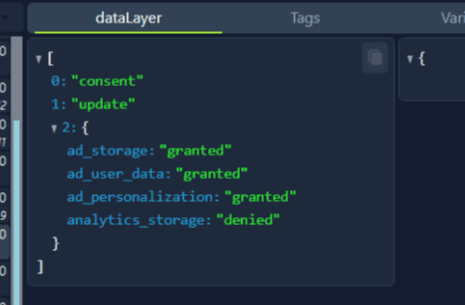
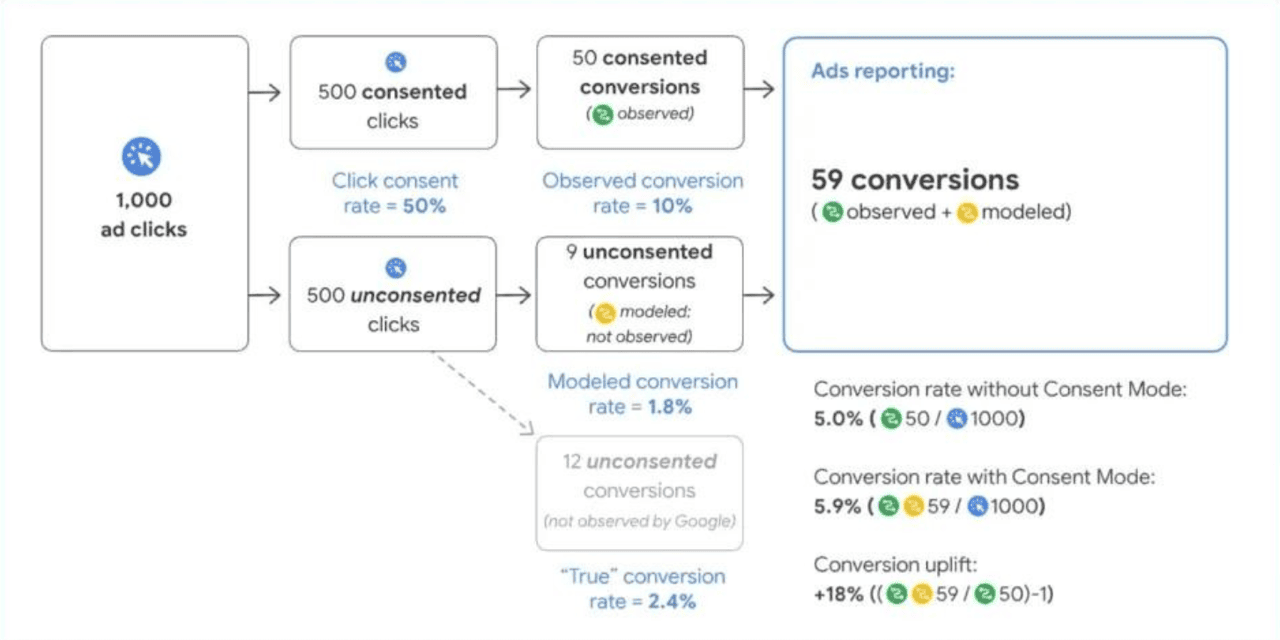
</details>

### Related articles

* [GTM and Google Analytics data layer for Shopify](https://help.littledata.io/advanced/developer/gtm-and-google-analytics-data-layer-for-shopify)
* [How it works: Shopify to Google Analytics](https://help.littledata.io/integrations/shopify-to-google-analytics/how-it-works-shopify-to-ga4)
* [How to fix duplicate tracking in GA4](https://help.littledata.io/integrations/shopify-to-google-analytics/fix-duplicate-tracking-ga4)
* [How to disable pageviews in Google Tag Manager](https://help.littledata.io/advanced/troubleshooting/how-to-disable-pageviews-in-gtm)


# Source/Medium customization

Littledata enables you to set a **source and medium** to customize how orders get attributed in Google Analytics, based on a set of rules.

You can create custom rules based on:

* **Order sales channel**
* **Order payment gateway**
* **Order tags**

{% hint style="info" %}
If source/medium customization is set up, it overrides any other attribution for that order session. Rules are checked in order, and the first rule that matches is used.
{% endhint %}

#### How to use source / medium customization

All the session enrichment settings are located in the **Session enrichment** tab, in the Google Analytics 4 connection settings.

Navigate to the **Session enrichment**, add a rule, fill in the necessary information, and save.

![](https://3956158252-files.gitbook.io/~/files/v0/b/gitbook-x-prod.appspot.com/o/spaces%2F1QhTbrMraNWciQeDvu1b%2Fuploads%2Fgit-blob-d808ba443eb41856db7d5470d760343fc01000e1%2Fsession_enrichment_embedded.png?alt=media\&token=19791336-91f3-46f4-82c1-921e4a1190a4)

{% hint style="success" %}
**Custom conditions**

If you wish to add custom channels, tags, or gateways, there will be instructions provided on how to do it once you click `Create custom channel / Create custom gateway`.
{% endhint %}

#### Sales channel

If you want to add a rule for a sales channel/app, you can pick from a list of the most popular sales channels.

Click **Add Custom Value** if you can't find the desired channel in the list, and you can enter an App ID.

For example, if you're using **Recharge** to manage recurring orders, you can set the source/medium `recharge / recurring` for all orders Recharge generates. Littledata would already have tracked recurring purchases, but previously `source` would be Not Set if the subscription was set up before Littledata was installed.

Below is a list of the most popular sales channels and Littledata's recommendations for a custom source/medium:

| Sales Channel / App           | Source (custom)  | Medium (custom)              |
| ----------------------------- | ---------------- | ---------------------------- |
| Shopify Draft                 | shopify          | draft                        |
| Recharge Subscriptions        | recharge         | recurring (or) subscriptions |
| Loop Returns and Exchanges    | loop             | returns                      |
| Tapcart                       | tapcart          | app                          |
| Zapier                        | zapier           | workflow                     |
| Refersion Affiliate marketing | refersion        | affiliates                   |
| Appstle Subscriptions         | appstle          | recurring                    |
| Facebook & Instagram          | facebook         | app                          |
| Google Shopping               | google\_shopping | app                          |
| Shop App                      | shopify          | shop\_app                    |
| TikTok                        | tiktok           | app                          |
| Gorgias                       | gorgias          | app                          |
| Matrixify                     | matrixify        | import (or) app              |
| Skio Subscriptions            | skio             | recurring (or) subscriptions |
| Loop Subscriptions            | loop             | recurring (or) subscriptions |
| Ordergroove Subscriptions     | ordergroove      | recurring (or) subscriptions |
| Bold Subscriptions            | bold             | recurring (or) subscriptions |
| Yotpo Subscriptions           | yotpo            | recurring (or) subscriptions |
| Smartrr                       | smartrr          | recurring (or) subscriptions |
| Seal Subscriptions            | seal             | recurring (or) subscriptions |
| Releasit COD Form & Upsells   | releasit         | app (or) form/upsell         |
| SB Simple Bundles & Kits      | simple           | app\_bundle                  |

{% hint style="info" %}
Some of these sources might still fall under the Unassigned default channel. However, adding custom sources for these channels will allow you to have visibility on Source/Medium data that would have otherwise been (not set).
{% endhint %}

#### Order tag

If you want to customize source/medium based on a specific order tag, you can select Order Tag as your criteria.

For example, if you have a custom tag appended to your orders, you can group those orders under a single source/medium in Google Analytics by selecting Order Tag and adding your custom value.

#### Payment gateway

Littledata offers a few standard options for **Payment gateway**: Shopify Payments, Stripe and Klarna. If your gateway isn't listed, click **Create custom channel** under the field. In the **Create custom gateway** form, enter a **Label for payment gateway** and a **Value for payment gateway**, then click **Save**.

The value must match the gateway name Shopify stores on the order. To find it:

{% stepper %}
{% step %}

#### Open an order in Shopify admin

In your Shopify admin, go to **Orders** and open an order paid with that gateway.
{% endstep %}

{% step %}

#### View the order as JSON

Add `.json` to the end of the order URL, then press **Enter**.

Your URL should look similar to this:

![Add .json to an order in Shopify admin](https://3956158252-files.gitbook.io/~/files/v0/b/gitbook-x-prod.appspot.com/o/spaces%2F1QhTbrMraNWciQeDvu1b%2Fuploads%2Fgit-blob-bf06841a5d5a66ccc3d91ebb0a6085ba5c9d95eb%2Fimage-42-.png?alt=media\&token=be904cb8-c279-4a85-85ae-d7c648b222f5)
{% endstep %}

{% step %}

#### Copy the gateway name

Scroll down, or use your browser's find tool, to locate `payment_gateway_names`.

Copy its value and paste it into the **Value for payment gateway** field in the Littledata app.

![](https://3956158252-files.gitbook.io/~/files/v0/b/gitbook-x-prod.appspot.com/o/spaces%2F1QhTbrMraNWciQeDvu1b%2Fuploads%2Fgit-blob-33b73512862e05ec02da24aead82eeaef518248e%2Fimage-43-.png?alt=media\&token=00a9ecd4-d08b-4935-a7fc-a0416c0ac63a)
{% endstep %}
{% endstepper %}

### Related articles

* [How to fix (Other) traffic in Google Analytics](https://help.littledata.io/advanced/troubleshooting/how-to-fix-other-channel-in-google-analytics)
* [Tracking Shopify payment gateways in Google Analytics](https://help.littledata.io/integrations/shopify-to-google-analytics/tracking-shopify-klarna-paypal-google-analytics)
* [How to track Shopify sales channels in GA4](https://help.littledata.io/google-analytics/acquisition/how-to-track-shopify-sales-channels-in-ga4)


# Using first-party data in GA4 for better attribution

This article explains how to enable tracking for hashed first-party data in Google Analytics 4.

Google's [user-provided data collection](https://support.google.com/analytics/answer/14077171?hl=en) enables your Google Analytics property to receive and process hashed first-party customer data.

{% hint style="info" %}
This feature is part of an open beta - it is subject to change, and may have no immediate effect on attribution.
{% endhint %}

This brings benefits similar to **Enhanced Conversions** for Google Ads:

* Better user identification using consenting **Google signed-in users'** data
* **Cross-device attribution** - e.g. user visited on Android phone and then purchased using Chrome (logged in)
* Less reliance on cookies - bypassing 7 day GA cookie limit set by Safari / iOS
* **Demographic / interest** reporting based on first-party data

### How to track first-party data in GA4

There are 2 steps to track first-party data in Google Analytics 4.

1. Open the Littledata app and go to the **Google Analytics 4 destination settings**.\
   Under the **Data customization** tab, turn on **Send user data**.

   ![](https://3956158252-files.gitbook.io/~/files/v0/b/gitbook-x-prod.appspot.com/o/spaces%2F1QhTbrMraNWciQeDvu1b%2Fuploads%2Fgit-blob-ef44d3f5e05dd8772c52fbc899616ffcb9f1d61c%2Fuser_data_embedded.png?alt=media\&token=229f10f4-f508-4208-8887-8e2074ce55b1)
2. In your GA4 property, open **Data collection** and enable **User-provided data collection**.

   ![](https://3956158252-files.gitbook.io/~/files/v0/b/gitbook-x-prod.appspot.com/o/spaces%2F1QhTbrMraNWciQeDvu1b%2Fuploads%2Fgit-blob-190a4020878d395da22d35dfaf25e54293faafcf%2Fscreenshot-2024-05-30-at-13.28.26.png?alt=media\&token=78f4225c-94f2-4dff-88a1-40b22203b694)

After you complete these steps, Littledata will start sending hashed first-party data to your GA4 property.\
\
The data is hashed using the **SHA-256** algorithm.

### How it works?

When you turn on the setting inside your Littledata account, conversion events sent to your Analytics property **will be enriched with hashed first-party data**.

If the user-provided data collection setting inside your Analytics property is not enabled, the **conversion will be processed** but the **first-party data and user\_id will not**.

{% hint style="success" %}
Turn off both the setting in Littledata and the setting in Google Analytics if you don't want to share customer data with Google.
{% endhint %}

This is an example of the data we send to Google Analytics:

```javascript
   "user_id":"7158222333381",
   "user_data":{
      "sha256_email_address":"53b61bf697983d0f07a1e4d6962d81a1b86ccf594d32e9bdfb6ad5e110d48b1c",
      "sha256_phone_number":"f029f7d3dd85b2b7e9b657792d168ab92c48c4363634c59187d5a2dd3279188f",
      "address":{
         "sha256_first_name":"1b99f3740501eaef26b5a0a3958b8fe9e81b822981a414d510b1e5b139348cdf",
         "sha256_last_name":"e75be31f77b4aae647f4e0b4233bb5cf3b67384434b76ed36f6ff723f79ef1ce",
         "sha256_street":"4249a5b864b0f3382e9d29c6fd98065fdea6a0ec263fa691842e7e52787aa3e6",
         "city":"3eef36f440a655f87ec46c3e7e4a61427d3c3549b53c33e34f65fa78ad9ee31d",
         "region":"124e0b7201b0388d7c07f43194b9645d162b77005b66fef7283c689a69ff7c56",
         "postal_code":"92c7d71b95dc6540fc58e891dbe649fe72ae5e93b5f42fd7fbdeefe6cef3e51d",
         "country":"884129b7691d98f541650f9974a034323677ebe4e1c3bd71ebf5d43cdf118acc"
      }
   }
```


# Tracking product list views and clicks

{% hint style="success" %}
Products tracked can be viewed in the [Ecommerce Purchases report in GA4](/google-analytics/conversions/shopify-to-google-analytics-4-beta#ecommerce-purchases)
{% endhint %}

Littledata tracks product list impressions on any Shopify storefront, using [Google](https://developers.google.com/analytics/devguides/collection/analyticsjs/enhanced-ecommerce#product-impression) or [Segment's](https://segment.com/docs/connections/spec/ecommerce/v2/#product-list-viewed) standard product list event properties.

### What Littledata tracks

On your **collection** and **search** pages, Littledata tracks:

* **Product list views**: a product in the list became visible to the shopper. In GA4 this is the `view_item_list` event. In Segment it's **Product List Viewed**.
* **Product list clicks**: the shopper clicked a product in the list. In GA4 this is the `select_item` event. In Segment it's **Product Clicked**.

Product list views aren't tracked on other page types, such as the home page or product pages.

Each product in these events includes product details such as name, brand, category and variant.

### What counts as a product list view

Littledata looks for links to product pages (URLs that contain `/products/`). A product counts as viewed when at least half of its link is visible on the shopper's screen.

* Products are only counted once per page, even if the shopper scrolls past them again.
* Products that load later, for example with infinite scroll or a "Load more" button, are tracked too.
* Littledata collects the visible products and sends them together after a short delay (2.5 seconds by default), so it can fetch each product's details first.

The list position of each product is its order among all product links on the page.

### How clicks are tracked

A click is only tracked for a product that was already counted as viewed. This keeps your click-through rate accurate.

Littledata doesn't delay the shopper when they click. It saves the click and sends it from the next page, after the product page has loaded.

### Where to see these events in GA4

In GA4, go to **Reports** > **Monetization** > **Ecommerce purchases**. You can change the first column of the table to see results by item name, item ID, item category and more.

![Changing table dimension for product performance](https://3956158252-files.gitbook.io/~/files/v0/b/gitbook-x-prod.appspot.com/o/spaces%2F1QhTbrMraNWciQeDvu1b%2Fuploads%2Fgit-blob-e07be87b8d761111ec29ee74c950fc401b67a0e4%2Fscreenshot-2023-05-29-at-15.33.06.png?alt=media\&token=402d7494-2796-47f5-ba50-e6a6b9f8491b)

For an overview of the GA4 reports Littledata fills, see [Shopify reporting in Google Analytics 4](https://help.littledata.io/google-analytics/conversions/shopify-to-google-analytics-4-beta#ecommerce-purchases).

### Only track products that show a price

If other links on your collection pages point to products (for example a menu or a banner), they can be counted as product list views. If your theme shows the price inside the product link, you can limit tracking to links that include the price.

{% stepper %}
{% step %}

#### Open Global settings

In Shopify admin, click **Global settings** under the Littledata app in the left sidebar.
{% endstep %}

{% step %}

#### Turn on the price setting

Turn on **Product list links include prices**.
{% endstep %}

{% step %}

#### Save

Save your changes.
{% endstep %}
{% endstepper %}

{% hint style="warning" %}
Only use this setting if the price is part of the clickable product link in your theme. Otherwise Littledata won't find the price and won't track those products.
{% endhint %}

**Global settings** also has a **Product list links include images** setting, for themes where the product image sits inside or right next to the product link.

### Related articles

* [Data pipeline settings](https://help.littledata.io/advanced/developer/data-pipeline-settings)
* [Shopify reporting in Google Analytics 4](https://help.littledata.io/google-analytics/conversions/shopify-to-google-analytics-4-beta)
* [Known limitations of Littledata's Shopify tracking](https://help.littledata.io/advanced/developer/known-limitations-of-littledatas-shopify-tracking)


# Tracking Shopify payment gateways in GA4

How Littledata tracks orders from any Shopify payment gateway, such as Shop Pay, PayPal and Klarna, and how to see the gateway in GA4 and Segment.

Littledata tracks orders from any payment gateway your Shopify store uses, such as Shop Pay, PayPal, Klarna and Affirm. This page explains how gateway orders are tracked and how to report on the gateway in GA4 and Segment.

### How payment gateway orders are tracked

Littledata tracks orders [on the server](https://help.littledata.io/integrations/shopify-to-google-analytics/how-it-works-shopify-to-ga4#server-side-events), straight from Shopify. It doesn't matter which payment gateway the customer used, or whether they left your store to pay. Every order is still tracked and linked back to the marketing campaign that brought the customer in.

Orders in other currencies are supported too. See [Multi-currency support](https://help.littledata.io/sources/shopify/multi-currency-support-for-shopify).

### How to see which payment gateway was used

Littledata sends the name of the payment gateway that Shopify records for the order.

{% hint style="info" %}
Payment gateway is not available for all orders. For example, draft orders and orders from some subscription apps don't pass it to Shopify.
{% endhint %}

#### In GA4

| Where           | Name                 | Sent with                                                                   |
| --------------- | -------------------- | --------------------------------------------------------------------------- |
| User property   | `payment_gateway_ld` | Purchase events                                                             |
| Event parameter | `payment_type`       | Checkout events (`begin_checkout`, `add_shipping_info`, `add_payment_info`) |

Littledata creates a user-scoped custom dimension called **Payment Gateway** in your GA4 property. Add it to any GA4 report or exploration to split orders, and the customers who placed them, by payment gateway. See [Custom dimensions for calculating customer lifetime value](https://help.littledata.io/google-analytics/conversions/customer-lifetime-value-google-analytics).

To report on `payment_type` in checkout events, register it as an event-scoped custom dimension in GA4.

#### In Segment

| Property                     | Sent with                                                                                |
| ---------------------------- | ---------------------------------------------------------------------------------------- |
| `payment_gateway_littledata` | Order Completed, Post purchase upsell and POS Order Placed                               |
| `payment_method`             | Checkout Started, Checkout Step Viewed, Checkout Step Completed and Payment Info Entered |

See [How it works: Shopify source for Segment](https://help.littledata.io/integrations/shopify-to-segment/how-it-works).

### What you can learn

Splitting your data by payment gateway helps you answer questions like:

* Does a new payment method help more customers in a certain country to buy?
* Do some marketing channels lead to more buy now, pay later orders, for example with Klarna or Afterpay?
* Which payment methods have a higher checkout completion rate?

### Common payment gateways

Littledata works with any gateway, so this list is not complete. These are some of the gateways our stores use most.

|                      |                 |                             |
| -------------------- | --------------- | --------------------------- |
| Adyen                | Flow\.io        | PayBright                   |
| Affirm               | Gift card       | Payfast                     |
| Afterpay             | GoPay           | Payflow                     |
| Amazon Marketplace   | Iyzico          | Payfort                     |
| Amazon Payments      | Klarna          | Paygate                     |
| Authorize.net        | Komoju          | Payment Express             |
| Bank transfer        | Laybuy          | PayPal                      |
| Bold Cashier         | Mercado Pago    | Peace Payments              |
| Braintree            | MobilePay       | Quadpay                     |
| Cash on delivery     | Mollie          | QuickPay                    |
| Cashfree             | Mondido Swish   | Razorpay                    |
| Coinbase Commerce    | Ocean Payment   | Sezzle                      |
| Credit / debit cards | Orbital         | Shop Pay / Shopify Payments |
| CyberSource          | PagSeguro       | Splitit                     |
| ePay                 | Pague no Boleto | Stripe                      |
| Facebook Marketplace | Partial.ly      | Zip                         |

{% hint style="warning" %}
If you use Flow\.io (Flow Commerce), the order number in GA4 will differ from the order number in Shopify. This is because Flow\.io overwrites the order number after the order is created.
{% endhint %}

### Related articles

* [How it works: Shopify to Google Analytics](https://help.littledata.io/integrations/shopify-to-google-analytics/how-it-works-shopify-to-ga4)
* [Custom dimensions for calculating customer lifetime value](https://help.littledata.io/google-analytics/conversions/customer-lifetime-value-google-analytics)
* [Multi-currency support](https://help.littledata.io/sources/shopify/multi-currency-support-for-shopify)
* [How it works: Shopify source for Segment](https://help.littledata.io/integrations/shopify-to-segment/how-it-works)


# Using Google Consent Mode v2 with Shopify

How Littledata works with Google Consent Mode v2 through the Shopify Customer Privacy API, and how to turn on Consent mode for GA4.

Littledata supports Google Consent Mode v2 through the Shopify Customer Privacy API. This page explains how to turn it on and how your shoppers' consent choices are passed to Google.

### What is Google Consent Mode v2?

Google Consent Mode lets websites adjust how Google tags collect data based on each visitor's consent choices. Version 2 is the latest version.

Since March 2024, advertisers who want to run personalized Google Ads to users in Europe [must use Consent Mode v2](https://support.google.com/google-ads/answer/14505993?hl=en). You can read more about [Consent Mode on Google's help center](https://support.google.com/google-ads/answer/10000067?hl=en-GB).

### How Littledata works with Consent Mode

Littledata reads your shoppers' choices from the Shopify Customer Privacy API and passes them to Google as Consent Mode signals. It uses advanced consent mode. This means that when a shopper doesn't give consent, Google still receives cookieless pings, so it can [model your non-consenting traffic](https://support.google.com/analytics/answer/11161109).

Most [Shopify cookie banners](https://help.littledata.io/partner-recipes/cookie-consent-integrations/shopify-customer-consent-api) and some consent management platforms (CMPs) support the Customer Privacy API.

{% hint style="info" %}
Consent Mode only works if your store has a cookie banner. You can set one up in your Shopify admin under **Settings** > **Customer privacy** > **Cookie banner**, or use another banner app that works with the Shopify Customer Privacy API.
{% endhint %}

{% hint style="warning" %}
**Consent mode is off by default.** While it is off, Littledata sends no consent commands to Google and tracks every shopper as if they had given consent, no matter what your cookie banner shows. [Turn on Consent mode](#how-to-turn-on-consent-mode) before you rely on anything else on this page.
{% endhint %}

### How to turn on Consent mode

{% stepper %}
{% step %}
**Open your GA4 settings**

Open the Littledata app from your Shopify admin. Find your Google Analytics 4 destination, click the **⋯** menu on its card and choose **Settings**.
{% endstep %}

{% step %}
**Open General**

Open the **General** tab.
{% endstep %}

{% step %}
**Turn on Consent mode**

Turn on **Consent mode**.
{% endstep %}

{% step %}
**Save**

Click **Save**.
{% endstep %}
{% endstepper %}

There is one **Consent mode** setting per destination. There is no separate Consent Mode v2 setting. See [Changing the data pipeline settings](https://help.littledata.io/advanced/developer/data-pipeline-settings) for the other settings on this tab.

{% hint style="info" %}
**Shopify Markets**

If the [Shopify Markets](https://help.littledata.io/sources/shopify-markets/markets-settings) module is on, destination settings are saved per market, and that includes **Consent mode**. Turning it on for one market doesn't turn it on for the others. A market that is deleted and created again in Shopify comes back with default settings. Check the setting in every market you sell in.
{% endhint %}

#### Which connection controls the Google tag

GA4 and Google Ads share the same Google tag on your store, so only one connection sets its consent state:

* If you have a GA4 connection, its **Consent mode** setting controls the whole consent state. This includes the advertising parameters `ad_storage`, `ad_user_data` and `ad_personalization`. Turning on **Consent mode** for Google Ads has no effect on the tag while GA4 is connected.
* If you have no GA4 connection, your Google Ads connection takes over, and its own **Consent mode** setting applies.

### How Shopify consent maps to Google

When **Consent mode** is on, all four Google consent parameters start as `denied`. They update as soon as the shopper makes a choice in your [cookie banner](https://help.littledata.io/advanced/troubleshooting/consent-banner-design-ga4) or CMP:

| Google Consent Mode parameter | Set to `granted` when Shopify consent is |
| ----------------------------- | ---------------------------------------- |
| `ad_storage`                  | `marketing` = `yes`                      |
| `ad_user_data`                | `marketing` = `yes`                      |
| `ad_personalization`          | `marketing` = `yes`                      |
| `analytics_storage`           | `analytics` = `yes`                      |

The three advertising parameters follow marketing consent. `analytics_storage` follows analytics consent. `ad_user_data` and `ad_personalization` are the two parameters that Consent Mode v2 added.

For example, a shopper who accepts marketing but declines analytics creates a consent update like this:

<figure><img src="https://files.gitbook.com/v0/b/gitbook-x-prod.appspot.com/o/spaces%2F1QhTbrMraNWciQeDvu1b%2Fuploads%2Fgit-blob-1c283486d6df6c5fbc721795eca85bd67992cfcb%2Fconsetnss.png?alt=media" alt="Consent update in the dataLayer with the three ad parameters granted and analytics_storage denied"><figcaption></figcaption></figure>

To check this on your own store, see [How to check Google Consent Mode v2 is working](https://help.littledata.io/advanced/developer/how-to-check-whether-google-consent-mode-v2-is-properly-working).

### Advanced consent mode and modeling

Basic consent mode only collects data from visitors who give consent. Advanced consent mode, which Littledata uses, also sends cookieless pings for visitors who don't. Google's comparison of the two:

| Feature                        | Basic consent mode                                                              | Advanced consent mode                                                                                                                                   |
| ------------------------------ | ------------------------------------------------------------------------------- | ------------------------------------------------------------------------------------------------------------------------------------------------------- |
| Tag loading                    | Blocked until the visitor interacts with a consent banner.                      | Loads with defaults set to denied, unless set up otherwise.                                                                                             |
| Data sent                      | No data is sent before a visitor consents, not even the default consent status. | When consent is denied, the consent state and cookieless pings are sent. When consent is granted, cookies are written and all measurement data is sent. |
| Consent states                 | Set after the visitor interacts with the banner.                                | Default to denied, unless set up otherwise. Update based on the visitor's choice.                                                                       |
| Tag behavior after interaction | Loads and runs consent mode APIs only when a visitor grants consent.            | Adjusts tag behavior based on the visitor's choice.                                                                                                     |
| Conversion modeling            | General model (less detailed).                                                  | Advertiser-specific model (more detailed).                                                                                                              |

When consent is denied, the Google tag still loads and sends events as cookieless pings. Google uses these to model the missing data. This includes Google Ads consent mode modeling, Google Ads online modeling, GA4 key event modeling and GA4 behavioral modeling.

<figure><img src="https://files.gitbook.com/v0/b/gitbook-x-prod.appspot.com/o/spaces%2F1QhTbrMraNWciQeDvu1b%2Fuploads%2Fgit-blob-80691501ea6732b058b2c4b50416367e9dd7f975%2Fscreenshot-2024-03-15-at-15.18.03.png?alt=media" alt="Google&#x27;s example of how observed and modeled conversions add up in Google Ads reporting"><figcaption></figcaption></figure>

### Related articles

* [How to check Google Consent Mode v2 is working](https://help.littledata.io/advanced/developer/how-to-check-whether-google-consent-mode-v2-is-properly-working)
* [Using cookie consent banners for GDPR compliance](https://help.littledata.io/partner-recipes/cookie-consent-integrations/shopify-customer-consent-api)
* [How consent banner design affects Google Analytics](https://help.littledata.io/advanced/troubleshooting/consent-banner-design-ga4)
* [Changing the data pipeline settings](https://help.littledata.io/advanced/developer/data-pipeline-settings)
* [How destination settings behave with Shopify Markets](https://help.littledata.io/sources/shopify-markets/markets-settings)


# Klaviyo

## Klaviyo

Littledata's [Klaviyo connection](https://www.littledata.io/shopify/klaviyo) helps Shopify stores send better email and SMS flows. It works on any Shopify or Shopify Plus store and helps you reach more shoppers who browse, add to cart or start checkout.

![klaviyo abandoned cart shopify](https://3956158252-files.gitbook.io/~/files/v0/b/gitbook-x-prod.appspot.com/o/spaces%2F1QhTbrMraNWciQeDvu1b%2Fuploads%2Fgit-blob-a0a2f5b56c8a5dc44bec847ed3671f8823a6cf18%2Fklaviyo-shopify.png?alt=media)

The connection uses both client-side and server-side tracking to identify more of your visitors. It links anonymous sessions to shoppers who opted in to your emails, so your abandoned cart and browse flows reach more people.

{% embed url="<https://www.youtube.com/watch?v=VvKMLIrFdMI>" %}

### What you get

* Bigger audiences with server-side **Viewed Product**, **Added to Cart** and **Checkout Started** events
* No template changes: the events work with your existing Klaviyo flow templates
* The whole cart contents, not just the last item added
* Flows you can split by cart value, number of items or product category
* The option to exclude free gifts or certain SKUs from retargeting
* More relevant, personalized emails, which can lower your unsubscribe rate
* Better customer identification, especially on iOS and Safari
* GDPR and CCPA compliance

### Feature comparison

| Feature                                    | Littledata integration | Klaviyo <> Shopify integration | Other solutions |
| ------------------------------------------ | ---------------------- | ------------------------------ | --------------- |
| GDPR/CCPA Compliant                        | ✅                      | ✅                              | ✖️              |
| Uses fully opted-in email lists            | ✅                      | ✅                              | ✖️              |
| Server-side Identity Resolution \*         | ✅                      | ✖️                             | ✖️              |
| Server-side Viewed Product event           | ✅                      | ✖️                             | ✖️              |
| Server-side Added to Cart event            | ✅                      | ✅                              | ✖️              |
| Added to Cart event includes cart contents | ✅                      | ✖️                             | ✖️              |
| More identified Checkout Started events    | ✅                      | ✖️                             | ✅               |

\* In October 2024, Klaviyo announced an "ExtendedID". As we understand it, this matches users based on non-Klaviyo cookies (for example Google, Meta or Shopify) to identify customers across devices. Littledata's PersistentID is different: it uses a server-side device graph to keep the ID beyond browser limits.

### Improving abandoned cart flows

### Abandoned cart flows

Littledata sends an **Added to Cart** or **Checkout Started** event from Shopify's servers every time it can identify a shopper on your email list who adds to cart.

These events work the same way as Klaviyo's own [Added to Cart](https://help.klaviyo.com/hc/en-us/articles/115001396711) and [Checkout Started](https://help.klaviyo.com/hc/en-us/articles/115005080447) events, so you don't need to remap any properties in your email templates. For example, you can send an email that shows every product in the shopper's cart.

Littledata also adds a [checkout URL](https://help.littledata.io/integrations/shopify-klaviyo/set-up-klaviyo-flows#using-checkout-urls) so shoppers can go from the email straight back to checkout. See [how to set up these flows in Klaviyo](https://help.littledata.io/integrations/shopify-klaviyo/set-up-klaviyo-flows).

![How Littledata works with Klaviyo](https://3956158252-files.gitbook.io/~/files/v0/b/gitbook-x-prod.appspot.com/o/spaces%2F1QhTbrMraNWciQeDvu1b%2Fuploads%2Fgit-blob-0fd54ba8a51f34b3d9d3e51f8ecc2e3dd24feb12%2Fklaviyo-shopper-journey-comparison.png?alt=media)

{% hint style="info" %}

### Use the [ROI calculator](https://docs.google.com/spreadsheets/d/1B0MsTzQZnJjVlDM0MevZECSubA_40Rhfxx0UnJrzIWA/copy) sheet to estimate the return from Littledata based on how your current Klaviyo flows perform.

{% endhint %}

Browse abandonment flows

Littledata tracks **Viewed Product** events server-side, adds customer and product data, and sends them to Klaviyo. You can use these events in browse abandonment flows: emails and SMS sent to shoppers who looked at a product but didn't start checkout.

See [how the Klaviyo integration works](https://help.littledata.io/integrations/shopify-klaviyo/how-it-works-shopify-to-klaviyo).

### Checkout abandonment flows

Littledata can send the **Checkout Started** event server-side as soon as checkout begins, even before the shopper enters their email, as long as Littledata has already identified them.

Klaviyo's own Checkout Started event needs the shopper to enter their email during checkout. Checkouts where no email is entered are missed, so your checkout abandonment audience is smaller.

### Direct mail audiences

Direct mail platforms such as [Paper Run](https://paperrun.com/) build their mailing lists from your Klaviyo segments and lists. A profile without a street address is a postcard you can't send.

Littledata's **Checkout Started** event adds the shipping address that Shopify shares from accelerated checkouts (Shop Pay, Apple Pay or PayPal Express) to the Klaviyo profile. The address is saved before the order is placed, so you can still mail the shopper if they abandon checkout.

This grows your direct mail audience in two ways:

1. **More profiles in the audience.** Server-side identity resolution links anonymous sessions to known profiles, so more abandoning shoppers are identified.
2. **More profiles you can mail.** Checkout tracking adds a street address to more profiles.

### Related articles

* [Connect Klaviyo with Littledata](https://help.littledata.io/integrations/shopify-klaviyo/littledata-klaviyo-installation-guide)
* [How our Klaviyo integration works](https://help.littledata.io/integrations/shopify-klaviyo/how-it-works-shopify-to-klaviyo)
* [Set up Klaviyo flows with Littledata triggers](https://help.littledata.io/integrations/shopify-klaviyo/set-up-klaviyo-flows)
* [Reducing the bounce rate from Littledata flows](https://help.littledata.io/integrations/shopify-klaviyo/reducing-bounce-rate-littledata-flows)
* [How to retarget abandoned carts with Klaviyo](https://blog.littledata.io/2024/02/21/retarget-abandoned-carts-using-klaviyo/)
* [Browse vs cart abandonment](https://blog.littledata.io/2024/02/02/tackling-browse-and-cart-abandonment-with-klaviyo/)


# Shopify to Klaviyo installation guide

This guide shows you how to connect your Shopify store to the Klaviyo destination in the Littledata app. It also shows you how to switch your Klaviyo flows to Littledata triggers.

### Before you start

* You have the Littledata app installed on your Shopify store, with Shopify connected as a source.
* You have an **Owner**, **Admin** or **Manager** role in the Klaviyo account you want to connect. Analyst and other roles can't add integrations, so the connection step will fail for them.
* You can create and edit flows in that Klaviyo account.

### Connect Klaviyo

{% stepper %}
{% step %}

#### Add the destination

Open the Littledata app and click **Add destination**. The **Destinations** page opens.
{% endstep %}

{% step %}

#### Choose Klaviyo

Under **Available in your plan**, find **Klaviyo** and click **Connect**. The setup opens on the **Connect your store to Klaviyo** screen.
{% endstep %}

{% step %}

#### Read the overview

Read the short overview, then click **Continue**.
{% endstep %}

{% step %}

#### Start the Klaviyo connection

On **Connect your Klaviyo account**, click **Connect**. Klaviyo opens in a new tab. Sign in if Klaviyo asks you to. If you manage several Klaviyo accounts, make sure you're signed in to the one for this store.
{% endstep %}

{% step %}

#### Allow access in Klaviyo

On the **Allow Littledata to access your account's information** page, check the account name at the top first. If it's the wrong account, click **Switch account** and pick the right one. The page lists the data Littledata will be able to access. Then click **Allow**.

If you click **Deny** or close the tab, go back to the Littledata app and click **Connect** again.
{% endstep %}

{% step %}

#### Go back to the Littledata app

Return to the Littledata app tab. You'll see **Klaviyo account connected** and your account name. Click **Continue**.
{% endstep %}

{% step %}

#### Wait for tracking to install

You'll see **Adding tracking** while Littledata adds its tracking scripts and webhooks to your store. This moves on by itself.
{% endstep %}

{% step %}

#### Verify your connection

On **Verify your connection**, click **Verify**. Littledata sends test events to your Klaviyo account. This confirms the connection works and makes the Littledata events available as flow triggers.

When it's done, you'll see **You're connected! Here's where to go next.**

{% hint style="info" %}
Test events won't affect your existing campaigns.
{% endhint %}
{% endstep %}
{% endstepper %}

### Create new flows using Littledata triggers

To measure the connection properly, clone your existing flows and switch them to Littledata triggers. Do this for each flow that should use Littledata data.

Littledata triggers are Klaviyo metrics whose names end in "- Littledata", for example **Checkout Started - Littledata** or **Placed Order - Littledata**. They sit right next to Shopify's own metrics with almost the same name (**Checkout Started**, **Placed Order**), so always check for the "- Littledata" ending.

{% hint style="warning" %}
You can only switch flows that are triggered by a metric, such as checkout started or order placed. Klaviyo doesn't let you change the trigger type, so flows triggered by a list or segment (for example a welcome series) keep their trigger. Littledata triggers appear only after you've clicked **Verify** in the Littledata app.
{% endhint %}

{% stepper %}
{% step %}

#### Open your flows

Sign in to Klaviyo and click **Flows** in the left menu. Use the search box to find the flow.

Each flow shows its trigger metric under its name. A flow that shows **Checkout Started** uses Shopify's trigger. One that shows **Checkout Started - Littledata** already uses Littledata's.
{% endstep %}

{% step %}

#### Clone a flow

Click the **⋮** (three vertical dots) at the end of the flow's row and choose **Clone**. The same menu also has **Add to Composer**, **Edit details**, **Copy ID**, **Archive** and **Delete**: don't pick those.
{% endstep %}

{% step %}

#### Name the copy

The **Clone flow** panel opens. Keep **Clone to this account** selected (it's the default). Don't pick **Clone to multiple accounts** below it. In **Name of cloned Flow**, give the copy a name, for example add "Littledata" to the end. Then click **Continue**.

<figure><img src="https://3956158252-files.gitbook.io/~/files/v0/b/gitbook-x-prod.appspot.com/o/spaces%2F1QhTbrMraNWciQeDvu1b%2Fuploads%2Fgit-blob-a8fb711fd505d06d081e4bae77112a3e0c26d6b8%2Fhc-klaviyo-clone-flow.png?alt=media" alt=""><figcaption></figcaption></figure>
{% endstep %}

{% step %}

#### Pick the Littledata trigger

Choose the matching Littledata trigger, the one ending in "- Littledata" (for example **Checkout Started - Littledata**, not **Checkout Started**). Then finish the clone.
{% endstep %}

{% step %}

#### Review the new flow

Open the cloned flow. Check its trigger, filters, timing and messages. Pay attention to trigger and profile filters: some use properties of the old trigger metric, so they may need updating for the Littledata metric. Cloned messages start in **Draft**.
{% endstep %}

{% step %}

#### Turn on the new flow

In the new flow, click **Review and turn on** at the top right. Choose **Live**, select **Update status now** and click **Save**. Don't pick **Schedule** unless you want the switch to happen later.
{% endstep %}

{% step %}

#### Turn off the old flow

Open the old flow and click **Update status** at the top right. Choose **Manual** (or **Draft**), select **Update status now** and click **Save**.

Do this right after turning on the new flow, so no customer gets both messages or neither.

{% hint style="info" %}
Keep the old flow (turned off) instead of deleting it if you want to keep its past reports.
{% endhint %}
{% endstep %}
{% endstepper %}

### Check that it works

{% stepper %}
{% step %}

#### Check the Littledata app

Open the Littledata app home page. The **Klaviyo** card shows **Connected**.
{% endstep %}

{% step %}

#### Check Klaviyo

In Klaviyo, go to **Analytics** > **Metrics**. Click **Integration** and choose Littledata to see only Littledata's metrics. Open one to see the test event sent during setup.
{% endstep %}
{% endstepper %}

### Related articles

* [Set up your Klaviyo flows using Littledata's triggers](https://help.littledata.io/integrations/shopify-klaviyo/set-up-klaviyo-flows)
* [How it works: Shopify to Klaviyo](https://help.littledata.io/integrations/shopify-klaviyo/how-it-works-shopify-to-klaviyo)
* [Klaviyo](https://help.littledata.io/integrations/shopify-klaviyo)


# How it works: Shopify to Klaviyo

The events Littledata sends to Klaviyo, the properties on each event and profile, and how consent, identity and the automatic segments work.

This page explains what Littledata sends to Klaviyo. Use it to see which events you get, which properties you can use in flows and segments, and how Littledata matches events to Klaviyo profiles.

<figure><img src="https://3956158252-files.gitbook.io/~/files/v0/b/gitbook-x-prod.appspot.com/o/spaces%2F1QhTbrMraNWciQeDvu1b%2Fuploads%2Fgit-blob-e2ca17be263f421fa3ba49413c0e1d6cc7b22079%2Fconnection-klaviyo.png?alt=media" alt="Diagram of browser, server and metafield data flowing through Littledata to Klaviyo"><figcaption></figcaption></figure>

During the [installation](https://help.littledata.io/integrations/shopify-klaviyo/littledata-klaviyo-installation-guide), Littledata adds a tracking script to your store pages and sets up [server-side tracking for Shopify](https://help.littledata.io/get-started/how-server-side-tracking-works). Littledata then sends events to Klaviyo from its servers.

#### Events Littledata sends

All of these events are on by default. You can turn an event off in the Littledata app: find the Klaviyo card, click the **⋯** menu on its card, choose **Settings** and open the **Event Editor** tab.

| Event name                     | When it's sent                                      |
| ------------------------------ | --------------------------------------------------- |
| Viewed Product - Littledata    | A visitor views a product                           |
| Added to Cart - Littledata     | A visitor adds a product to the cart                |
| Removed from Cart - Littledata | A visitor removes a product from the cart           |
| Checkout Started - Littledata  | A customer starts checkout (sent once per checkout) |
| Placed Order - Littledata      | A customer places an order                          |

{% hint style="info" %}
Profiles created by these events carry the email address typed at checkout, which neither Shopify nor Klaviyo verifies. A flow triggered by them is often the first to email a new address, so it takes the bounce if the address is bad. See [Reducing the bounce rate from Littledata flows](https://help.littledata.io/integrations/shopify-klaviyo/reducing-bounce-rate-littledata-flows).
{% endhint %}

#### How events are matched to profiles

Littledata sends an event to Klaviyo only when it can tie it to a person. It needs at least one of these:

* the customer's email address,
* the customer's phone number, or
* the Klaviyo identifier stored in the visitor's browser (used when there's no email or phone number).

If none of these is available, the event isn't sent.

Each event also updates the Klaviyo profile with the details Littledata has: email, phone number, first and last name, and location (IP address, city, region, zip code, country and address).

#### Respecting cookie consent

Littledata's tracking works with cookie consent tools, such as [Shopify cookie banners](https://help.littledata.io/partner-recipes/cookie-consent-integrations/shopify-customer-consent-api) or [OneTrust](https://help.littledata.io/partner-recipes/cookie-consent-integrations/integrating-onetrust-shopify).

Littledata's tracking script waits for the visitor to accept tracking before it tracks browsing activity or reads the visitor's Klaviyo identifier. Consent is checked in the browser. Littledata doesn't run a separate consent check on its servers.

#### Automatic Klaviyo segments

When you finish setup, Littledata creates six segments in your Klaviyo account. They help you see how many more people Littledata tracks compared with Klaviyo's own tracking.

| Segment                   | Profiles in the segment, in the last 30 days                    |
| ------------------------- | --------------------------------------------------------------- |
| Littledata - Legacy VP    | Had Klaviyo's Viewed Product event                              |
| Littledata - Combined VP  | Had Klaviyo's Viewed Product or Viewed Product - Littledata     |
| Littledata - Legacy ATC   | Had Klaviyo's Added to Cart event                               |
| Littledata - Combined ATC | Had Klaviyo's Added to Cart or Added to Cart - Littledata       |
| Littledata - Legacy CS    | Had Klaviyo's Checkout Started event                            |
| Littledata - Combined CS  | Had Klaviyo's Checkout Started or Checkout Started - Littledata |

Compare a **Legacy** segment with its **Combined** segment to see the extra profiles Littledata adds.

#### Event properties

Prices and values use the presentment currency, which is the currency the customer saw on your store.

**Properties on every event**

| Property        | Description                                                                                 | Type   |
| --------------- | ------------------------------------------------------------------------------------------- | ------ |
| MarketID        | Shopify Market ID. Only sent when the event belongs to a Shopify Market.                    | number |
| MarketHandle    | Shopify Market handle. Only sent when the event belongs to a Shopify Market.                | string |
| Customer Locale | The visitor's browser locale, or the storefront language and country (for example `en-US`). | string |

**Viewed Product - Littledata**

This event describes one product. It has no `Items` list and no event value.

| Property           | Description                                      | Type   |
| ------------------ | ------------------------------------------------ | ------ |
| Name               | Product title                                    | string |
| ProductID          | Shopify product ID                               | string |
| Categories         | The product's collections and product type       | array  |
| ImageURL           | Product or variant image URL                     | string |
| URL                | Product URL                                      | string |
| ProductURL         | Product URL                                      | string |
| Brand              | Product vendor                                   | string |
| Price              | Product price, with currency symbol              | string |
| ItemPrice          | Product price, with currency symbol              | string |
| CompareAtPrice     | Compare-at price, with currency symbol           | string |
| SKU                | Variant SKU                                      | string |
| VariantTitle       | Variant title                                    | string |
| VariantID          | Shopify variant ID                               | string |
| $extra.line\_items | The viewed product in Shopify's line item format | array  |

**Added to Cart and Removed from Cart - Littledata**

These events include the product that was added or removed, plus the full cart.

| Property                                             | Description                                                                                                                         | Type   |
| ---------------------------------------------------- | ----------------------------------------------------------------------------------------------------------------------------------- | ------ |
| Name, ProductID, Price, SKU and other product fields | The added or removed product, with the same fields as an `Items` entry below                                                        | mixed  |
| Value                                                | Price of the added or removed product (the discounted price when there is one). This is also the event value.                       | number |
| Items                                                | Every product in the cart (see the table below)                                                                                     | array  |
| Item Count                                           | Number of products (line items) in the cart                                                                                         | number |
| Item Names                                           | Titles of the products in the cart                                                                                                  | array  |
| Total Discounts                                      | Total cart discount                                                                                                                 | string |
| CartToken                                            | Shopify cart token                                                                                                                  | string |
| CheckoutURL                                          | URL that starts checkout with this cart                                                                                             | string |
| Source Name                                          | Always `web`                                                                                                                        | string |
| $extra                                               | Cart details in Shopify's format, including `token`, `checkout_url`, `presentment_currency` and `line_items`                        | object |
| profit\_value                                        | Profit of the added or removed product. Only sent when [Profit Signal](https://help.littledata.io/sources/profit-signal) is set up. | number |

Each entry in `Items` has these fields:

| Property             | Description                                          | Type    |
| -------------------- | ---------------------------------------------------- | ------- |
| Items.Name           | Product title                                        | string  |
| Items.ProductID      | Shopify product ID                                   | string  |
| Items.Categories     | The product's collections and product type           | array   |
| Items.ImageURL       | Product image URL                                    | string  |
| Items.URL            | Product URL                                          | string  |
| Items.ProductURL     | Product URL                                          | string  |
| Items.Brand          | Product vendor                                       | string  |
| Items.Price          | Product price, with currency symbol                  | string  |
| Items.ItemPrice      | Product price, with currency symbol                  | string  |
| Items.CompareAtPrice | Compare-at price, with currency symbol               | string  |
| Items.SKU            | Variant SKU                                          | string  |
| Items.Quantity       | Quantity in the cart                                 | number  |
| Items.TotalDiscount  | Total discount on this product, with currency symbol | string  |
| Items.Discounts      | Discounts applied to this product                    | array   |
| Items.Grams          | Product weight in grams                              | number  |
| Items.Taxable        | Whether the product is taxable                       | boolean |
| Items.VariantTitle   | Variant title                                        | string  |
| Items.VariantID      | Shopify variant ID                                   | string  |
| Items.Properties     | Custom line item properties                          | object  |

**Checkout Started - Littledata**

| Property                | Description                                                                                                                                                                         | Type   |
| ----------------------- | ----------------------------------------------------------------------------------------------------------------------------------------------------------------------------------- | ------ |
| $value                  | Checkout total. This is also the event value.                                                                                                                                       | number |
| Items                   | Titles of the products in the checkout                                                                                                                                              | array  |
| Collections             | Collections and product types of all products in the checkout                                                                                                                       | array  |
| Item Count              | Number of products (line items) in the checkout                                                                                                                                     | number |
| Discount Codes          | Discount codes used                                                                                                                                                                 | array  |
| Total Discounts         | Total discount                                                                                                                                                                      | string |
| Source Name             | Always `web`                                                                                                                                                                        | string |
| $extra                  | Checkout details in Shopify's format, including `token`, `checkout_url` (the abandoned checkout link), `referring_site`, `presentment_currency`, `note_attributes` and `line_items` | object |
| profit\_value           | Checkout profit. Only sent when [Profit Signal](https://help.littledata.io/sources/profit-signal) is set up.                                                                        | number |
| profit\_margin\_applied | Profit margin used for the calculation (for example `0.4` for 40%). Only sent with `profit_value`.                                                                                  | number |

**Placed Order - Littledata**

This event follows the shape of Klaviyo's built-in Shopify Placed Order event. Littledata uses the Shopify order ID as the event's unique ID, so Klaviyo doesn't count the same order twice, and the event time is the time the order was placed.

| Property                 | Description                                                                                               | Type    |
| ------------------------ | --------------------------------------------------------------------------------------------------------- | ------- |
| $value                   | Order total. This is also the event value.                                                                | number  |
| Order Type               | `REGULAR`, `FIRST_RECURRING` or `RECURRING`                                                               | string  |
| Items                    | Titles of the products in the order                                                                       | array   |
| Collections              | Collections and product types of all products in the order                                                | array   |
| Item Count               | Total quantity of products in the order                                                                   | number  |
| Discount Codes           | Discount codes used                                                                                       | array   |
| Total Discounts          | Total discount                                                                                            | string  |
| ShippingRate             | Name of the shipping method                                                                               | string  |
| Source Name              | Shopify order source, `web` by default                                                                    | string  |
| Location ID              | Shopify location ID, for orders that have one                                                             | number  |
| tags                     | Order tags                                                                                                | array   |
| OptedInToSmsOrderUpdates | Whether the customer is subscribed to SMS marketing                                                       | boolean |
| extra                    | The order in Shopify's format, including totals, `line_items`, `shipping_lines`, addresses and `customer` | object  |
| profit\_value            | Order profit. Only sent when [Profit Signal](https://help.littledata.io/sources/profit-signal) is set up. | number  |
| profit\_margin\_applied  | Profit margin used for the calculation. Only sent with `profit_value`.                                    | number  |

#### Profile properties

When an event belongs to a Shopify Market, Littledata also saves the market on the Klaviyo profile. Use these to build market-specific segments and flows, for example a different abandoned cart email for each market. This needs Shopify Markets to be active on your store, but no extra setup in Littledata.

| Profile property           | Description                             | Type   |
| -------------------------- | --------------------------------------- | ------ |
| littledata\_market\_id     | Shopify Market ID of the last event     | number |
| littledata\_market\_handle | Shopify Market handle of the last event | string |

#### Comparison with Klaviyo's anonymous visitor backfill

Klaviyo can [backfill anonymous visitor events](https://help.klaviyo.com/hc/en-us/articles/17928628922395) to a profile after the visitor is identified in the browser. In practice, that often only happens on the thank you page, after checkout is complete.

This approach has some limits compared with Littledata's integration:

* It needs Klaviyo's additional browser tracking to be turned on.
* It only works for browser (client-side) events.
* It relies on the browser's local storage to hold the anonymous events, which Safari and iOS can clear after 7 days.
* A script on the thank you page can fail to run for [many reasons](https://blog.littledata.io/2021/04/08/for-every-100-orders-in-shopify-12-go-missing/).

#### Related articles

* [Shopify to Klaviyo installation guide](https://help.littledata.io/integrations/shopify-klaviyo/littledata-klaviyo-installation-guide)
* [Set up your Klaviyo flows using Littledata's triggers](https://help.littledata.io/integrations/shopify-klaviyo/set-up-klaviyo-flows)
* [Use the Event Editor with Klaviyo](https://help.littledata.io/event-editor/use-the-event-editor-with-klaviyo)
* [Reducing the bounce rate from Littledata flows](https://help.littledata.io/integrations/shopify-klaviyo/reducing-bounce-rate-littledata-flows)


# How to create a Klaviyo Private API Key

This guide presents steps on how to create a Klaviyo Private API Key

Littledata's integration with **Klaviyo** requires a private API key in order to send **server-side** data.

If you choose the **automatic installation route** in the **Klaviyo** connection flow, you don't need to follow this guide because we will **automatically** create one for you.

If you choose the **manual installation route**, you will need to **manually introduce** the **Klaviyo** private API Key in the connection flow.

Here is how you can manually generate the **Klaviyo** private API key for the **Littledata** connection:

1. Go to your **Klaviyo Account** settings.

![](https://3956158252-files.gitbook.io/~/files/v0/b/gitbook-x-prod.appspot.com/o/spaces%2F1QhTbrMraNWciQeDvu1b%2Fuploads%2Fgit-blob-d1b7df7769c97acce458f626ad42c760ae84019e%2Fss-21.png?alt=media)

2. Under **Account**, select **API keys**.

![](https://3956158252-files.gitbook.io/~/files/v0/b/gitbook-x-prod.appspot.com/o/spaces%2F1QhTbrMraNWciQeDvu1b%2Fuploads%2Fgit-blob-e1860bc73c6531b38edef8ccbf19f6516c10272b%2Fss-22.png?alt=media)

3. In the **Private API Keys** section, click **Create Private API Key**.

![](https://3956158252-files.gitbook.io/~/files/v0/b/gitbook-x-prod.appspot.com/o/spaces%2F1QhTbrMraNWciQeDvu1b%2Fuploads%2Fgit-blob-941291d1d64e61ecf803691043de1993a50ce38c%2Fss-23.png?alt=media)

4. Name your **API Key** ***Littledata*** and select the **Grant applications full access to every API scope** access level.

![](https://3956158252-files.gitbook.io/~/files/v0/b/gitbook-x-prod.appspot.com/o/spaces%2F1QhTbrMraNWciQeDvu1b%2Fuploads%2Fgit-blob-819216e7e91310643955d57f2c14a1556890c6eb%2Fss-24.png?alt=media)

5. Click **Create** and **copy the API Key**.

![](https://3956158252-files.gitbook.io/~/files/v0/b/gitbook-x-prod.appspot.com/o/spaces%2F1QhTbrMraNWciQeDvu1b%2Fuploads%2Fgit-blob-3fb85fe37b1c3b1ccefbe666501252af08187619%2Fss-25.png?alt=media)

#### Learn more

* Learn how [Littledata’s Shopify to Klaviyo connection works](/integrations/shopify-klaviyo/how-it-works-shopify-to-klaviyo)
* See our [quick installation guide](/integrations/shopify-klaviyo/littledata-klaviyo-installation-guide)


# Creating a Klaviyo custom report

## Creating a Klaviyo custom report

A custom report in Klaviyo shows how much revenue each of your flows brings in. Use it to compare flows and see which ones perform best.

You need at least one flow set up first. See [Set up your Klaviyo flows using Littledata's triggers](https://help.littledata.io/integrations/shopify-klaviyo/set-up-klaviyo-flows).

### Create the report

{% stepper %}
{% step %}

### Open custom reports

In Klaviyo, go to the **Custom Reports** section and start a new custom report.
{% endstep %}

{% step %}

### Choose the report type and name

Set **Report Type** to **Flow Performance Report**.

Give the report a name you will recognize, such as "Revenue by flow".
{% endstep %}

{% step %}

### Set the conversion metric

Under **Conversion Metric**, choose **Placed Order**, then **Value**, then **SUM**.

This adds up the order value for each flow.
{% endstep %}

{% step %}

### Group by flow

Under **Group By**, choose **Flow**.

Each flow then gets its own row in the report.
{% endstep %}

{% step %}

### Set the timeframe

Under **Timeframe**, choose the last 30 days and **Entire Range**.

Save and run the report.

![](https://3956158252-files.gitbook.io/~/files/v0/b/gitbook-x-prod.appspot.com/o/spaces%2F1QhTbrMraNWciQeDvu1b%2Fuploads%2Fgit-blob-526df69df1b505d5af3fd09d1dbb1a3c6b6cbbf3%2Fimage-3-.png?alt=media)
{% endstep %}
{% endstepper %}

### Related articles

* [Set up your Klaviyo flows using Littledata's triggers](https://help.littledata.io/integrations/shopify-klaviyo/set-up-klaviyo-flows)
* [How it works: Shopify to Klaviyo](https://help.littledata.io/integrations/shopify-klaviyo/how-it-works-shopify-to-klaviyo)


# Tracking Klaviyo SMS clicks

Tag your Klaviyo SMS links with UTM parameters so GA4 shows SMS traffic, and the orders Littledata tracks, in the SMS channel.

Tag the links in your [Klaviyo SMS campaigns](https://www.klaviyo.com/sms-marketing) with UTM parameters. GA4 then shows these visits in the SMS channel, and the orders Littledata tracks are credited to your SMS campaigns.

{% hint style="success" %}
Using Klaviyo for email too? Follow our [Klaviyo email tracking guide](https://help.littledata.io/integrations/shopify-klaviyo/track-klaviyo-campaigns-in-google-analytics).
{% endhint %}

### Set up UTM tracking for SMS in Klaviyo

{% stepper %}
{% step %}
**Open the Tracking section**

When you create an SMS campaign in Klaviyo, find the **Tracking** section. Turn on **Include tracking parameters** and **Customize tracking parameters**.
{% endstep %}

{% step %}
**Set the UTM values**

Use these values. The most important one is the medium: set it to `sms`, not `email`. GA4 puts visits with medium `sms` in its **SMS** channel group.

| UTM parameter | Value         |
| ------------- | ------------- |
| Source        | Klaviyo       |
| Medium        | sms           |
| Campaign      | Campaign name |
| Id            | Campaign id   |
| Customer      | External id   |
| {% endstep %} |               |

{% step %}
**Check the links**

Finish the campaign and send yourself a test SMS. Klaviyo shortens the links in the message. When you tap one, it should redirect to your store with the UTM parameters in the URL.
{% endstep %}
{% endstepper %}

### Check SMS clicks in GA4

{% stepper %}
{% step %}
**Check real-time traffic**

Tap a link in your test SMS. In GA4, go to **Reports** > **Realtime overview** and check that your visit shows up.
{% endstep %}

{% step %}
**Check the Traffic acquisition report**

Wait a few hours, then go to **Reports** > **Acquisition** > **Traffic acquisition**. With **Session default channel group** selected, you should see a row for **SMS**.

<figure><img src="https://lh5.googleusercontent.com/dn3lZTNTtvlmh0OIblydb5osW0mawlElFWep24ewJioV4PCI9I22NYiY61xxMLuasXHDU5TvGVa_mZalev0UHeebBfT87r_r-HEuW1fxNFbzbFejiSbrIyT3fKo_DcIDT84bg9P51qRKTTYUIrEzHx-3lyddFR0G55_oAsO2D1YSTs5BHIJsu8ReSKVO-A" alt="GA4 Traffic acquisition report with the SMS channel highlighted"><figcaption></figcaption></figure>
{% endstep %}

{% step %}
**Compare buyers who came from SMS**

To see how users who first came from an SMS link buy, add a comparison to an ecommerce report. Click **Add comparison**, choose the dimension **First user default channel group** and select **SMS**.

<figure><img src="https://3956158252-files.gitbook.io/~/files/v0/b/gitbook-x-prod.appspot.com/o/spaces%2F1QhTbrMraNWciQeDvu1b%2Fuploads%2Fgit-blob-6241057a12108c65ff78bacc3f9ade6573db0554%2Fscreenshot-2022-11-21-at-14.38.13.png?alt=media" alt="GA4 Build comparison panel with First user default channel group set to SMS"><figcaption></figcaption></figure>
{% endstep %}
{% endstepper %}

### Related articles

* [Track Klaviyo email campaigns in Google Analytics](https://help.littledata.io/integrations/shopify-klaviyo/track-klaviyo-campaigns-in-google-analytics)
* [Google Analytics](https://help.littledata.io/integrations/shopify-to-google-analytics)
* [Using Shopify with Segment and Klaviyo](https://help.littledata.io/integrations/shopify-to-segment/shopify-segment-klaviyo)
* [Use standard UTM tags (in How to fix Unassigned traffic in GA4)](https://help.littledata.io/advanced/troubleshooting/fix-unassigned-traffic-ga4#standard-utm-tagging)


# Set up Klaviyo flows with Littledata triggers

How to set up your Klaviyo flow triggers to correctly use Littledata's server-side events and measure the impact over client-side events.

Once Littledata is connected to Klaviyo, switch your flow triggers to Littledata's server-side events to reach more shoppers. This page shows you which events to use, how to test them next to your current flows, and how to link shoppers straight back to checkout.

{% hint style="success" %}
Haven't connected Klaviyo yet? Follow the [installation guide first](https://help.littledata.io/integrations/shopify-klaviyo/littledata-klaviyo-installation-guide).
{% endhint %}

### Littledata events you can use as triggers

Littledata sends these server-side events to Klaviyo. Each one replaces a Klaviyo client-side trigger. They use the same schema as Klaviyo's events, so you don't need to remap anything in your flows.

| Klaviyo event      | Matching Littledata event                                          |
| ------------------ | ------------------------------------------------------------------ |
| `Viewed Product`   | `Viewed Product - Littledata`                                      |
| `Added to Cart`    | `Added to Cart - Littledata`                                       |
| None               | `Removed from Cart - Littledata`                                   |
| `Checkout Started` | `Added to Cart - Littledata` or `Checkout Started - Littledata` \* |

\* Klaviyo's flow templates use `Checkout Started` for abandoned cart flows. For a true abandoned cart flow, use `Added to Cart - Littledata`.

If you use custom triggers, contact Littledata support. We can share the full tracking schema so you can match the properties you need.

### Test Littledata by cloning your flows

You can measure Littledata's impact by running two flows side by side: your original flow (Klaviyo trigger) and a cloned flow (Littledata trigger). The original flow takes priority:

* Shoppers Klaviyo tracks client-side enter the original flow.
* Shoppers Klaviyo missed, but Littledata caught server-side, enter the cloned flow.

The emails and revenue from the cloned flow are your uplift: shoppers you would not have reached otherwise.

{% hint style="info" %}
For every filter below, choose **Klaviyo's default metric**, not the one with "Littledata" in its name. This makes sure the cloned flow only picks up shoppers Klaviyo missed.
{% endhint %}

#### Browse abandonment (Viewed Product - Littledata)

{% stepper %}
{% step %}
**Clone the flow**

In Klaviyo **Flows**, find your browse abandonment flow that uses the **Viewed Product** trigger. Open its menu and click **Clone**.

<figure><img src="https://3956158252-files.gitbook.io/~/files/v0/b/gitbook-x-prod.appspot.com/o/spaces%2F1QhTbrMraNWciQeDvu1b%2Fuploads%2Fgit-blob-f33f6d0a9662e643dad503d069d0ec90173d74f7%2Fimage.png?alt=media" alt=""><figcaption></figcaption></figure>
{% endstep %}

{% step %}
**Pick the Littledata trigger**

Give the clone a clear name, such as "Browse Abandonment - Littledata". Set **Trigger** to **Viewed Product - Littledata** and click **Clone flow**.

<figure><img src="https://3956158252-files.gitbook.io/~/files/v0/b/gitbook-x-prod.appspot.com/o/spaces%2F1QhTbrMraNWciQeDvu1b%2Fuploads%2Fgit-blob-7cdbfbbca6fe86ddbbd896e8c16739f70596134b%2Fimage.png?alt=media" alt=""><figcaption></figcaption></figure>
{% endstep %}

{% step %}
**Add filters to the cloned flow**

* **Viewed Product:** stops a shopper from going through both browse abandonment flows at the same time.
* **Added to Cart**, **Checkout Started** and **Placed Order:** leave out shoppers who moved further down the funnel. The cart or checkout flows handle them, or they already bought.
  {% endstep %}
  {% endstepper %}

#### Cart abandonment (Added to Cart - Littledata)

{% stepper %}
{% step %}
**Clone the flow**

In Klaviyo **Flows**, find your cart abandonment flow that uses the **Added to Cart** trigger. Open its menu and click **Clone**.

<figure><img src="https://3956158252-files.gitbook.io/~/files/v0/b/gitbook-x-prod.appspot.com/o/spaces%2F1QhTbrMraNWciQeDvu1b%2Fuploads%2Fgit-blob-f33f6d0a9662e643dad503d069d0ec90173d74f7%2Fimage.png?alt=media" alt=""><figcaption></figcaption></figure>
{% endstep %}

{% step %}
**Pick the Littledata trigger**

Give the clone a clear name. Set **Trigger** to **Added to Cart - Littledata** and click **Clone flow**.

<figure><img src="https://3956158252-files.gitbook.io/~/files/v0/b/gitbook-x-prod.appspot.com/o/spaces%2F1QhTbrMraNWciQeDvu1b%2Fuploads%2Fgit-blob-fb6a60a9fdf67fd87094be2c26f69ffdafbae446%2Fimage.png?alt=media" alt=""><figcaption></figcaption></figure>
{% endstep %}

{% step %}
**Add filters to the cloned flow**

* **Added to Cart:** stops a shopper from going through both cart abandonment flows at the same time.
* **Checkout Started** and **Placed Order:** leave out shoppers who moved further down the funnel. The checkout flow handles them, or they already bought.

You don't need a **Viewed Product** filter here. Shoppers in this flow are already past the browse stage.
{% endstep %}
{% endstepper %}

#### Checkout abandonment (Checkout Started - Littledata)

{% stepper %}
{% step %}
**Clone the flow**

In Klaviyo **Flows**, find your checkout abandonment flow that uses the **Checkout Started** trigger. Open its menu and click **Clone**.
{% endstep %}

{% step %}
**Pick the Littledata trigger**

Give the clone a clear name. Set **Trigger** to **Checkout Started - Littledata** and click **Clone flow**.

<figure><img src="https://3956158252-files.gitbook.io/~/files/v0/b/gitbook-x-prod.appspot.com/o/spaces%2F1QhTbrMraNWciQeDvu1b%2Fuploads%2Fgit-blob-a64ac8d66406bc1257abf59fa153c072394351b4%2Fimage.png?alt=media" alt=""><figcaption></figcaption></figure>
{% endstep %}

{% step %}
**Add filters to the cloned flow**

| Condition                           | Metric           | Frequency  | Timeframe                |
| ----------------------------------- | ---------------- | ---------- | ------------------------ |
| What someone has done (or not done) | Checkout Started | zero times | in the last 1 hour       |
| What someone has done (or not done) | Placed Order     | zero times | since starting this flow |

* **Checkout Started:** stops a shopper from going through both checkout abandonment flows at the same time.
* **Placed Order:** leaves out shoppers who already bought.

You don't need **Viewed Product** or **Added to Cart** filters here. Shoppers in this flow are already past both stages.
{% endstep %}
{% endstepper %}

#### When the test is done

Running two flows side by side adds complexity, so keep the test short. When you're happy with the results, pause your original flows and remove the test filters from the Littledata flows. If you leave them in, they keep skipping shoppers that Klaviyo also tracked.

{% hint style="info" %}
If the Littledata flow has a higher bounce rate than the original, that is expected. It is often the first flow to email addresses typed at checkout. See [Reducing the bounce rate from Littledata](https://help.littledata.io/integrations/shopify-klaviyo/reducing-bounce-rate-littledata-flows) flows to learn why and how to verify those addresses before the first send.
{% endhint %}

### Using checkout URLs

Littledata adds a `checkout_url` to the **Added to Cart - Littledata** event so you can send shoppers straight back to checkout. It is a Shopify cart permalink, so it works even if the shopper opens the email in a different browser, where Klaviyo's own checkout URL won't work.

Use it in a Klaviyo email or SMS template like this:

`{{ event.extra.checkout_url }}`

You can add URL parameters to it:

* To open the checkout with Shop Pay, add `payment=shop_pay`:\
  `{{ event.extra.checkout_url }}?payment=shop_pay`
* To apply a discount code, add `discount=` and the code. For the code `15off`:\
  `{{ event.extra.checkout_url }}?discount=15off`
* To do both:\
  `{{ event.extra.checkout_url }}?payment=shop_pay&discount=15off`

{% hint style="warning" %}
GA4 does not see UTM parameters on a link that goes straight to checkout. Server-side events in that session are credited to the shopper's previous session source.
{% endhint %}

### Related articles

* [Creating a Klaviyo custom report](https://help.littledata.io/integrations/shopify-klaviyo/creating-klaviyo-custom-reports) to compare how your flows perform
* [Reducing the bounce rate from Littledata flows](https://help.littledata.io/integrations/shopify-klaviyo/reducing-bounce-rate-littledata-flows)
* [How it works: Shopify to Klaviyo](https://help.littledata.io/integrations/shopify-klaviyo/how-it-works-shopify-to-klaviyo)
* [Shopify to Klaviyo installation guide](https://help.littledata.io/integrations/shopify-klaviyo/littledata-klaviyo-installation-guide)


# Reducing the bounce rate from Littledata flows

Why the first flow to email an address typed at checkout takes the bounce, why neither Shopify nor Klaviyo verifies those addresses, and how to verify API-created profiles before the first send.

If you compare a flow triggered by `Checkout Started - Littledata` or `Added to Cart - Littledata` with the native Klaviyo flow, the Littledata flow will usually show a higher **bounce rate**. This article explains where those bounces come from, why Shopify and Klaviyo do not catch them, and what you can do about it.

{% hint style="info" %}
Klaviyo's guideline is a bounce rate under 2%. MonitorAI checks daily for Littledata-triggered flows that go over that line.
{% endhint %}

## Where the bounces come from

An address typed at checkout is unverified. A shopper might mistype their own address, or give a deliberately false yet plausible address, or a bot fills the checkout with a generated address. When Klaviyo first emails that address and the receiving server rejects it, Klaviyo records a **hard bounce** and suppresses the profile. No later flow or campaign will email it again.

That means **only the first message ever sent** to an address can take the bounce. Whichever flow reaches a new address first carries the bounce for it, and every flow after that looks clean.

Across 40 Littledata accounts we measured how this plays out:

| Measure                                                     | Figure |
| ----------------------------------------------------------- | ------ |
| New addresses that bounced on the first email sent to them  | 1.8%   |
| Bounced emails as a share of all flow recipients            | 0.5%   |
| Share of a Littledata flow's bounces that were a first send | 86%    |
| Share of other bounces that were a first send               | 3%     |

A first send is roughly three times as likely to bounce as an average send, and a Littledata-triggered flow is almost entirely first sends.

## Why adding Littledata triggers makes this more visible

Littledata's server-side events track checkouts that Klaviyo's own onsite tracking does not: checkouts identified through Littledata's [identity graph](/integrations/shopify-klaviyo/how-it-works-shopify-to-klaviyo#how-events-are-matched-to-profiles) rather than a Klaviyo cookie. Those are the addresses no other flow in your account was going to email.

So a Littledata-triggered flow is the **first sender** for a larger pool of new addresses, and it inherits their first-send bounces. Littledata does not create the bounces. The addresses were entered at the checkout and would have bounced on whichever message reached them first. But the extra reach comes with the higher bounce rate attached, and the native flow next to it - which emails addresses Klaviyo already knew - does not show it.

## Why Shopify and Klaviyo do not verify these addresses

Shopify checks that the address is well formed and that the domain exists. It does **not** check whether the mailbox exists. Shopify sends the order confirmation from its own infrastructure, so when that email bounces the bounce lands on Shopify's sender, and Klaviyo is unaware.

Klaviyo validates addresses in real time only on **Klaviyo's own signup forms**. Profiles created any other way are not verified. That includes profiles created by Klaviyo's own Shopify integration when a shopper fills in the checkout email field, profiles synced from Shopify orders, and profiles created by Littledata's events. Klaviyo's protection is reactive: it suppresses an address **after** it bounces.

## Verify new profiles before the first send

Third-party verifiers can ask the receiving mail server whether a mailbox exists, without sending a message. Most of the tools that connect to Klaviyo only clean a **list** you point them at, but Littledata-triggered profiles are created by an event, so the verifier has to act on the profile **as it is created**.

[mailfloss](https://mailfloss.com/integrations/klaviyo/) does this with a native Klaviyo connection. Its **Instafloss** feature verifies every new profile as it enters Klaviyo, whichever integration created it, and suppresses the ones that fail before any flow can email them. It is free for 500 verifications a month, then $59 a month for 25,000.

{% hint style="info" %}
Verification catches mistyped and dead mailboxes. Checkouts filled in by bots are better stopped earlier: turn on [Littledata's bot filtering](/sources/shopify/bot-protection) for your Klaviyo connection and those events never reach Klaviyo, so the profiles are never created.
{% endhint %}

### What to check before you add a verifier

Open the `Bounced Email` metric in Klaviyo, filter to the Littledata flow, and look at `Bounce Type` and `Bounce Category`:

* Mostly **Hard** and `Invalid Address`: verification will remove most of these.
* Mostly **Soft**, or categories such as `Content` or `Reputation`: verification will not help. Review the flow content and your overall sending reputation first.
* A large share of bounces at one unusual provider, or addresses that follow a template such as `word.word1234@…`: the fix is to [enable bot filtering in Littledata](/sources/shopify/bot-protection#how-to-enable-bot-protection), and to follow Klaviyo's guide to [removing fake profiles](https://help.klaviyo.com/hc/en-us/articles/9890182538011) for the ones already in the account.

### Set up mailfloss

1. In mailfloss, go to **Integrations**, choose **Klaviyo** and sign in to your Klaviyo account to connect it.
2. In the Klaviyo connection settings, turn on **Instafloss**. Set the action for failed profiles to **Suppress**.
3. Leave **Fix typos** on. It corrects safe patterns such as `gmial.com` on the profile before anything is sent.
4. In your Littledata-triggered flow, keep a **Time delay** of at least an hour before the first email. Klaviyo checks suppression at send time, so a profile mailfloss suppresses during the delay is skipped.

After a week, open the `Bounced Email` metric in Klaviyo and filter to the Littledata flow. The bounces that remain should be soft bounces or older profiles, and the flow's bounce rate should be back under Klaviyo's 2% guideline.

## Learn more

* [Set up your Klaviyo flows using Littledata's triggers](/integrations/shopify-klaviyo/set-up-klaviyo-flows)
* [How it works: Shopify to Klaviyo](/integrations/shopify-klaviyo/how-it-works-shopify-to-klaviyo)
* [Klaviyo filtering: the secret to maximizing the Shopify ROI](/partner-recipes/klaviyo/klaviyo-filtering-secret-to-shopify-roi)


# Pinterest

Littledata's Shopify to Pinterest connection improves your Pinterest Ads tracking, so you get better retargeting, bigger audiences and consistent data across your tools.

The Pinterest Tag tracks what shoppers do on your site after they interact with a Pinterest ad. Littledata adds server-side events through the [Pinterest API for Conversions](https://help.pinterest.com/en-gb/business/article/the-pinterest-api-for-conversions), so Pinterest still gets your conversions when the tag is blocked.

### Benefits

* Server-side events through the Pinterest API for Conversions, on top of the Pinterest Tag
* Better retargeting and audiences, built on accurate conversion data
* Consistent tracking even when ad blockers, ITP or iOS restrictions block the browser tag
* Better Enhanced Match quality, because Littledata links events to the right Pinterest user

### Server-side events

Littledata sends these events to Pinterest from the server:

| Pinterest event | When it's sent                                                 |
| --------------- | -------------------------------------------------------------- |
| AddToCart       | A shopper adds a product to cart                               |
| Checkout        | A shopper places an order. This is Pinterest's purchase event. |

For client-side events, customer parameters and how ad clicks are linked to orders, see [How it works: Shopify to Pinterest](https://help.littledata.io/integrations/shopify-to-pinterest/how-it-works).

### Get started

* [Shopify to Pinterest installation guide](https://help.littledata.io/integrations/shopify-to-pinterest/installation)
* [How it works: Shopify to Pinterest](https://help.littledata.io/integrations/shopify-to-pinterest/how-it-works)


# How it works: Shopify to Pinterest

The events, customer parameters and market parameters Littledata sends from Shopify to Pinterest, in the browser and server-side.

This page lists what Littledata's Pinterest connection tracks for your Shopify store, and how browser and server-side events work together.

### What you can track

Littledata sends these client-side and server-side events to Pinterest by default.

#### Client-side events

| Event name   | Description                                         |
| ------------ | --------------------------------------------------- |
| PageVisit    | When the user views any page                        |
| ViewCategory | When the user lands on a product or collection page |
| AddToCart \* | When the user adds a product to cart                |
| Checkout \*  | When the user places an order                       |

\* Only for stores with the [Littledata Pixel](https://help.littledata.io/sources/shopify/littledata-pixel) connected.

#### Server-side events

| Event name | Description                                                    |
| ---------- | -------------------------------------------------------------- |
| AddToCart  | When the user adds a product to cart                           |
| Checkout   | When the user places an order, including post-purchase upsells |

{% hint style="info" %}
Pinterest's Checkout event is the same as a purchase event.
{% endhint %}

For a full list of events and parameters, see the [Pinterest tracking schema](https://docs.google.com/spreadsheets/d/1WaE-CVcUPQba_IFehB6T8IE6jY9N6oI9FTBuXLnwRxI/edit#gid=277331750).

### Enhanced match

[Turn on Enhanced Match](https://help.pinterest.com/en/business/article/enhanced-match) in Pinterest to get the most from Littledata's server-side events.

Littledata adds customer data to server-side events whenever it's available. How much data is available depends on what the shopper has shared, so the enhanced match rate varies by event. For example, your Pinterest event history might look like this:

| Event type | Number of events | Enhanced match |
| ---------- | ---------------- | -------------- |
| AddToCart  | 70               | 0 (0.0%)       |
| Checkout   | 39               | 39 (100.0%)    |

* **Checkout** events reach 100% because the shopper has entered their email, address and other details in the checkout.
* **AddToCart** events can be 0% when the shopper was not logged in, so no customer data was available.

#### Customer data for matching

Littledata sends these customer parameters with server-side events whenever they're available:

| Parameter     | Description         |
| ------------- | ------------------- |
| `em`          | Email               |
| `ph`          | Phone               |
| `fn`          | First name          |
| `ln`          | Last name           |
| `ct`          | City                |
| `st`          | State               |
| `zp`          | Zip code            |
| `country`     | Country code        |
| `external_id` | Shopify customer ID |

#### User agent and IP address

User agent and IP address also help Pinterest match events. The browser adds them to client-side events, and Littledata passes them on to server-side events too.

### How ad clicks are linked to purchases

When someone clicks a Pinterest ad, the link to your store includes an `epik` query parameter. When they land on your store, the Pinterest Tag saves it in the `_epik` cookie.

Littledata reads the `epik` value and sends it as the click ID with server-side events, so Pinterest can link the purchase back to the ad click.

The `epik` parameter is specific to Pinterest. It works like [`fbp` and `fbc` for Meta](https://help.littledata.io/integrations/facebook-capi/how-it-works-shopify-to-meta-conversions-api) and [`ttp` and `ttclid` for TikTok](https://help.littledata.io/integrations/tiktok/how-it-works). Traffic from organic search, Google Ads and email campaigns doesn't include `epik`.

### Client-side and server-side tracking

The Pinterest Tag tracks events in the browser. It can be blocked by ad blockers and browser privacy controls such as ITP.

Server-side events are sent from Littledata's servers through Pinterest's API for conversions, so they still reach Pinterest when the browser tag is blocked. Pinterest links server events to your ad account and uses them for measurement, reporting and optimization, just like browser events.

### Custom parameters

Littledata adds these parameters to client-side (browser) events sent to Pinterest:

| Parameter       | Description                                                                                                        |
| --------------- | ------------------------------------------------------------------------------------------------------------------ |
| `market_handle` | The handle of the Shopify market for this event. Set to `unassigned_market` for events not attributed to a market. |
| `market_id`     | The internal Shopify market ID for this event. Set to `0` for events not attributed to a market.                   |

### Market parameters in Littledata events

The market parameters let you analyze Pinterest ad performance by Shopify market. For example, you can see which markets drive the most conversions, or build market-specific audiences for retargeting and dynamic product ads. This needs Shopify Markets to be active on your store, but you don't need to set up anything per market in Littledata.

{% hint style="warning" %}
Server-side events sent to Pinterest don't include market parameters.
{% endhint %}

### Related articles

* [Shopify to Pinterest installation guide](https://help.littledata.io/integrations/shopify-to-pinterest/installation)
* [Littledata Pixel](https://help.littledata.io/sources/shopify/littledata-pixel)
* [Shopify Markets](https://help.littledata.io/sources/shopify-markets)
* [How it works: Shopify to TikTok](https://help.littledata.io/integrations/tiktok/how-it-works)


# Shopify to Pinterest installation guide

Follow these steps to connect your Shopify store to Pinterest with Littledata. You'll copy three values from Pinterest Ads Manager and paste them into the Littledata app.

### Before you start

* Access to the Littledata app for your Shopify store.
* A Pinterest Business account with admin access to the ad account that owns the Pinterest tag you want to use.
* Permission to manage apps in your Shopify admin, so you can turn off other Pinterest tracking.

### Connect Pinterest in the Littledata app

{% stepper %}
{% step %}

#### Add the destination

In the Littledata app, click **Add destination**. A list of destinations opens under **Available in your plan**.
{% endstep %}

{% step %}

#### Connect Pinterest

Find **Pinterest** in the list and click **Connect**. You'll see the **Connect your store to Pinterest** screen. Click **Continue**.
{% endstep %}

{% step %}

#### Choose your tracking preferences

On **Set up your tracking**, keep **Use best practices** selected (it has a **Recommended** badge) and click **Continue**.

If you choose **Customize your tracking** instead, you'll first pick a product identifier and the events to send, clicking **Continue** after each screen.
{% endstep %}

{% step %}

#### Open the Connect your Pinterest tag screen

You'll now see **Connect your Pinterest tag** with three fields: **Account ID**, **Tag ID** and **Conversion access token**. Keep this tab open and open Pinterest Ads Manager in a new tab.
{% endstep %}
{% endstepper %}

### Copy your keys from Pinterest

{% stepper %}
{% step %}

#### Check you're in the right ad account

In Pinterest Ads Manager, look at the account switcher at the top right. Make sure the ad account that owns your Pinterest tag is selected. Your account ID and tag ID must both come from this ad account.
{% endstep %}

{% step %}

#### Open Conversions

Click the menu icon at the top left. Under **Manage business**, click **Conversions**.

The left menu shows **Events overview**, **Event quality**, **Test events**, **Pinterest Tag**, **Conversions API** and **Conversion upload**.
{% endstep %}

{% step %}

#### Generate a conversion access token

In the left menu, under **Conversions API**, click **Set up API**. The **Set up Conversions API** page opens.

You don't need the **Setup guide** card at the top (**Open setup guide**). Go to the **Generate conversion access token** card below it and click the red **Generate new token** button.

<figure><img src="https://3956158252-files.gitbook.io/~/files/v0/b/gitbook-x-prod.appspot.com/o/spaces%2F1QhTbrMraNWciQeDvu1b%2Fuploads%2Fgit-blob-0f1123e386bdc1e9f8dd2f84b1250ad36494f0f6%2Fhc-pinterest-setup-api.png?alt=media" alt=""><figcaption></figcaption></figure>

Copy the whole token right away, including `pina_` at the start. Pinterest doesn't store the token, so you can't view it again later.

Paste it into **Conversion access token** in the Littledata app.

{% hint style="warning" %}
Don't create an app on developers.pinterest.com to get a token. That gives a different kind of token, which won't work here.
{% endhint %}
{% endstep %}

{% step %}

#### Copy your account ID

On the same card, the text reads "This token will be generated for" followed by your account name and, in brackets, your ad account ID. Copy that number, for example `549755885175`. It's also the number after `/advertiser/` in your browser's address bar.

Paste it into **Account ID** in the Littledata app.
{% endstep %}

{% step %}

#### Copy your tag ID

In the left menu, under **Pinterest Tag**, click **Tag manager**. In the table, look under **Tag name**. Your tag ID is the number in brackets after the tag name, for example "Pinterest Tag (2612583504435)". Copy just the number.

<figure><img src="https://3956158252-files.gitbook.io/~/files/v0/b/gitbook-x-prod.appspot.com/o/spaces%2F1QhTbrMraNWciQeDvu1b%2Fuploads%2Fgit-blob-9e27d4a16dfdc21a0ff688ed140b4de824099c6a%2Fhc-pinterest-tag-id.png?alt=media" alt=""><figcaption></figcaption></figure>

If you have more than one tag, use the one installed on this store.

Paste it into **Tag ID** in the Littledata app, then click **Continue**.

{% hint style="info" %}
If you see an error in the Littledata app, check that there are no spaces before or after the value you pasted.
{% endhint %}
{% endstep %}
{% endstepper %}

### Turn off duplicate tracking

{% stepper %}
{% step %}

#### Disconnect the Pinterest sales channel

On the **Disable other tracking apps** screen (marked **Action required**), click the **Pinterest Sales Channel** link. It opens the Pinterest app in your Shopify admin. Open its **Settings** and, under **Account**, disconnect your current Pinterest account.

{% hint style="warning" %}
Disconnecting the Pinterest app stops its product catalog sync, and uninstalling the app deletes inactive catalogs by default. Set up another catalog feed before you do this so your Pinterest product feed isn't disrupted.
{% endhint %}
{% endstep %}

{% step %}

#### Turn off other Pinterest tracking

If another app sends Pinterest events from your store, uninstall it or turn off its Pinterest tracking feature. Check that app's own help docs for how.

Also check **Settings** > **Customer events** in your Shopify admin for a custom pixel with Pinterest code, and remove any Pinterest tag code (`pintrk`) added to your theme by hand.
{% endstep %}

{% step %}

#### Confirm and continue

Back in the Littledata app, tick **I have disabled all other tracking apps** and click **Continue**.
{% endstep %}

{% step %}

#### Finish the connection

You'll see **Adding tracking** while Littledata applies its tracking to your Pinterest tag. When it's done, you'll see **You're connected! Here's where to go next.** Click **Skip to dashboard** to go back to the main page, or **Explore the event editor** to see the events you're sending.

{% hint style="info" %}
If you leave before the end, the Pinterest card shows **Pending setup**. Click **Continue** on the card to pick up where you left off.
{% endhint %}
{% endstep %}
{% endstepper %}

### Check that it works

* In the Littledata app, the Pinterest card shows a green **Connected** badge.
* To change your keys later, find the Pinterest card, click the **⋯** menu on its card and choose **Settings**.
* In Pinterest Ads Manager, open **Conversions** > **Events overview** and click the **Conversions API** tab. New events (for example **Checkout**) should appear after people browse and buy on your store. This can take a few hours.

### Related articles

* [Pinterest](https://help.littledata.io/integrations/shopify-to-pinterest)
* [How the Pinterest connection works](https://help.littledata.io/integrations/shopify-to-pinterest/how-it-works)


# Segment

Littledata's [Shopify to Segment connection](https://www.littledata.io/shopify/segment) is the approved [Shopify source](https://segment.com/sources/shopify-littledata) for stores that use Segment. This page explains what the connection does and where to go next.

![shopify to twilio segment](https://3956158252-files.gitbook.io/~/files/v0/b/gitbook-x-prod.appspot.com/o/spaces%2F1QhTbrMraNWciQeDvu1b%2Fuploads%2Fgit-blob-008284fe2b33473e3419e04aa40ffaeaac7b2620%2Fconnection-segment.png?alt=media\&token=6c3038f3-250e-4c1d-bb86-8e918d6003e8)

### How it works

Segment is a customer data platform [with connectors](https://segment.com/catalog) for many marketing, CRM and data warehouse tools. Littledata's [Shopify app for Segment](https://apps.shopify.com/segment-com-by-littledata) sends data from your Shopify store to Segment.

Littledata sends **events** to Segment. An event is something a user did at a point in time, like viewing a product or placing an order. Event names follow Segment's [ecommerce spec](https://segment.com/docs/connections/spec/ecommerce/v2), for example `Product Added`, `Checkout Started` and `Order Completed`.

You can load these events into your Segment warehouses and also send them to Segment streaming destinations.

### What you get

* Send Shopify data to any of Segment's destinations
* Works with Online Store 2.0 themes
* Client-side and server-side tracking together, to capture browsing activity, orders, refunds and post-purchase upsells
* Extra user fields to help you calculate lifetime value (LTV)
* A lightweight tracking script and [data layer](https://help.littledata.io/advanced/developer/gtm-and-google-analytics-data-layer-for-shopify)
* Works with [headless Shopify](https://help.littledata.io/sources/shopify/headless-shopify/working-with-a-headless-shopify-setup) setups

### Common Segment destinations

* [Google Analytics](https://help.littledata.io/integrations/shopify-to-segment/send-data-from-segment-to-google-analytics)
* [Meta Conversions API](https://help.littledata.io/integrations/shopify-to-segment/connect-segment-to-facebook-conversions-api)
* [Klaviyo](https://help.littledata.io/integrations/shopify-to-segment/shopify-segment-klaviyo)
* [Iterable](https://support.iterable.com/hc/en-us/articles/204795719-Sending-Data-from-Segment-to-Iterable-#e-commerce), to track email campaigns

{% hint style="info" %}
Need the full event schema and parameters? Contact <help@littledata.io>.
{% endhint %}

### Related articles

* [How the Shopify to Segment connection works](https://help.littledata.io/integrations/shopify-to-segment/how-it-works)
* [Install the Shopify to Segment connection](https://help.littledata.io/integrations/shopify-to-segment/installation)
* [Segment FAQ](https://help.littledata.io/integrations/shopify-to-segment/segment-faq)
* [Segment's source documentation](https://segment.com/docs/connections/sources/catalog/cloud-apps/shopify-littledata)


# Shopify to Segment installation guide

Follow these steps to use your Shopify store as a Segment source with Littledata. You'll create a Shopify (by Littledata) source in Segment, then paste its write key into the Littledata app.

### Before you start

* Access to the Littledata app for your Shopify store.
* A Segment workspace where you're a **Workspace Owner** or have **Source Admin** access, so you can create sources.

### Connect Segment in the Littledata app

{% stepper %}
{% step %}

#### Add the destination

In the Littledata app, click **Add destination**. A list of destinations opens under **Available in your plan**.
{% endstep %}

{% step %}

#### Connect Segment

Find **Segment** in the list and click **Connect**. You'll see the **Connect your store to Segment** screen. Click **Continue**.
{% endstep %}

{% step %}

#### Choose your tracking preferences

On **Set up your tracking**, keep **Use best practices** selected (it has a **Recommended** badge) and click **Continue**.

If you choose **Customize your tracking** instead, you'll first pick your order and product identifiers and the events to send, clicking **Continue** after each screen.
{% endstep %}
{% endstepper %}

### Create the source in Segment

{% stepper %}
{% step %}

#### Open your Segment workspace

On the **Create a new source** screen, click the **Segment workspace** link and log in. Keep the Littledata app open in its own tab.

The link opens the workspace you used last. If you have more than one, check the workspace name at the top left and switch to the right one before you go on.
{% endstep %}

{% step %}

#### Add the Shopify (by Littledata) source

In Segment, click **Connections** in the left menu, then **Add Source**. Search for **Shopify (by Littledata)** and select it. Don't pick the plain **Shopify** source, which is a different integration.

Click **Add Source**. Give the source a name (for example your store name), then click **Add Source** again to create it. This second **Add Source** click is easy to miss: the source isn't created until you make it.
{% endstep %}

{% step %}

#### Confirm in the Littledata app

Back in the Littledata app, tick **I have completed all the steps** and click **Continue**.
{% endstep %}
{% endstepper %}

### Add your write key

{% stepper %}
{% step %}

#### Copy the write key from Segment

In Segment, go to **Connections** > **Sources** and click your new Shopify (by Littledata) source. The source page opens on the **Overview** tab (next to **Debugger**, **Schema**, **Alerts**, **Functions** and **Settings**).

Under **Configuration** > **Installation**, find **Write Key** and click **Copy** next to it. It's a string of letters and numbers, for example `wzMPgLz12SpgVtei1qrkr123`.

<figure><img src="https://3956158252-files.gitbook.io/~/files/v0/b/gitbook-x-prod.appspot.com/o/spaces%2F1QhTbrMraNWciQeDvu1b%2Fuploads%2Fgit-blob-090fc1837d8e5ec151e85cbc6e5cfef6530c3d64%2Fhc-segment-write-key.png?alt=media" alt=""><figcaption></figcaption></figure>

You'll also find the same key in the source's **Settings** tab under **API Keys**. Use the source's own tabs, not the workspace settings (gear icon): their **Access Management** > **Tokens** page holds a different kind of key that won't work here.
{% endstep %}

{% step %}

#### Paste the write key

In the Littledata app, on **Add your Segment writekey**, paste it into **Write key** and click **Continue**. Paste the key only, with no spaces before or after it.
{% endstep %}

{% step %}

#### Finish the connection

You'll see **Adding tracking** while Littledata applies its tracking scripts and webhooks to your Shopify store. When it's done, you'll see **You're connected! Here's where to go next.** Click **Skip to dashboard** to go back to the main page, or **Explore the event editor** to see the events you're sending.

{% hint style="info" %}
If you leave before the end, the Segment card shows **Pending setup**. Click **Continue** on the card to pick up where you left off.
{% endhint %}
{% endstep %}
{% endstepper %}

### Check that it works

* In the Littledata app, the Segment card shows a green **Connected** badge.
* To change your write key later, find the Segment card, click the **⋯** menu on its card and choose **Settings**.
* In Segment, go to **Connections** > **Sources**, open your Shopify (by Littledata) source and click the **Debugger** tab. Make sure it's set to **Live**, then browse your store. You'll see events arrive in real time. The Debugger shows a sample of recent events, not every event. See [How to use Segment's debugger to see Littledata events](https://help.littledata.io/integrations/shopify-to-segment/segment-debugger-littledata-events).

You can now send data from Shopify to any of your Segment destinations.

### Related articles

* [Segment](https://help.littledata.io/integrations/shopify-to-segment)
* [How the Segment connection works](https://help.littledata.io/integrations/shopify-to-segment/how-it-works)
* [Segment FAQ](https://help.littledata.io/integrations/shopify-to-segment/segment-faq)


# How it works: Shopify source for Segment

The events, properties and identity calls Littledata sends from Shopify to Segment, and the settings that control them.

This page lists what Littledata tracks when you use Shopify as a Segment source. Use it as a reference for the events, properties and identity calls you will see in Segment and in your connected destinations.

<figure><img src="https://3956158252-files.gitbook.io/~/files/v0/b/gitbook-x-prod.appspot.com/o/spaces%2F1QhTbrMraNWciQeDvu1b%2Fuploads%2Fgit-blob-008284fe2b33473e3419e04aa40ffaeaac7b2620%2Fconnection-segment.png?alt=media" alt="Diagram of browser, server, metafield and channel data flowing through Littledata to Segment"><figcaption></figcaption></figure>

Littledata combines browser (client-side) and server-side tracking to capture what happens in your Shopify store: sales, marketing, customer and product data. Segment then passes that data on to your other tools. For example, a data warehouse like Snowflake, email tools like Klaviyo, Iterable and Braze, or analytics tools like Mixpanel.

### Client-side (device mode) tracking

When you [install the Segment connection](https://help.littledata.io/integrations/shopify-to-segment/installation), Littledata:

* Adds a small tracking script through the Littledata app embed in your Shopify theme.
* Loads Segment's analytics.js library on your storefront pages (not in the Shopify checkout).
* Sends device-mode ecommerce events to your Segment destinations.
* Passes the Segment anonymous ID and the Google Analytics client ID to Littledata's servers, so the user journey stays connected.

### Server-side (cloud mode) tracking

Littledata also adds webhooks to your Shopify store. When a customer interacts with your store, Shopify sends the change to Littledata, and Littledata sends it on to Segment. This means:

* Carts, checkout steps, orders and refunds are captured even when the browser script is blocked.
* Customer data (such as email) is sent securely from the server.
* No extra scripts run on the checkout pages.
* Marketing attribution still works when customers use ad blockers.
* You can use cloud-mode destinations, such as the [Meta Conversions API](https://help.littledata.io/integrations/shopify-to-segment/connect-segment-to-facebook-conversions-api).

{% hint style="info" %}
Using a headless Shopify setup? Follow the steps for [headless Shopify tracking](https://help.littledata.io/sources/shopify/headless-shopify/working-with-a-headless-shopify-setup).
{% endhint %}

### What you can track

These are the events Littledata sends from Shopify to Segment. They show up as tables in your warehouse and as regular events in your other Segment destinations.

You can turn off any of these events in the **Event Editor** tab of the Segment destination settings. See [data pipeline settings](https://help.littledata.io/advanced/developer/data-pipeline-settings).

{% hint style="info" %}
For a more detailed schema, contact <help@littledata.io>.
{% endhint %}

#### Device-mode events

Littledata sends these events through Segment's analytics.js library in the browser.

| Event name               | Description                                                  |
| ------------------------ | ------------------------------------------------------------ |
| Cart Viewed              | User viewed the /cart page                                   |
| Session Started\*        | User started a session                                       |
| Page (page call)         | User viewed a page                                           |
| Product List Viewed      | User viewed products as they scrolled down a collection page |
| Product Clicked          | User clicked a product in a product list                     |
| Product Viewed           | User viewed a product page                                   |
| Product Image Clicked    | User clicked a product image                                 |
| Product Shared           | User shared a product with social links                      |
| Products Searched        | User searched for products (with the search query)           |
| Registration Viewed      | User viewed the /account/register page                       |
| Thankyou Page Viewed\*\* | User viewed the thank you page, if available                 |

\*Session Started fires on the first visit in a browser session. It fires again for the same user only after they close the browser. Opening more tabs of your store does not send another Session Started.

\*\*This is less reliable than the de-duplicated Order Completed event sent from Littledata's servers. You can still use it to trigger a conversion in device-mode destinations. The `payment_method` and `shipping_method` properties are not sent with this event.

The source also respects [cookie consent](https://help.littledata.io/partner-recipes/cookie-consent-integrations/shopify-customer-consent-api) from Shopify's cookie banner or from consent apps such as [OneTrust](https://help.littledata.io/partner-recipes/cookie-consent-integrations/integrating-onetrust-shopify).

#### Server-side events

Littledata's servers track these events from Shopify and send them to Segment in cloud mode.

| Event name              | Description                                                                                                                               |
| ----------------------- | ----------------------------------------------------------------------------------------------------------------------------------------- |
| Product Added           | User added a product to the cart                                                                                                          |
| Product Removed         | User removed a product from the cart                                                                                                      |
| Checkout Started        | User started checkout                                                                                                                     |
| Checkout Step Viewed    | User viewed a step in the checkout                                                                                                        |
| Checkout Step Completed | User completed a step in the checkout                                                                                                     |
| Payment Info Entered    | User entered payment information in the checkout                                                                                          |
| Customer Created        | Customer record was created in Shopify, usually after the first step of the checkout                                                      |
| Customer Enabled        | User confirmed their email address (single or double opt-in) and their Shopify customer has `verified_email` set to true                  |
| Customer Updated        | Customer record was updated in Shopify. This is sent as an Identify call, not a Track event                                               |
| Order Completed         | Customer completed an order                                                                                                               |
| Coupon Applied          | Order used a discount code. Sent with Order Completed or Post purchase upsell                                                             |
| Post purchase upsell    | Customer accepted a post-purchase upsell. Contains only the newly added products                                                          |
| POS Order Placed        | Customer placed an order through Shopify POS                                                                                              |
| Order Cancelled         | Admin cancelled an order (including the `cancel_reason`)                                                                                  |
| Order Refunded          | A refund was created for an order                                                                                                         |
| Fulfillment Created     | Order fulfillment was created (including `status`, `tracking_numbers` and `tracking_urls` when the shipping integration provides them)    |
| Fulfillment Updated     | Order fulfillment status changed (including `status`, `tracking_numbers` and `tracking_urls` when the shipping integration provides them) |

### User identity

In the Littledata app, you can choose which field to send as the `userId` for known customers. The **User ID** setting is in the **Tracking customisation** tab of the Segment destination settings.

* **Shopify Customer ID (default):** best for a simple Shopify setup with few integrations.
* **Email:** use this when other platforms use the plain email and can't hash it, and you are comfortable with the privacy trade-off.
* **MD5 Hashed Email:** useful when other marketing tools send traffic where you know the visitor's email but not their Shopify customer ID. Littledata lowercases the email and uses an unsalted MD5 hash, so it matches hashes from your other sources.
* **None:** choose this if your own Segment setup already handles user identity and you only need the extra events from Littledata.
* [**Customer metafield**](https://help.littledata.io/integrations/shopify-to-segment/customer-metafields-as-userid-for-segment): if you store your own customer identifier in a Shopify customer metafield, Littledata can send it as the `userId`.

For Segment Unify, Littledata also sends `shopify_customer_id` as an [external ID](https://segment.com/docs/unify/identity-resolution/externalids) for better matching.

#### Identify calls

When an event belongs to a known Shopify customer, Littledata also sends an [Identify call](https://segment.com/docs/connections/spec/identify). This builds the customer profile in [Unify](https://segment.com/docs/unify) and updates CRM tools connected to Segment.

Identify calls are sent when the customer logs in to the storefront, with orders, when a customer is created, and when the customer record is updated in Shopify admin. This helps identity resolution in destinations such as [Klaviyo](https://segment.com/docs/connections/destinations/catalog/klaviyo) and [Braze](https://segment.com/docs/connections/destinations/catalog/braze).

Server-side Identify calls include these traits:

| Trait                        | Description                                                                                                                                              | Type         |
| ---------------------------- | -------------------------------------------------------------------------------------------------------------------------------------------------------- | ------------ |
| `id`                         | Shopify customer ID. The `userId` of the call follows your **User ID** setting                                                                           | Integer      |
| `createdAt`                  | Date the customer record was created                                                                                                                     | Date         |
| `customerLifetimeValue`      | Total spend of the customer in your Shopify store                                                                                                        | Float        |
| `default_address.street`     | Customer's default street address                                                                                                                        | String       |
| `default_address.city`       | Customer's city                                                                                                                                          | String       |
| `default_address.postalCode` | Customer's ZIP or post code                                                                                                                              | String       |
| `default_address.state`      | Customer's state or province                                                                                                                             | String       |
| `default_address.country`    | Customer's country                                                                                                                                       | String       |
| `description`                | Customer notes                                                                                                                                           | String       |
| `email`                      | Customer's email address                                                                                                                                 | String       |
| `email_consent_state`        | Whether the customer agreed to email marketing (maps to [EmailMarketingState](https://shopify.dev/docs/api/customer/unstable/enums/EmailMarketingState)) | String, Null |
| `email_opt_in_level`         | How the customer opted in to email marketing (maps to [MarketingOptInLevel](https://shopify.dev/docs/api/customer/unstable/enums/MarketingOptInLevel))   | String, Null |
| `firstName`                  | Customer's first name                                                                                                                                    | String       |
| `lastName`                   | Customer's last name                                                                                                                                     | String       |
| `phone`                      | Customer's phone number                                                                                                                                  | String       |
| `purchaseCount`              | Number of orders by this customer                                                                                                                        | Integer      |
| `sms_consent_state`          | Whether the customer agreed to SMS marketing (maps to [SmsMarketingState](https://shopify.dev/docs/api/customer/unstable/enums/SmsMarketingState))       | String, Null |
| `sms_opt_in_level`           | How the customer opted in to SMS marketing (maps to [MarketingOptInLevel](https://shopify.dev/docs/api/customer/unstable/enums/MarketingOptInLevel))     | String, Null |
| `state`                      | Shopify customer state: enabled, disabled, invited or declined                                                                                           | String       |
| `tags`                       | Custom tags on the customer                                                                                                                              | String       |
| `verified_email`             | Whether the customer verified their email                                                                                                                | Boolean      |

#### Email marketing destinations

Email tools such as [Klaviyo](https://segment.com/docs/connections/destinations/catalog/klaviyo/#server-side-track), [Iterable](https://segment.com/docs/connections/destinations/catalog/iterable/#track) and [HubSpot](https://segment.com/docs/connections/destinations/catalog/hubspot/#server) need an `email` property on server-side events to match them to a customer. They can't use an anonymous ID.

Littledata adds the `email` property whenever it knows the email: from the user's traits in the browser (device mode), or from the Shopify customer record (cloud mode).

Littledata also has a [direct Klaviyo integration](https://help.littledata.io/integrations/shopify-to-segment/shopify-segment-klaviyo) with better identity resolution for abandonment flows.

#### Alias calls

Analytics tools such as [Mixpanel](https://segment.com/docs/connections/destinations/catalog/mixpanel/#alias), [Vero](https://segment.com/docs/connections/destinations/catalog/vero/#alias) and [Kissmetrics](https://segment.com/docs/connections/destinations/catalog/kissmetrics/#alias) need an alias to join anonymous and known activity. When a server-side Identify call has both an `anonymousId` and a `userId`, Littledata also sends an Alias call that links them.

### Event properties

These properties may be included in the events listed above.

| Property                                    | Description                                                                                                                               | Type    |
| ------------------------------------------- | ----------------------------------------------------------------------------------------------------------------------------------------- | ------- |
| `affiliation`                               | Order tags or sales channel of the order                                                                                                  | String  |
| `cart_id`                                   | ID of the Shopify cart                                                                                                                    | String  |
| `checkout_id`                               | ID of the checkout                                                                                                                        | Integer |
| `integrations.Google Analytics.clientId`    | The user's Google Analytics client ID                                                                                                     | String  |
| `integrations.Google Analytics.sessionId`   | The user's Google Analytics session ID                                                                                                    | String  |
| `integrations.Actions Amplitude.session_id` | The user's Amplitude session ID                                                                                                           | Number  |
| `integrations.Facebook Pixel.fbp`           | The user's Meta browser ID                                                                                                                | String  |
| `integrations.Facebook Pixel.fbc`           | The user's Meta click ID                                                                                                                  | String  |
| `integrations.Braze.braze_id`               | The user's Braze ID                                                                                                                       | String  |
| `integrations.TikTok Pixel.ttp`             | The user's TikTok Pixel ID                                                                                                                | String  |
| `integrations.TikTok Pixel.ttclid`          | The user's TikTok click ID                                                                                                                | String  |
| `context.ip`                                | The user's IP address (last part masked if **Anonymize IP** is on)                                                                        | String  |
| `context.market.id`                         | The Shopify Market ID for this event                                                                                                      | Number  |
| `context.market.handle`                     | The Shopify Market handle for this event                                                                                                  | String  |
| `context.consent.categoryPreferences`       | The user's consent choices: `Analytics`, `Advertising`, `Functional` and `DataSharing` (true or false)                                    | Object  |
| `coupon`                                    | Comma-separated list of discount codes used, if any                                                                                       | String  |
| `currency`                                  | The store currency of the order                                                                                                           | String  |
| `discount`                                  | Value of the discount applied                                                                                                             | Float   |
| `email`                                     | Customer email from Shopify, or an email submitted in a storefront form                                                                   | String  |
| `lifetime_revenue_littledata`               | Lifetime revenue of the customer in Shopify                                                                                               | String  |
| `location_id`                               | Location ID of the point of sale                                                                                                          | String  |
| `order_id`                                  | ID of the order. Defaults to the Shopify order name (set with **Order identifier**)                                                       | String  |
| `payment_method`                            | Payment method chosen in checkout                                                                                                         | String  |
| `presentment_currency`                      | The customer's local currency                                                                                                             | String  |
| `presentment_amount`                        | Order total in the customer's local currency (server-side order events)                                                                   | String  |
| `presentment_total`                         | Order total in the customer's local currency (Thankyou Page Viewed)                                                                       | String  |
| `products`                                  | List of the products at that step of the funnel                                                                                           | Array   |
| `profit_value`                              | Estimated profit of the order, sent when [Profit Signal](https://help.littledata.io/sources/profit-signal/how-to-use-profit-signal) is on | Float   |
| `profit_margin_applied`                     | Average profit margin applied across the order items, sent when Profit Signal is on                                                       | Float   |
| `purchase_count_littledata`                 | Total number of purchases by the customer                                                                                                 | Integer |
| `revenue`                                   | Product revenue (excluding discounts, shipping and tax)\*                                                                                 | Float   |
| `sent_from`                                 | Identifies events sent by Littledata                                                                                                      | String  |
| `shipping`                                  | Shipping cost                                                                                                                             | Float   |
| `shipping_method`                           | Shipping method chosen in checkout                                                                                                        | String  |
| `shopify_customer_id_littledata`            | Shopify's ID for the customer                                                                                                             | Integer |
| `source_name`                               | Source of the order (for example web, android, pos)                                                                                       | String  |
| `step`                                      | Checkout step                                                                                                                             | Integer |
| `subtotal`                                  | Total after discounts, before taxes and shipping                                                                                          | Float   |
| `tax`                                       | Tax on the order                                                                                                                          | Float   |
| `total`                                     | Total value of the order                                                                                                                  | Float   |

\*`revenue` is only sent with Order Completed, and only if you turn on **Include revenue on purchase events** in the **Tracking customisation** tab. Many Segment destinations treat `revenue` as a reserved property.

For events that are not linked to a Shopify Market, the browser tracker sends market ID `0` and handle `unassigned_market`.

#### Product properties

Each product in the `products` array, and the Product Viewed, Product Clicked and Product Added events, can have these properties:

| Property             | Description                                                                   | Type    |
| -------------------- | ----------------------------------------------------------------------------- | ------- |
| `brand`              | Brand of the product (Shopify vendor)                                         | String  |
| `category`           | Product type in Shopify                                                       | String  |
| `compare_at_price`   | Product price before any discount                                             | String  |
| `image_url`          | URL of the product image                                                      | String  |
| `list_id`            | Name of the product list (Product List Viewed and Product Clicked)            | String  |
| `position`           | Position of the product in the list (Product List Viewed and Product Clicked) | Integer |
| `name`               | Product name                                                                  | String  |
| `price`              | Product price                                                                 | Float   |
| `product_id`         | Product ID, set with the **Product identifier** setting                       | String  |
| `quantity`           | Quantity of this product                                                      | Integer |
| `product_properties` | Custom line item properties of purchased products                             | Object  |
| `profit`             | Estimated profit for this product, sent when Profit Signal is on              | Float   |
| `shopify_product_id` | Shopify product ID                                                            | String  |
| `shopify_variant_id` | Shopify variant ID                                                            | String  |
| `sku`                | Product SKU                                                                   | String  |
| `url`                | URL of the product page                                                       | String  |
| `variant`            | Product variant name                                                          | String  |

### Subscription events

All [recurring orders in the Shopify checkout](https://help.littledata.io/sources/shopify/tracking-subscription-orders-in-the-shopify-checkout), from any subscription app, are tracked as Order Completed events.

If you use Littledata's [Recharge connection](https://help.littledata.io/sources/recharge/overview), these subscription lifecycle events are also sent in cloud mode:

| Event name                 | Description                       |
| -------------------------- | --------------------------------- |
| Subscription Created       | Customer created a subscription   |
| Subscription Updated       | Customer updated a subscription   |
| Subscription Cancelled     | Customer cancelled a subscription |
| Subscription Skipped       | Customer skipped an order         |
| Subscription Charge Failed | A recurring charge failed         |

These events include the following properties, on top of the [standard event properties](#event-properties).

| Event property                 | Type   | Sent with                             |
| ------------------------------ | ------ | ------------------------------------- |
| `subscriptionId`               | number | All                                   |
| `products`                     | array  | All                                   |
| `status`                       | string | All except Subscription Charge Failed |
| `order_interval_frequency`     | number | All except Subscription Charge Failed |
| `order_interval_unit`          | string | All except Subscription Charge Failed |
| `subscription_revenue`         | number | All except Subscription Charge Failed |
| `cancellation_reason`          | string | Subscription Cancelled                |
| `cancellation_reason_comments` | string | Subscription Cancelled                |
| `error_type`                   | string | Subscription Charge Failed            |

### Using analytics.js with Littledata

To track other device-mode events, use the `analytics` object in the browser and call [Segment's `analytics.track` method](https://segment.com/docs/connections/sources/catalog/libraries/website/javascript/#track). The [Segment Inspector Chrome extension](https://segment.com/docs/connections/sources/catalog/libraries/website/javascript/#segment-inspector) helps you check that they are tracking.

You don't need to call `analytics.identify` or `analytics.alias`. Littledata already handles them.

To use third-party libraries that Segment loads on the page, use an [`analytics.ready()` callback](https://segment.com/docs/connections/sources/catalog/libraries/website/javascript/#ready). Littledata may wait for the page to load and for cookie consent before it loads analytics.js, so those libraries may not be ready when your script runs.

### Segment Consent Management

Littledata works with [Segment Consent Management](https://segment.com/docs/privacy/consent-management/consent-in-segment-connections/). Read more in [Using Segment Consent Management with Shopify](https://help.littledata.io/integrations/shopify-to-segment/segment-consent-management).

### Market parameters

Events sent to Segment include the Shopify Market ID and handle in `context.market`. Because Segment feeds your other tools, the market flows through to every connected destination, whether that's a warehouse, an email platform like Klaviyo or Braze, or an analytics tool like Mixpanel. You can segment audiences, filter reports and trigger market-specific flows without extra data enrichment.

This needs Shopify Markets to be active in your store. You don't need any per-market settings in Littledata.

### Advanced settings

You can customize the Shopify source in the Segment destination settings. See all [data pipeline settings](https://help.littledata.io/advanced/developer/data-pipeline-settings).

{% stepper %}
{% step %}
**Open the Segment settings**

In the Littledata app, open **Settings** for your Segment destination.
{% endstep %}

{% step %}
**Open Tracking customisation**

Open the **Tracking customisation** tab and change the settings you need (see below).
{% endstep %}

{% step %}
**Save**

Click **Save** to apply your changes.
{% endstep %}
{% endstepper %}

The **Tracking customisation** tab includes:

* **Cookies to track:** cookies set on a landing page (for example a session ID or campaign name) are sent to Segment as traits in Identify calls.
* **CDN for analytics.js:** if you use a proxy CDN to load Segment's library from your own domain, enter the full CDN URL here.
* **Regional endpoint:** choose whether events go to Segment's **US** (North America) or **EU** (Europe) ingestion endpoint. This applies to both browser and server-side events. Learn more in [Segment's regional guide](https://www.twilio.com/docs/segment/guides/regional-segment).
* **User ID:** the customer identifier sent as `userId` (see [User identity](#user-identity)).
* **Include revenue on purchase events:** adds the `revenue` property to Order Completed.
* **Anonymize IP:** masks the last part of the customer's IP address.

### Related articles

* [Shopify to Segment installation guide](https://help.littledata.io/integrations/shopify-to-segment/installation)
* [Changing the data pipeline settings](https://help.littledata.io/advanced/developer/data-pipeline-settings)
* [Using Segment Consent Management with Shopify](https://help.littledata.io/integrations/shopify-to-segment/segment-consent-management)
* [Customer metafields as userId for Segment](https://help.littledata.io/integrations/shopify-to-segment/customer-metafields-as-userid-for-segment)


# Connect Segment to Meta Conversions API

## Connect Segment to Meta Conversions API

Littledata's [Shopify source for Segment](https://help.littledata.io/integrations/shopify-to-segment) sends the Meta identifiers that Segment's cloud-mode [Meta Conversions API destination](https://segment.com/docs/connections/destinations/catalog/facebook-pixel-server-side/#server-event-parameter-requirements) needs. This page covers the extra Segment settings to get Meta Ads tracking working end to end.

If you don't need Segment in the middle, Littledata also has a direct [Shopify to Meta Conversions API](https://help.littledata.io/integrations/facebook-capi/how-it-works-shopify-to-meta-conversions-api) connection.

You need both the Meta Pixel in the browser and server-side tracking through the Conversions API.

### Add the Meta Pixel to all landing pages

The Meta Pixel tracks page views and sets the Meta cookies. Segment adds it for you when you set up Segment's [Meta Pixel destination](https://segment.com/docs/connections/destinations/catalog/facebook-pixel). You can also add the Meta Pixel code to your Shopify theme yourself.

### Turn on user matching

To get a high match rate between browser and server events, both must send the same external ID. This is the Segment `userId`, or the `anonymousId` when there's no user ID.

{% stepper %}
{% step %}

#### Open the Meta Pixel destination

In Segment, open the settings for your Meta Pixel destination.
{% endstep %}

{% step %}

#### Turn on advanced matching

Turn on **Enable Advanced Matching**.
{% endstep %}

{% step %}

#### Use the user ID as external ID

Turn on **Use User ID or Anonymous ID as External ID**, then save.
{% endstep %}
{% endstepper %}

### Map product categories to Meta content types

Segment sets the content type of events from `product_group`. Shopify's Meta sales channel sets every product's content type to `product`. If these don't match, Meta can't link events to your product catalog. To fix this, map your product categories to `product`.

{% stepper %}
{% step %}

#### Open the Conversions API destination

In Segment, open the settings for your Meta Conversions API destination.
{% endstep %}

{% step %}

#### Open the category mapping

Click **Map Categories to FB Content Types**.
{% endstep %}

{% step %}

#### Map every product type

Add each product type in your store and map it to `product`. Also add a mapping for **all**, which covers products with no category. Save your changes.
{% endstep %}
{% endstepper %}

### Set the value field

Littledata's events include several value properties, so you need to tell Segment which one to send as Meta's `value`.

| Segment event                                                              | Property with the value                         |
| -------------------------------------------------------------------------- | ----------------------------------------------- |
| Product and checkout events (for example, Product Added, Checkout Started) | `price`                                         |
| Order Completed                                                            | `total`, and `revenue` if turned on (see below) |

{% hint style="info" %}
Order Completed events have no `price` property. If Segment maps `price` to Meta's `value`, your Purchase events will have no value.
{% endhint %}

{% stepper %}
{% step %}

#### Add revenue to purchase events

In the Littledata app, open your Segment connection settings. On the **Tracking customisation** tab, turn on **Include revenue on purchase events**, then click **Save**. Order Completed events now include a `revenue` property.
{% endstep %}

{% step %}

#### Open the value setting in Segment

In Segment, open your Meta Conversions API destination settings and click **Value Field Identifier**.
{% endstep %}

{% step %}

#### Choose the value property

Choose the property that holds the value for each event, then click **Save**. Make sure Purchase events take their value from `revenue` (or `total`), not `price`.
{% endstep %}
{% endstepper %}

### Supported events

Littledata's Segment source supports these Meta Pixel and Conversions API events:

* View content
* Add to cart
* Initiate checkout
* Add payment info
* Purchase

Other Littledata events may show as not supported or not delivered in Segment.

### Related articles

* [How it Works: Shopify source for Segment](https://help.littledata.io/integrations/shopify-to-segment/how-it-works)
* [Shopify to Segment installation guide](https://help.littledata.io/integrations/shopify-to-segment/installation)
* [How it works: Shopify to Meta Conversions API (CAPI)](https://help.littledata.io/integrations/facebook-capi/how-it-works-shopify-to-meta-conversions-api)


# How to use a customer metafield as the Segment userId

How to use a Shopify customer metafield as the userId in server-side events Littledata sends to Segment.

You can tell Littledata to use a Shopify customer metafield as the `userId` in events sent to Segment. This page explains when that helps and how to set it up.

### Why use a customer metafield?

A customer metafield is useful if you identify your customers with your own ID, not the Shopify customer ID. For example, you might use a single sign-on (SSO) system that gives each customer the same ID across several apps or sites.

### How to set it up

{% stepper %}
{% step %}
**Create the customer metafield definition in Shopify**

In your Shopify admin, go to **Settings** > **Custom data** > **Customers** and add a metafield definition, for example a **Single line text** field. Note its namespace and key, shown as `namespace.key`.

<figure><img src="https://files.gitbook.com/v0/b/gitbook-x-prod.appspot.com/o/spaces%2F1QhTbrMraNWciQeDvu1b%2Fuploads%2Fgit-blob-d262e8a5f26bd924f227d3824821e3444f0b702c%2Fscreenshot-2024-07-11-at-14.27.37.png?alt=media" alt="Customer metafield definition in Shopify admin with the namespace and key highlighted"><figcaption></figcaption></figure>
{% endstep %}

{% step %}
**Add a value for each customer**

Open each customer profile you want to link, and enter their ID in the metafield.

<figure><img src="https://files.gitbook.com/v0/b/gitbook-x-prod.appspot.com/o/spaces%2F1QhTbrMraNWciQeDvu1b%2Fuploads%2Fgit-blob-b06187f13c22e42b8c7e92f795872f5cc4cc3f79%2Fscreenshot-2024-07-11-at-16.26.25.png?alt=media" alt="Shopify customer profile with a value in the Metafields section"><figcaption></figcaption></figure>
{% endstep %}

{% step %}
**Open your Segment settings**

Open the Littledata app from your Shopify admin. Find your Segment destination, click the **⋯** menu on its card and choose **Settings**.
{% endstep %}

{% step %}
**Open Tracking customisation**

Open the **Tracking customisation** tab and find the **User ID** setting.
{% endstep %}

{% step %}
**Choose Customer metafield**

Select **Customer metafield**. In the field that appears, enter the namespace and key of your metafield definition, for example `custom.littledata`.
{% endstep %}

{% step %}
**Save**

Click **Save**.
{% endstep %}
{% endstepper %}

### What gets sent to Segment

After you save, server-side events sent by Littledata use the value of the customer's metafield as the `userId`. You can check this in your Segment source debugger:

<figure><img src="https://files.gitbook.com/v0/b/gitbook-x-prod.appspot.com/o/spaces%2F1QhTbrMraNWciQeDvu1b%2Fuploads%2Fgit-blob-12526816721446a583e606985d644b4b172be127%2Fscreenshot-2024-07-11-at-16.11.19.png?alt=media" alt="Raw Segment event with userId set to the customer metafield value"><figcaption></figcaption></figure>

{% hint style="info" %}
Client-side events don't include a `userId` with this setting, because customer metafields can't be read from the web page.
{% endhint %}

Littledata reads the metafield value from Shopify and saves it for that customer. It then reuses the saved value for that customer's later events.

### Troubleshooting

<details>

<summary>My server-side events have no userId</summary>

Littledata only sends a `userId` when it finds a value for the metafield. If the metafield definition doesn't exist in Shopify, the namespace and key in the Littledata app don't match it, or the customer has no value in it, server-side events are sent with no `userId`. Littledata does not fall back to the Shopify customer ID.

Check that the namespace and key in the Littledata app match the definition in Shopify exactly, and that the customer profile has a value.

</details>

### Related articles

* [How it works: Shopify source for Segment](https://help.littledata.io/integrations/shopify-to-segment/how-it-works)
* [Segment](https://help.littledata.io/integrations/shopify-to-segment)


# How to uninstall the Segment.com app

{% hint style="info" %}
Having trouble with the app? Contact our support team before you uninstall. We may be able to fix the issue.
{% endhint %}

{% stepper %}
{% step %}

### Find the app in Shopify

In your Shopify admin, go to **Settings** > **Apps and sales channels**. Find the **Segment** app and click **Uninstall**.
{% endstep %}

{% step %}

### Confirm

Choose a reason for uninstalling (optional), then click **Uninstall**. The app is now removed.

![](https://3956158252-files.gitbook.io/~/files/v0/b/gitbook-x-prod.appspot.com/o/spaces%2F1QhTbrMraNWciQeDvu1b%2Fuploads%2Fgit-blob-b1d9ac64353eb2bff3757493163eae75d6b6c0cc%2Fscreenshot-2023-10-25-at-1.57.27-pm.png?alt=media\&token=ee020e37-e355-4b50-98cc-10d2744dcc9a)
{% endstep %}
{% endstepper %}

### Related articles

* [Shopify to Segment installation guide](https://help.littledata.io/integrations/shopify-to-segment/installation)
* [FAQ: Shopify to Segment connection](https://help.littledata.io/integrations/shopify-to-segment/segment-faq)


# Using Segment Consent Management with Shopify

This article explains how Littledata works with Segment's Consent Management.

### What is Segment Consent Management?

[Segment Consent Management](https://segment.com/docs/privacy/consent-management/consent-in-segment-connections/) accepts signals from your Consent Management Platform (CMP) to capture and enforce user consent preferences, routing events only to destinations approved by the user.

Segment requires every event from your sources to include end-user consent preferences, captured by your CMP or application logic, in the form of the [consent object](https://segment.com/docs/privacy/consent-management/consent-in-segment-connections/#consent-object).

### How does Littledata work with Segment Consent Management?

Littledata uses Shopify's Customer Privacy API to track customer consent. Most [Shopify cookie banners](/partner-recipes/cookie-consent-integrations/shopify-customer-consent-api) and some Consent Management Platforms (CMPs) support this Customer Privacy API.

For **Consent Mode** to work, you must have a cookie banner. You can set it up from your Shopify Admin by going to **Settings** -> **Customer** **Privacy** -> **Cookie** **Banner**.

You also need to enable **Consent mode** in the **General** tab of your Segment destination — it is off by default on new connections. See [data pipeline settings](/advanced/developer/data-pipeline-settings), and if [Shopify Markets](/sources/shopify-markets/markets-settings) is enabled, set it for every market.

{% hint style="success" %}
If your store uses another CMP, your CMP will need to update the [customer privacy API](https://shopify.dev/docs/api/customer-privacy) with the given consent, or use a plugin for [OneTrust](/partner-recipes/cookie-consent-integrations/integrating-onetrust-shopify).
{% endhint %}

### Mapping of Shopify consent types to Segment

Shopify’s Customer Privacy API supports four consent types, and Littledata maps these onto Segment Consent.

| Segment Consent Type | Shopify Consent Type |
| -------------------- | -------------------- |
| Advertising          | marketing            |
| DataSharing          | sale\_of\_data       |
| Functional           | preferences          |
| Analytics            | analytics            |

For all consent types a `true` value equals a 'yes' value on Shopify.

| Segment Consent value | Shopify Consent value |
| --------------------- | --------------------- |
| `true`                | yes                   |
| `false`               | no                    |

This `consent` object is sent with all events within the event `context` object.

### Configuring Segment destinations to use consent

You must [configure the Segment destinations](https://segment.com/docs/privacy/consent-management/configure-consent-management/) to decide which ones are Advertising, Analytics, Functional or DataSharing.

You can ignore step 2 (integrating your CMP) because Littledata has already done this for the [Shopify source](https://segment.com/docs/connections/sources/catalog/libraries/website/shopify-littledata/).

### Blocking all client-side events based on consent

If you prefer not to collect non-consenting customer data in Segment, then you can exclude client-side events using source middleware for **Segment’s AnalyticsJS library**.

This example middleware script would drop events from being triggered if `context.consent.categoryPreferences.Advertising` is not `true`.

```
window.analytics = window.analytics || [];
// Temporary implementation before the real script loads
if (!window.analytics.addSourceMiddleware) {
  window.analytics.addSourceMiddleware = function () {
   const e = Array.prototype.slice.call(arguments);
   e.unshift('addSourceMiddleware');
   window.analytics.push(e);
   return window.analytics;
  };
}
window.analytics.addSourceMiddleware(({ payload, next }) => {
    if(payload?.obj?.context?.consent?.categoryPreferences?.Advertising) {
        next(payload);
    }
});
```


# How to use Segment's debugger to see Littledata events

## How to use Segment's debugger to see Littledata events

Segment's Source Debugger shows the calls your source receives in real time. Use it to check that Littledata events are reaching your Segment workspace, and that they're formatted correctly.

Littledata sends both client-side and server-side events to the same **Shopify (by Littledata)** source, so you see them all in one stream.

### Open the debugger

{% stepper %}
{% step %}
**Open your source**

In Segment, go to **Connections** > **Sources** and select **Shopify (by Littledata)**.
{% endstep %}

{% step %}
**Open the Debugger tab**

Click the **Debugger** tab. You'll see a live stream of the events your source is receiving.
{% endstep %}

{% step %}
**Inspect an event**

Click any event to see the properties sent with it. Use the **Pretty** view to read the call as it was sent, or **Raw** to see the full payload.
{% endstep %}
{% endstepper %}

### Tips for using the debugger

* **Find a specific event:** type in the search bar to filter by event name or by any value in the payload, such as an order ID.
* **Pause the stream:** switch from **Live** to **Pause** at the top of the debugger. Events keep arriving at your source while the debugger is paused.
* **Know the limit:** the debugger shows up to 500 events at a time, so it's best for checking recent activity.

{% hint style="info" %}
Can't see an event? Contact <help@littledata.io> and we can help
{% endhint %}

### Related articles

* [How it works: Shopify source for Segment](https://help.littledata.io/integrations/shopify-to-segment/how-it-works)
* [Shopify to Segment installation guide](https://help.littledata.io/integrations/shopify-to-segment/installation)
* [FAQ: Shopify to Segment connection](https://help.littledata.io/integrations/shopify-to-segment/segment-faq)


# FAQ: Shopify to Segment connection

Frequently asked questions regarding the Littledata Segment Shopify connection. Learn more about our Segment connection on the Shopify app store!

Littledata's [Segment connection](/integrations/shopify-to-segment) fixes tracking automatically and sends data from Shopify to Segment. Here are Frequently Asked Questions about the integration.

<details>

<summary>Is your Segment connection listed in the Shopify app store?</summary>

Yes. [Segment by Littledata](https://apps.shopify.com/segment-com-by-littledata) is available in the Shopify app store. Install the app directly from the app store, and reach out to <help@littledata.io> for any Shopify-related queries.

</details>

<details>

<summary>What does Littledata's Shopify to Segment connection do?</summary>

The Segment connection lets you use your Shopify store as a Segment source. It automatically tracks every ecommerce touch point on your Shopify store, including:

* Browsing behavior
* Checkout steps
* Sales, refunds & upsells
* Customer lifetime value

Our app sends both [track and identify calls](/integrations/shopify-to-segment/how-it-works) to Segment with all the required product and customer fields to make analysis, retargeting and personalization possible. See [exactly what we track](/integrations/shopify-to-segment/how-it-works).

</details>

<details>

<summary>How do I install the app?</summary>

You can follow this [quick setup guide](/integrations/shopify-to-segment/installation). The setup can be completed in 10 minutes without any code changes. You'll need a Segment account and a Shopify store to complete the process.

</details>

<details>

<summary>Is there a free trial?</summary>

Yes, absolutely! Littledata's Segment connection includes a free 30-day trial on all plans. The trial is fully functional, so you have access to all features and benefits during the trial period.

</details>

<details>

<summary>Do I also need the Shopify to Google Analytics app?</summary>

We recommend you send the data from Segment on to their [Google Analytics destination](/integrations/shopify-to-segment/send-data-from-segment-to-google-analytics), but if you want continuity of tracking or other customization you can also use Littledata's [Google Analytics connection](/integrations/shopify-to-google-analytics) alongside the Segment connection with no technical limitations.

You may need our dedicated Google Analytics connection in the following cases:

* when you find marketing attribution in GA4 is not working as expected
* when you need more [user properties in GA4](/integrations/shopify-to-google-analytics/how-it-works-shopify-to-ga4#custom-parameters)
* when you need to use the [GTM data layer](/integrations/shopify-to-google-analytics/google-tag-manager-faq) to configure events not supported in Segment via Google Tag Manager

</details>

<details>

<summary>Do you offer custom setup and priority support?</summary>

Yes, Littledata's [Plus plans](https://www.littledata.io/plus) are a popular option for Shopify Plus merchants and other stores intent on major growth. These plans give you access to guided custom implementations and priority support.

</details>

<details>

<summary>Can I import historic customer data?</summary>

With an annual [Littledata Plus plan](https://www.littledata.io/plus) you can import all Shopify orders and refunds from before you started using Segment, to sync with destinations that support timestamped events (e.g. a data warehouse). This enables you to build a complete customer history in your chosen destination.

</details>

<details>

<summary>How does the app deal with customer-level data?</summary>

By default Littledata doesn’t store personally-identifiable (PII) customer data; only aggregate data like city or operating system - read [our privacy policy](https://blog.littledata.io/privacy-policy). We do push PII data like email and address from Shopify to Segment (see section on [Identify calls](/integrations/shopify-to-segment/how-it-works)), but you can use [Segment's Protocols feature](https://segment.com/product/protocols) to filter it out to comply with your data protection policies.

</details>

<details>

<summary>What Segment destinations are supported?</summary>

In theory all device and cloud mode destinations can receive data from the Shopify source, but we've made special adaptations for:

* [Google Analytics 4](/integrations/shopify-to-segment/send-data-from-segment-to-google-analytics)
* [Klaviyo](/integrations/shopify-to-segment/shopify-segment-klaviyo)
* [Facebook Conversions API](/integrations/shopify-to-segment/connect-segment-to-facebook-conversions-api)
* [Iterable](https://support.iterable.com/hc/en-us/articles/204795719-Sending-Data-from-Segment-to-Iterable-#order-completed)
* [Mixpanel](https://segment.com/docs/connections/sources/catalog/libraries/website/shopify-littledata/#alias-calls)

</details>

<details>

<summary>Is there more technical documentation?</summary>

Yes:

* see a [full list of what events and properties are included](/integrations/shopify-to-segment/how-it-works) in this Segment source.
* see our [full tracking plan](https://docs.google.com/spreadsheets/d/1aljowRhMU9_7uGXmcipbP1Y14S4cOSdXGQA2Vx7BHko) and import this into Segment Protocols.
* see [what might be blocking marketing attribution](/advanced/troubleshooting/fix-unassigned-traffic-ga4) of events.

</details>


# Using Shopify + Segment as an alternative to Fivetran ELT

For brands wanting to get Shopify customer data into a data warehouse, Segment + Littledata can be a good alternative to an Extract, Load and Transform (ELT) tool like Fivetran.

### How does Segment sync with a data warehouse?

As order events stream into Segment from Littledata's Shopify source, the customer and orders tables in your warehouse will be kept in sync with Shopify.

On a Business plan, Segment offers [hourly warehouse sync.](https://segment.com/docs/connections/storage/warehouses/)

### Which tables can be extracted?

Littledata can import all the historic orders from Shopify into Segment. This also updates the customer records in Segment.

In your warehouse you will have two tables - customers and orders - and from there you can infer exactly which products were brought and when.

The customer table will[ have traits](/integrations/shopify-to-segment/how-it-works#identify-calls) as the columns and orders will have order [event properties](/integrations/shopify-to-segment/how-it-works#event-properties) as the columns.

### How does Littledata extract orders from Shopify?

For brands on an [annual Plus plan](https://www.littledata.io/plus), Littledata can set up an order import from Shopify to Segment, typically taking a few days to transfer.

Once the historic orders are in sync, our server connection with Shopify will stream them in realtime into Segment.

### How is this better than Fivetran?

Fivetran [will extract the raw order and customer tables](https://fivetran.com/docs/connectors/applications/shopify) from Shopify but with native values from Shopify’s API.

Littledata transforms into [Segment Ecommerce schema](https://segment.com/docs/connections/spec/ecommerce/v2/) which is more usable, including unnesting fields.

Here's a quick comparison:

| Feature              | Fivetran                               | Littledata + Segment                                 |
| -------------------- | -------------------------------------- | ---------------------------------------------------- |
| Sync frequency       | Daily (or less frequent)               | Real-time and hourly sync (with Segment Business)    |
| Data schema          | Native Shopify API fields              | Segment Ecommerce schema (unnested, analytics-ready) |
| Historic data import | Yes, but raw format                    | Yes, with enrichment and mapping to Segment schema   |
| Event enrichment     | No                                     | Yes, with ecommerce context and calculated traits    |
| Attribution tracking | No                                     | Built-in multi-touch attribution via Segment         |
| Identity resolution  | No                                     | Yes, via Segment Personas                            |
| Maintenance          | User responsible for connector updates | Managed, auto-updates for ecommerce changes          |

### Learn more

* See [how the Shopify to Segment connection works](/integrations/shopify-to-segment/how-it-works)
* View our Segment [tracking plan & event schema](https://docs.google.com/spreadsheets/d/1aljowRhMU9_7uGXmcipbP1Y14S4cOSdXGQA2Vx7BHko)
* [Get started with the connection](/integrations/shopify-to-segment/installation) on your store
* Read [Segment's source documentation](https://segment.com/docs/connections/sources/catalog/cloud-apps/shopify-littledata)


# Send data from Segment to BigQuery

This guide shows you how to store your Segment data in BigQuery. You'll set up a Google Cloud project, create a service account for Segment, and add BigQuery as a warehouse destination in Segment.

### Set up your Google Cloud project

{% stepper %}
{% step %}
Go to Google [Cloud Console](https://console.cloud.google.com/)
{% endstep %}

{% step %}
Create or configure your project.

* If you do not have a project, [create one](https://support.google.com/cloud/answer/6251787?hl=en\&ref_topic=6158848).
* If you have an existing project, [enable the BigQuery API](https://cloud.google.com/bigquery/quickstart-web-ui). BigQuery then appears in Cloud Platform’s **Resources** section.

{% hint style="info" %}
Make sure [billing is enabled](https://support.google.com/cloud/answer/6293499#enable-billing) on your project, or Segment will not be able to write into the cluster.
{% endhint %}
{% endstep %}

{% step %}
Copy the project ID. You will need it when you create a warehouse source in the Segment app.

![](https://3956158252-files.gitbook.io/~/files/v0/b/gitbook-x-prod.appspot.com/o/spaces%2F1QhTbrMraNWciQeDvu1b%2Fuploads%2Fgit-blob-40a4e3fed3c918afa770aed540f701da435c14f5%2Fscreenshot-2022-03-11-at-15.30.55.png?alt=media\&token=72b84e67-bbe9-4ff3-9cef-7e6ed1323dff)
{% endstep %}
{% endstepper %}

### Create a service account for Segment

Segment uses a service account to write to BigQuery. See [Google Cloud’s documentation about service accounts](https://cloud.google.com/iam/docs/creating-managing-service-accounts) for more information.

{% stepper %}
{% step %}
From the Navigation panel on the left, go to **IAM & admin** > **Service accounts**.

![](https://3956158252-files.gitbook.io/~/files/v0/b/gitbook-x-prod.appspot.com/o/spaces%2F1QhTbrMraNWciQeDvu1b%2Fuploads%2Fgit-blob-fffc03ebb3e5210af622a5e3a87f996225cfe8c9%2Fscreenshot-2022-03-11-at-13.39.23.png?alt=media\&token=2a967ec7-ae1d-461e-a18b-175bb3c5e114)
{% endstep %}

{% step %}
Click **Create Service Account**.
{% endstep %}

{% step %}
Enter a name for the service account, such as `segment-warehouses`, then click **Create**.
{% endstep %}

{% step %}
Assign the following roles:

* **BigQuery Data Owner**
* **BigQuery Job User**

![](https://3956158252-files.gitbook.io/~/files/v0/b/gitbook-x-prod.appspot.com/o/spaces%2F1QhTbrMraNWciQeDvu1b%2Fuploads%2Fgit-blob-5b323f83927b3deb6337ca17804f71b261505722%2Fscreenshot-2022-03-11-at-13.51.35.png?alt=media\&token=b99ede8c-333b-4b8e-beac-c76348281cb8)

![](https://3956158252-files.gitbook.io/~/files/v0/b/gitbook-x-prod.appspot.com/o/spaces%2F1QhTbrMraNWciQeDvu1b%2Fuploads%2Fgit-blob-f0397cd2ec5c40817a6c7253c2026517b0698e3c%2Fscreenshot-2022-03-11-at-13.51.56.png?alt=media\&token=4913690d-026e-4c05-a456-be8fd760ba09)
{% endstep %}

{% step %}
[Create a JSON key](https://cloud.google.com/iam/docs/creating-managing-service-account-keys). Use the downloaded file’s contents in the next section.

![](https://3956158252-files.gitbook.io/~/files/v0/b/gitbook-x-prod.appspot.com/o/spaces%2F1QhTbrMraNWciQeDvu1b%2Fuploads%2Fgit-blob-7618a31be4b8b1f542b8de755711f2102bc19627%2Fscreenshot-2022-03-11-at-13.52.31.png?alt=media\&token=9211dcd5-8451-4ba0-893f-cffa93ea808a)
{% endstep %}
{% endstepper %}

### Add BigQuery as a warehouse in Segment

{% stepper %}
{% step %}
In Segment, go to **Workspace** > **Add destination**. Search for “BigQuery” under **Storage Destinations**.

![](https://3956158252-files.gitbook.io/~/files/v0/b/gitbook-x-prod.appspot.com/o/spaces%2F1QhTbrMraNWciQeDvu1b%2Fuploads%2Fgit-blob-19fb63da340bba6f398e837719418ff3365805ec%2Fscreenshot-2022-03-16-at-11.07.01.png?alt=media\&token=d2c15b40-e4d8-4154-82ef-3c4544552df5)
{% endstep %}

{% step %}
Select **BigQuery**.
{% endstep %}

{% step %}
Add a name for the destination.
{% endstep %}

{% step %}
Enter your project ID in the **Project** field.

![](https://3956158252-files.gitbook.io/~/files/v0/b/gitbook-x-prod.appspot.com/o/spaces%2F1QhTbrMraNWciQeDvu1b%2Fuploads%2Fgit-blob-448725192ae4810aad31d0b04587e2db5787ad99%2Fscreenshot-2022-03-16-at-11.11.09.png?alt=media\&token=8030acfb-4f83-4137-a769-c24862aeea7a)
{% endstep %}

{% step %}
Paste the JSON key into the **Credentials** field. Optionally, enter a [region code](https://cloud.google.com/compute/docs/regions-zones) in **Location**. The default is “US”.

![](https://3956158252-files.gitbook.io/~/files/v0/b/gitbook-x-prod.appspot.com/o/spaces%2F1QhTbrMraNWciQeDvu1b%2Fuploads%2Fgit-blob-662fa6143a92f94ab2ee0ef8863a376e8d6479c7%2Fscreenshot-2022-03-16-at-11.11.56.png?alt=media\&token=c64873e0-2f7b-4350-bd29-6a87e8585e8d)
{% endstep %}

{% step %}
Click **Connect**.
{% endstep %}

{% step %}
Segment creates the warehouse after validating the project ID and credentials. Your first sync begins shortly after.
{% endstep %}
{% endstepper %}

Once the data will reach BigQuery, under your project, you will be able to see a new dataset with multiple tables and partitioned tables (special tables that are divided into segments that make it easier to manage and query your data).

![](https://3956158252-files.gitbook.io/~/files/v0/b/gitbook-x-prod.appspot.com/o/spaces%2F1QhTbrMraNWciQeDvu1b%2Fuploads%2Fgit-blob-a5a1dc98ca052116ee962674f4e823a20846af12%2Fscreenshot-2022-03-17-at-11.50.44.png?alt=media\&token=e534e29c-d138-49cb-a44b-c6216a869dc6)


---

[Next Page](https://help.littledata.io/llms-full.txt/1)